Fix: System Restore Failed To Extract the File
System Restore is a vital tool for protecting your computer and software. If it fails to extract a file, the system's integrity is compromised, leaving it vulnerable. To avoid this issue, keep reading to learn more.
System Restore: Basic Information
Before discussing the main topic, it is important to understand the basics of System Restore and what it can do for your computer.
1. What is System Restore?
System Restore, designed by Microsoft, is a tool primarily used for Windows that protects and repairs computer software. It allows users to restore their computer to its previous state, resetting system settings, files, registry, and installed applications to their original state before a failure occurred.
System Restore monitors system activity and automatically creates restore points when software, drivers, and apps are installed, as well as during Windows updates. It can also be manually initiated. If an installation is interrupted or fails, System Restore can recover the process, eliminating the need to reinstall.
System Restore is not exclusive to Windows, as there are other system restore software available. Reading an article about this topic may provide more information and insights.

To create a Windows Recovery Disk on Windows 10, you can use free system restore software such as Qiling Backup. These tools allow you to create a bootable recovery disk that can be used to restore your system to a previous state in case of a system failure or malware infection.
You can download free system restore software for Windows 10 to restore your system, files, and applications in case of a disaster. Qiling Windows recovery software is available for free download.

2. The advantages of System Restore?
- System Restore is a feature that allows you to revert your computer to a previous state, without affecting or destroying any files. So, you can use it to reset your computer without worrying about losing any data.
- The protection system automatically generates restore points during vital operations like patching, installing, or uninstalling software, allowing for quick recovery if something goes wrong.
- System restore will not delete, replace, or modify your personally saved files, such as a new file on the desktop, and will continue to protect them.
Why did System Restore Failed? See Reasons
Users often encounter the issue of System Restore failing, which can be frustrating when something important cannot be restored. The main possible reasons for this failure include
- 1. The System Restore has been closed
- 2. Disk drive has been cleaned up
- 3. The disk space is insufficient
1. The System Restore has been closed:
Once System Restore is turned off, Windows will automatically delete all previously saved restore points, and even if it's turned back on later, those deleted restore points will no longer exist, so be cautious before disabling it.
2. Disk drive has been cleaned up:
The Disk Cleanup tool can help clean up disk files and restore free disk space, but it may delete the system restore points, keeping only the last created one. It's recommended to backup your disk drive using a free disk cloning software before cleaning up the disk.
3. The disk space is insufficient:
When the "low disk space" note appears, Windows will automatically delete all system restore points to free up space on the disk.
Windows systems have a default setting that limits system restore points to 12% of disk space per hard drive, which can lead to a shortage of space for these backups. To avoid losing important data, it's essential to set up automatic backups to an external hard drive early on. If system restore points take up too much space, Windows will automatically delete older ones to make room for newer ones, which can result in data loss.
System Restore Failed To Extract The File: How to Fix It?
If System Restore fails to extract the file, you can try using the System File Checker (SFC) tool to scan and replace corrupted system files. Alternatively, you can try booting in Safe Mode and running System Restore again. If the issue persists, you can try running the System File Checker tool in Command Prompt, or using a third-party system file repair tool like DISM. If none of these methods work, you can try reinstalling Windows or seeking professional help.
Method 1. Fix System Restore from Safe Mode
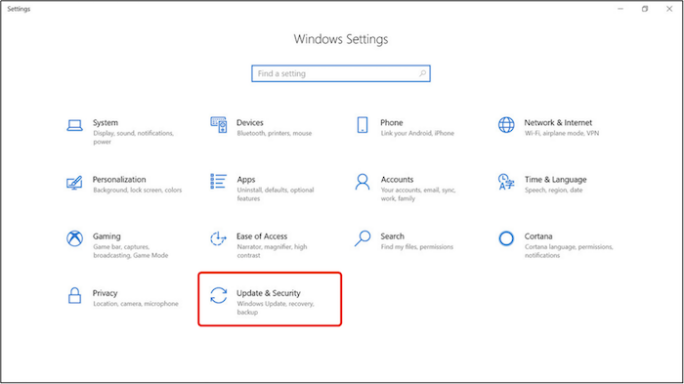
Step 1: Open the search bar and enter "Settings."
Step 2: Click "Update & Security."
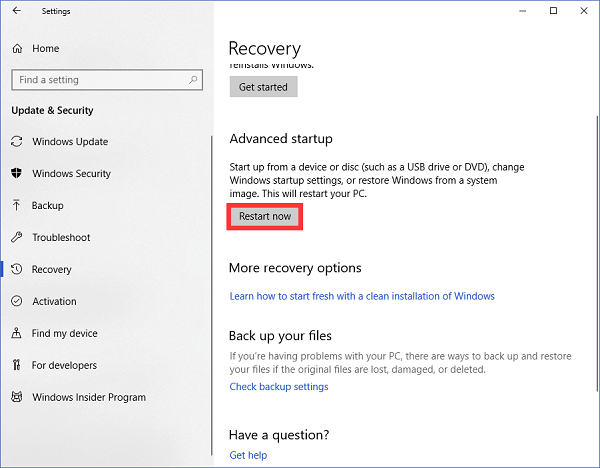
Step 3: On the left side, choose "Recovery." And then click "Restart now" on the right side.
Step 4: Under the window "Choose an option," click on "Troubleshoot."
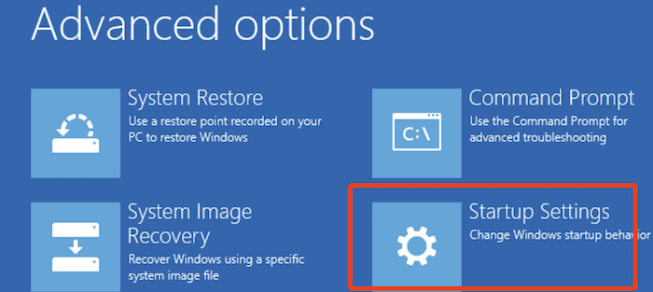
Step 5: Now, choose "Advanced options."
Step 6: Click on the "Startup Settings."
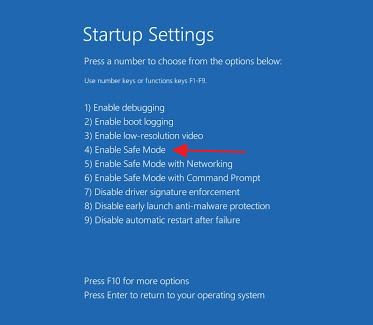
Step 7: Click on the "Restart" at the bottom, and your Windows will be back to safe mode.
Step 8: Opt for the "Enable Safe Mode" when Windows restart.
After that (your computer restarts successfully), you need to continue the following:
Step 1: Open the "Run" window.
Step 2: And input or copy "system. cpl" in the box, then hit the "OK."
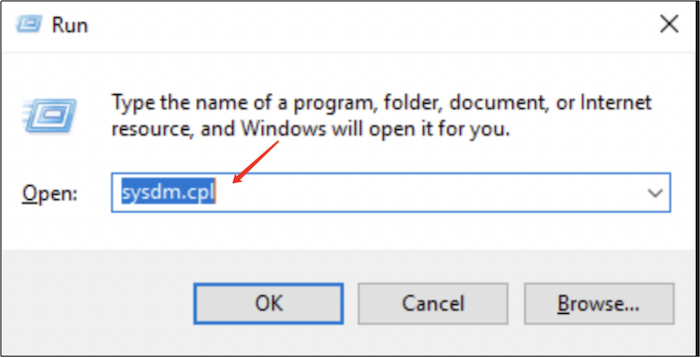
Step 3: Now, we are entering "System Properties." Choose System Protection.
Step 4: Click System Restore.
Step 5: Hit "Next."
Step 6: Choose the latest restore point and check "Show more restore points."
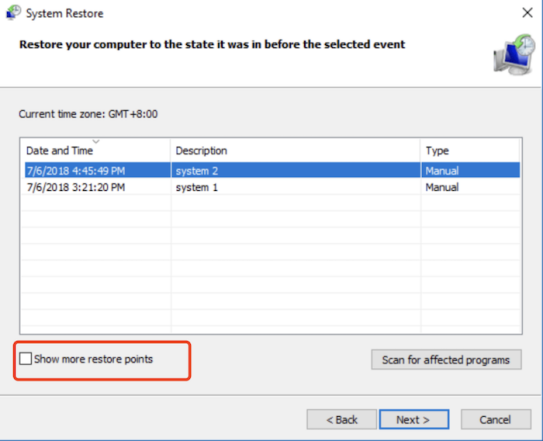
Step 7: Click "Next."
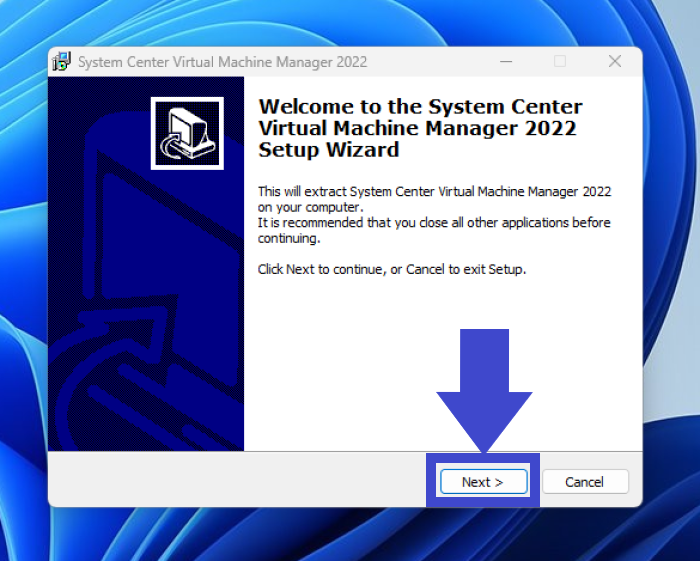
Step 8: Click "Finish."
By following these steps, you should be able to resolve this issue.
Method 2. Run SFC Scan
Step 1: In the search box, type "cmd."
Step 2: Open the "Command Prompt" and choose "Run as administrator."
Step 3: copy "sfc/scannow" into it, and then hit Enter.
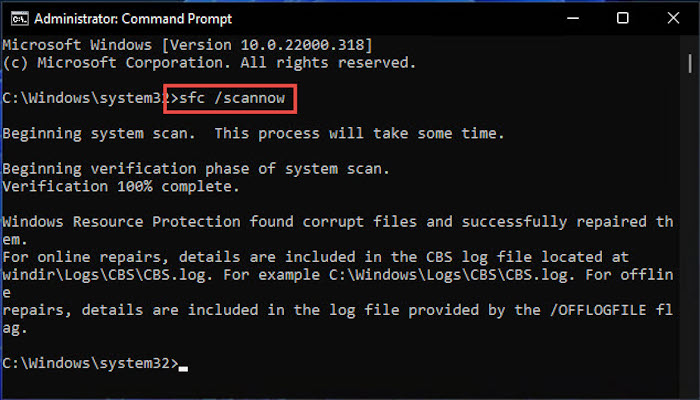
And check if the system has been finally restored.
Method 3: Check If Your System Restore Is Enabled
Step 1: Open Settings and click "System" > "About" > "System protection"
Step 2: "System Properties" window will be opened.
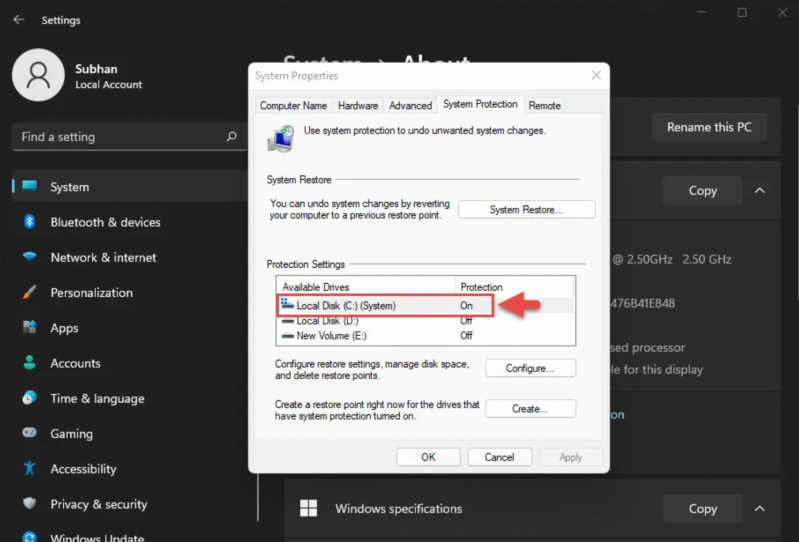
If System Restore is OFF, it means that System Restore is disabled.
Method 4: Run CHKDSK
Step 1: Open the search box and type "cmd."
Step 2: Click "Run as administrator" to open Command Prompt.
Step 3: Copy the chkdsk /r c: or chkdsk e: /f and hit Enter to start scanning.
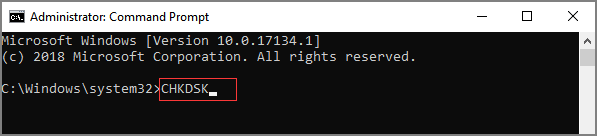
Step 4: Wait for a while, and check if your system has been restored.
Conclusion
If System Restore fails to extract the file, the methods above should help resolve the issue. The first method may be longer and more complex, but it is effective. System Restore is a tool for backing up, resetting, and recovering Windows devices. To make your device safer, consider using Qiling Backup, a professional tool specialized in data backup and restore.
FAQs
1. Can I interrupt a System Restore?
Interrupting a System Restore is not recommended, as it can lead to system file corruption, data loss, and even system crashes. If you must stop it, you may need to reinstall Windows to recover your system.
2. How long should a Windows 10 restore take?
A Windows 10 System Restore typically takes 15 to 30 minutes, depending on the amount of data being restored and your system's performance.
Related Articles
- Windows 11 Is Not Activated: How to Activate Windows 11 OS for Free
- Apple M2 Chip: Release Date, New Features, and Performance
- Raid 6 vs Raid 10: Which is better in Speed and Security?
- What Is DAS(Direct Attached Storage)?A Beginner Guide for DAS
- Answers in 2023 | Does a Factory Reset Delete Everything?
Does a factory reset delete everything? Learn what a factory reset actually removes, how to recover data after a reset, and the differences between factory resetting Windows, Android, and iPhone. - Does Formatting a Drive Erase Everything? No!
Does formatting a drive erase everything? No! Learn what formatting actually does, how it differs from wiping, and how to securely erase or recover data from a formatted hard drive.
Products
Articles & Tutorials
- Data Recovery
- Data Backup
- File Recovery
- File Backup
- System Backup and Restore
- Disk and Partition Clone
- Technical articles
- Mobile articles
- Disk Master Help
- Windows Data Recovery Tutorials
- Windows Secure Delete Tutorials
- Windows Partition Management Tutorials
- Windows File Backup and Restore Tutorials
- Windows System Backup and Restore Tutorials
- Windows Disk Backup and Restore Tutorials
- Windows Clone Tutorials