What's The Best SSD Allocation Unit Size in Windows 11/10
Setting the right allocation unit size for SSD can avoid space wastage and improve the utilization of SSD space, thus increasing the read and write speed of SSDs. What is the right allocation size for SSD? How do I format allocation size for SSD? Don't worry; Qiling has provided detailed information about SSD allocation unit size.
What Is an Allocation Unit in SSD?
The allocation unit size, also known as cluster size, is the minimum amount of disc space required to hold a file, and is the size of the blocks that a solid-state drive or hard disk drive is divided into.
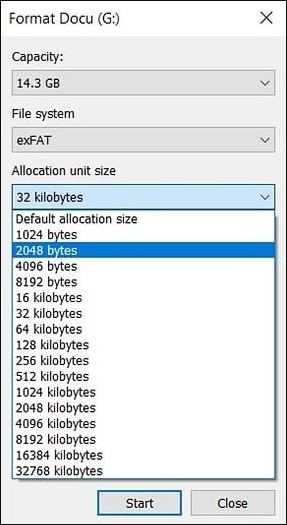
Setting the optimal allocation unit size for an SSD is crucial to avoid problems such as wasted space or delayed read-and-write performance. This is because a cluster can only host one file on the hard disk according to the allocation unit size, and if the file size doesn't match the cluster size, it can lead to issues. Therefore, it's essential to consider this when using an SSD. If you found this guide helpful, consider sharing it with others who may benefit from it.
What Is the Best SSD Allocation Unit Size in Windows?
There is no one-size-fits-all answer to the best SSD allocation unit size in Windows 10 and Windows 11, as it depends on the specific use case and file system. However, a common recommendation is to use a 4096-byte (4KB) or 8192-byte (8KB) allocation unit size for most general use cases, as it provides a good balance between performance and storage efficiency. This can be set during the formatting process or by using the built-in disk management tool in Windows. It's worth noting that using a smaller allocation unit size, such as 2048 bytes (2KB), may provide better performance in certain workloads, but may also lead to slightly reduced storage efficiency.
- For small files, it's best to choose a smaller SSD cluster size, as this will reduce the overhead of empty space and make the drive more efficient.
- For large files, it's best to select a larger SSD cluster size.
The recommended SSD allocation unit size is 4KB by default, which can reduce lost space and minimize wear and tear on the SSD. For gaming SSDs, a unit size of 64K is suggested to improve system performance and provide the fastest load times.
Therefore, we can set different views of the allocation unit size for different needs. We can manually resolve the SSD allocation unit size while formatting.
How to Set/Change SSD Allocation Unit Size?
Windows allows you to set the cluster size when formatting an SSD, but if you want to change or reset the SSD allocated unit size, there are two common methods to do so.
Method 1. Set SSD Allocation Unit Size without Data Loss
In addition to reformatting your SSD, you can also use Qiling Disk Master Professional, a professional disk and partition management tool, which offers a Cluster Size feature to change SSD cluster size directly without losing data.
Qiling Disk Master also offers features like speed test and 4K alignment, which can further enhance the performance of your SSD. You can select the appropriate feature based on your specific needs.
Option 1. Change SSD Cluster Size
The Qiling Disk Master's Cluster Size feature allows for a direct increase in data writing capacity and speed, particularly beneficial for HDDs.
Step 1. Right-click the partition that you need to change its cluster size, select "Advanced" and click "Change Cluster Size".
Step 2. To adjust the cluster size for a disk partition, click on the size list below the New size section, and select a desired cluster size from the available options.
Step 3. Click "Proceed" to confirm the operation.
Option 2. 4K Align SSD
4K Align is a technique to optimize SSD performance by using the smallest 4K sectors in the file system, solving the problem of SSD cluster size without compromising performance or losing data.
Step 1. Go to "Toolkit" and choose "4K Alignment".
Step 2. Select the disk you want to align. Click the "Start" button.
Method 2. Change SSD Allocation Size with Disk Management
If you don't have crucial data on your SSD and don't want to use a third-party tool, you can reformat your SSD and change the cluster size via Disk Management to achieve the desired cluster size.
Step 1. To access Disk Management, right-click on the Windows icon and select it.
Step 2. Right-click on the SSD where you want to change the cluster and select Format.
Step 3. In the Format window, select the appropriate allocation unit size or file system as needed.
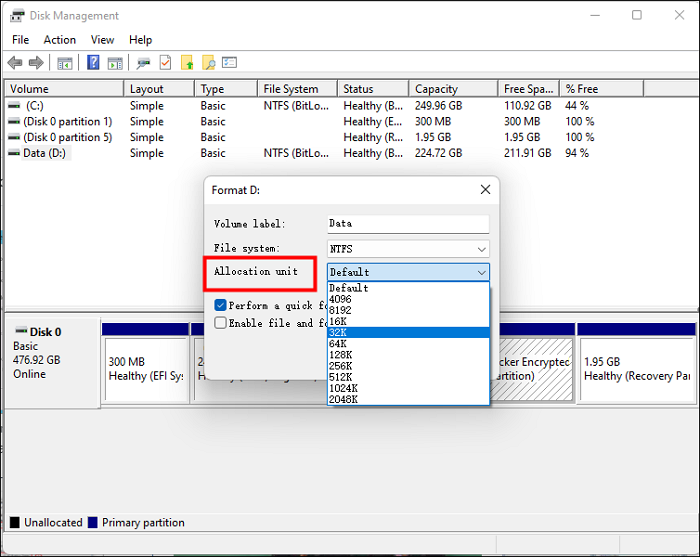
Step 4. Click OK and perform a quick format.
Conclusion
After learning this guide, we know that the best SSD allocation unit size should be 4KB, which will not cause much wear and tear on your SSD. We also guide you on two ways to change the allocation unit size SSD without losing data on Windows 11/10.
If you're looking for a safe and efficient way to set the cluster size, I recommend using Qiling Disk Master, which also offers features like converting MBR to GPT and unlocking Windows passwords.
FAQs About SSD Allocation Unit Size
After learning the best suitable SSD allocation unit size, do you have any other questions? This part provides more frequently asked questions and answers. Continue reading to solve your problem.
1. What's the best allocation unit size for gaming?
64K is the optimal allocation unit size for Windows gaming as it allows for efficient storage and retrieval of large game files, minimizing fragmentation and maximizing storage capacity.
2. What's the best allocation unit size for NTFS?
The optimal allocation unit size for NTFS flash drives depends on the drive size, with 16KB recommended for drives larger than 16GB and 4KB as the default for smaller drives, such as those between 2GB and 2TB.
3. What is the allocation unit size exFAT 256GB?
For a drive with 256GB of exFAT, 1024k is a more appropriate allocation unit size, ideal for large files such as videos.
Related Articles
- Windows 10 Quick Access Not Working, Not Responding, Slow to Open
- 5 Ways to Fix Hard Drive Read Speed Slow Error
- External Hard Drive Lifespan: How to Prolong It [5 Ways]
- What Does Wipe Cache Partition Mean and How to Wipe the Cache Partition
Transform your PC with a quick cache partition wipe! Our step-by-step guide shows you how to clear temporary system files and troubleshoot any issues for improved performance. - How to Fix Lenovo Laptop Stuck in Boot Loop in Windows 10/11 [Quick and Easy]
A Lenovo laptop stuck in a boot loop in Windows 10/11 can be caused by various factors, including corrupted system files, outdated BIOS, or issues with the boot order. - How to Solve LG TV Not Recognizing USB [Ultimate Guide]
Fix LG TV not recognizing USB. Check USB format, drive compatibility, ports, firmware, file system, and simple troubleshooting steps.
Products
Articles & Tutorials
- Data Recovery
- Data Backup
- File Recovery
- File Backup
- System Backup and Restore
- Disk and Partition Clone
- Technical articles
- Mobile articles
- Disk Master Help
- Windows Data Recovery Tutorials
- Windows Secure Delete Tutorials
- Windows Partition Management Tutorials
- Windows File Backup and Restore Tutorials
- Windows System Backup and Restore Tutorials
- Windows Disk Backup and Restore Tutorials
- Windows Clone Tutorials