5 Ways to Fix Hard Drive Read Speed Slow Error
Low Read and Write Disk Speeds (Windows 10)
Over the past year or so, I have a slow startup on my computer. At first, I just ignored it, but now I desperately want to find a way to fix it. I have noticed my hard drive has very low, read, and write speeds. I've got a worrisome dilemma here regarding my HDD. It's 2-3 years old and mainly used for storage with 300GB space left. Too often lately, I have hard drives that slow down to a crawl. Pulling the drive from the computer and testing it with HDTune shows the read speeds to be less than 5MB/s. Is there anyone who can help me?"
If you are also bothered by the same problem, you can follow the try-and-true solutions below to fix your slow hard drive.
| Workable Solutions | Step-by-step Troubleshooting |
|---|---|
| Fix 1. Upgrade the Hard Drive | Open Qiling Partition Master. Right-click the disk that you want to copy or clone...Full steps |
| Fix 2. Uninstall Unwanted Programs | Click "Start > Control Panel". Select "Programs and Features"...Full steps |
| Fix 3. Check the Speed | Copy files from the original hard drive. Paste these files...Full steps |
| Fix 4. Switch the SATA | Disconnect the SATA cable from the first SATA port. Reconnect the SATA...Full steps |
| Fix 5. Clean Up Junk Files | Download and install Qiling CleanGenius. Select "Cleanup" on the main screen...Full steps |
Why Your Hard Drive Gets Slow
Hard drives and solid-state drives are commonly used for storing files, films, and games, but sometimes a hard drive can become slow to read and write, often without a clear reason. To address this issue, it's essential to understand the potential causes of slow performance, such as physical wear and tear, software issues, or hardware problems, and then take steps to resolve these underlying problems.
- 1. Torrents and P2P software
- 2. Insufficient power or USB ports
- 3. Not enough free hard drive space
- 4. Logic errors and bad sectors
- 5. Damaged disk
- 6. Hardware failure...
Now that you know why your hard drive takes a long time to read, you can easily solve the problem and speed up your hard drive by following the fixes.
Solution 1. Upgrade the Hard Drive to a Larger One
If your hard drive is too old and the storage space is not enough, you can upgrade it to a bigger one using professional disk cloning software like Qiling Partition Master. This tool allows you to easily upgrade your hard drive to a larger one, increasing your storage space and meeting your needs.
Step 1. Select the source disk.
Right-Click on the disk you want to copy or clone, then select "Clone".
Step 2. Select the target disk.
Select the desired hard drive (HDD) or solid-state drive (SSD) as the target location and click "Next" to proceed.
Step 3. View the disk layout and edit the target disk partition size as needed.
To install Windows 10, you'll need to create a bootable USB drive or CD/DVD. Download the Windows 10 Media Creation Tool from Microsoft's website and run it. Select the language, architecture, and edition of Windows 10 you want to install, then click "Next". Choose the option to create a bootable USB drive or CD/DVD, and select the target disk.
Users can customize their disk layout by selecting from three options: Autofit the disk, Clone as the source, or Edit disk layout. The latter is recommended if they want to allocate more space for the C drive.
Step 4. Click "Proceed" to start the disk cloning process.
Solution 2. Turn Off or Uninstall Unwanted Programs on the Slow HDD
You're probably using your computer for multiple tasks at once, such as downloading torrent files, watching a movie, and scanning for viruses. This can put a lot of strain on your disk. To avoid this, check your Task Manager and uninstall any unwanted programs that are running in the background. This will help free up resources and keep your computer running smoothly.
1. Check the Task Manager
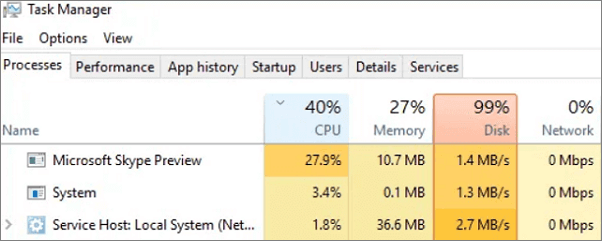
Check Task Manager to see if any programs are making frequent read/write requests to the disk, and close any unwanted programs that may be running in the background and tying up your disk.
Step 1. Open Task Manager by typing "Task Manager" in the Windows search bar and selecting it.
Step 2. To check what is taking up your hard drive space, look at the "Disk" process in the Processes tab.
Also read: Windows 10 100 disk usage in Task Manager
2. Uninstall Unwanted Programs
To free up space on your hard drive, you can remove unwanted programs by uninstalling them, which can help speed up your computer.
Step 1. Click "Start > Control Panel".
Step 2. Select "Programs and Features".
Step 3. To remove a program, select the program you want to uninstall and click "Uninstall".
Follow the uninstall instructions that appear on the screen, ensuring you remove all components if prompted.
Solution 3. Check the Transferring Speed of the HDD
If Task Manager looks OK, check how long it takes to transfer a large file to the disk.
Step 1. Copy files from the original hard drive.
Step 2. Paste these files to the target drive to see the transferring speed.
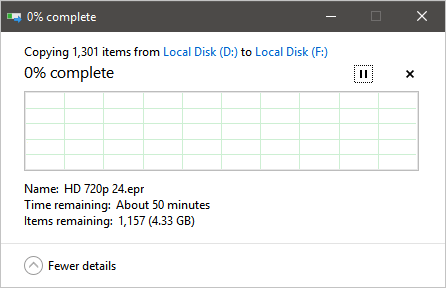
The drive's actual read speed should be close to the drive's advertised read speed, which may be affected by how the drive is connected, such as USB 3.0 versus SATA.
Solution 4. Switch the SATA Cable Port to Fix HDD Slow to Read
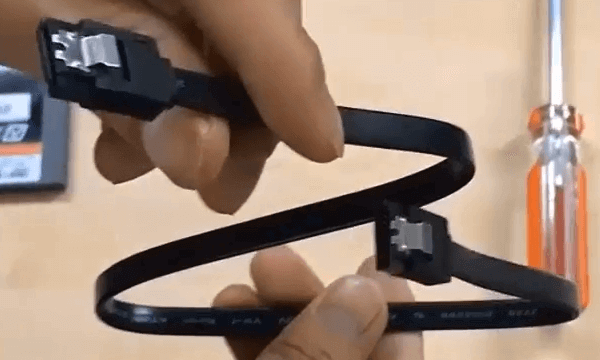
To fix a slow hard drive, especially one that fails to transfer files quickly or read data efficiently, try disconnecting the SATA data cable from its usual port on the motherboard and reconnecting it to the last available SATA port. This simple swap can resolve issues caused by a dusty or loose SATA cable that may have been slowing down your SATA HDD without warning.
Step 1. Disconnect the SATA cable from the first SATA port.
Step 2. Reconnect the SATA cable to the last SATA port.
Solution 5. Clean Up Junk Files to Fix a Slow Hard Drive
For serious hard drive issues that cause a hard drive to become overloaded and sluggish, professional hard drive cleanup software is needed. Qiling CleanGenius, a free disk cleanup application, is recommended to solve the problem of a slow hard drive with its two useful features.
If your hard drive is a system disk, you can try "System Cleanup". If the slow hard drive is a data disk, try "Large File Cleanup". Follow the steps below to fix the hard drive slow to read.
Step 1. Download and install Qiling Partition Master Suite.
Install Qiling CleanGenius by clicking PC Cleaner and follow the prompts. Once installed, click "Cleanup" and then "Scan" to start the cleaning process. This will help optimize your system and make your PC run like new.
Step 3. The software scans your computer to identify large, unnecessary files and system junk, allowing you to select and remove them with a single "Clean" click.
Step 4.When the scan is complete, click "Done" to finish cleaning system junk files.
Conclusion
If you're experiencing slow hard drive read speeds, try solutions like running a disk cleanup, disabling unnecessary startup programs, and checking for disk errors. You can also try upgrading to a faster hard drive or solid state drive (SSD), or using a hard drive speedup tool. Additionally, consider compressing files, disabling indexing, and adjusting power settings to help improve performance. If none of these solutions work, it may be time to consider replacing your hard drive.
Hard Drive Takes a Long Time to Read FAQs
You can explore related questions about the hard drive slow issue online if you're interested in learning more about it.
How do I fix a slow hard drive transfer speed?
Try these steps to fix very slow read or transfer speed on a hard disk:
- Turn Off or Uninstall Unwanted Programs
- Check the Transferring Speed
- Switch the SATA Cable Port
- Clean Up Junk Files
- Upgrade the Hard Drive
What is the read and write speed of a 7200rpm hard drive?
7200 RPM hard drives are faster than 5400 RPM drives, with average read and write speeds of 120 MB/s compared to 100 MB/s for 5400 RPM drives.
Why does my hard drive take so long to load?
Here are the reasons:
- Torrents and P2P software
- Insufficient power or USB ports
- Not enough free hard drive space
- Logic errors and bad sectors
- Damaged disk
- Hardware failure
How fast should my HDD be?
For a modern 7200 RPM drive, the read/write speed ranges from about 80-160 MB/s today, with 4K referring to the speed of reading/writing tiny files (4 KB in size), which is the lower speed limit on many larger drives.
Related Articles
- Fix GRUB Loading Error 15, 17, 21, 22 and Recover Data
- How to Cancel Windows 10 Updates Once Started
- Fixed: Windows 10 File History Doesn't Recognize the Hard Drive
- How to Recover Unsaved/Lost/Corrupted Adobe Acrobat Files on Windows PC
- How to Find IE Account and Password? Look Here!
Are you looking for IE Account and Password? Do you want to remove it? The guideline below will help you locate the IE account and password. - Where Can I Find My Windows Product Key Remotely?
The question 'Where Can I Find My Windows Product Key Remotely?' is a common one, and the answer lies in some easy and quick solutions.
Products
Articles & Tutorials
- Data Recovery
- Data Backup
- File Recovery
- File Backup
- System Backup and Restore
- Disk and Partition Clone
- Technical articles
- Mobile articles
- Disk Master Help
- Windows Data Recovery Tutorials
- Windows Secure Delete Tutorials
- Windows Partition Management Tutorials
- Windows File Backup and Restore Tutorials
- Windows System Backup and Restore Tutorials
- Windows Disk Backup and Restore Tutorials
- Windows Clone Tutorials