Fixed: Windows 10 File History Doesn't Recognize the Hard Drive
File History doesn't recognize this drive in Windows 10
How many of you guys are having Windows 'File History doesn't recognize this drive' error and can't back up files or data in Windows 10, 8 or 7 PCs?
File History, a Windows built-File History, a backup tool in Windows, helps users save copies of important files and data, allowing them to recover them if lost or damaged. However, the backups take up significant storage space on the hard drive, prompting some users to disable File History to free up space on their PC.
If the backup hard drive can't be recognized by File History, you won't be able to backup files with File History. To make File History work again and solve 'File History doesn't recognize this drive' error in Windows 10, 8 or 7, you can try to troubleshoot the issue by checking the drive's connection, formatting the drive, and re-adding it to File History. This should help you resolve the problem and get your file backup working again.
Fix File History doesn't recognize this drive error
If you're experiencing the 'File History doesn't recognize this drive' error, there are several solutions to try. A quick fix is to restart the File History service, while more reliable methods include running the System File Checker (SFC) to repair corrupted system files, running the Check Disk (chkdsk) command to scan and repair disk errors, and checking the drive's formatting and permissions to ensure they are compatible with File History. These methods can help resolve the issue and enable File History to recognize the drive for file backup again.
Quick Fix: Turning on the destination drive
To resolve the issue where File History won't recognize the backup hard drive and stop backing up files, try turning on the backup hard drive and restart your computer. This should allow File History to recognize the drive and resume backing up files. If the issue persists, ensure the drive is properly connected and formatted.
1. Click Start and type: File History in the Search bar.
2. Select "File History".
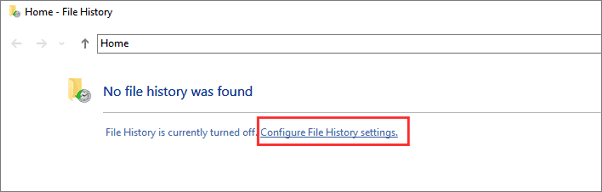
3. If you get the message that 'No file history was found', simply click "Configure File History settings".
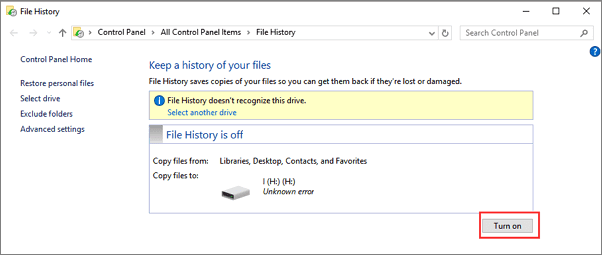
4. Click "Turn on" under "File History is off".
You can use File History to backup files and data. It's a feature that allows you to backup your files to an external drive.
Method 1. Select another drive for File History backup
To resolve the issue, you can try selecting a different drive for File History backup if your current hard drive is not being recognized.
1. Typing: File History in the Search and click "File History".
2. Select "Configure File History settings" if No file history was found;
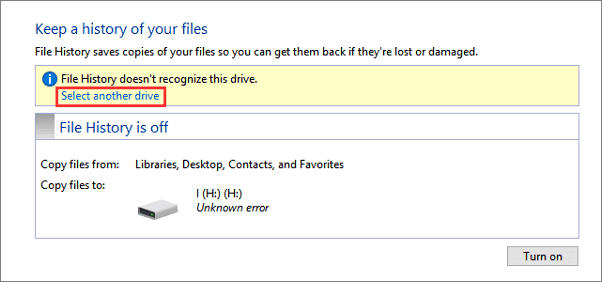
3. To resolve the "File History doesn't recognize this hard drive" error message, click on "Select another drive" under the error message. This will allow you to choose a different drive for File History to use.
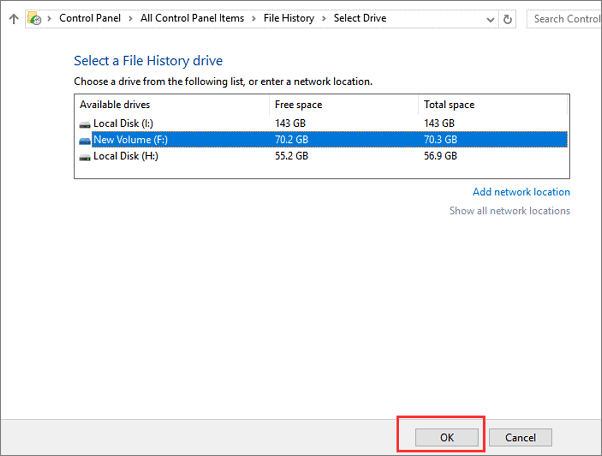
4. Select the new disk to replace the unrecognized drive for File History and click OK to keep the changes.
Method 2. Use File History alternative free tool to backup Windows files
If you need to finish a file backup task quickly, consider using a free software or tool as an alternative to Windows File History.
If you need a time-Qiling Backup is a free tool that helps you backup important files and restore them within 3 steps, including file backup, hard drive partition, and Windows system, with a 30-day free trial for file backup.
To backup files without File History in Windows 10, you can download and install a free backup software, apply it to backup files, and start protecting your data.
By doing so, you'll successfully backup target files and important data in Windows PC without File History.
Method 3. Turn on File History service to repair not working File History
To fix the issue where File History can't recognize the drive, you can try turning on the File History service. This may help repair and resolve the error, allowing you to use File History for file backup again.
1. Type: services in the Search and select Services.
2. To enable the File History service, go to the Services console, locate File History, click "Start the service", and set the Start Type to "Automatic".
To keep all changes, restart your PC, then you should be able to run File History for file backup again.
Related Articles
- Fixed: How to Recover Files When Windows 10 Desktop Icons Are Missing
- Fix 'Windows Can't Find A System Image on This Computer' Error
- Disk Boot Failure - Insert System Disk and Press Enter in Windows 10
- Fixed: SFC (SFC / SCANNOW) Is Not Working on Windows
- Migrate Windows OS to SSD
You can create a bootable SSD in Windows 10/8.1/8/7 using two methods: system clone or fresh install. To preserve your original OS, programs, and data, you can migrate your current OS to the SSD using Qiling Backup, which is a free tool. - How to Move Windows 10 Installation to Another Drive(SSD/HDD)
Move Windows 10 installation to another SSD/HDD without reinstalling. Use Qiling Backup clone function or backup-restore method to migrate all data and programs safely.
Products
Articles & Tutorials
- Data Recovery
- Data Backup
- File Recovery
- File Backup
- System Backup and Restore
- Disk and Partition Clone
- Technical articles
- Mobile articles
- Disk Master Help
- Windows Data Recovery Tutorials
- Windows Secure Delete Tutorials
- Windows Partition Management Tutorials
- Windows File Backup and Restore Tutorials
- Windows System Backup and Restore Tutorials
- Windows Disk Backup and Restore Tutorials
- Windows Clone Tutorials