Fix 'Windows Can't Find A System Image on This Computer' Error
If Windows can't find a system image on your computer, don't worry! If you receive a warning that 'Windows cannot find a system image on this computer. Attach the backup hard disk or insert the final DVD from a backup set and click Retry...', just follow the solutions below to fix this error and restore your Windows system from system image backup with ease.
Windows cannot find a system image on this computer
" The system image restore process is looking for a backup image that was created using Windows built-in Backup and Restore (Windows 7) or File History (Windows 8 and later) feature. It seems you're trying to restore a system image created using a different method or tool. You might need to use a different tool or method to restore your system image, such as using a third-party backup software like Qiling. Alternatively, you can try using the Windows Recovery Environment (WinRE) to troubleshoot and repair your system.
Unfortunately, since the system image backup is stored on the computer's hard drive, it's not accessible if the hard drive is faulty or has been wiped. However, you can try using a system repair USB drive or a Windows installation media to attempt a repair or reinstall Windows. If you have a Windows installation media, you can boot from it and try to repair or reinstall Windows. If you don't have a Windows installation media, you can create one on another computer. You can also try using a third-party recovery tool, such as Qiling Backup or RecBoot, to see if they can help you recover your system."
If you're experiencing the issue where Windows can't find the system image location and asks you to retry the system restore process, you'll likely still encounter the same result. To fix this, try the two methods provided below to repair and resolve the 'Windows can't find system image' issue and successfully perform the system restore on your PC.
Fix "Windows Can't Find System Image on This Computer" Error
Here are two ways to fix the "Windows can't find system image on this computer" error, allowing you to restore your Windows system image without issues. You can follow either method and apply the provided solutions to resolve the error and perform a successful Windows system image restore on your PC.
Way 1. Manually fix Windows system restore error - Windows can't find a system image
Step 1. Change System Image Folder as 'WindowsImageBackup'
To correct the system image name, you can simply rename the backup folder to "WindowsImageBackup" if it's currently named something else. This will ensure that Windows can find the system image during the restore process. If the folder is already named correctly, you can skip this step.
Step 2. Put 'WindowsImageBackup' folder in the Root Directory of a Drive
To successfully run Windows System Restore, you need to place the system image folder at the top level of your hard drive. If it's placed elsewhere, the system image won't be found, and the restore process won't be successful. Check the current location of the system image and move it to the top level of your hard drive if necessary. This will ensure a smooth System Restore process.
Step 3. Don't change the sub-folder name
Step 4. Don't add any folders in 'WindowsImageBackup' folder
Ensure that the WindowsImageBackup folder does not contain any additional folders within it.
Step 5. Make sure mediaID.bin file is saved together with your system image
Regardless of where you store your system image, whether on a USB drive or an external hard drive, make sure to also copy the mediaID.bin file along with the rest of your system image folder files.
After following all the steps and ensuring all system files and folders are in their correct locations without any extra files or folders, you can retry the Windows system image recovery on your computer.
If you succeed, congratulation! You can use your computer and continue your jobs and enjoy fascinate network life again.
If you failed, don't worry. Way 2, an alternative tool for Windows system recovery can directly help you resolve "Windows can't find a system image" error.
Way 2. Use Windows recovery alternative tool to fix "Windows can't find system image" error
If you failed to perform a system restore, your best option is to use Qiling Backup, a reliable Windows backup and recovery software.
This software serves as a Windows system recovery alternative, enabling direct backup and restoration of system images that can be saved anywhere and renamed as desired.
Create Windows system image:
Step 1. Create Windows system image backup
To create a Windows system image backup, first, you need to create a Windows system image backup on your PC, and you can save the system backup to a second hard drive partition or external storage device with Qiling Backup.
Step 2. Run Qiling Backup and perform Windows system restore
Reccover system image:
Connect the external hard drive or USB which saves the system image to your PC.
To perform system recovery on a non-bootable machine, try booting the computer through the installation media, such as a USB drive or CD/DVD, to access the recovery options.Qiling Backup emergency disk.
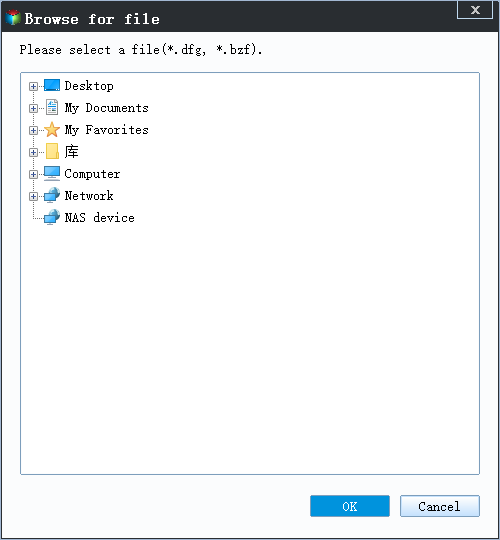
Step 1. Launch Qiling Backup, click "Browse for Recover".

Step 2. Guide to your backup destination, choose the system backup file you need. (The backup file created by Qiling Backup is a dfg file.)
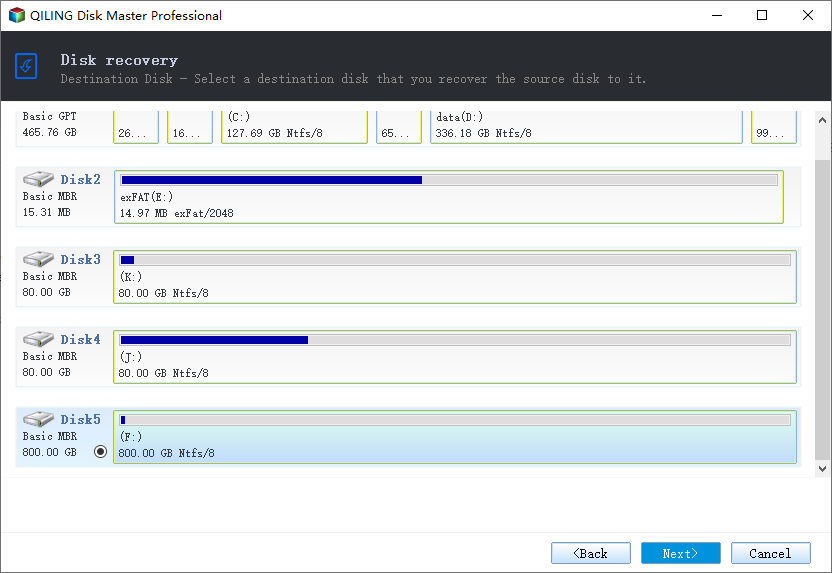
Step 3. To create a recovery disk, select the recovery disk option and ensure that the source disk and recovery disk have the same partition style. This ensures compatibility and proper functioning during the recovery process.
Step 4.To customize the disk layout, follow the provided instructions, and once you're satisfied, click "Proceed" to initiate the system backup recovery process.
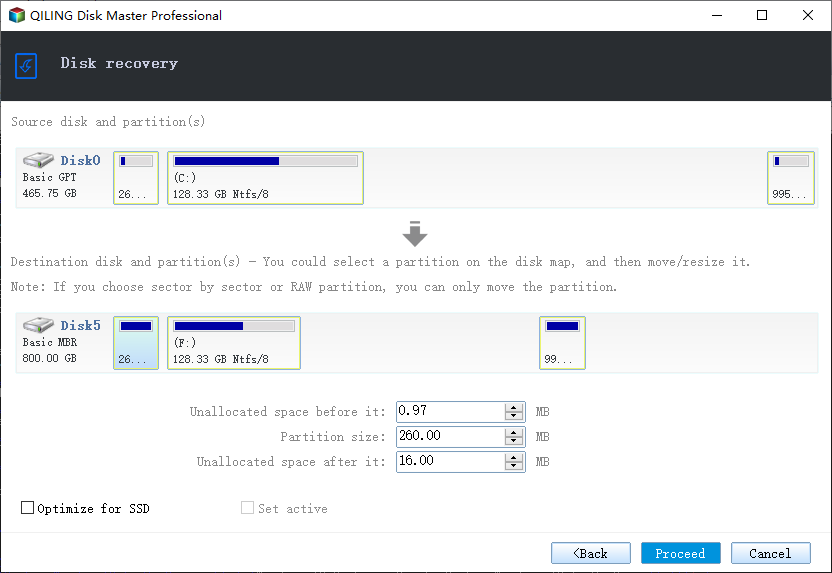
Wait for the system restore process to complete, then restart your PC and you're good to go. Your computer should be back to its previous state.
Related Articles
- Recover Not Showing Up/Disappeared User Folder and Files in Windows 10
- Upgrade Windows 10 from Home to Pro Edition for Free
- How to Free Up Space on SSD in Windows 10/8/7
- HP Laptop Slow Startup Fixes for HP Laptop Taking Forever to Restart
- [3 Simple Ways] How to Backup Thunderbird Profile
Backing up your Thunderbird profile is crucial to prevent losing emails and settings in case of a system crash. Fortunately, there are three ways to backup your Thunderbird profile, which will be outlined in this post. - Can I Use a USB Flash Drive to Backup My Computer? [Answered with Details]
Can I use a USB flash drive to back up my computer? Have you ever been stuck on this question? This article will describe whether you can back up your computer to a USB drive and offer a backup tool named Qiling Disk Master to help you.
Products
Articles & Tutorials
- Data Recovery
- Data Backup
- File Recovery
- File Backup
- System Backup and Restore
- Disk and Partition Clone
- Technical articles
- Mobile articles
- Disk Master Help
- Windows Data Recovery Tutorials
- Windows Secure Delete Tutorials
- Windows Partition Management Tutorials
- Windows File Backup and Restore Tutorials
- Windows System Backup and Restore Tutorials
- Windows Disk Backup and Restore Tutorials
- Windows Clone Tutorials