Can I Use a USB Flash Drive to Backup My Computer? [Answered with Details]
While it's technically possible to back up your computer to a USB flash drive, it's not the most practical or efficient solution for several reasons. Firstly, the capacity of a typical USB flash drive is limited, making it difficult to store a complete system image or a large number of files. Secondly, the process of backing up to a USB flash drive can be time-consuming, especially if you have a large amount of data to transfer. Lastly, USB flash drives can be prone to physical damage, which could result in data loss.
This article, dedicated to you, will guide you through the process of backing up your computer to a USB flash drive using Qiling Disk Master, the best backup and restore software. Let's get started.
Can I Back Up My Computer to a Flash Drive
A USB drive is a small, portable storage device that can store various types of files, such as documents, videos, and music, and is often smaller than other storage devices.
Many computer users want to use a USB as a backup storage device, but they may be unsure if it's possible to back up their computer to a flash drive. The good news is that yes, you can use a USB flash drive to back up your computer, and it's a convenient and portable way to store your data. You can simply connect the USB drive to your computer, select the files and folders you want to back up, and copy them to the drive. This way, you can easily restore your computer to its previous state in case of a crash or other issue.
You can back up your computer to a USB flash drive to prevent data loss, but it requires careful consideration of several factors. To successfully back up your computer, you'll need to think about the type of files you want to save, the size of your data, and the capacity of your USB drive, among other things.
How to Choose a USB Flash Drive for Data Backup
Choosing the best USB flash drive can be overwhelming with the numerous options available. To make an informed decision, consider several key factors, such as the drive's capacity, durability, and compatibility, as well as its speed and security features. Additionally, think about the intended use of the drive, whether it's for personal or professional purposes, and select a drive that meets your specific needs. By weighing these important factors, you can find the perfect USB flash drive that suits your requirements.
- Capacity. To choose the right size flash drive to back up your computer, consider the capacity of the drive. A 16G USB drive is often sufficient for backing up a Windows 10 computer, but a 32G drive is recommended for more storage.
- Speed. The speed of a USB drive is determined by the USB port and the drive's components, with faster drives typically being better. However, even if a computer has a USB 3.0 port, the drive itself must also support this standard to take full advantage of the speed.
- Performance. When choosing a USB flash drive, performance is a key factor to consider. The drive's interface, USB mass storage controller, and NAND flash memory chip all contribute to its overall performance, affecting how quickly data can be read and written.
To back up your computer or data to a USB flash drive, you can use one of two commonly used methods. First, you can use the built-in backup feature in your computer's operating system, such as Windows Backup or Time Machine for Mac, to create a copy of your files and settings on the USB drive. Alternatively, you can manually select the files and folders you want to back up and copy them to the USB drive using the file explorer or finder. This allows you to choose what you want to back up and have more control over the process.
How to Backup Computer to USB Flash Drive
To back up your PC to a flash drive, you can use either professional backup software or the built-in Backup and Restore feature in Windows 7. This process involves selecting the files and data you want to back up, choosing the flash drive as the backup location, and following the software's instructions to complete the backup. The specific steps may vary depending on the chosen method, but the overall goal is to create a copy of your important data on the flash drive for safekeeping.
Way 1. Using Professional Backup Software
To back up a computer to a USB drive, using professional backup software is the easiest and most reliable way. Such tools can help create a Windows system image on the USB drive and offer advanced backup options like Cloud backup and intelligent backup. Qiling Disk Master is a suitable option that meets your needs.
Qiling Disk Master Pro is a Windows utility that allows you to back up systems, partitions, files, and apps, as well as create automatic, scheduled, full, incremental, and differential backups.
Qiling Disk Master Pro
- Transfer your operating system from one computer to another
- Save backups to external drives, USB drives, NAS, or other secure locations such as a Security Zone to ensure data recovery in case of system failure or data loss.
- To clone a hard drive and image a hard drive on a Windows PC, you can use software such as Qiling Backup. These programs allow you to create a bit-for-bit copy of your hard drive, including the operating system, programs, and data, to a new hard drive or external storage device.
- Provide all-weather after-sales service from professional staff
- 250GB of free cloud storage is offered to help you back up your computer to the cloud, providing a secure and accessible way to store and manage your digital files.
Qiling Disk Master Pro is a versatile tool that can meet all your backup needs, whether you want to back up your computer or transfer data to a USB drive. With its capabilities, you can provide a protective layer for your computer or data, ensuring they are safe from potential losses. So, what are you waiting for? Just download and start using it!
Here is how to back up your computer to a USB drive:
Step 1. Launch Qiling Disk Master on your computer, and click the Backup and recovery tab page.

Step 2. To back up your Windows operating system, click on the "System backup" option to initiate the backup process.

Step 3. The Windows operating system information and all system related files and partitions will be automatically selected, and you won't need to manually select anything. Next, choose a location to save the system image backup by clicking on the illustrated area.

Step 4. The backup location can be another local drive, an external hard drive, network, cloud, or NAS, with external physical drives or cloud storage being recommended for preserving system backup files.
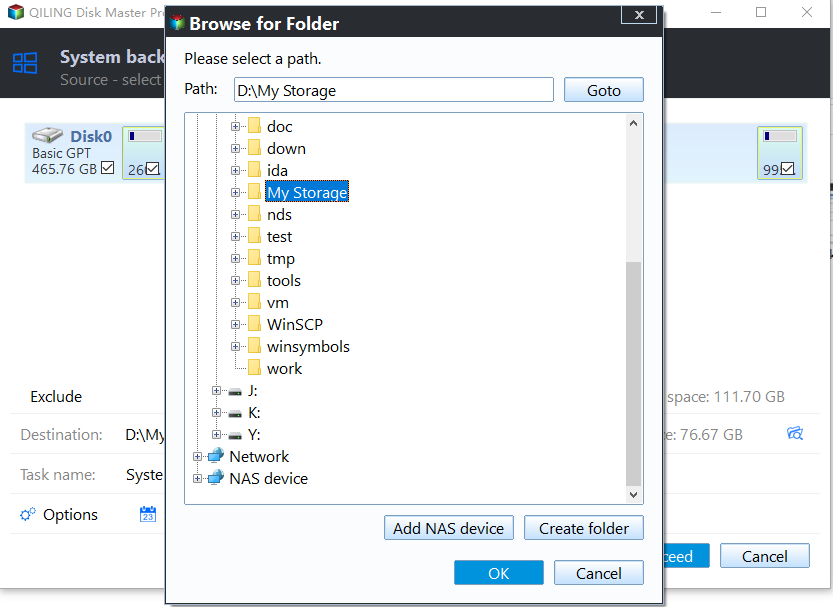
Step 5. Customization settings such as enabling an automatic backup schedule in daily, weekly, monthly, or upon an event, and making a differential and incremental backup are available in the Options button. Clicking Proceed initiates the Windows system backup process, which upon completion, displays the completed backup task on the left side in a card style.

You can post this article on your social platforms to help more people.
Way 2. Using Backup and Restore (Windows 7)
To back up your computer to a USB drive using Windows' native Backup and Restore feature, you can create a system image on the external drive, which allows you to restore your computer to a previous state in case of a problem.
Step 1. Connect the USB drive to your computer.
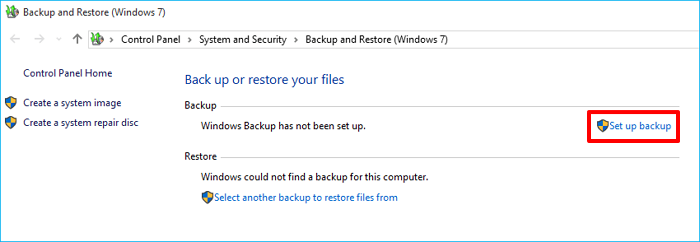
Step 2. Go to Start > Settings > Update & Security > Backup, then click Set up backup.
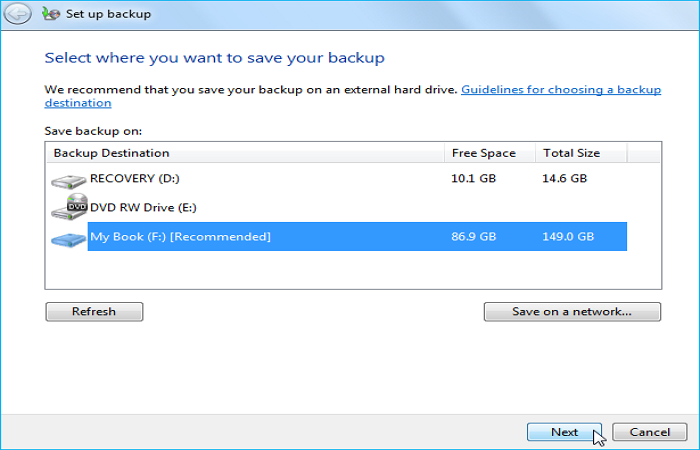
Step 3. Select the USB drive connected to your computer as the destination to save the backup.
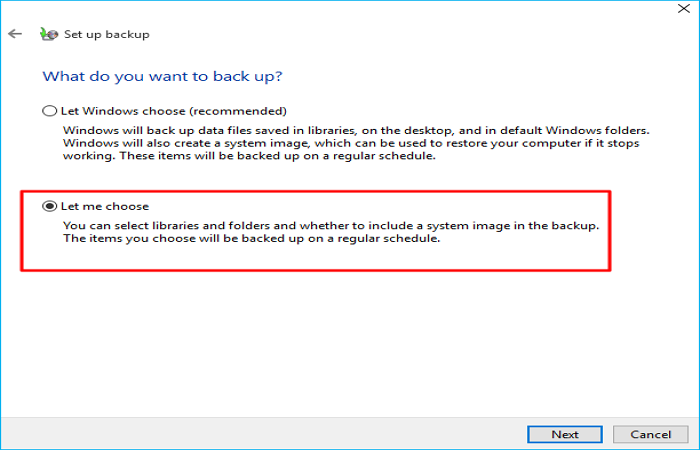
Step 4. To back up your data, you need to decide what you want to back up. Select "Let me choose" to proceed. This will allow you to select specific files, folders, and drives to back up.
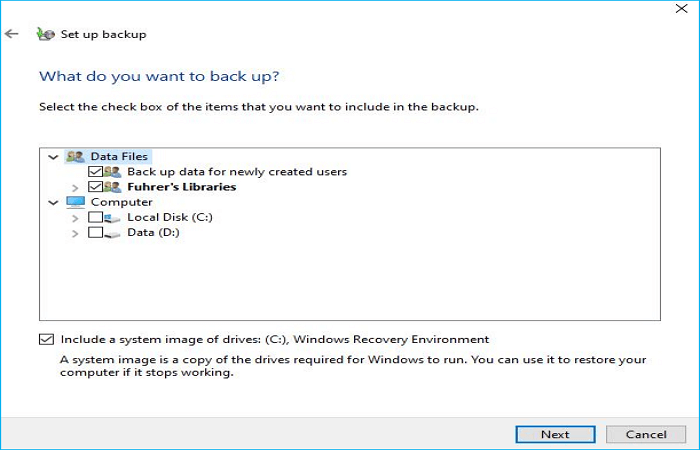
Step 5. To start the backup process, choose the items you want to back up and tap the "Next" button.
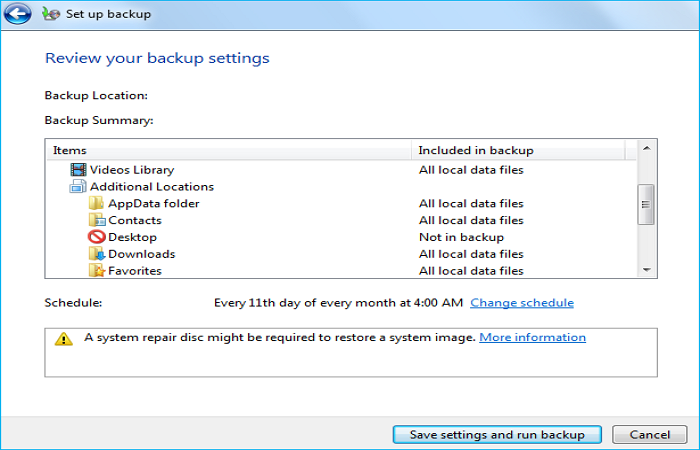
Step 6. Confirm the backup settings, then press Save settings and run backup to initiate the backup process.
Using Backup and Restore to create a system image for your computer may lead to issues with System Restore if your system crashes, and it also has limited backup options. In contrast, backing up everything on your computer using the method outlined in Way 1 is a better approach.
To Wrap Things Up
Can I use a USB flash drive to backup my computer? You can back up your Windows computer to a USB flash drive using either professional backup software like Qiling Disk Master or the built-in Backup and Restore tool, depending on your specific needs.
Qiling Disk Master is a reliable backup option that offers various functions, including backing up to a USB drive, HDD, SSD, NAS, Security Zone, and Cloud. It can back up almost everything on your computer, providing a safe and reliable way to protect your data. With its comprehensive features, Qiling Disk Master is a suitable choice for those seeking a robust backup solution.
FAQs on Can I Use a USB Flash Drive to Backup My Computer
1. How often should you backup your computer?
Data should be backed up at least once a week, and ideally every 24 hours, to ensure essential information is safely stored. There are two methods to backup data: manually and automatically. To automate the process, various software options are available, allowing you to schedule backups for a specific time of day or week.
2. What's the best way to back up my computer?
Using professional backup software like Qiling Disk Master is the best way to back up a computer. Such a tool offers advanced backup choices and allows you to back up your data to various locations, following the 3-2-1 backup rule, ensuring your data is always safe and sound, no matter what happens.
3. Is a USB flash drive good for backup?
A USB flash drive is a popular tool for quick and affordable data backup, used by millions to store, back up, and transfer files.
Related Articles
- Windows 10 Reset vs Clean Install
- What Is Cloud-to-Cloud Backup? Definition & Examples of 2024
- Everything About S Mode in Windows 11
- Backup WD Hard Drive with Best Free Backup Software
- Does Windows File History Backup Everything? Know More About File History
- Know All: Qiling Disk Master Security Zone
A backup of important files can save a lot of users from the angst of losing their data. This article explores various options, including why Qiling Disk Master's Security Zone is the best option.
Products
Articles & Tutorials
- Data Recovery
- Data Backup
- File Recovery
- File Backup
- System Backup and Restore
- Disk and Partition Clone
- Technical articles
- Mobile articles
- Disk Master Help
- Windows Data Recovery Tutorials
- Windows Secure Delete Tutorials
- Windows Partition Management Tutorials
- Windows File Backup and Restore Tutorials
- Windows System Backup and Restore Tutorials
- Windows Disk Backup and Restore Tutorials
- Windows Clone Tutorials