How to Transfer Operating System from One Computer to Another | 2023 New Tip
If you recently bought a new PC and want to keep the same settings, applications, and data, transferring the operating system can save setup time. This usually involves cloning the system or restoring a system image to the new computer.
Why Do You Transfer OS from One Computer to Another
Adapting to a new system can be frustrating when you have used the same configuration for years. OS transfer helps preserve familiar settings and installed programs when the license and hardware compatibility allow it.
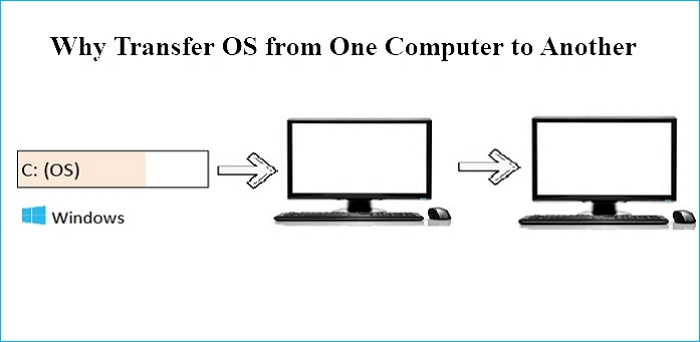
You can migrate an installation to a new computer by transferring the operating system instead of reinstalling Windows, applications, and files manually.
Moving your operating system from one computer to another can save time setting up your new PC's operating system and programs, making it a convenient option for those looking to switch devices.
Can You Transfer Windows from One Computer to Another
You can transfer Windows from one PC to another, but it requires preparation. Back up important files first, confirm license requirements, and use cloning or universal restore software when you need to move the operating system itself.

You can transfer your operating system from an old computer to a new one in two ways. The first method is to perform a universal restore, or you can clone your Windows operating system to the new computer. This allows you to transfer your OS and all your settings to the new device, making the transition smoother.
Cloning a Windows from an old PC to a new one is not as straightforward as it seems due to issues with Windows activation and hardware compatibility.
Transferring a cloned Windows OS to a new computer can lead to compatibility issues, potentially causing some components to malfunction or the computer to fail to start up, resulting in a blue screen of death.
Performing a universal restore is recommended to save time and effort when cloning a computer to a new one, as it can help resolve incompatibility issues and restore Windows to dissimilar hardware.
To perform a universal restore, you need to create a system image backup, store it on an external drive or USB drive, and restore the system image on the new computer.
How to Copy Operating System from One Computer to Another
Universal restore is the best method to transfer an operating system from one computer to another, and using professional universal restore software is the most effective way to achieve this. Software like Qiling Disk Master can help you transfer your OS to a new computer without hassle, making it a suitable option.
Qiling Disk Master Pro is a Windows compatible backup and recovery program that allows automatic backups of files, systems, apps, disks, and partitions, and also enables hard drive imaging, with storage options in Cloud, NAS, Security Zone, local drive, and external drive.
Microsoft's free tool, Windows Backup and Restore, can help you create backups of your system and files, and even install Windows from one PC to another. It also supports various backup types, including full, incremental, and differential backups.
The following feature is what makes this backup software so recommendable.
- One-click backup and restore
- Compress backup to save space
- 250G free cloud storage
- Clone a hard drive
- Prime technical support
Transferring your Windows operating system from one computer to another involves two parts. First, you need to back up your files, settings, and applications from the old computer, and then restore them on the new computer.
Part 1. Create a system backup image
Step 1. Launch Qiling Disk Master on your computer, click Create Backup on the home screen, and select backup contents by clicking the big question mark.

Step 2. To back up your Windows operating system, click on "System backup" to initiate the backup process.

Step 3. Your Windows operating system information and all system related files and partitions will be automatically selected, so you don't need to do any manual selection at this step. Next, you'll need to choose a location to save the system image backup by clicking on the illustrated area.

Step 4. The backup location can be another local drive on your computer, an external hard drive, network, cloud, or NAS. We recommend using an external physical drive or cloud to preserve system backup files.

Step 5. The Windows system backup process allows customization of settings, such as enabling an automatic backup schedule on a daily, weekly, monthly, or event-based basis, and making differential and incremental backups. This can be accessed through the Options button. Upon proceeding, the backup process begins, and the completed task is displayed on the left side in a card style.

Part 2. Restore system image to a target computer
To recover a non-bootable machine, try booting the computer through the installation media, such as a USB drive or CD/DVD, and then follow the system recovery process from there.Qiling Disk Master emergency disk.
Step 1. Launch Qiling Disk Master, click "Browse to Recover".
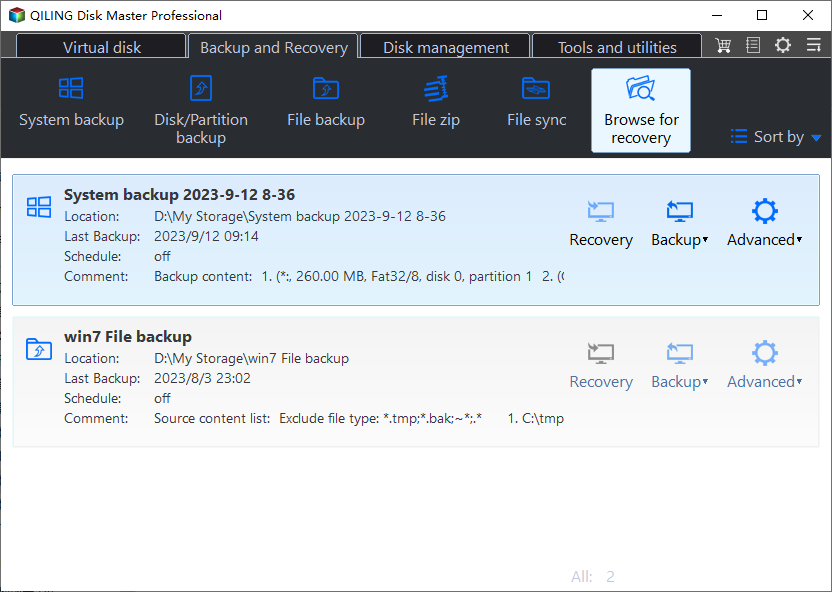
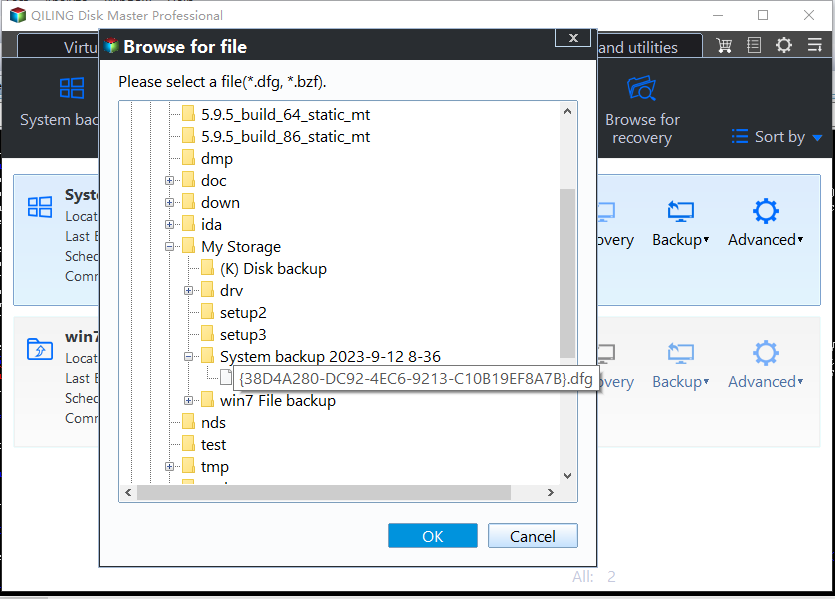
Step 2. Select the system backup file you need, which is a pbd file created by Qiling Disk Master.
Step 3. To ensure a successful recovery, select the recovery disk that has the same partition style as the source disk. This is crucial to prevent any potential issues during the recovery process. The partition style should match exactly, whether it's MBR (Master Boot Record) or GPT (GUID Partition Table).
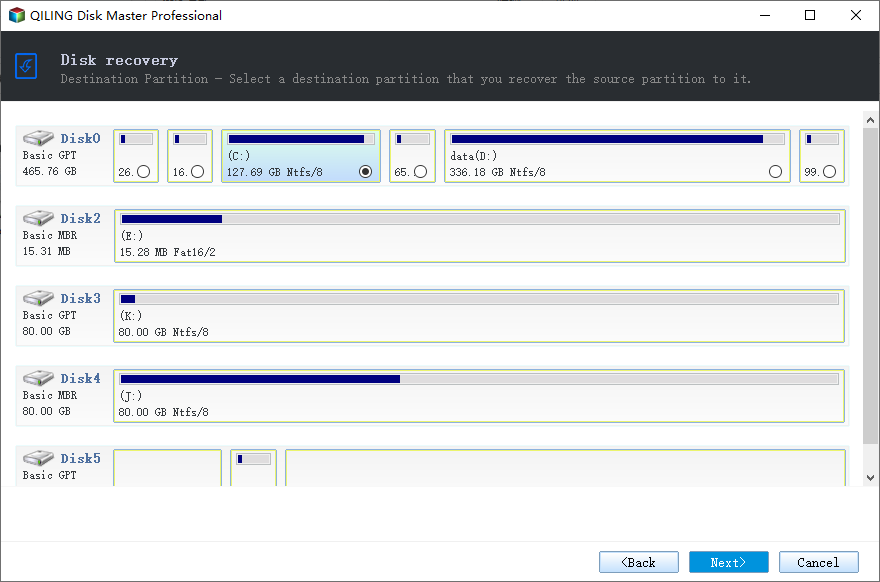
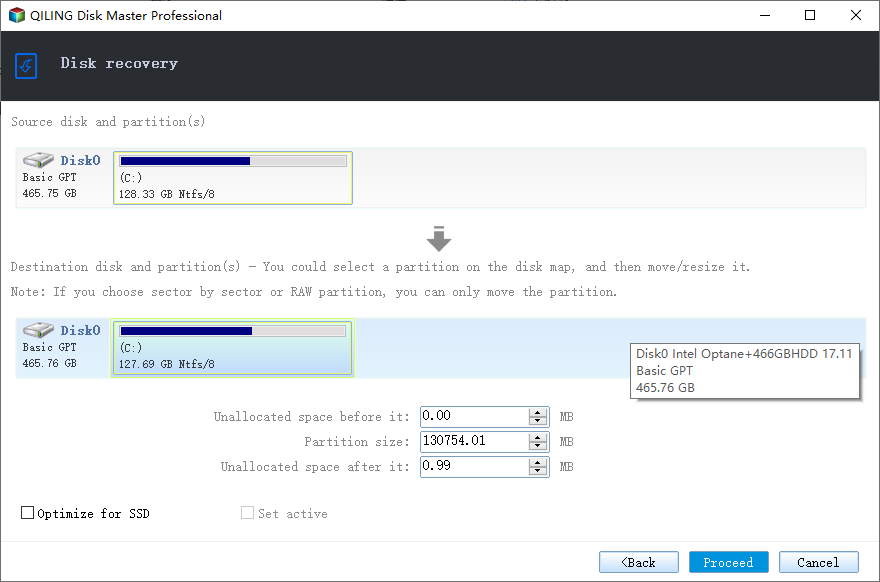
Step 4. To customize the disk layout, follow the instructions and click "Proceed" to start system backup recovery.
If you found this post helpful, consider sharing it on your social media platforms like Twitter or Facebook to spread the value it provides.
To Wrap Things Up
To transfer Windows from one computer to another, you can perform a universal restore, which involves cloning the old computer's hard drive and installing the new computer with the same operating system, settings, and files, maintaining everything else the same.
Qiling Disk Master Pro Clonezilla is a free and open-source tool that can help transfer an operating system to another computer, create an intelligent backup, and make an image of an SD card. It can suit various needs, such as backup or cloning, and offers additional valuable features.
FAQs
1. Can OS be transfer to another hard drive?
Transferring an operating system to a separate hard drive is a practical approach, which can be achieved by restoring a system image or cloning the old drive to the new one. This method replicates the operating system and other backup files exactly on the second hard drive, allowing for a seamless transfer of the installation.
2. How do I move my OS to another drive without cloning?
You can move your operating system to a new drive without cloning, but you'll need to install a fresh copy of Windows on the new drive. You can then copy your remaining data from the old drive to the new one, but you won't be able to move your operating system itself. A fresh Windows installation is required for the new drive.
3. Can I make a bootable Windows 10 USB from another computer?
There are two ways to build a Windows 10 recovery USB drive for a different computer: using the built-in Windows 10 feature to make a recovery drive or using a bootable USB drive creator tool.
Related Articles
- 2023 Best Samsung Backup Software for PC/Phone (Free Download)
- How to Perform Windows Folder Backup [Step-by-step Guide]
- [3 Effective Tips] How to Backup Firefox Bookmarks
- How to Install Windows on New SSD Without USB in Every Possible Way
- Windows 7 Guide: Create Schedule Backup on Windows 7
- How to Move Files to External Hard Drive Without Copying - 2 Alternative Ways
- How to Rescue Data and Programs When Windows 11 Dies
When Windows 11 dies, you can rescue your data and programs by following these steps. First, you can use the built-in File History feature to back up your files, or use an external hard drive or cloud storage to manually copy your files.
Products
Articles & Tutorials
- Data Recovery
- Data Backup
- File Recovery
- File Backup
- System Backup and Restore
- Disk and Partition Clone
- Technical articles
- Mobile articles
- Disk Master Help
- Windows Data Recovery Tutorials
- Windows Secure Delete Tutorials
- Windows Partition Management Tutorials
- Windows File Backup and Restore Tutorials
- Windows System Backup and Restore Tutorials
- Windows Disk Backup and Restore Tutorials
- Windows Clone Tutorials