How to Perform Windows Folder Backup [Step-by-step Guide]
Introduction
In today's digital age, folder backup is essential because data loss can happen after hardware failure, software corruption, accidental deletion, or malware. Regular backups help keep important files recoverable.
- Software failure
- Data corruption
- Malicious virus attack
- Accidental deletion of data
Good backup habits start with knowing what to protect. Common backup targets include documents, photos, videos, work files, project folders, browser data, email data, and other files that would be hard to recreate.
Which Windows Folders Should I Backup?
Windows users often need folder backup before formatting a PC, reinstalling Windows, replacing a drive, or managing daily work files. A clear backup list helps ensure important folders are not missed.
- App data and program data
- Documents
- Downloads
- Emails
- Video, music, and pictures
To back up a folder, you can use Windows built-in backup features, third-party backup software, manual copy to an external drive, or cloud storage services such as Google Drive or Dropbox.
How Do I Backup a Folder?
Windows provides built-in backup tools such as File History and Backup and Restore. These tools can back up files, folders, and in some cases system images to external drives or network locations.
How to Perform Windows Folder Backup - 2 Ways
Performing a Windows folder backup can be a hassle, but it's a crucial task to ensure your important files are safe. Fortunately, there are tools that can make this process easier. You can use File History to automatically back up your files, or Qiling Disk Master software to manually create a backup of your folders. With these tools, you can easily and efficiently backup your Windows folders and rest assured that your files are secure.
Let's compare the two ways of space occupied and backup speed using a table. We can see that the first method takes up more space, with a larger storage capacity, but has a slower backup speed.
| Features | Qiling Disk Master Pro | File History |
| Speed | Faster | Lower |
| Space occupied | Less | More |
Qiling Disk Master Pro can help you efficiently finish a Windows folder backup while occupying less space.
Windows File History can back up certain files, but not programs, systems, settings, etc. To finish a Windows folder backup, you can use Windows File History to back up files like documents, pictures, videos, music, or offline OneDrive files, and Qiling Disk Master Pro for professional backup of programs, systems, settings, etc.
Way 1. Windows Folder Backup with Windows Backup and Restore Utility - File History
As a built-The Windows File History feature allows users to easily backup their Windows folders, providing a convenient and accessible backup solution.
Besides, if you want to know more about File History, this link can help.
Now, follow these steps to perform a Windows folder backup.
Step 1. Click the Update & Security and then choose "Backup".
Step 2. Select "Backup Using File History".
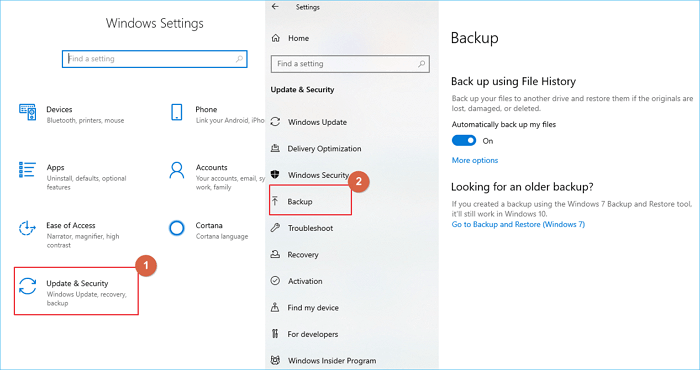
Step 3. Choose a backup destination for your backup folders, which can be an external hard drive, local drive, or network drive.
Step 4. Then, click "Back up now".
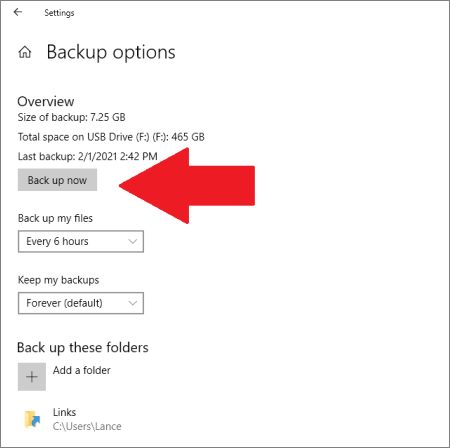
To back up files in specific folders, File History is sufficient, but for a hard drive or system backup, a professional tool like Qiling Disk Master Pro is required.
Way 2: Windows Folder Backup Using Windows Backup Software - Qiling Disk Master
Learn how to easily back up your Windows folders with Qiling Disk Master Pro, an intuitive Windows backup software. With this software, making Windows folder backups is a breeze.
Step 1. When using Qiling Disk Master for the first time to back up files, navigate to the main tab page for "backup and recovery".

Step 2. Since you're going to back up files and folders on your computer, go on with the "File backup" backup mode, where you can select pictures, videos, documents and all other types of files to back up.

Step 3. To back up files, folders, or directories, follow the paths to locate the desired items, then select them all.

Step 4. You should select a backup location to save and retain the backup. This can be an external hard drive, cloud storage, or a different computer.

Step 5. Qiling Disk Master enables users to save backups to various devices, including local hard drives, external USB drives, SD cards, network drives, NAS drives, and Qiling cloud drives. It is recommended to save backups to the cloud drive for its greater accessibility, flexibility, and safety, especially for important files.

Step 6. To set up an automatic and intelligent backup schedule for the next file backup task, go to the "Options" setting. There, you can customize the backup settings to suit your needs, such as encrypting confidential files, compressing the backup image size, or specifying the backup schedule, including the time to start the next backup.
Customize an advanced and automatic backup task here:
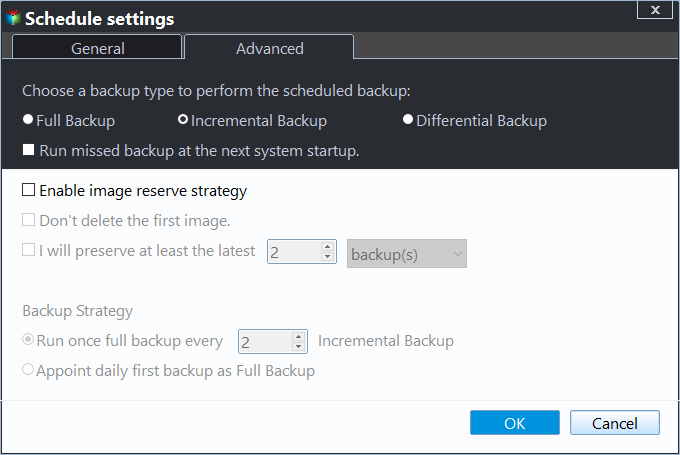
Step 7. Click "Proceed" to start the file backup process, and your completed backup files will be visible on the left in a card-style format.
You can easily back up files and folders in Windows using Qiling Disk Master, which also allows for automatic backup to an external hard drive, providing a convenient and efficient way to safeguard your data.
- Support Windows folder backup
- Support partition and disk backup
- Support system clone and disk clone
- Support automatic backup, incremental backup, and differential backup.
The program is designed to help users quickly and easily recover their lost data from various storage devices, including USB drives, hard drives, and SD cards. With its user-friendly interface and powerful data recovery algorithms, it can effectively recover deleted, formatted, or corrupted files and folders.
Where Are Windows Backup Files Located?
After completing a backup, it's essential to locate the backup files. By default, Windows stores them in the "File History Backups" folder on the C drive, unless a specific backup location was chosen. Qiling Disk Master also automatically selects the disk with the most available space as the default backup location. To quickly find your backup files, refer to the provided table.
| Program | Default Location | Targeted Location |
| File History | File History Backups of C drive |
|
| Qiling Disk Master | The disk with the most space |
|
If you're looking for a quick and efficient way to backup your Windows folders, you have two options: using File History or Qiling Disk Master Pro. While File History can take up a lot of space and may not be the fastest option, Qiling Disk Master Pro is a reliable and efficient Windows backup software that can complete a backup plan much quicker and with less space occupied. If you're in need of a speedy Windows folder backup solution, downloading Qiling Disk Master Pro can be a great help in resolving various backup-related issues.
FAQs About Windows Folder Backup
You may have questions about Windows folder backup, such as how to back up specific folders, how to restore backed up folders, and how to schedule backups. This part lists three common questions to help.
1. How do I back up a folder on C drive?
To back up the folder on the C drive, follow these steps. First, locate the folder you want to back up and right-click on it.
Step 1. Launch Qiling Disk Master Pro and select the folder on the C drive.
Step 2. Select a backup destination for your backup folder.
Step 3. Start back up.
2. Does Windows 10 have a backup program?
Windows 10 provides two backup programs: File History and Backup and Restore (Windows 7).
3. What are the most important files to back up?
Users need to back up various types of data, including app data, program data, documents, downloads, emails, videos, music, and pictures.
Related Articles
- How to Backup Windows to Box - Safe & Quick Solutions
- How to Backup Entire Computer to OneDrive [Quick & Easy]
- Buffalo NAS Backup| The Best Way to Backup Buffalo in Windows 11/10/8
- WD Backup Not Working on Windows 10 - What to Do [2024]
- How to Run/Boot Windows 11/10 from USB Drive
- How to Backup SD Card to Dropbox [PC & Android]🔥
- Samsung M.2 SSD Migration Software for Windows[2022 Choice & Guide]
If you're looking to migrate data from an M.2 SSD, Samsung Data Migration software is an option, but it's limited to Samsung brand devices.
Products
Articles & Tutorials
- Data Recovery
- Data Backup
- File Recovery
- File Backup
- System Backup and Restore
- Disk and Partition Clone
- Technical articles
- Mobile articles
- Disk Master Help
- Windows Data Recovery Tutorials
- Windows Secure Delete Tutorials
- Windows Partition Management Tutorials
- Windows File Backup and Restore Tutorials
- Windows System Backup and Restore Tutorials
- Windows Disk Backup and Restore Tutorials
- Windows Clone Tutorials