How to Backup SD Card to Dropbox [PC & Android]🔥
To back up an SD card, you can combine cloud storage and physical storage. Uploading photos, videos, and documents to Dropbox makes them accessible from other devices, while keeping another copy on an external drive adds extra protection.
Camera upload services can protect phone photos, but they may not cover every file stored on an SD card. Backing up the SD card to Dropbox gives you a clearer copy of selected files in cloud storage.
To back up SD card files to Dropbox, connect the SD card to a computer with a card reader, then use the Dropbox desktop app or website to upload the files. On Android, you can use the Dropbox mobile app if the device can access the SD card.
Ways to Back up SD Card to Dropbox on PC
Choose the method that fits your device and file size, especially if you need to back up photos, videos, or large folders from the SD card.
Here are the systems that users can use to back up SD card data through a card reader to Dropbox:
| Method | Effectiveness | Speed | Difficulty |
| Qiling Disk Master🥇 |
Quite effective and speedy. Fastest and easiest of all the methods. |
Quickest | ⭐ |
| Quite effective but slow in terms of files. | Moderate | ⭐⭐⭐ | |
|
Google Drive is best for photos and documents. However, videos and other files may experience slower upload and download speeds. |
Slow | ⭐⭐⭐ |
Way 1. Using Cloud Backup Software
Using a cloud backup is great, but it's even better when accompanied by good software. Unfortunately, many cloud storage solutions, such as Google Drive and Dropbox, have subpar desktop apps that don't provide the quality experience users deserve.
Using Qiling Disk Master is a better choice for backing up SD card data to Dropbox compared to the designated app, as it is one of the leading backup software available today and can easily back up SD card data, offering features that make it the best program for this task.
- One-click backup from an SD card or any related device
- Easy backup and restoration from and to cloud storage
- Easily integrates cloud storage like Dropbox
- And it offers 250GB of storage of its own
To back up files to Dropbox, start by installing the Dropbox desktop app on your computer. Once installed, open the app and sign in with your Dropbox account credentials.
Step 1. To begin the backup process, click the backup tab page.

Step 2. There are four categories of data backups: File, Disk, OS, and Mail. These categories ensure that various types of data are protected and can be recovered in case of a system failure or data loss.

Step 3. The screen displays lists of both local and network files on the left-hand side, allowing for directory expansion to select files for backup.

Step 4. Please follow the on-screen instructions to select the desired location for storing the backup.

Set up a backup schedule by clicking Options in Backup Options and choose to start the backup at a certain time in Backup Scheme by clicking Options. Additionally, ensure the backup is encrypted and explore other customizable options.

Step 5. You can store the backup file on your computer, in Qiling's cloud service, or on a network-attached storage device (NAS).

Step 6. Qiling Disk Master allows users to save backups of their files on a cloud drive or the company's cloud storage.
To back up data on a third-party cloud drive, select Local Drive and add Cloud Device, then fill in your account information.
Step 7. Click on "Proceed" to start a backup. The backup process will be displayed as a card on the left-hand side of the screen, and a right-click will allow you to view more information about the backup job.
Way 2. Using Dropbox APP
Here's how to use the Dropbox app to back up SD card data in one paragraph: To back up SD card data using the Dropbox app, users can copy and paste files from their SD card into the cloud storage by going into the folder for the Dropbox desktop app, making it easy to upload photos or files.
Step 1: Download and set up a Dropbox account on a PC/Mac.
Step 2: Tap the Go to Dropbox folder option.
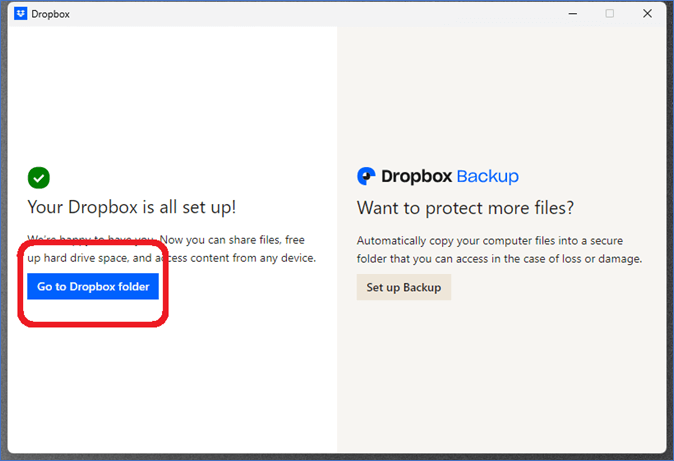
Step 3: Go to This PC and find the Dropbox option.
Step 4: Copy and paste SD Card files to this location.
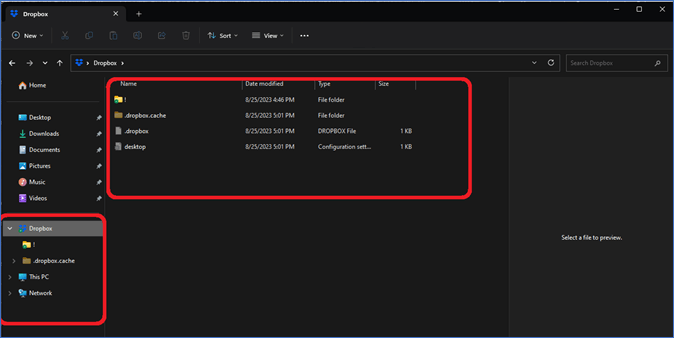
This will sync the data directly with the Dropbox storage.

Here are 3 ways to backup data from a USB to Dropbox:
Backing up data from a USB drive to Dropbox can be a time-consuming and frustrating process, but it can be simplified by following three easy steps. The article provides a straightforward guide on how to backup data from USB to Dropbox, and also offers advice on what to do if you run out of storage space on the free Dropbox version.
Way 3. Using Dropbox Website
To upload files to Dropbox, simply sign into your account on the Dropbox website, then drag and drop your SD card files or upload them directly.
Step 1: Log into the Dropbox website.
Step 2: Find the Upload button.
Step 3: Tap on Files or Folder.
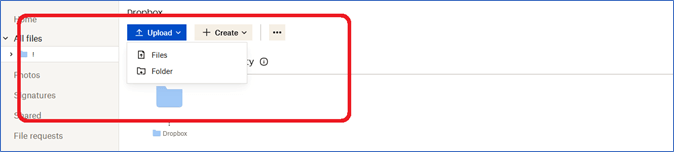
Step 4: Browse PC and go to SD Card to upload files.
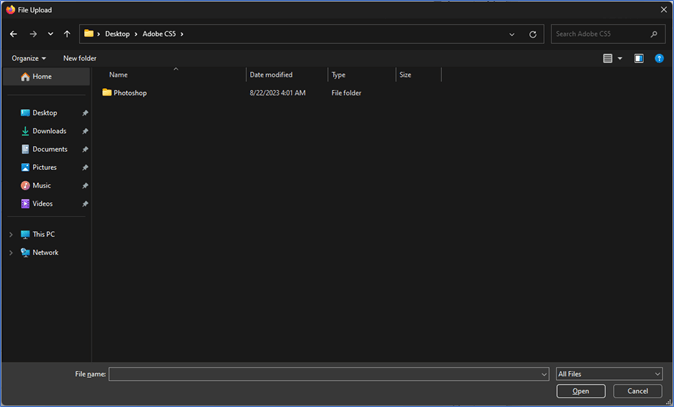
This script will upload files from the SD card to Dropbox, enabling users to easily transfer their data from the SD card to Dropbox for safekeeping and access.
If the manual upload process feels slow, back up SD card files in smaller batches or use backup software to automate the transfer to Dropbox.
Ways to Back up SD Card to Dropbox on Android
Users can copy their SD card directly from their Android phones and upload it to Dropbox using either the Photo Gallery or the Android Dropbox app. The first method involves using the Photo Gallery, while the second requires the Android Dropbox app. Both methods allow users to transfer their SD card content to Dropbox.
Way 1. Using Photo Gallery
To upload photos from an SD card to Dropbox, you can use the Photo gallery to directly upload all the photos to Dropbox storage. This can be done by going into the sharing options on your Photos app or using the Dropbox icon.
Step 1: Open Photo Gallery.
Step 2: Find the picture to upload to Dropbox or select multiple.
Step 3: Tap the Dropbox icon.
Step 4: Select the Upload Here option.
Step 5: Wait for the upload.

The app will upload photos to Dropbox, making them accessible by signing in.
Way 2. Using Dropbox App
Install the Dropbox app on your Android phone, then open the app and sign in with your Dropbox account credentials. Next, navigate to the "Files" tab and select the file you want to transfer to your computer. Tap the "Share" button and choose "Copy to Dropbox" from the menu.
Step 1: Open the Dropbox app.
Step 2: Tap the Upload icon.
Step 3: Select Upload Photos or Upload file.
Step 4: Make multiple or single selections.
Step 5: Tap Upload to start uploading.

Uploading files and photos from Android to Dropbox storage is a straightforward process. To do this, you can use the Dropbox app, which is available for download from the Google Play Store.
Sum Up
To backup SD cards to Dropbox, users can try various methods, which include using third-party apps, cloud storage services, and manual file transfer. These methods are all effective and can be tried one after the other or the one that suits a user's preference the most. Each technique has been tested and works well, making it easy for users to choose the one that is most convenient for them.
Installing Qiling Disk Master would be the best choice for handling data backups, such as SD card data backup, as it can also utilize its own cloud storage, which may be more convenient than relying on 2GB of free storage in Dropbox.
FAQs on How to Backup SD Card to Dropbox
Here are some frequently asked questions that might assist users:
1. How do I move photos from an SD card to Dropbox?
Moving photos from an SD card to a PC or Mac is recommended before uploading them to Dropbox, as this will make the transfer process quicker and easier. Alternatively, users can also move photos from an SD card directly to Dropbox using the Android or iOS app.
2. Can I sync Dropbox to my SD card?
You can sync Dropbox with an SD card using the Dropbox mobile app or a third-party tool like Qiling Disk Master on a PC. This allows for routine syncing of data backups with Dropbox.
3. What is the difference between Dropbox and Dropbox backup?
Dropbox backup is a process that people use to back up their data into Dropbox cloud storage, and various methods can be used to do so.
Related Articles
- How to Backup Windows XP to USB Drive? 2 Ways Recommended
- How to Backup Only New or Changed Files in Windows 10 [2 Ways]
- Download Best SSD to SSD Cloning Software
- How to Backup SanDisk SD Card for Windows 11/10/8/7
- Move Programs/Apps/Software from C Drive to Second Hard Drive in Windows 10/8/7
If you're looking to move programs, apps, or installed software from your C drive to another partition or a second hard drive in Windows 10/8/7, this page provides a reliable method to do so without reinstalling them. - How to Move/Migrate Sage 50 Accounting Software to New Server
View two effective solutions to move Sage 50 to a new server. Check this in-depth tutorial right now!
Products
Articles & Tutorials
- Data Recovery
- Data Backup
- File Recovery
- File Backup
- System Backup and Restore
- Disk and Partition Clone
- Technical articles
- Mobile articles
- Disk Master Help
- Windows Data Recovery Tutorials
- Windows Secure Delete Tutorials
- Windows Partition Management Tutorials
- Windows File Backup and Restore Tutorials
- Windows System Backup and Restore Tutorials
- Windows Disk Backup and Restore Tutorials
- Windows Clone Tutorials