How to Move/Migrate Sage 50 Accounting Software to New Server
| Workable Solutions | Step-by-step Troubleshooting |
|---|---|
| Fix 1. Launch Server Migration Software - Qiling Disk Master | Run Qiling Disk Master on both PCs >Choose transfer direction - Old or New Computer...Full steps |
| Fix 2. Change a USB port | Back-Up Sage 50 Company File on Old Computer > Install Sage 50 on the New Server Computer...Full steps |
Can You Transfer Sage 50 from One Another Computer
Sage 50 can be transferred to a new computer, including the existing license, allowing users to install it on another laptop or server computer. This process is often requested by users who need to upgrade their hardware or move the software to a different machine. The existing Sage 50 license can be used on the new computer, eliminating the need for a new license purchase. This feature is particularly useful for businesses that rely heavily on the software for their accounting and financial management needs.
To transfer your Sage download from your laptop to your new desktop computer, you can simply reinstall Sage on the desktop computer and then enter the same license key you used on your laptop. This will activate the software on your desktop computer and you'll be able to use it as if you had originally installed it on that machine. No need to uninstall it from your laptop. Just make sure you have the license key handy to enter during the installation process on your desktop computer.
Migrating Sage 50 to a new server is not a daunting task, as there are two straightforward solutions available. The first involves using third-party software, while the second is a step-by-step manual process that involves copying company files and reinstalling the software on the new device.
How Do I Migrate Sage 50 to a New Server
There are two methods to move Sage 50 accounting software: using intelligent data transfer software, which is a more efficient and automated process, or manually backing up and restoring company files, which is a more labor-intensive solution.
#1. Launch Server Migration Software - Qiling Disk Master
Moving Sage 50 to a new server can be done manually by backing up the data, reinstalling the program, and restoring the backup on the new computer, but this process can be time-consuming. A more efficient method is to use professional data migration software, such as Qiling Disk Master Technician, which can safely transfer files, applications, and domain user profiles from one server to another, saving time and effort.
If you have any questions, please click the free tech support button; we're always here to help.
Qiling Disk Master Technician
Your smart Windows Server file transfer software.
- Unlimited file transfer between Servers.
- Transfer programs, apps without reinstallation.
- Transfer account, settings to new Server computer.
- Data rescue, find product key for installed programs.
Step 1. Run Qiling Disk Master on both PCs
On the source PC, select "File sync" on the main screen of Qiling Disk Master and proceed.

Step 2. Connect two computers
1. Connect to a target PC via its IP address or device name and click "Connect".
2. Enter the login password of your target PC and click "OK" to confirm.
If you didn't see the target PC in the listed devices, you can manually connect the target PC by clicking "Add PC" and inputting its IP address or device name.

Step 3. Select apps, programs, and software and transfer to the target computer
1. You can select and choose what you want to transfer from the current computer to the target PC.
2. After choosing the desired applications and programs, click "Proceed" to initiate the transfer process.

#2. Manually Transfer Sage 50 to New Computer or Server
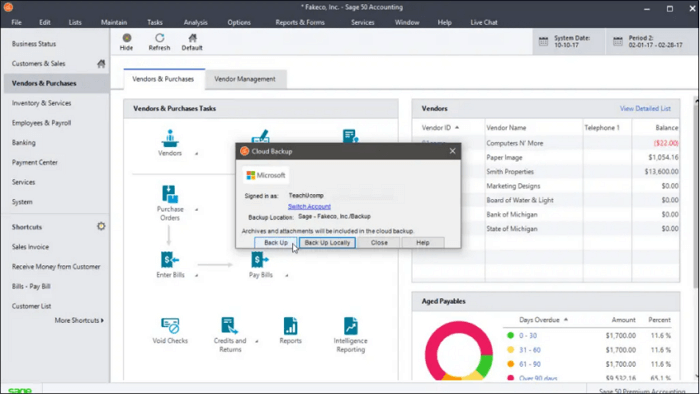
Phrase 1. Back-Up Sage 50 Company File on Old Computer
1. Run the program and open the company.
2. To initiate a backup, click on the File tab located at the top left side of the Excel window, then select the Backup option from the dropdown menu.
3. To back up your Sage 50 Accounting data, click on "Backup" in the top menu bar, which will open the "Sage 50 Accounting - Backup" window. Enter your desired file name and choose a folder to store the backup, and then click "Backup" to save your data.
4. Click OK to back up data.
Phase 2. Install Sage 50 on the New Server Computer
To ensure consistency, it's recommended to install the Sage accounting software on the server computer at the same path as the client computer, which is C:\Program Files(x86)\Sage\Peachtree. Additionally, if the software stores data at C:\Sage\Peachtree\Company on the client computer, it's best to use the same path on the server computer to maintain data consistency.
How to Find Data and Program Path
- Open File Explorer on the old computer.
- The installation of Sage 50 2018 and the previous version requires following the path to C:\Program Files (x86)\Common Files\Peach. This is a necessary step to ensure proper installation and functionality of the software.
- Sage 50 2019 and higher version - Go to C:\ProgramData\Sage\Peachtree
If your install path is not the same, check to change the data path.
1. Go to the new Server, download and install Sage 50 accounting software, downloading the latest version available at Sage 50 - U.S. Edition.
2. Once the download is done, launch the installation file.
3. To answer the prompt, "Will this be the only computer running Sage 50?", click No and then click Next.
4. Click on the "Sage 50 company data files storage" window and select "This computer is the server." Then click "Next" to proceed.
5. Check the install option and proceed to the share folder shortly.
Choose the "Share the Folder"> Click Next.
6. To activate Sage 50, follow these steps: Once the installation is complete, run Sage 50 and follow the on-screen instructions to activate it. This typically involves entering a unique activation code provided by Sage or selecting the option to activate online.
Tips - How Do I Change Data Path in Sage 50
Step 1. Open Sage 50 and back up your company files. After backup, close the program.
Step 2. Type Control Panel on the search bar. Please open it and click Programs and Features.
Step 3. Browse to find Sage 50. Right-click it and click on the "Uninstall."
Step 4. Reinstall the software and choose the right path. Restore backup on the newly-installed Sage 50.
Phrase 3. Restore Sage 50 Backup Company File
1. Navigate to the File tab and select the "Restore" option.
2. Locate your. PTB file, click Open, and select Next.
3. The restore option is to create a new company with the restored file.
4. Click Next > Choose the restore option
Four options:
- Company Data
- Customized Forms
- Web Transactions
- Intelligence Reporting Reports or Business Intelligence Reports.
5. Next > Confirm options and select Finish.
Final Thoughts
The software supports Windows 11/10/8/7 and allows for data migration from one computer to another, freeing up drive space, recovering data from crashed PCs, and finding product keys after reinstalling Windows, Office, and Adobe.
You can enjoy the second option, just be sure to save your data on the same path. If you have any questions, feel free to reach out to us via the chat button.
We're looking forward to communicating with you!
Related Articles
- How to Transfer Microsoft Office To Another Computer
- Transferring Installed Programs from One Computer to Another Windows 11/10 - Here Is the Best Way
- How to Transfer Files from PC to External Hard Drive Windows 10/8/7
- How To Transfer Word From One Computer To Another
- Does Resetting Windows Wipe All Drives?
Factory resetting is a practical repair tool for correcting problems on your PC. But does resetting Windows wipe all drives? This article will describe whether resetting your computer will wipe all drivers and offer a tool to protect your data. - Does Windows 11 Have Cloning Software?
Does Windows 11 have cloning software? Do you want to know the right answer? This article will tell you whether Windows 11 has disk cloning software and introduce a better cloning tool to help you.
Products
Articles & Tutorials
- Data Recovery
- Data Backup
- File Recovery
- File Backup
- System Backup and Restore
- Disk and Partition Clone
- Technical articles
- Mobile articles
- Disk Master Help
- Windows Data Recovery Tutorials
- Windows Secure Delete Tutorials
- Windows Partition Management Tutorials
- Windows File Backup and Restore Tutorials
- Windows System Backup and Restore Tutorials
- Windows Disk Backup and Restore Tutorials
- Windows Clone Tutorials