How to Backup SanDisk SD Card for Windows 11/10/8/7
Why Need to Backup SanDisk SD Card
As a SanDisk SD card user, backing up your SD card is crucial. The SD card, used to expand storage space for devices like phones and cameras, is an excellent solution for storing data like photos, audio, and videos. Losing data on the SD card due to accidental deletion or malware/virus infection can be devastating.
To avoid data loss, it's essential to back up your SD card regularly. This not only helps in recovering data in case of loss but also frees up storage space for other data. Data recovery software can be used as a last resort, but backing up your SD card should be your top priority.
Three Possible Ways to Backup SanDisk SD Card
You can back up your SanDisk SD card using a computer, cloud storage services, or dedicated backup tools. Simply insert the SD card into your computer's card reader, navigate to the SD card in File Explorer, and select the files and folders to back up. Alternatively, use cloud storage services like Google Drive, Dropbox, or OneDrive to upload the files to your account. You can also use a dedicated backup tool such as Qiling Backup for a more automated approach.
- Method 1. Backup SD Card via SD Card Backup Software
- Method 2. Backup SD Card to Cloud Drive
- Method 3. Manually Copy SD Card to External Drive on PC
Method 1. Backup SD Card via SD Card Backup Software
When you connect an SD card to your computer, it will be treated as a local storage device, allowing you to back it up using third-party software like Qiling Backup.
Qiling Backup Home is a user-friendly backup software for Windows that allows for system, file, disk, and partition backups, with features like scheduled, automatic, differential, and incremental backups, and offers 250G of free cloud storage space.
To conduct the SanDisk SD card backup, follow these steps. First, insert the SD card into your computer using an SD card reader.
Step 1. Start with selecting the Disk backup button.

Step 2. It is available to back up a whole disk or a certain partition. Choose the one you need.

Step 3. Select the destination where you want to save the backup.

Step 4. For disk/partition backup, you can save the backup to either your local drive or a Network-Attached Storage (NAS) device.

Step 5. After completing the backup process, your task will be displayed at the left. You can manage the backup by clicking on any task, which will allow you to recover it, create an incremental backup, or perform other related actions.

Method 2. Backup SD Card to Cloud Drive
Cloud drives like OneDrive and Google Drive have become increasingly popular as they provide a safe haven for data, protecting against computer issues and natural disasters. Users can access their data anywhere and anytime, making it a convenient backup solution. To create a backup on a SanDisk SD card to Google Drive, users can utilize their existing Google account, which comes with 15GB of free storage. This allows users to easily transfer and store their data on the cloud, providing an extra layer of protection and accessibility.
To back up an SD card to Google Drive, follow these steps: Connect the SD card to your computer using an adapter. Open Google Drive on your computer and select the SD card as the source. Choose the files you want to back up and select the Google Drive folder you want to save them to.
Step 1. Connect your SD card to your computer.
Step 2. Open Windows Explorer and then find your SD card.
Step 3. Copy and paste data from the SD card to the Google Drive folder.
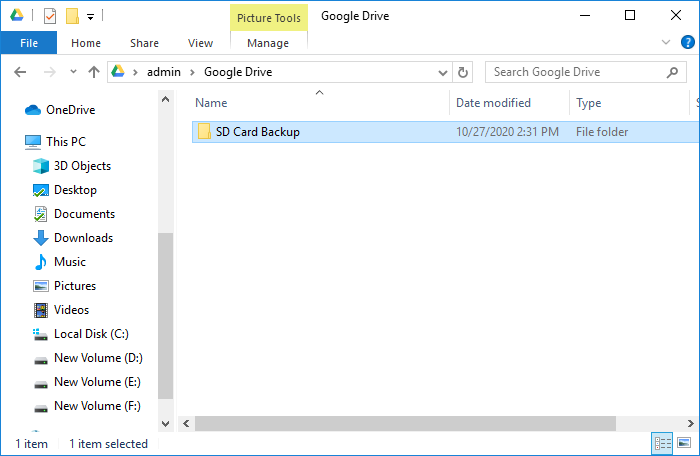
Note: Create a new folder in Google Drive to save the backup, which will be synced to Google Drive automatically.
Method 3. Manually Copy SD Card to External Drive on PC
To back up a SanDisk SD card, you can copy its contents to an external hard drive on a computer. It's essential to ensure the data copying process is uninterrupted to avoid losing files if the procedure doesn't complete successfully. This manual method is time-consuming and best suited for small data sizes. To copy data from the SD card to the external disk, follow the steps below.
Step 1. To connect an SD card and an external hard drive to your computer, start by inserting the SD card into the SD card reader on your computer or using an SD card adapter to connect it to a USB port. Next, plug in the external hard drive and ensure it is properly recognized by your computer.
Step 2. Open File Explorer and then find the SD card.
Step 3. Press the Ctrl + A keys to select all files on the SD card, right-click and choose "Copy".
Step 4. To access the contents of an external hard drive, you can simply open it, then right-click on an empty area and select "Paste".
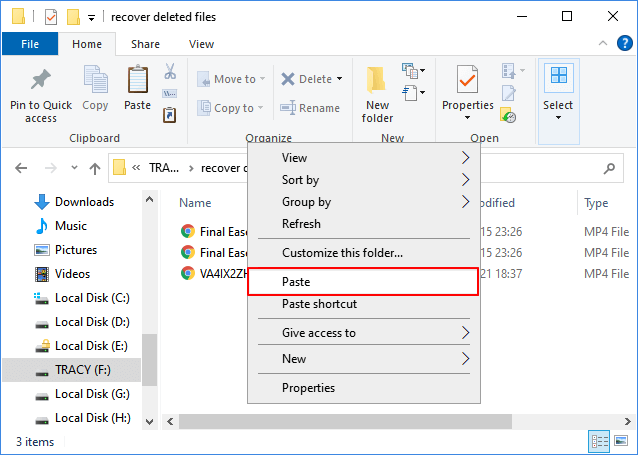
Step 5. Wait for the process to be completed.
The Best Way of SanDisk SD Card Backup
Backing up a SanDisk SD card can be done using Qiling Backup, Google Drive, or by manually copying files. To prevent data loss, select any of these methods to create an SD card backup. For flexibility, reliability, and safety, we recommend using Qiling Backup, which allows you to automate file backups and perform other tasks like hard drive cloning and universal restore.
Qiling Backup is a reliable SD card backup tool that is suitable for all SD card users.
FAQs
1. Why do SD cards get corrupted?
SD card corruption can often be resolved without formatting, due to various causes such as improper use, accumulated bad sectors, manufacturing defects, malware, and physical damage.
2. What happens when a SD card is formatted?
Formatting an SD card involves deleting all existing data and files, which will be lost, and may also change the file system to FAT32, exFAT, or NTFS, requiring a separate storage device for data.
3. Why can't I see files on my SD card?
If your SD card files aren't showing up on your Android phone but are visible on your computer, it's likely that the file system on your SD card is incompatible with your mobile. Android devices typically support FAT32, Ext3, and Ext4 file systems, but not NTFS, which is why your files may not be showing up.
4. What happens if I put my SD card in another phone?
To reuse an SD card, you need to reformat it, which can be done via a dialog that appears when you first insert the card, prompting you to choose how to use it. This applies even if another phone allows you to use the SD card as adoptable storage.
Related Articles
- How to Create an ISO Image from a Hard Drive for Windows 11/10/8/7
- WD Backup Not Working on Windows 10 - What to Do [2022]
- Windows 10 Backup Not Working? Top Solutions to Make Windows Backup Work
- Where Does Windows 10 Backup Save to? Get Full Answer
- 5 Solutions to Fix How to Free Up Space on C Drive Windows Server 2008 (R2)
How to free up space C drive on Windows Server 2008 R2? This article provides ways to resolve Windows Server 2008 C drive that keeps filling up. - 5 Best Ways: How to Free Up Space on C Drive in Windows Server 2016
This page covers five most efficient ways to help you free up space on C drive in Windows Server 2016, 2019, and 2022. For detailed guidelines, follow this page and learn how to free up c drive space in your Sever computer with success.
Products
Articles & Tutorials
- Data Recovery
- Data Backup
- File Recovery
- File Backup
- System Backup and Restore
- Disk and Partition Clone
- Technical articles
- Mobile articles
- Disk Master Help
- Windows Data Recovery Tutorials
- Windows Secure Delete Tutorials
- Windows Partition Management Tutorials
- Windows File Backup and Restore Tutorials
- Windows System Backup and Restore Tutorials
- Windows Disk Backup and Restore Tutorials
- Windows Clone Tutorials