Where Does Windows 10 Backup Save to? Get Full Answer
What Is Windows 10 Backup?
Windows 10 backup consists of two built-in tools: File History and Backup and Restore. A full backup duplicates the operating system's entire state, saving data and customizations to an external device or network as a one-to-one backup, also referred to as a system image. This system image contains a copy of everything on the computer, including installation, settings, apps, and files, helping to recover files and settings in case of hardware failure, virus attacks, or file corruption.
Many articles provide clear instructions on how to back up, but often leave users wondering where to find the backed-up files on their computer. This guide aims to address that confusion, providing a comprehensive resource for locating and managing backup files, including system image recovery.
Where Does Windows 10 Save Backup?
- Backup Folder Location Created by File History
- Backup Folder Location Created by Backup and Restore (Windows 7)
Users have the flexibility to choose the path for their backup files through Backup and Restore and File History. If the storage path is unknown, the system will default to a specific location. Typically, backup destinations include an external hard drive and a network location. Understanding how to back up on a Windows computer is key to knowing where the backup files are saved. The following content will guide users through the steps to select the backup destination.
Backup Folder Location Created by File History
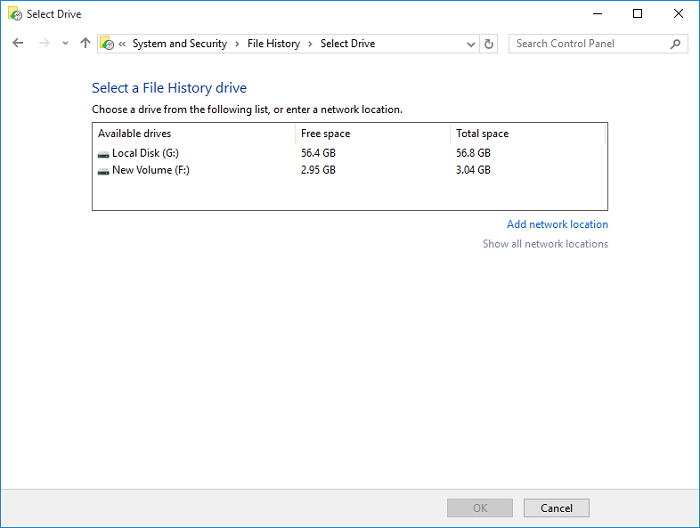
Windows 8 introduced File History, which remains the primary built-in backup solution in Windows 10. Unlike a full PC backup, File History focuses on backing up personal files, not the entire computer.
To start using File History, you first need to select a location to save your backups, which can be a drive or a network location.
Backup Folder Location Created by Backup and Restore (Windows 7)
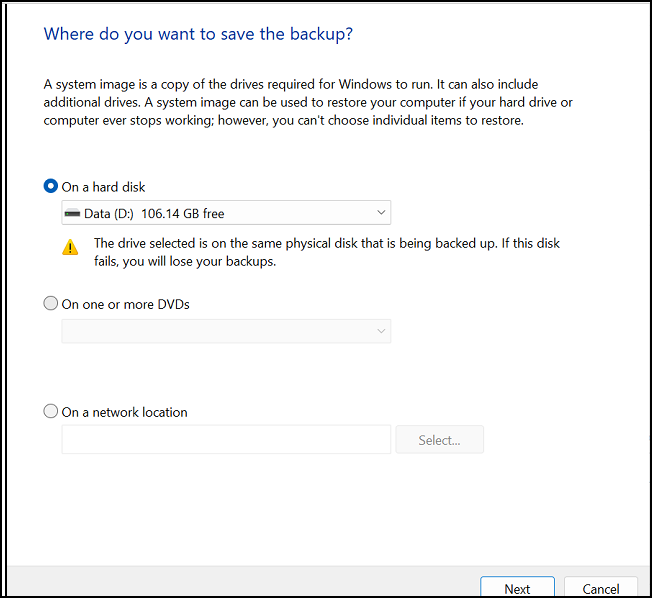
Unlike File History, Backup and Restore allows you to create a complete backup of your operating system, including files and settings, whereas File History only backs up files.
After clicking Proceed, choose the destination to save the Windows 10 backup, such as a hard disk, DVD, or network location. Select one of the available options to proceed.
How to Decide Where to Save Windows 10 Backup Files with Third-party Software
The choice of where to store Windows backups largely depends on the tool used, with third-party software offering more backup paths. Unlike Windows tools, third-party software like Qiling Backup provides advanced features and the ability to back up files to the cloud. This makes them a popular choice among users who want more flexibility and functionality in their backup options.
Qiling Backup is the simplest and most reliable comprehensive free backup software, supporting all Windows users to back up files, data, partitions, and systems, with options to save backups to the cloud, network, NAS, or local drives.
For businesses, it's recommended to store backups on NAS drives or cloud storage, as these options provide a more secure and accessible way to safeguard important data.
For personal use, you can choose a USB flash drive or hard disk as your backup destination.
The main features of Qiling Backup are listed here:
- User-friendly interface
- Automatic backup
- Incremental backup, differential backup, and partition backup
When using File History, Windows 10 saves backup files to a folder named "FileHistory" on the external drive or network location you selected. For Backup and Restore (Windows 7), the system creates a "WindowsImageBackup" folder on the destination drive, which contains the system image backup files. The actual location may vary depending on your settings and the type of backup being performed.
Step 1. Launch Qiling Backup and choose "System Backup" on the home page to start the backup process.

Step 2. The system partition will be automatically selected, you only need to choose the installation location.

Step 3. You can save the backup file on your local drive, in the cloud, or on a network-attached storage (NAS) device, and also connect an external hard drive to store system backup files.

Step 4. You can customize the settings in "Options" at the left bottom, then click "Proceed" to start the process.

After completing the backup process, you can check the backup status, recover, open, or delete the backup by right-clicking the backup task on the left.
Conclusion
The location where Windows 10 backup saves depends on the tools chosen and desired storage. The best option is to select third-party software that offers multiple backup paths, allowing for varied choices based on specific situations.
FAQs
1. Does Windows 10 backup back up everything?
Windows 10 allows for a full backup of your computer, creating a copy of all data, including installation files, settings, apps, and files from the primary drive and other locations.
2. Where can I find my backup files?
When using File History to back up files, the system automatically creates a folder called "FileHistory" on your computer. If you can't remember where your backup files are stored, you can search for "FileHistory" in File Explorer. This will help you locate the folder and access your backed-up files.
3. How do I automatically back up my files to an external hard drive in Windows 10?
- In File History, go to backup settings, click Add a drive option, and select an external hard drive.
- To enable automatic file backup, go to the settings menu and toggle the "Automatically back up my files" option on. Then, click on the "More options" button to customize the backup settings.
- The default backup interval is "Every hour", but you can change it to a shorter interval of 10 minutes or a longer interval of daily.
Related Articles
- How to Create a Dell Recovery Disk for Windows 7/8/10/11 (Three Ways)
- Backup Synology NAS to Cloud/External Hard Drive
- How to Clone RAID Disk Safely and Easily
- How to Create Recovery Partition for Windows 7/8/10/11 with 2 Possible Ways
- Is Intel Data Migration Software Worthy of Trying? Here is the Answer!
Intel Data Migration Software is a free tool that can help transfer data, but it's stable and hasn't been updated since 2020, and it only works with Intel SSDs. Therefore, users may need an alternative tool, and we recommend Qiling Disk Master as a suitable replacement. - Internet Explorer End of Life 2022, Here Is What to Do
Microsoft will stop supporting Internet Explorer, which means users will no longer receive updates or security patches for the browser. This will also affect saved bookmarks, accounts, and passwords, which will likely become obsolete.
Products
Articles & Tutorials
- Data Recovery
- Data Backup
- File Recovery
- File Backup
- System Backup and Restore
- Disk and Partition Clone
- Technical articles
- Mobile articles
- Disk Master Help
- Windows Data Recovery Tutorials
- Windows Secure Delete Tutorials
- Windows Partition Management Tutorials
- Windows File Backup and Restore Tutorials
- Windows System Backup and Restore Tutorials
- Windows Disk Backup and Restore Tutorials
- Windows Clone Tutorials