How to Backup Entire Computer to OneDrive [Quick & Easy]
As more data is stored on computers every day, many users worry about losing files because of hard drive failure, accidental deletion, theft, or system crashes. Cloud storage such as OneDrive can help keep important files accessible when the local computer is unavailable.
This Qiling guide explains how to back up your computer to OneDrive, compares common methods, and shows when automatic backup software is a better choice than simple file sync.
The Benefits of Backing Up Computer to OneDrive
Storing computer data in the cloud offers several benefits, including:
- Supports automatic backup to OneDrive for selected content stored on the PC
- Protects the device from ransomware attacks
- OneDrive allows users to access synced files and folders from any device with the same Microsoft account.
- OneDrive lets you download cloud-stored files if your device is lost, stolen, or damaged.
- When you connect a camera, phone, or other device, OneDrive can help save photos and videos automatically, depending on your settings.
- Auto-saves screenshots
📖You may be interested: Add Folder to OneDrive Backup Without Moving
How to Back up Entire Computer to OneDrive
There are three practical ways to protect computer data with OneDrive: sync selected folders through the OneDrive app, manually upload files to OneDrive, or use backup software such as Qiling Disk Master to create a more complete backup task. Sync and manual upload are useful for files and folders, while professional backup software is better when you need scheduled backup, disk backup, or system protection.
| Methods | Effectiveness | Time Required | Difficulty |
|---|---|---|---|
| Manual Method | Moderate: Only backs up files and folders | Time-consuming, set up and file selection takes time | Medium |
| Automatic Method | Very High: Can protect files, folders, partitions, disks, and system data depending on the selected backup mode. | Time-saving, automatic backup within seconds | 👍Super Easy |
Here are 3 methods you can choose from:
- 1. Sync Computer Data to OneDrive
- 2. Manually Backup Computer to OneDrive
- 3. Automatically Backup Computer to OneDrive 🥇
Method 1. Sync Computer Data to OneDrive
OneDrive allows you to sync files and folders across multiple devices, so you can access and edit the latest versions from anywhere. Changes made on one synced device can be updated on other connected devices.
Check the step-by-step guide below to sync computer data to OneDrive before choosing a full backup method.
Step 1: To set up OneDrive, click on the OneDrive icon in the System Tray, which will allow you to access the service and get started with setting up your account.
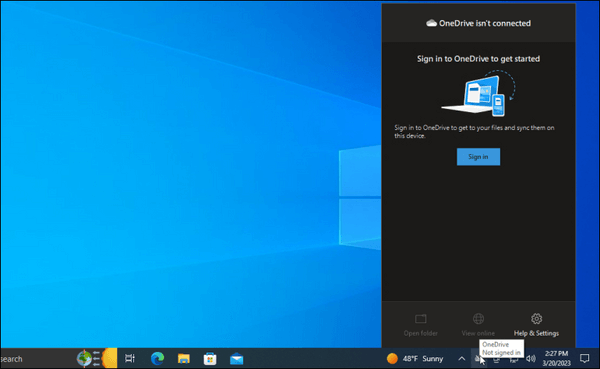
📑Note: If the OneDrive icon does not appear, you can manually trigger it by running the OneDrive exe file, which can be found in the Start menu or by searching for it in the search bar.
- Open File Explorer > View > Hidden Items.
- Then move to the location C:/Users/[YourUsername]/AppData/Local/Microsoft/OneDrive/.
- Double-click the OneDrive.exe file to open OneDrive and display the icon in the System Tray.
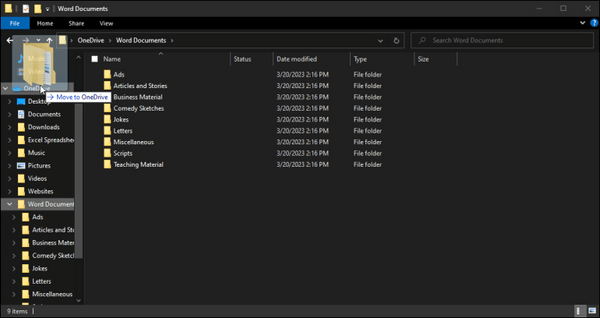
Step 2: Hit the Sign in button and enter your Microsoft account email ID and password.
Step 3: Click Change location to select a different OneDrive folder location, or click Next to use the default location. If the folder already exists, choose the option to use that folder.
Step 4: To add files or folders to OneDrive sync, copy or move them into the OneDrive folder in File Explorer. You can also create a new folder inside OneDrive and place files there.
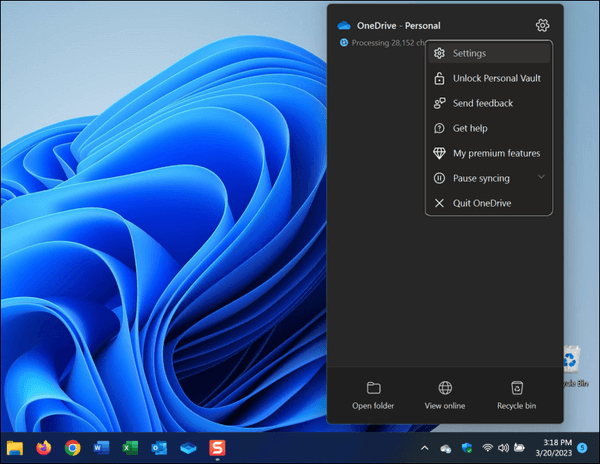
Step 5: To see all the files and folders stored in your OneDrive folder, click on "Help & Settings", then "Settings", followed by "Account", and finally "Choose folders".
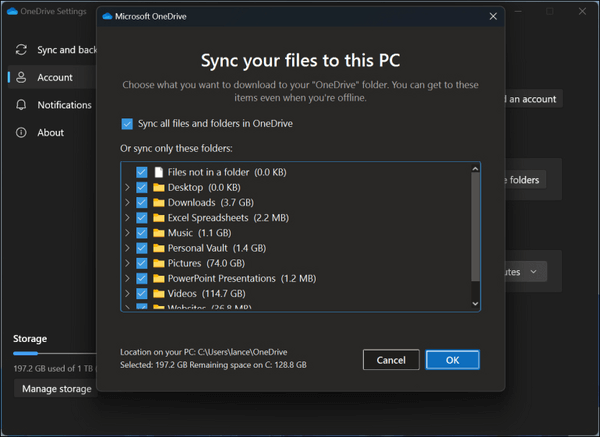
Step 6: Choose whether to sync all OneDrive folders or only selected folders. If you need offline access, make important files available on this device.
Method 2. Manually Backup Computer to OneDrive
You can manually back up files and folders to OneDrive by using the OneDrive desktop app or the OneDrive website. This method is simple, but it does not create a full system image or protect installed programs and system settings.
Check the process below to manually save computer files to OneDrive with the desktop app.
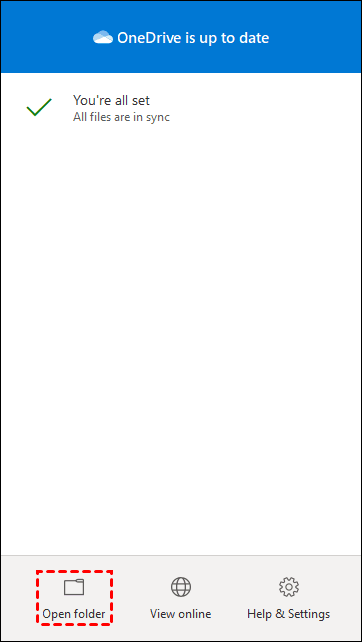
Step 1: To access OneDrive, set it up and then either double-click the OneDrive icon in the taskbar or click the icon and select Open folder.
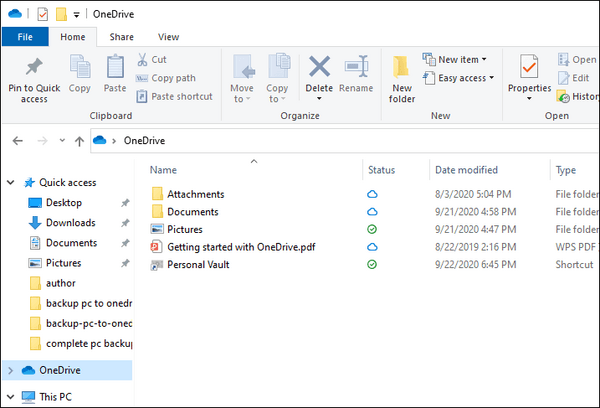
Step 2: To back up your files and folders, simply copy or drag and drop them to the OneDrive folder on your system, which will automatically upload them to the cloud.
You can also back up your computer to OneDrive with the official website. Here's how.
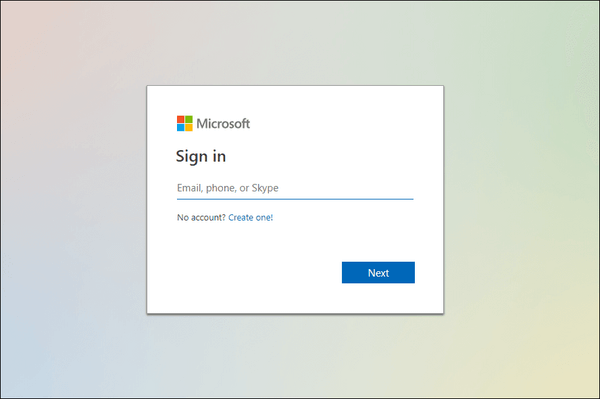
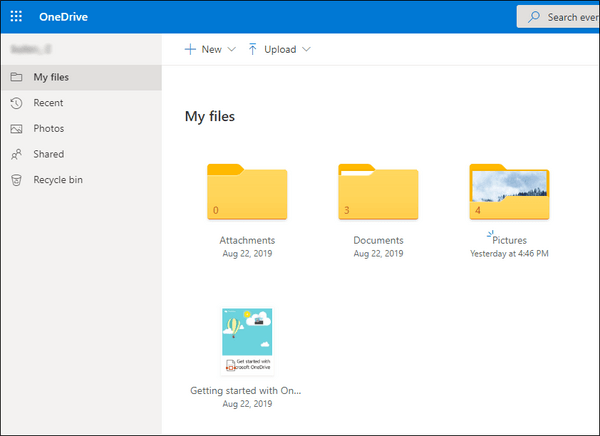
Step 1: Launch the official website of OneDrive and log in with your credentials. Then enter the correct account information and jump to My Files.
Step 2: To upload files or folders to OneDrive, click the "Upload" button and select the desired files or folders from your computer, or simply drag and drop them into the "My Files" section of OneDrive.
Method 3. Automatically Backup Computer to OneDrive
Manual backup is useful for selected files, but it is not ideal for full computer protection. A professional backup and recovery tool like Qiling Disk Master can back up files, disks, partitions, and system data to cloud services, local drives, external drives, NAS, or network locations.
Qiling Disk Master enables quick recovery to the original or specified location. It also offers incremental backup, differential backup, scheduled backup, and encrypted backup.
With Qiling Disk Master, you can use 250GB of free cloud storage, schedule backup tasks, and encrypt backups for stronger privacy and protection.
Here are steps you need to follow if you want to backup files to OneDrive, and it can also be applied to disk and system backup.
Step 1. To start backup, click the backup tab page.

Step 2. There are four main categories of data backup: File, Disk, OS, and Mail. These categories refer to the types of data that can be backed up, including individual files, entire hard drives, the operating system, and email accounts.

Step 3. On the left-hand side, you'll see a list of local and network files, select the files to be backed up by expanding the directory.

Step 4. Follow the instructions on the screen to select the desired location for storing the backup.

In the Backup Options section, you can click on Options to encrypt the backup with a password, set a backup schedule, and choose to start the backup at a specific event in Backup Scheme. This allows for customizable features and tailoring the backup operation to meet individual needs.

Step 5. Backups can be stored locally on a disk, in Qiling's cloud service, or on a network attached storage device (NAS).

Step 6. Qiling Disk Master allows customers to back up data to a third-party cloud drive or the company's own cloud storage.
To back up your data to a third-party cloud drive, select Local Drive, then scroll down to add Cloud Device and enter your account information.
Step 7. To start a backup, select "Proceed". Once initiated, the backup process will appear as a card on the left-hand panel, indicating its completion. For further details or to manage the backup job, right-click on it.
To Sum Up
OneDrive can sync files between your PC and the cloud, making them accessible from anywhere. However, OneDrive is mainly a synchronization service, not a complete computer backup tool. For stronger protection, combine OneDrive with a real backup method.
Use Qiling Disk Master to automatically back up important computer data without relying only on sync and reduce the risk of losing valuable files.
FAQs on Backing Up Computer to OneDrive
1. Should I back up my PC to OneDrive?
You can backup standard folders like Desktop, Documents, Pictures, Music, and Video to OneDrive to protect them and make them readily available across all your devices.
2. What is the difference between OneDrive sync and backup?
Backup is a one-way protection process: files are copied from the source location to a backup destination so they can be recovered if the originals are deleted, corrupted, or lost.
Sync keeps files consistent across devices and the cloud. It is useful for access, but changes and deletions may also sync across locations. Backup provides a separate recovery copy, while sync focuses on keeping the latest version available everywhere.
3. Does deleting something from OneDrive delete from the computer?
To avoid deleting files from your computer when deleting from OneDrive, move files outside the OneDrive folder to another folder on your system's hard drive. This helps to prevent the two-way sync from deleting files from your computer when you delete them from OneDrive.
4. Can I back up to OneDrive without syncing?
With professional backup software like Qiling Disk Master, you can back up computer data without relying only on OneDrive sync, giving you a more secure and controllable way to protect important files.
Don't forget to share this post with your fans if you find it helpful.
Related Articles
- [All-in-One] Create Windows 11 Backup to NAS (Network Drive)
- Dell Backup and Recovery Windows 10 & Its Alternative
- [Easy] How to Clone USB Drive to Another Windows 10
- How to Backup and Restore Information in Firefox Profile (Manual & Automatic Ways)
- Create Windows 7 Recovery Disk from Another Computer In-Depth Guide 2024
- How to Move League of Legends to Another Drive (Support Windows 11)
If your SSD or HDD is running out of space, you can move League of Legends to another drive to free up space. You can easily transfer the game to a new HDD or SSD with the help of Qiling Disk Master, a tool that can assist with moving any game's location.
Products
Articles & Tutorials
- Data Recovery
- Data Backup
- File Recovery
- File Backup
- System Backup and Restore
- Disk and Partition Clone
- Technical articles
- Mobile articles
- Disk Master Help
- Windows Data Recovery Tutorials
- Windows Secure Delete Tutorials
- Windows Partition Management Tutorials
- Windows File Backup and Restore Tutorials
- Windows System Backup and Restore Tutorials
- Windows Disk Backup and Restore Tutorials
- Windows Clone Tutorials