Dell Backup and Recovery Windows 10 & Its Alternative
What Is Dell Backup and Recovery?
Dell Backup and Recovery (DBaR) is a backup and recovery application that protects digital documents and memories by safeguarding system files, preventing data loss, and allowing users to retrieve data whenever needed. It is pre-installed on Dell laptops running Windows 7 or 8, but not on Windows 10, where only version 1.9 is applicable.
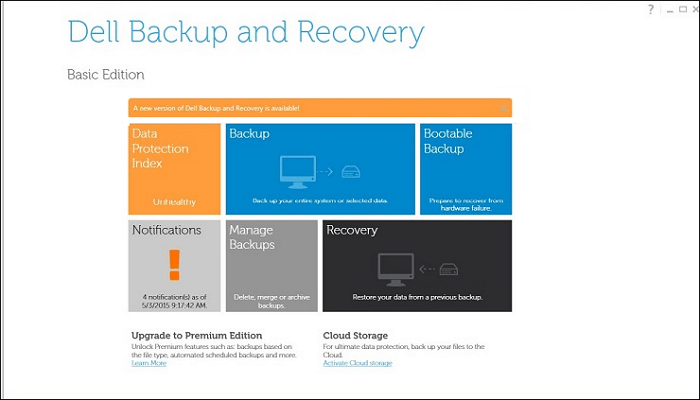
Dell Backup and Recovery offers two versions: Basic and Premium. The Basic version is preinstalled on some Dell computers, but users must upgrade to Premium for advanced features. This software enables users to create system backups, preserve factory-installed applications, and restore their computer to its factory image in case of OS issues or hard drive failures.
How to Use Dell Backup and Recovery to Backup Windows 10 PC
Dell Backup and Recovery is a tool that allows you to back up and restore specific files or the entire system of your Dell laptop in Windows 10, without needing to restart the computer to make a system image backup. To use it, you need to download or update it.
When using Dell Backup and Recovery to back up your Windows 10 computer, consider two key factors: knowing what you need to back up and having a storage device, such as an external hard drive or USB, to store the backup. However, keep in mind that the backup can only be used on Dell devices, and the user-created system partition may also be lost after recovery.
Here is how to back up your Dell computer in Windows 10 via Dell Backup and Recovery:
Step 1. Connect a hard drive or USB drive to the Windows 10 Dell computer you want to back up. Make sure the drive is formatted to NTFS.
Step 2. To initiate the backup process, open Dell Backup and Recovery and navigate to the backup section.
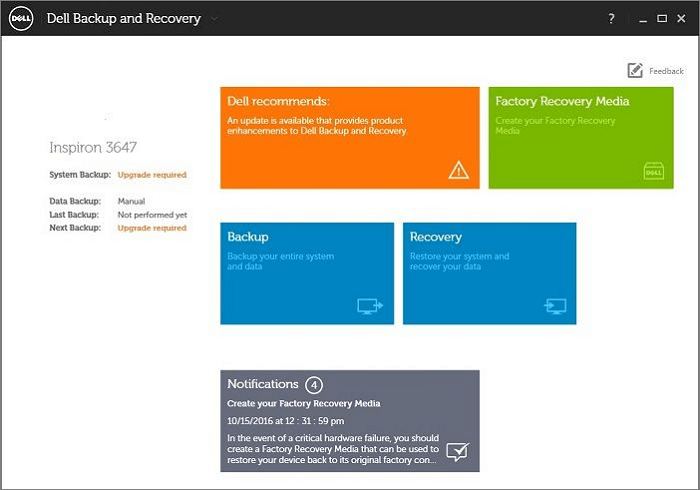
Step 3. You will be asked to select a backup location and set up your external drive. Click on "Continue" to proceed with the process.
The Best Alternative to Dell Backup and Recovery in Windows 10
While Dell Backup and Recovery is a useful tool for creating system backups, it has its limitations. A more comprehensive backup solution should offer features like automatic backup, incremental backup, and differential backup, which Dell's software lacks. Fortunately, third-party backup software like Qiling Backup can provide these capabilities, making it a more ideal choice for users with diverse backup needs.
Qiling Backup Home is a powerful backup utility that can run smoothly on Windows 11/10/8/7. It offers various backup options, including automatic, scheduled, incremental, and differential backup, and supports backing up diverse file types and even cloning a hard drive or SSD. Users can store their backups in multiple locations, such as a local drive, NAS, or the Cloud, and take advantage of 250G of free cloud storage. This makes Qiling Backup a convenient and reliable solution for all computer users.
Qiling Backup has a restore function that can recover systems, data, hard disks, or partitions to prevent data loss.
Step-by-step Guide: How to Back Up a Windows 10 Dell Computer Using System Backup Software
To back up your Dell laptop in Windows 10 using Qiling Backup, start by connecting an external hard drive or USB drive to your laptop. Then follow the steps below.
Step 1. Launch Qiling Backup on your computer, and click System Backup on the home screen to start the backup process.

Step 2. To create a system image backup, Windows will automatically select all system-related files and partitions, so you don't need to manually select them. Next, you'll need to choose a location to save the system image backup by clicking on the designated area.

Step 3. The backup location can be another local drive, external hard drive, network, cloud, or NAS, with external drives or cloud storage being recommended for preserving system backup files.

Step 4. The Options button allows for customization settings, such as scheduling automatic backups daily, weekly, monthly, or upon an event, and enabling differential and incremental backups. Upon clicking "Proceed", the Windows system backup process begins, with the completed task displayed on the left side in a card style.

Final Thoughts
To back up a Dell laptop in Windows 10, you can use either Dell Backup and Recovery or Qiling Backup, but the latter is recommended due to its fewer limitations and more functions, and is a better option considering backup time, complexity, reliability, and efficiency.
If you're looking for a more professional and versatile backup utility, Qiling Backup might be a suitable option.
FAQs
1. How does Dell Backup and recovery work?
Dell Backup and Recovery is a tool that safeguards your documents and memories by backing up your data, protecting against loss due to virus attacks or accidental file deletion.
2. How do I run Dell Recovery?
Turn on your computer and press F12 on the keyboard several times to enter the computer setup screen. Select USB Storage Device using the arrow keys and press Enter. This will start the Dell Recovery & Restore software on your USB drive.
3. How do I download the operating system on my Dell laptop?
To download and install the OS on your Dell laptop, you can follow these steps. First, ensure you have a valid Dell account and a reliable internet connection.
- Go to the Dell Recovery Image website.
- Enter the Service Tag of the Dell laptop and the verification code, and click on Check Availability.
- Select the desired operating system, Windows, Ubuntu, or Linux, and click on the "Download Selected Files" option.
- Please review the Terms and Conditions and then click on Continue to download the file.
4. Is Dell Backup and recovery any good?
Dell Backup and Recovery is a safe, easy-to-use, and reliable tool that protects your Dell computer's systems, files, and data from loss by backing up your OS, applications, drivers, settings, and personal files.
Related Articles
- Copy a Flash Drive to Another Flash Drive on Windows & Mac
- Why Does Windows 10 Backup Say Windows 7? [Methods Provided]
- How to Create a NAS to NAS Backup for Synology/QNAP/Buffalo [2022 Tips]
- How to Create a Schedule to Backup User Files[Step-by-Step Guide]
- How to Extract Files from a Broken Laptop [Full Guide]
If your laptop won't turn on and you have important data on the hard drive, you can still extract files from a broken laptop. - [Detailed Guide] How to Factory Reset HP Laptop
To sell your HP laptop or replace broken parts, it's essential to reset the device to its factory settings to protect your personal data from unauthorized access. There are two ways to achieve this on your laptop, and we'll guide you through the process.
Products
Articles & Tutorials
- Data Recovery
- Data Backup
- File Recovery
- File Backup
- System Backup and Restore
- Disk and Partition Clone
- Technical articles
- Mobile articles
- Disk Master Help
- Windows Data Recovery Tutorials
- Windows Secure Delete Tutorials
- Windows Partition Management Tutorials
- Windows File Backup and Restore Tutorials
- Windows System Backup and Restore Tutorials
- Windows Disk Backup and Restore Tutorials
- Windows Clone Tutorials