What Is Schedule Backup? How to Set to Protect Your Data?
World Backup Day, celebrated annually on March 31st, raises awareness about the importance of data backup and encourages IT professionals to implement and adhere to backup schedules, safeguarding valuable data from potential loss.
What Is Schedule Backup and Why Is It Important?
Schedule backup is an IT activity that automates the execution of backup scripts, eliminating the need for human intervention. By formulating a task plan, the system can regularly perform data backups at a scheduled time, saving inspection work time, reducing CPU usage, and minimizing the risk of data loss.
What can schedule backup do for you?
Many people still experience data loss issues due to improper backups, despite the growing awareness of the importance of keeping data backups safe. This can be caused by sudden power failures, viruses, hardware damage, misoperation, or natural disasters. To prevent this, it is essential to back up data in a timely manner, setting a backup schedule to protect files such as pictures, music, documents, and videos, as well as system and program data.
Manually backing up data without a schedule can be a tedious and boring task. To avoid this, we can automate the process by letting the computer set a backup schedule, ensuring that important data is backed up every day without any manual effort.

How to Set a Backup Schedule and What Are Needed in Your Plan?
Backing up data is crucial to protect against system collapse or disk crashes, but the process can be tedious and time-consuming, especially when dealing with multiple files and documents. To avoid misoperation and ensure a smooth backup process, it's essential to have a backup schedule in place, which can help streamline tasks and prevent any potential issues. This schedule can help you stay organized and ensure that your backup tasks are completed efficiently, giving you peace of mind knowing that your data is secure.
Create a new backup schedule task
When creating a schedule backup, give it an understandable name and specify the naming convention for backup files.
Where is the location of different types of backup files
To configure the backup source and destination, select the source directory and destination address using the corresponding data types. You can either choose a folder through the file dialog box or manually enter the absolute path of the folder to complete the configuration.
·Local disks: If you have files like pictures, videos, music, and documents that aren't taking up too much space, you can consider backing them up on your local disks. However, be mindful not to overcrowd your disk with repeated backups, and consider alternative destination addresses if needed.
·Mechanical hard drives: If you're concerned about running out of local storage space, you can consider backing up your files to external mechanical hard drives, such as magnetic tape, magnetic disk, or optical disc.
·Data storage server: When your computer system crashes, you can back up your data to a NAS storage server, ensuring your backup data remains safe even if your disks fail.
·Backup hard drive to cloud: When you want to store your heavy backup file without wasting too much space and have easy access to it anytime, you could choose a robust cloud storage as your backup destination.
What are the scheduled backup time frames?
The time setting of the scheduled backup provides the options to choose from:
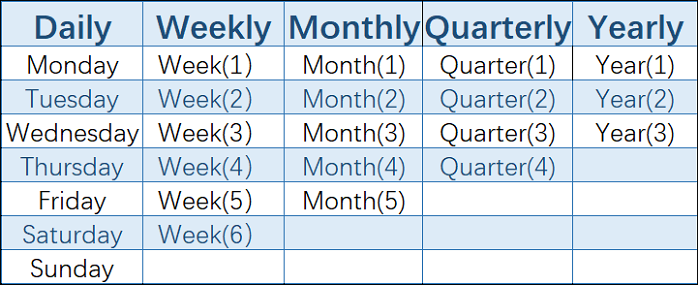
·Daily/ Weekly: Set a backup plan at a fixed time every day or week, especially for frequently updated files like working records, transaction records, chat logs, and more, to ensure timely protection of your data.
·Monthly/ Quarterly: When choosing a monthly date for a backup, consider setting a backup plan for your medium-term documents, such as bill flows, surveillance videos, pictures, or videos of your children and pets, which can be backed up on a monthly or quarterly basis.
·Yearly: Set a yearly backup plan to organize your files by year and protect them from loss or damage. This ensures you have a safe copy of your data.
How to encrypt the scheduled backup files
To ensure the safety of your private data or important documents, generate a key pair, enter the public critical information, and then encrypt the file.
Which Type of backup is better for a scheduled backup
The three types of backups in the schedule backup module are complete, incremental, and differential backups, which are used when performing a disk backup schedule.
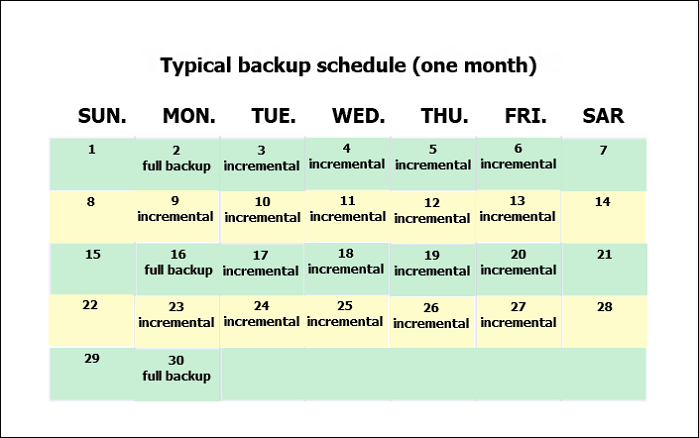
·Full backup: The full backup method copies all selected files entirely to the target directory, preserving file integrity and having the highest safety factor. However, it's a slow process that can generate many duplicate files when backed up multiple times, wasting storage space. It's typically used in yearly schedules and stored on large servers.
·Incremental backup: Incremental backup only copies files that have been changed or added since the last scheduled backup, making it a space-efficient and time-saving option. To utilize this advantage, a hybrid backup method can be designed, where a full backup is performed initially, followed by incremental backups, allowing for efficient storage space utilization and backup time savings.
·Differential backup: Differential backup copies all files changed since the last full backup, ensuring comprehensive backup data, especially useful when backing up data that has been updated since the last full backup, such as monthly full backups.
Email notification
Email notifications can be set up to alert you to various backup events, such as errors or completion, even when you're not physically present at your computer.
To Wrap It up
Setting a backup schedule is like practicing good time management - it ensures your data is safe even when you're busy with work or enjoying life. By setting a schedule and timeframe, your computer will automatically back up your data for you, taking care of the task even when you forget. A well-established backup habit, paired with a reliable schedule, will remind you to take care of your data, giving you peace of mind and protecting against potential losses.
Related Articles
- Tape Data Recovery Glossary
- What Is The Difference between Windows 10 Pro and Windows 10 Pro N
- What Is A USB Memory Stick? Complete Information on Memory Stick
- Backup VS Archive, What're the Main Differences and Which One to Choose
- How Do You Fix 'Word Cannot Open the Document: User Does Not Have Access Privileges' Error? Fixes Are Here!
When you encounter the error Word cannot open the document, user may not have access privileges, try these fixes to resolve the issue and recover your files. - How Do I Fix Word Experienced An Error Trying to Open the File? Here Is the Guide
Fix Word experienced an error trying to open the file with practical methods. Learn why Word files fail to open and how to repair Word, adjust settings, and recover documents safely.
Products
Articles & Tutorials
- Data Recovery
- Data Backup
- File Recovery
- File Backup
- System Backup and Restore
- Disk and Partition Clone
- Technical articles
- Mobile articles
- Disk Master Help
- Windows Data Recovery Tutorials
- Windows Secure Delete Tutorials
- Windows Partition Management Tutorials
- Windows File Backup and Restore Tutorials
- Windows System Backup and Restore Tutorials
- Windows Disk Backup and Restore Tutorials
- Windows Clone Tutorials