Add Folder to OneDrive Backup Without Moving: 3 Working Ways
Adding folders to OneDrive without moving them allows users to optimize their file management and data backup, preserving the original folder structure and location while enhancing data security and remote access. To do this effectively, it's necessary to choose a secure and efficient method, and the article provides step-by-step guidance to make the process hassle-free.
Can an Existing Folder Be Added to OneDrive Without Moving
People are finding ways to add a folder to OneDrive backup without moving it, allowing users to create a backup of important folders while keeping their original location and organization intact. This solution enables users to maintain their folder structure and access their backed-up files from OneDrive.
3 Working Ways to Add Folder to OneDrive Without Moving
- To add folders easily, use Qiling Disk Master. This tool allows you to back up folders to OneDrive or other cloud storage with just a few clicks, making it a convenient option for protecting your data without moving files.
- Way 2. Use CMD Command to Add Folders to OneDrive
- Way 3. Use Junction Points to Add Folder
Way 1. Use Qiling Disk Master to Add Folders Easily & Quickly
Qiling Disk Master is a user-friendly software that simplifies adding folders to OneDrive, allowing for secure backups without disrupting original locations. It offers features like scheduled backups, file versioning, and selective folder backup, enabling users to maintain their workflow while keeping data protected against loss or system failures.
Features of Qiling Disk Master
- 🎗️Smart Backup: Qiling Disk Master allows users to back up specific folders and files selectively, as well as clone their entire disk or operating system to OneDrive, making hardware upgrades or replacements easier.
- 🗂️Incremental and Differential Backups: It enables users to manage backups efficiently, copying only the new changes since the last backup, which can save time and storage space when updating OneDrive folders.
- ⏰Scheduled Backups: You can schedule automated backups and select specific folders to backup regularly to a designated location. Once the backup is complete, you can manually move or sync it to your OneDrive folder.
- 💽Emergency Disk Creation: Qiling Disk Master allows users to create a bootable emergency disk in case of backup or syncing issues, providing a backup plan for disaster recovery.
Download Qiling Disk Master today and experience the convenience and security of adding folders to your OneDrive without moving them.
Step 1. To begin the backup process, click the Select backup contents button.

Step 2. There are four main categories of data backup: File, Disk, OS, and Mail. These categories encompass different types of data and systems that require protection, ensuring comprehensive backup coverage.

Step 3. The left-hand side of the screen displays lists of both local and network files, allowing users to expand the directory and select the files to be backed up.

Step 4. Follow the guidance on the screen and choose the place where you want to store the backup.

To set up a backup, ensure that it is encrypted and schedule it by clicking "Options" in "Backup Options". Additionally, you can specify a start time for the backup in "Backup Scheme" by clicking "Options". There are various other customizable options available.

Step 5. You can store the backup file on your computer, in Qiling's cloud service, or on a network-attached storage device (NAS).

Step 6. Qiling Disk Master allows users to store backup copies of their files on either a third-party cloud drive or on Qiling's own cloud storage.
To back up data on a third-party cloud drive, select Local Drive and scroll down to add Cloud Device, then fill in your account information.
Step 7. To start a backup, click on the "Proceed" button. After the backup process is complete, it will be displayed as a card on the left side of the screen. You can right-click on the card to view more details and options for managing the backup job.
📖Related Reading: To backup to OneDrive without syncing, you can use the "Backup" feature in Windows 10/11, which allows you to select specific folders to backup to OneDrive, without syncing the entire OneDrive folder. This way, you can choose which folders to backup, and OneDrive will only upload the selected files to the cloud, without affecting the local files.
Way 2. Use CMD Command to Add Folders to OneDrive
OneDrive offers a user-friendly interface for managing your cloud storage, and you can leverage CMD commands to perform various tasks automatically, troubleshoot issues, and manage the system with ease. For instance, you can add folders to OneDrive without physically moving them, providing greater flexibility in organizing your files on the computer and taking advantage of OneDrive's cloud storage features.
To add folders to OneDrive using CMD commands, you can use the `mklink` command to create a symbolic link to a local folder. This creates a pointer in your OneDrive folder that references the original folder location, allowing OneDrive to sync the files without physically moving them. Alternatively, if you prefer to copy the actual files, you can use the `robocopy` command to duplicate the folder contents to OneDrive.
Step 1. To open Command Prompt with administration rights, press the Windows key + X and select Command Prompt (Admin) from the menu. This will open a Command Prompt window with elevated privileges.

Step 2. To open your OneDrive folder location, use the command `cd ~\OneDrive` in the Command Prompt. This command will take you to the OneDrive folder in your user profile, where you'll find your OneDrive files and folders.
Step 3. To add a folder to OneDrive without moving it, you can create a symbolic link using the `mklink` command. The general syntax is `mklink /d "OneDrive\folder" "C:\path\to\folder"`, where "OneDrive\folder" is the desired name of the symbolic link and "C:\path\to\folder" is the actual path to the folder you want to link. This will create a link to the folder in OneDrive without moving the original folder.
mklink /D "Username"
Step 4. To view the linked folder in OneDrive, navigate to your OneDrive folder using File Explorer. The linked folder will appear there, but the files will still be stored in their original location.
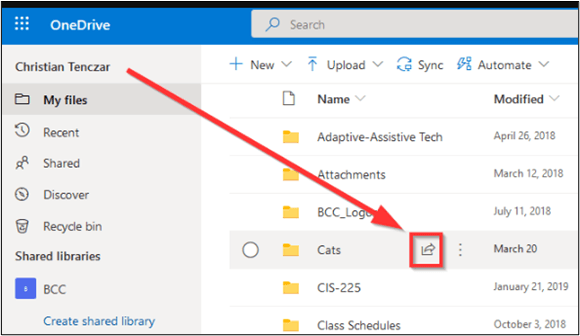
Step 5. OneDrive will automatically sync the linked folder and its contents.
Way 3. Use Junction Points to Add Folder
Windows includes a built-in Junction Point feature that allows users to create backups on cloud services, specifically OneDrive, without moving their computer folder structure. A Junction Point is a symbolic link that creates a reference to a folder, making it appear in two locations at once. This means users can maintain their original folder structure on their computer while also syncing the contents with OneDrive's cloud storage. To take advantage of this feature, users can follow these steps to add folders to OneDrive Backup without moving them.
Step 1. Open the Command Prompt with administrative rights by selecting the Start button and choosing either Windows Terminal or Command Prompt.
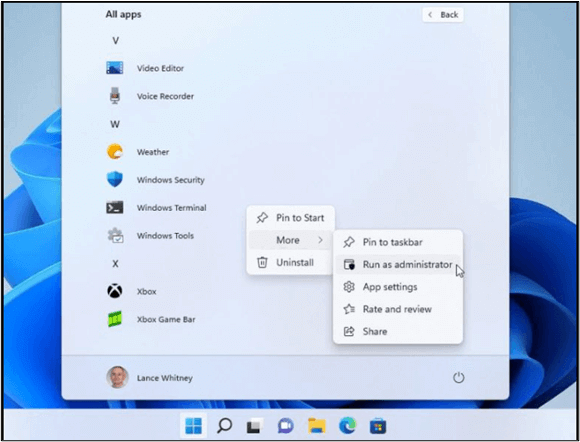
Step 2. To navigate your OneDrive directory, use the cd command in your terminal or command prompt. The path is usually: `cd /Users/your_username/OneDrive` or `cd ~/OneDrive` on a Mac, and `cd C:\Users\your_username\OneDrive` on a Windows PC. Replace `your_username` with your actual username.
C:/Users//OneDrive
Step 3. To create a backup in OneDrive, select the folder you want to use for the backup and use the command to initiate the backup process.
C:/Path/To/SourceFolder
Step 4. `cd ~/OneDrive`
C:/Users/Username/OneDrive/TargetFolder
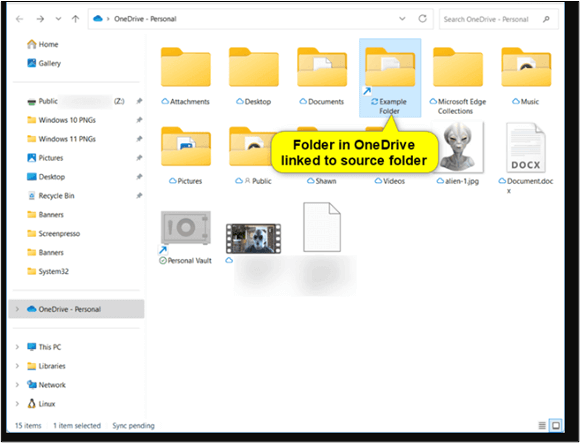
Step 5. To create a junction point, press Enter, and it will appear as if the folder is inside your OneDrive directory.
The Wrapping Up
Adding folders to OneDrive Backup is a smart step to ensure data management and protection, keeping the folder's existing structure and enhancing security and accessibility. Three effective ways to add folders to OneDrive backup without moving them are mentioned in the article, allowing you to safely back up your valuable data in the Cloud and save files on your computer. A handy tool like Qiling Disk Master can also create automatic backups, offering multiple features and advanced backup options to enhance data security and accessibility.
Share this article with your social media friends to help them discover its valuable features!
Add Folder to OneDrive Backup Without Moving FAQs
Are you looking for ways to add a folder to OneDrive Backup without moving it? Here are the solutions to your common queries about the process.
1. How do I manually add a folder to OneDrive?
To add a folder to OneDrive manually, follow these steps.
- Navigate to your OneDrive and select the Add button.
- Create a folder and choose a name
- The folder is now located in your OneDrive directory, where its contents will be automatically synced to the cloud.
2. How do I add a specific folder to OneDrive to sync?
To add a specific folder to OneDrive, simply navigate to the folder you want to sync with OneDrive, right-click on it, and select "Always keep on this device" from the context menu. This will sync the folder with OneDrive and make it accessible across all your devices.
- Navigate to the OneDrive app.
- Open the OneDrive settings.
- Go to the Choose folders.
- All folders in your OneDrive Directory will appear.
- Select a folder and tap OK.
3. What is the difference between OneDrive backup and sync?
OneDrive synchronization allows data to be shared between devices, with changes made on one device being updated across all devices.
OneDrive backup is a useful tool for securing important files against data loss, allowing you to create a backup of device folders on a cloud service, automatically saving photos, documents, and other files to OneDrive.
Related Articles
- How to Backup and Restore Thunderbird Emails (Windows & Mac Guide)
- How to Create Clonezilla Bootable USB in Windows [Quick & Easy]🔥
- HiDrive vs Google Drive: Ultimate Comparison in 2023🏆
- Copy Folders and Subfolders Using Xcopy Command | 3 Ways🔥
- Does Windows File History Backup Everything? Know More About File History
- How to Solve Outlook Not Syncing with Gmail[2023 Tutorial]
Is your Outlook Not Syncing with Gmail? You can find out the reasons and the right techniques for syncing your Outlook with Gmail here!
Products
Articles & Tutorials
- Data Recovery
- Data Backup
- File Recovery
- File Backup
- System Backup and Restore
- Disk and Partition Clone
- Technical articles
- Mobile articles
- Disk Master Help
- Windows Data Recovery Tutorials
- Windows Secure Delete Tutorials
- Windows Partition Management Tutorials
- Windows File Backup and Restore Tutorials
- Windows System Backup and Restore Tutorials
- Windows Disk Backup and Restore Tutorials
- Windows Clone Tutorials