How to Create Clonezilla Bootable USB in Windows [Quick & Easy]🔥
Clonezilla is a great cloning and partition tool, but before using it, you need to create a bootable USB flash drive to create clones or upgrade. This post will show how to create a Clonezilla bootable USB in Windows.
What is Clonezilla Bootable USB & Its Benefits
Clonezilla is a free and open-source cloning software that helps create system backups, disk clones, and OS upgrades, with features like boot loaders, encryption, and file system support.
The bootable USB is the best method for backing up, as it allows you to boot your computer without reinstalling. Additionally, Clonezilla offers advantages such as file compression and encryption to save space and provide security.
A bootable USB drive offers a quick and easy way to access your computer's operating system and data in case of a system failure, hardware malfunction, or other issues, allowing you to troubleshoot and recover your system without needing to boot from the original installation media. It also enables you to test and run operating systems, such as Linux, without modifying your primary system, and can be used to create a portable, self-contained backup of your system, including applications and data, for easy restoration in case of disaster. Additionally, a bootable USB can be used to run antivirus scans, disk cleanup, and other maintenance tasks on a system without having to physically access it, making it a convenient and efficient tool for system maintenance and troubleshooting.
- Create a WinPE emergency bootable disk to recover data in case of loss. To do this, download the Windows Assessment and Deployment Kit (ADK) from Microsoft, which includes the Windows Preinstallation Environment (WinPE).
- Boots the system without reinstallation
- Portability
- Compatibility
Get personalized help with your boot issues by starting a live chat with a Qiling Expert. They can provide a tailored solution specific to your problem, addressing any concerns you may have. Additionally, they can assist with other related matters such as troubleshooting, maintenance, and optimization to ensure your system runs smoothly and efficiently.
- PC won't boot
- Cloned hard disk cannot boot
- System not booting error
2 Ways to Effectively Create a Clonezilla Bootable USB
To clone a drive to a new one, you need to create a bootable media with a flash drive or USB first. This can be done using two methods, and the right tool to create a Clonezilla bootable USB can be chosen from the table below.
Here the table below gives us a detailed comparison of the two methods. Check it out now:
| 🆚Comparison | 🥇Qiling Disk Master | 🥈Rufus |
| ⏰Required Time | Very Quick | Quick |
| 🔒Difficulty | Low | Medium |
| 💻Effectiveness | High | Medium |
| 👩💻Suitable Users |
Beginners Time-savers |
All users |
📖Further Reading: Simplest USB Clone Tool to Clone USB Stick
Method 1. Use Qiling Disk Master
Qiling Disk Master is a tool that allows you to create bootable media for your hard drives using Clonezilla ISO files, and also enables system clones, images, backups, and upgrades for duplication.
This tool is capable of creating rescue media in a few simple steps. You can specify the hard drive or system and choose the media file, such as a flash drive or CDs/DVDs, and have your output ready quickly. Additionally, it offers features like cloning, creating images, recovering files from bad or corrupt drives, and creating smart backup and recovery solutions.
| 🗃️Advanced Backup and Recovery Solutions | The tool provides solutions to create disk/partition, system, and file backup solutions, allowing users to protect their data and ensure business continuity.cloud storage space. |
| 📻Creating Bootable Media | You can create rescue media using USB flash drives and CDs/DVDs to assist with computer recovery and troubleshooting.back up your system without reinstallation in case of emergencies. |
| 🏠Security Zone | Store your backup files, such as clones, images, and important files, in a secure zone to safeguard them from external threats. |
| 🔘Simple and Flexible Cloning Options | Create system clones and disk clones with customizable options, including storage on various types of drives such as SSDs, hard drives, and different sizes, allowing you to store data according to your convenience. |
Here are the steps to create a bootable USB with Qiling Disk Master. First, download the Qiling Disk Master software from the official website and install it on your computer. Next, insert the USB drive you want to make bootable and ensure it's empty or backed up, as the process will erase all data on the drive.
Step 1. Prepare a USB drive which can be written and read.
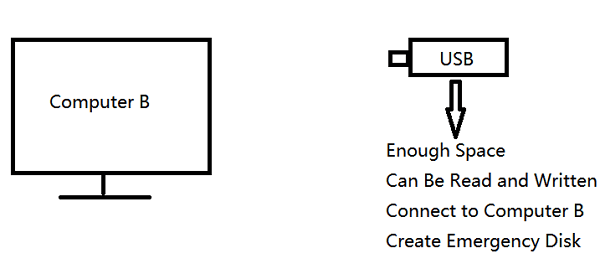
Step 2. Launch and install Qiling Disk Master on the Computer B.
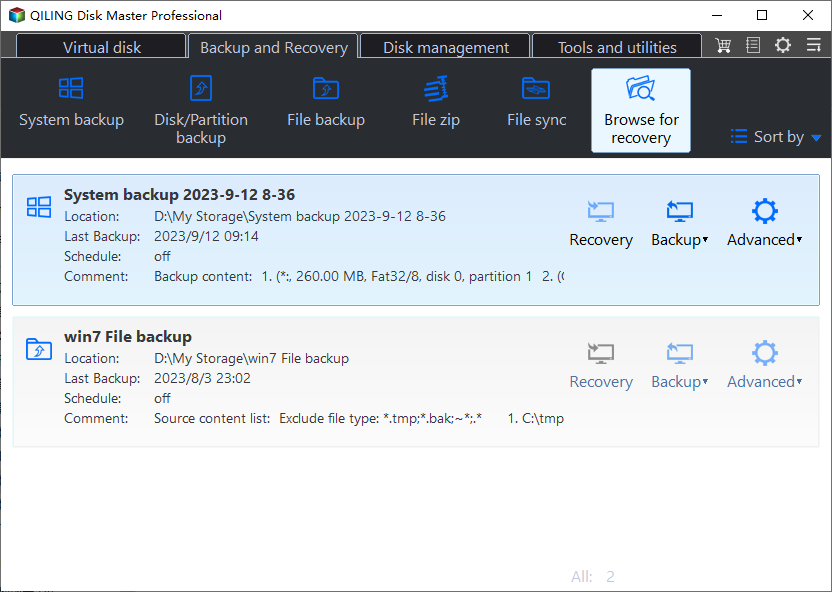
Step 3. Find and click "Tools" and choose "Create Emergency Disk".
Step 4. To begin the process, you need to choose the location where the boot disk will be saved. This can be done by creating an ISO file, which is a digital copy of the installation media, or by creating a bootable USB or CD/DVD disc, which can be used to install the operating system on a computer.
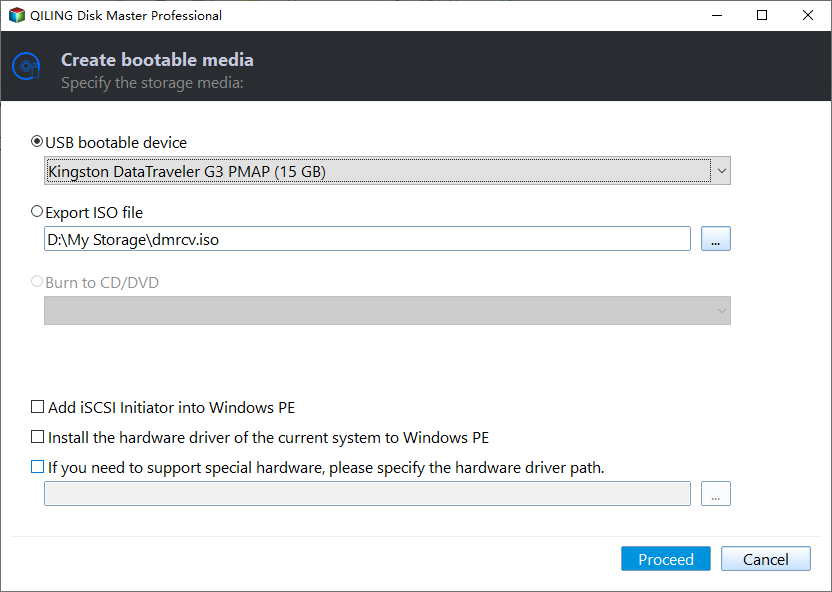
Step 5. Then click "Create" to start.
Method 2. Use Rufus
Another popular third-party tool you can use to create Clonezilla media is Rufus. This tool is used exclusively to create bootable USB flash drives for various disk cloning tools. This is a complex process, as any mistake while creating bootable media may wipe out your entire data. Refer to the steps below and execute them to create a Clonezilla bootable USB.
- ⬇️Download the ISO file from Clonezilla:
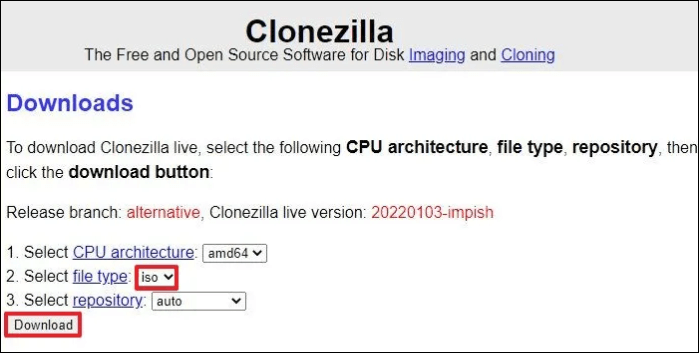
Step 1: Navigate to the Clonezilla download page on your computer.
Step 2: To download an ISO file, click on the dropdown beside the file type and select "ISO", then click "Download".
- 🪜Creating Clonezilla bootable USB with Rufus:
To create a bootable USB flash drive, ensure you have a flash drive with at least 4GB of free space.
Step 1: To download Rufus, go to the Rufus website and click the download link for the latest version under the Download section.
Step 2: Once you download the file, double-click on it to complete the installation.
Step 3: Launch the software and select your USB flash drive for bootable media under Device.
Step 4: Click on the "Select" button and choose the Clonezilla ISO file for "Boot selection" in Rufus, which will automatically set the necessary settings to create a bootable USB drive.
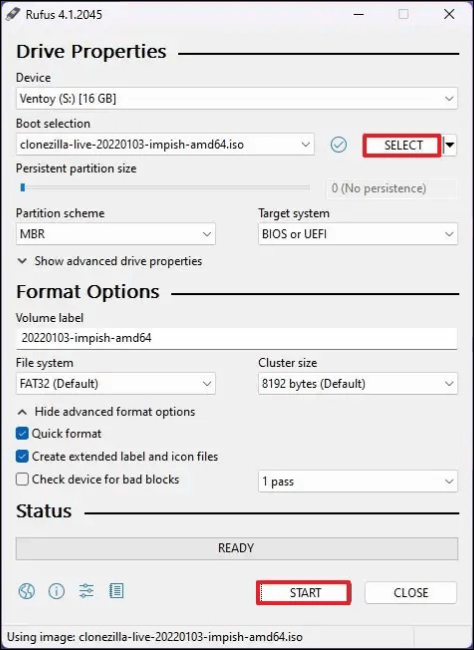
Step 5: Click Start when ready, and Rufus will detect the "ISOHybrid" image. Click on Write in ISO image mode.
The Clonezilla ISO is a small file, so the process should be quick. Before proceeding, make sure your second hard drive is connected to your system and functioning properly.
Sum Up
Cloning is a helpful tool for upgrading, duplicating, and backing up important data on computers, and Clonezilla is a popular cloning tool. To use it, you need to create a bootable USB drive in Windows, which can be done in two ways.
The best method to use is Qiling Disk Master, which simplifies the cloning process and eliminates the need for Clonezilla, allowing you to create clones, images, backups, and bootable USB drives with ease.
FAQs on How to create Clonezilla Bootable USB in Windows
Here are some of the most frequently asked questions about creating a Clonezilla bootable USB in Windows:
1. How to make Clonezilla bootable USB with Rufus?
- Download the ISO file from the Clonezilla website.
- Go to the Rufus website and download the latest version.
- Complete the installation and launch the tool.
- Select your USB flash drive under the device section.
- Add the ISO file by clicking on the Select button next to Boot Selection and selecting the ISO file.
- Click on Start to start the process.
2. How to create a bootable USB using Windows ISO?
- To download the Windows ISO file, download the Media Creation Tool from Microsoft. This tool will allow you to download the Windows ISO file.
- To create installation media for another PC, you need to launch the tool and select the option "Create installation media (USB flash drive, DVD, or ISO file) for another PC".
- Set up the architecture, edition, and language.
- Select the ISO file as your media and choose the location to save it.
- Once your Windows ISO file is ready, use the Media Creation tool to create bootable USB flash drives or CDs/DVDs.
3. How to create a bootable USB for Windows 10?
- Download the Media Creation tool for Windows 10.
- Launch the tool and select the option to create Installation media from the options.
- Set up the basic requirements like language, architecture, and edition.
- Now, check the USB flash drive option.
- To create a bootable media, select the drive you want to use and wait for the tool to complete the process.
Related Articles
- How Long Does It Take Google Drive to Process a Video
- The Cloud File Provider Is Not Running: Causes and Solutions
- Quick Ways to Fix OneDrive Connect Problems
- Windows Backup Did Not Complete Successfully - How to Fix?
- Best Way to Restore Windows 10 to Dissimilar Hardware
If you're trying to migrate Windows 10 to new hardware and wondering what constitutes “dissimilar hardware,” you're in the right place. To tackle this challenge, start by using the best backup software to ensure a smooth transition. - How to Use Robocopy Command to Copy Folders and Subfolders
Learning how to use Robocopy to copy folders and subfolders on Windows is a valuable skill, especially when dealing with large datasets.
Products
Articles & Tutorials
- Data Recovery
- Data Backup
- File Recovery
- File Backup
- System Backup and Restore
- Disk and Partition Clone
- Technical articles
- Mobile articles
- Disk Master Help
- Windows Data Recovery Tutorials
- Windows Secure Delete Tutorials
- Windows Partition Management Tutorials
- Windows File Backup and Restore Tutorials
- Windows System Backup and Restore Tutorials
- Windows Disk Backup and Restore Tutorials
- Windows Clone Tutorials