OneDrive Backup vs. Sync: What Are the Differences
OneDrive Backup is a feature that allows users to protect their files and folders by saving them to the cloud. It acts as a safety net for your data, ensuring that if your computer hardware fails or you experience a malware attack, your important files are still accessible. OneDrive Sync, on the other hand, is a feature that automatically syncs files between your local device and the cloud, ensuring that all your files are up-to-date and accessible from any device.
What Is OneDrive
OneDrive is a cloud storage service that allows users to store and access their files from anywhere. The amount of storage space available depends on the plan chosen by the user. The OneDrive sync client, which can be installed on Windows or macOS, enables users to sync files from selected folders, such as Desktop, Documents, and Pictures, to the cloud for easy access and sharing.
The OneDrive sync client's "Backup" tab may cause users to believe the app can back up data, leading to confusion between OneDrive backup and sync.
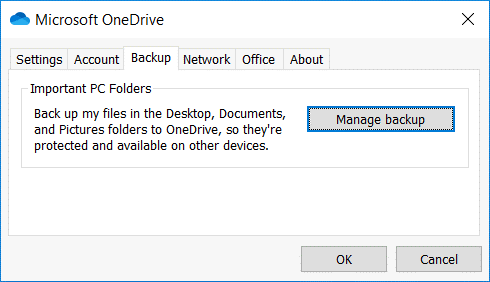
General Introduction to OneDrive Backup and Sync
OneDrive backup and sync refers to backing up files from local storage to the OneDrive cloud drive or syncing cloud data to a regional location.
Users can easily exchange data between local devices and online cloud storage using operations like uploading and downloading. However, for a more routine and automatic process, Microsoft's OneDrive backup solution is a good choice.
Backup vs. Sync: What Are the Differences
Cloud service software provides users with backup and synchronization services, but they have distinct differences, which will be discussed in detail below.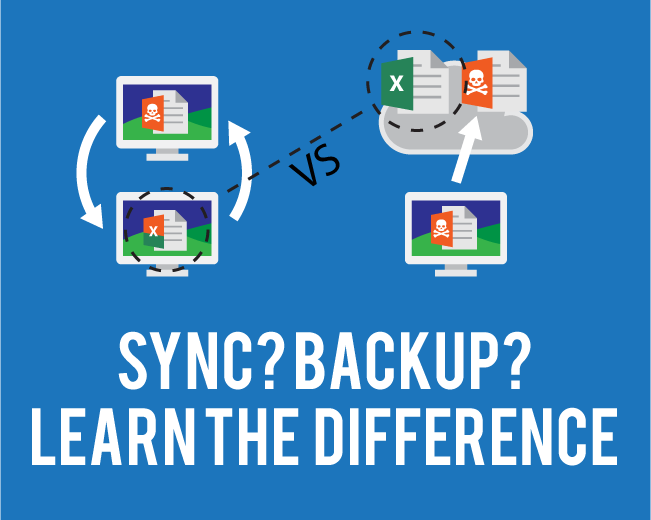
- Different directions of the files: Backup and synchronization are two distinct processes. Backup is a one-way operation that copies files from an original location to a destination, whereas synchronization is a two-way process that keeps duplicate files in two or more places, allowing for changes to be made in either location.
- Meet different needs of users: A backup creates a duplicate copy of a file in a separate location, preventing loss from accidental deletion or damage. In contrast, synchronization keeps duplicate files in different locations, but doesn't guarantee file security if the original is deleted. (Note: I reformatted the text to fit the requested one-paragraph response)
Pros & Cons of OneDrive Backup and Sync
Given the difference between syncing and backing up, we can determine the most suitable approach for each situation. Syncing allows access to files on different devices, but it may not be the best option for keeping data safe. On the other hand, backing up is ideal for preserving data, but it may not provide simultaneous access to files on multiple devices. Understanding the pros and cons of each approach can help you make an informed decision.
Pros and Cons of OneDrive Backup
The OneDrive app has a backup feature that automatically saves important files from default locations like Desktop, Documents, and Pictures.
Pros:
OneDrive backup and restore keeps your important files safe.
Users can restore changed files through OneDrive's file versioning feature, allowing them to revert to previous versions of their files.
Cons:
Backups take up OneDrive's free storage space.
OneDrive's lack of expertise in protecting files from severe disasters.
Pros and Cons of Sync
OneDrive allows users to sync files to the cloud in seconds, making it a convenient option for cloud storage.
Pros:
Any device (such as a computer, phone, or tablet) can access your files via OneDrive sync.
Users can easily share and edit OneDrive synced files directly.
Cons:
OneDrive cannot guarantee the security of your files.
Steps to Set up OneDrive Backup and Sync
Here, we will offer you the complete steps to set up OneDrive backup or sync on your computer. You can follow it to meet your own needs.
Use OneDrive Client to Set up OneDrive Backup
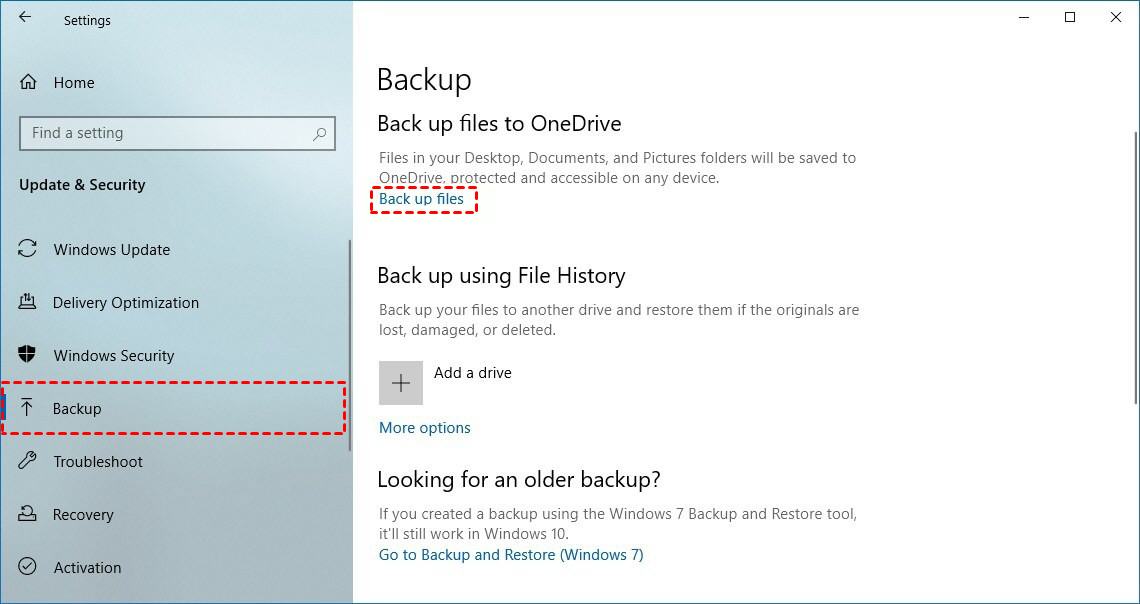
Step 1. Go to System Settings and click Update & Security
Step 2. Click "Backup" options.
Step 3. Select the "Backup files" option under the Backup files to the OneDrive section.
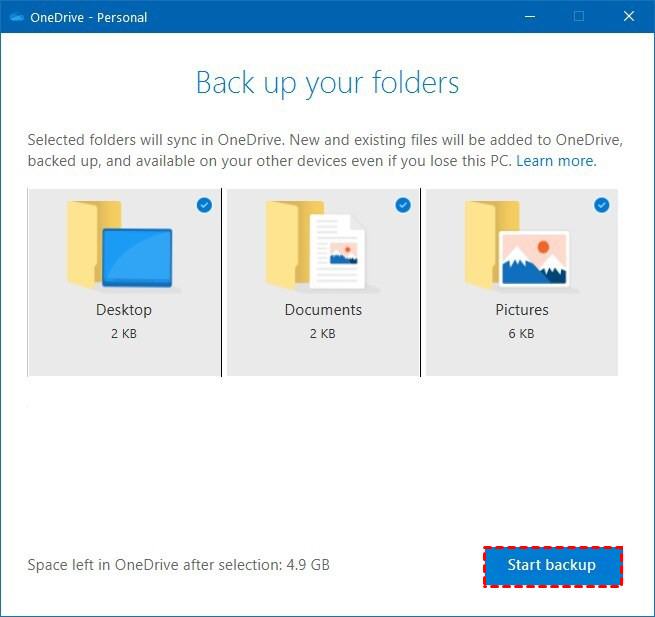
Step 4. To start a backup, click on the folder you wish to back up and press the "Start Backup" button located at the bottom.
Use OneDrive Client to Set up OneDrive Sync
Step 1. Open your PC's system settings and select "OneDrive."
Step 2. Fill in your email address and log in.
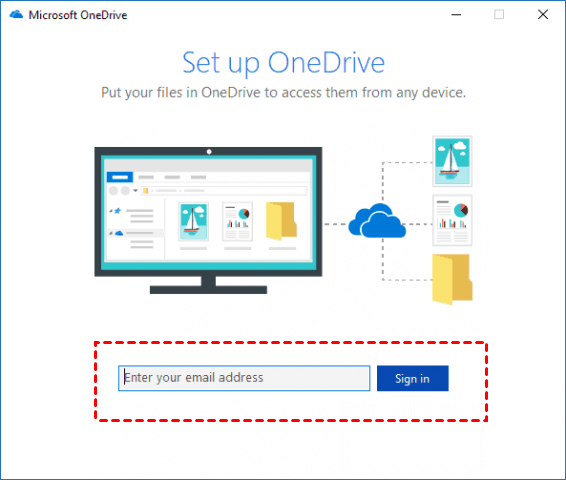
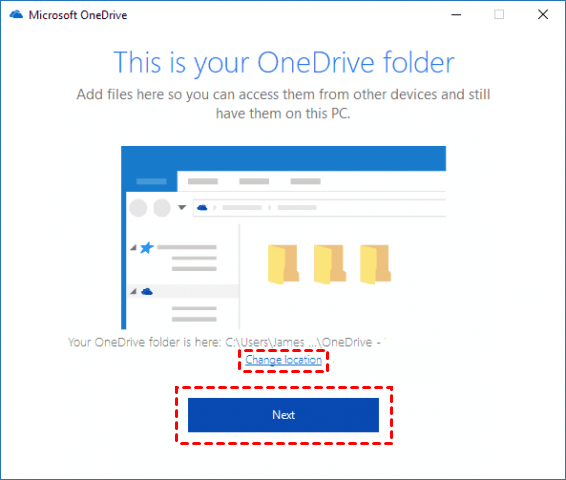
Step 3. When you see the "This is your OneDrive folder" on the screen, click "Next" to proceed. If you want to change the folder location, click "Change location" instead.
Step 4. Select the folders you want to sync with OneDrive and click "Next".
Step 5. Once you've completed the above steps, you can simply place your files in this folder, and OneDrive will automatically sync them to the cloud, eliminating the need for manual uploading or transferring.
Related Articles
- What Is Intranet? Everything You Need to Kow about It
- What Is an Open System? Everything You Need to Know about It
- What Is SACD? Super Audio Compact Disc Explained
- What Is Windows Update Assistant? [Everything You Need to Know]
- PS4 Internal Hard Drive Format: What Is the Best & How to Format [Full Guide]
After using the old hard drive in PS4 for a long time, it may lose its energy and performance, requiring a full format to restore its original version. To format the PS4, multiple methods can be followed, with the preferred file format system being exFAT. - How to Choose QNAP External Drive Format [2024 Detailed Tutorial]
Choosing the best QNAP external drive format for your drive can be a daunting task, but understanding the facts can help. To make an informed decision, you can consider the guide provided in this article, which outlines the steps to format your drive.
Products
Articles & Tutorials
- Data Recovery
- Data Backup
- File Recovery
- File Backup
- System Backup and Restore
- Disk and Partition Clone
- Technical articles
- Mobile articles
- Disk Master Help
- Windows Data Recovery Tutorials
- Windows Secure Delete Tutorials
- Windows Partition Management Tutorials
- Windows File Backup and Restore Tutorials
- Windows System Backup and Restore Tutorials
- Windows Disk Backup and Restore Tutorials
- Windows Clone Tutorials