PS4 Internal Hard Drive Format: What Is the Best & How to Format [Full Guide]
The PS4's performance can deteriorate over time due to internal hard drive issues, leading to slow loading, crashing, or dev errors while playing games. This is a natural result of the console's age and wear, similar to how electronic devices have a shelf life. As a result, the console's performance may slow down, and it may become prone to errors and crashes. This can be a sign that the internal hard drive needs to be replaced or updated to improve the console's overall performance.
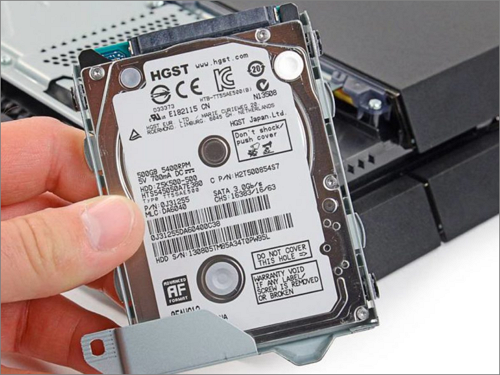
To improve your PS4's performance, you can format its internal hard drive, which is a simple process that can be completed in a few steps. First, navigate to the PS4's settings, then select "System" and choose "Storage Devices." From there, select the internal hard drive and choose "Format.
Why Set the PS4 Internal Hard Drive Format
Formatting the PS4 hard drive can be beneficial, especially as the console gets older, when issues such as a non-functional hard drive may arise. The coordination between internal software and hardware enables electronic gadgets, including the PS4, to run correctly, with functions stored in files to guide their operation. However, as the console ages, problems like a malfunctioning hard drive, also known as PS4 hard drive not working, may occur, making formatting a viable solution.
- This upgrade enhances the overall speed of the PS4 by providing performance comparable to a new device and increasing the storage capacity of the PS4.
- Formatting a hard drive can help resolve issues caused by corrupt or faulty files that lead to sudden crashes, often due to device errors.
- We make adjustments to hard drive settings to meet or maintain the minimum game requirements, which can lead to inconsistencies between games and software, and a hard drive format can resolve this quickly.
- Formatting an internal hard drive erases all data and sets it up for use as a new drive, making it suitable for selling, reusing, or repurposing.
If your PS4 is running slowly, there are several potential causes and solutions to consider. One possible cause is a slow hard drive, which can be resolved by upgrading to a faster SSD.

How to Solve PS4 Running Slow [Reasons & Fixes]
Various reasons could lead to the PS4 Running Slow, including software and hardware issues, overheating, and outdated system software, but there are several solutions one can apply to resolve the issue.
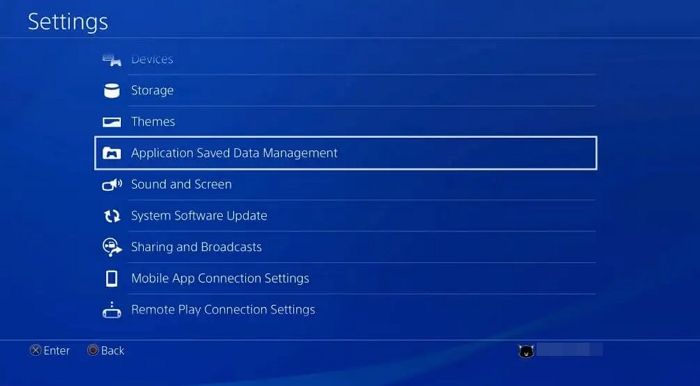
What Is the Best PS4 Internal Hard Drive Format
The best internal hard drive format for PS4 is unclear, but on a Windows PC, hard disk formats are shown as NTFS, FAT32, and exFAT, each storing data differently and varying in file names and permissions.
If you're trying to determine the best format for your hard drive, consider the table below to decide what's most suitable for your operating system (OS).
| File Format | Type of File System | Supported Volume | Supported by OS |
|---|---|---|---|
| NTFS | Modern File system | >256TB | Modern Windows OS |
| exFAT | An alternative to FAT32 | 128PB (Peta Byte) with a maximum file size of 16EB (Extra Byte) translates to 128,000,000,000,000,000 bytes and 16,000,000,000,000,000,000 bytes, respectively. This is an enormous amount of data, equivalent to the storage capacity of approximately 25 million 5TB hard drives or 50 million 4TB hard drives. | Well-suited for many devices and OS |
| FAT32 | Relatively older format compared to NTFS and FAT32 | Up to 2TB with no single file size >4GB | Good compatibility with Linux, Mac, and Android along with Windows. |
The PS4 internal hard drive is best suited for the exFAT format, given the large size of game files. ExFAT offers improved space allocation, technical support, and more secure file storage, and supports unlimited file sizes, unlike FAT32. In contrast, NTFS is more suitable for the Windows operating system.
Want to know the differences between exFAT, NTFS, and FAT32? Click the button below to learn more about these file systems, or click on the links to FAT32, exFAT, or NTFS to dive deeper into their details.
The next section will provide more detailed information about setting the internal hard drive format on a PS4, which is an important step in configuring the console's storage.
How to Set the PS4 Internal Hard Drive Format
There are multiple ways to format a hard drive, and choosing the best method can be a task in itself. If you want to do it manually, you can proceed, but for a full format, some of the best tools include Qiling Disk Master Free.
Before we get into the specifics of the methods, there are three things you need to be aware of regarding the PS4 internal hard drive format solution:
1. To format the stock PS4 hard drive, you need to remove it from its driver cage and connect it to your computer. You can either connect it directly to your PC or place it in an external hard drive enclosure. Before formatting, ensure you've created a new partition for the PS4 hard drive on your PC. This will allow you to format the drive without affecting your PS4's original data.
2. Formatting your PS4's hard drive can help restore its performance. A full format is recommended as it not only removes errors but also bad sectors, which can hinder the console's performance. In contrast, a quick format may not address these issues, leaving the hard drive in a state that can affect the console's overall performance.
- Tip
- There are two types of disk formatting: quick format and full format. Each has its own advantages and disadvantages. For more information, you can visit the link to learn which one is best for your needs.
3. Formatting your computer will erase all data on the internal hard drive, so it's crucial to backup all essential data beforehand to avoid losing important information.
Now that we have known the prerequisites for formatting, let's get into the methods to do it.
Method 1. Set the PS4 Internal Hard Drive Format via Qiling Disk Master
Guide 1: Create a New Partition for PS4 Internal Hard Drive
Dividing your hard drive into smaller, separate parts, known as partitions, allows you to use your storage space more efficiently. A single, large hard drive can become cluttered with various types of data, making it difficult to manage. By creating separate partitions, you can store different types of data, such as operating systems, programs, and files, in their own dedicated spaces. A tool like Qiling Disk Master can assist you in creating these partitions with ease.
Step 1. Launch Qiling Disk Master. On the main window, right-click on the unallocated space on your hard drive or external storage device and select "Create".
Step 2. To adjust the partition size, file system, label, and other settings, you can do so.
Step 3. Click on the "Proceed" button to create a new partition.
Watch the following video tutorial to learn how to create a partition in NTFS, FAT, or EXT file system.
Guide 2: Format the PS4 Internal Hard Drive
After partitioning your external hard drive, use Qiling Disk Master to manage your hard drive space and format its files.
Step 1. Launch Qiling Disk Master, right-click the partition on your external hard drive/USB/SD card which you want to format and choose the "Format" option.

Step 2. Assign a new partition label, file system (NTFS, FAT32, EXT2, EXT3, EXT4, exFAT), and cluster size to the selected partition.

Step 3. To start formatting your external hard drive or USB/SD card, click the "Proceed" button. This will initiate the formatting process, which will erase all data on the device.

Step 4. In the Warning window, click "Yes" to continue.
Qiling Disk Master can bring you more benefits and help convert NTFS to FAT32 without data loss.
Method 2. Set the PS4 Internal Hard Drive Format via Disk Management
When you connect your PS4 hard drive to your computer, you can't find it directly in the file manager. Instead, you need to use the Disk Management tool to view the external hard drive.
To format a drive using Disk Management, follow these steps:
Step1: To create a partition for an external hard drive, open Disk Management by pressing Windows + X, then locate the external hard drive on the list.
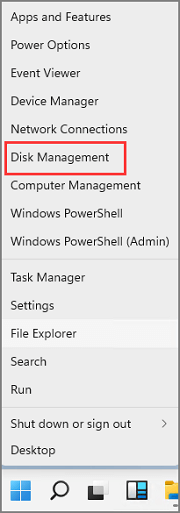
Check: Right-click on the hard drive and click "Initialize disk." Select the partition style as Master Boot Record (MBR) for hard drives smaller than 2TB and GUID Partition Table (GPT) for hard drives bigger than 2TB.
Step 2: Right-click on the unallocated part and click on the New Simple Volume to create a partition.
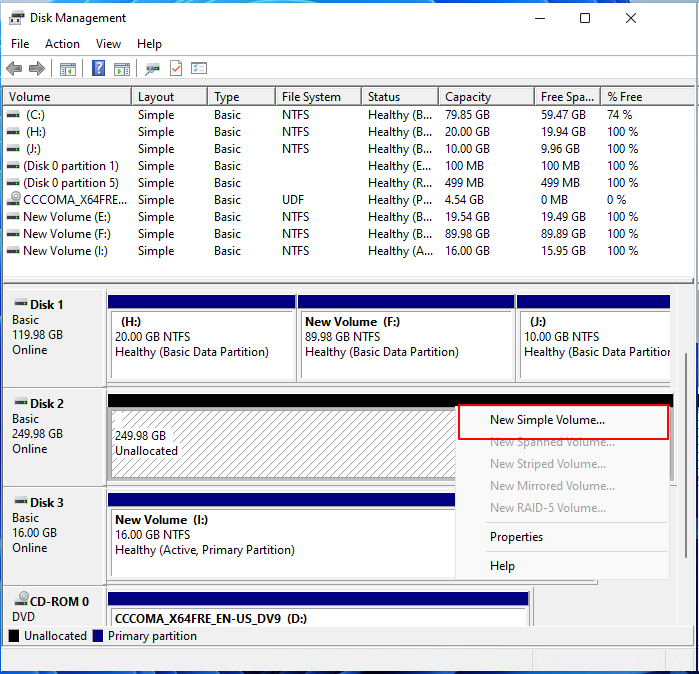
Remainder: If you're running out of space on your drive, you can create some room by shrinking or deleting an existing partition. Alternatively, you can use a third-party tool to achieve this.
Step 3: A new simple volume window has opened, prompting the user to click on the "Next" button to proceed further.
Step 4: Enter the size of the partition in megabytes (MB) or click Next, and a maximum default size is selected.
Step 5: Choose the desired driver letter or select one of your options, and click Next. This action divides the external storage and creates the partition.
Step 6: To create a new partition, go back to Disk Management, right-click on the unallocated space, and select New Simple Volume. Follow the wizard to assign a drive letter and format the partition.
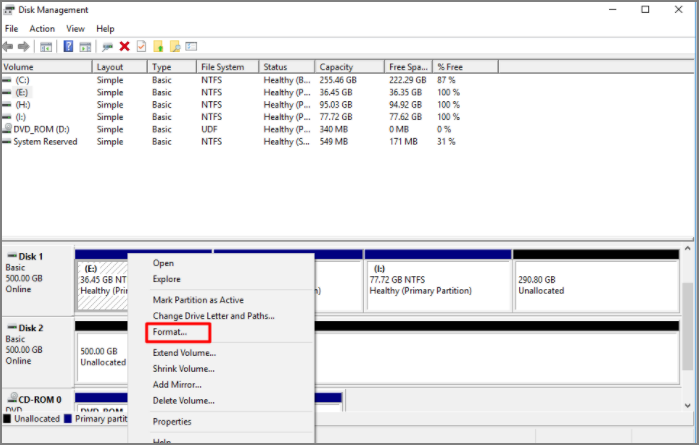
Step 7: On your PS4, select the file system as either exFAT or FAT32, avoiding NTFS, as it's not recognized by the PS4.
Step 8: If the Check box beside "Perform a quick format" is enabled, uncheck it to perform a full format. Then, review your choices and click Finish.
Method 3. Set the PS4 Internal Hard Drive Format via PS4 Built-in Tool
To format a PS4 external hard drive, you can use the PS4 console itself. The process is straightforward and utilizes built-in tools. Simply connect the external hard drive to your PS4, navigate to the Settings menu, select "System," then "Storage," and finally "Format External Drive." Follow the on-screen instructions to complete the formatting process, which will erase all data on the drive.
Step 1:Connect your external device with the PS4 console.
Step 2: This action prompts the below window on the screen.
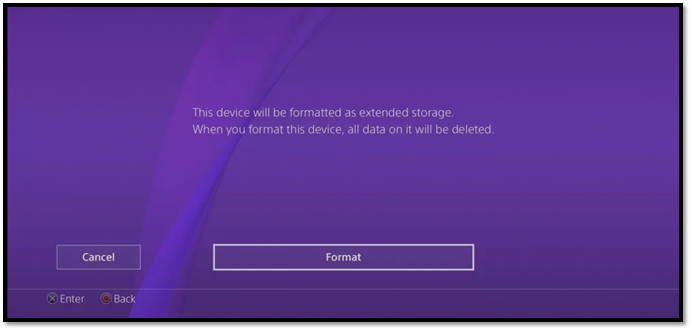
Step 3: Choose Enter (X) on the controller.
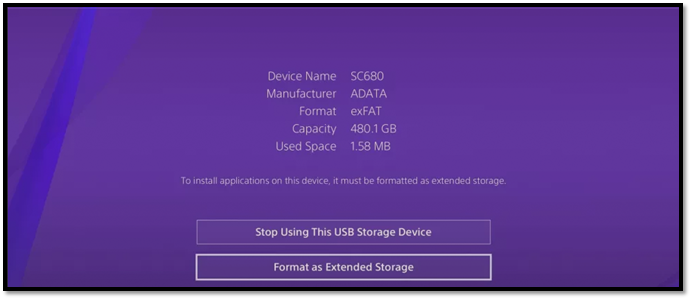
Step 4: Click on Format as extended storage and press Backup PS4.
Reminder: To avoid corrupting game files on your PS4, refrain from plugging in an external device or performing formatting while the console is running. This will prevent any potential data loss or corruption of your game files.
The best format for a PS4 internal hard drive is not specified, but formatting an external hard drive for use with the PS4 is a different story. If you're looking for information on formatting a PS4 external hard drive, you can find more details by clicking the link below.
How to Format External Hard Drive for PS4
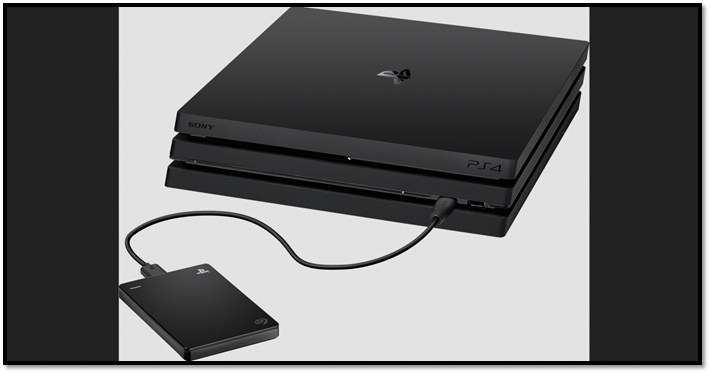
When it comes to expanding your PS4's storage capacity, you have several options for external hard drives. The best type of external storage for PS4 is a USB 3.0 external hard drive, specifically one that's formatted as a PS4-compatible drive. To format it using a PC or Mac, you can use the PS4's built-in formatting tool, but it's recommended to use a computer to format the drive first to ensure it's compatible with the PS4.
Conclusion
Formatting the PS4's external hard drive for optimal performance involves using the exFAT format. Before proceeding, ensure that the external hard drive is partitioned to avoid any issues. Choose a suitable method to complete the formatting process, and follow the steps outlined for formatting the PS4's internal hard drive.
Formatting your drive is a crucial step, and choosing the right file system is essential. For a PS4, exFAT is a great option as it's advanced and compatible. If you found this article helpful, consider sharing it with your friends and let me know your thoughts in the comments.
FAQ of PS4 Internal Hard Drive Format
What are the PS4 formats? The PS4 formats include the PS4, PS4 Slim, and PS4 Pro. The PS4 is the original model, the PS4 Slim is a slimmer and more energy-efficient version, and the PS4 Pro is a more powerful version with enhanced graphics capabilities.
1. What format is the PS4 internal drive?
The PS4 uses a 2.5-The PS4 can only accommodate a 2.5-inch SATA HDD if it is 9.5mm or less in depth, as a result of the drive's size and the console's design. Larger drives won't fit, so users must choose a drive that meets this specific size requirement.
2. Is exFAT the same as FAT32 PS4?
ExFAT is an advanced version of FAT32, designed to meet modern usage needs. Unlike FAT32, ExFAT supports larger file sizes, up to 16EB, and volume sizes, up to 128PB, making it a suitable alternative for modern applications.
3. How do I format my old PS4 hard drive?
To reuse your old PS4 hard drive, connect it to your PC, create a partition on it, and format it to the desired file format, such as exFAT.
Related Articles
- How to Change Time and Date on Windows 10/11
- NVRAM Reset Not Working on Mac, 3 Steps to Fix!
- How to Delete Files Older Than X Days on Windows 11/10 with File Explorer, CMD, PowerShell
- SSD Not Detected in BIOS | Top 8 Ways to Fix🔥
Troubleshoot SSD not detected in BIOS with effective solutions. Follow the step-by-step instructions to learn how to fix SSD recognition and ensure smooth system operation. - How to Check If Disk Is Failing in Windows/Mac [2023 Complete Guide]
Learn how to check if a disk is failing. Review warning signs, SMART status, disk tests, and backup steps before data loss. - Checksum Error in WinRAR? How to Fix the Checksum Error (2023)
If you're experiencing a Checksum error in WinRAR, you can try repairing and recovering incomplete or partially corrupt files using professional recovery software. This can help you recover files that were not fully downloaded or were damaged during the download process.
Products
Articles & Tutorials
- Data Recovery
- Data Backup
- File Recovery
- File Backup
- System Backup and Restore
- Disk and Partition Clone
- Technical articles
- Mobile articles
- Disk Master Help
- Windows Data Recovery Tutorials
- Windows Secure Delete Tutorials
- Windows Partition Management Tutorials
- Windows File Backup and Restore Tutorials
- Windows System Backup and Restore Tutorials
- Windows Disk Backup and Restore Tutorials
- Windows Clone Tutorials