How to Delete Files Older Than X Days on Windows 11/10 with File Explorer, CMD, PowerShell
If you're a Windows user looking to delete files older than a certain number of days, you can free up space and keep your files organized by removing temporary files that consume RAM and affect your system's performance, ultimately speeding up your PC's processing speed.
Here are three methods to delete files older than a specified number of days, summarized in one paragraph:
| Workable Solutions | Step-by-step Troubleshooting |
|---|---|
| Fix 1. Delete Files Older Than X Days with File Explorer |
Press the Win + E keys to open File Explorer. Navigate to the folder containing your files...Full steps |
| Fix 2. Delete Files Older Than X Days with ForFiles Command | Left-click the Windows main menu and search for Command Prompt. Right-click...Full steps |
| Fix 3. Delete Files Older Than X Days with PowerShell | Left-click the Windows main menu button and search for Windows PowerShell...Full steps |
Recover Automatically Deleted Files with File Recovery Software
Windows auto-Windows 10's deletion feature automatically deletes files, including those enabled for auto-deletion in Task Scheduler, and users often struggle to recover them manually, leading them to use data recovery tools.
If you're looking for reliable data recovery software, we recommend using Deep Data Recovery.
This data recovery program is highly recommended due to its high recovery rate, making it one of the most powerful data recovery tools available.
- This software can recover unlimited data from deleted, hidden, and lost files, and also supports RAW partition recovery.
- This software can also serve as a repair tool, allowing users to fix corrupted photos, videos, and documents.
- USB recovery, SD card recovery, camera recovery, and memory card recovery are supported.
To recover deleted files with Deep Data Recovery, start by choosing the location to scan for the deleted file using the software's scan feature, which will allow you to preview all deleted files in that location. Then, select the required files from the preview list and press the recover button to get them back on your PC. You can find a detailed tutorial below for more information.
Step 1. Launch Deep Data Recovery on your Windows computer, select the desired file types, and click "Fast Scan" to initiate the recovery process.

Note: You can choose different search modes based on where and why the data was lost.
Step 2. Select the specific file location you want to scan and click the "Scan" button to proceed.

Step 3. After the data recovery process, select the "Deleted Files" and "Other Lost Files" folders in the left panel, and use the "Filter" feature or click "Search files or folders" to locate the deleted files.

Step 4. Click the "Recover" button and save the restored files – ideally, it should be different from the original one.
How to Delete Files Older Than X Days [Three Solutions]
There are several ways to delete files older than X days, but here, we will introduce you to the three most effective and straightforward ways. Follow the exact methods we have used to get the best result.
Fix 1. Delete Files Older Than X Days with File Explorer
Here we will guide you on how to delete files older than X days with the help of File Explorer, so follow the steps carefully.
Step 1. Press the Win + E keys to open File Explorer.
Step 2. Navigate to the folder containing your files, such as the "Downloads" folder.
Step 3. To narrow down the search results, click on the "Date Modified" dropdowns and select a specific date range. This will show all the files that were modified within that time frame.
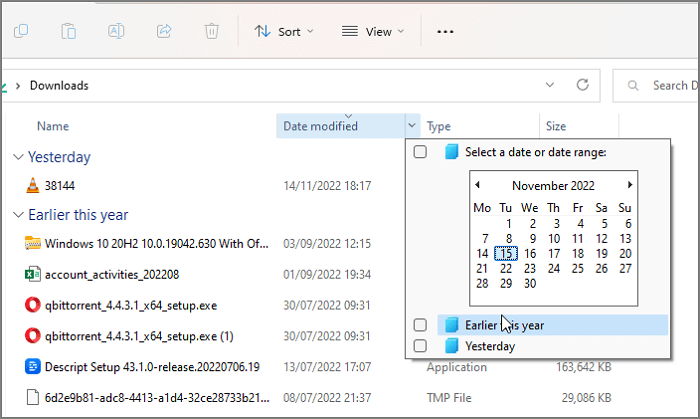
Step 4. Select the file you want to delete and click the Delete button on the top bar.
Fix 2. Delete Files Older Than X Days with ForFiles Command
You can quickly delete files older than X days using the ForFiles Command. To use the CMD delete files older than x days, follow these steps:
Step 1. To open the Command Prompt as an administrator, click on the Windows main menu, search for "Command Prompt", right-click on the result, and select the "Run as administrator" option.
Step 2. To delete files on Windows that haven't been modified in the last X days, open Command Prompt, type `ForFiles /p "C:\path\to\folder"/s /d -X /c "cmd /c del /q @file"`, and press Enter, replacing "C:\path\to\folder" with the actual path to the folder containing the files you want to delete and changing /d -X to select files with a last modified date X days ago.
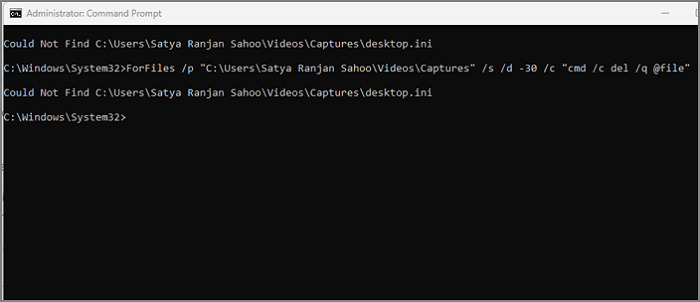
ForFiles command breakdown
/p - indicates the pathname to start searching.
/s - instructs ForFiles to search inside subdirectories.
/d -specifies the last modified date for a file.
/c - ForFiles is used to delete files that are older than a specified age. The command to delete files is wrapped in double quotes and is the default action, which is "cmd /c del @file".
/q -allows deleting folders without requiring confirmation.
Fix 3. Delete Files Older Than X Days with PowerShell
To delete files older than a certain number of days, you can use PowerShell. You can specify the path to the folders you want to clean up, the number of days, and the file extension you want to delete. Here's a simple command to get you started: `Get-ChildItem -Path 'C:\path\to\folders' -Recurse -Force -Include *.
Step 1. To run Windows PowerShell as an administrator, left-click the Windows main menu button and search for Windows PowerShell. Then, right-click the result and select Run as administrator.
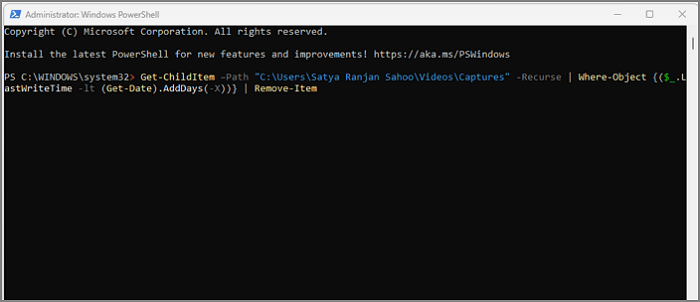
Step 2. To delete files that haven't been modified in the last X days, open the Windows PowerShell window and type in the command `Get-ChildItem –Path "C:\path\to\folder" -Recurse | Where-Object {($_.LastWriteTime -lt (Get-Date).AddDays(-X))} | Remove-Item`, replacing "C:\path\to\folder" with the actual folder location and changing -X to select the desired number of days. Press Enter to execute the command.
Advanced Tip: How to Delete Files Older Than X Days Automatically with Task Scheduler
You can also use the Windows Task Scheduler to delete files older than X days automatically, setting your computer to automatically delete temp files to save storage space, following the exact steps given below to perform this process efficiently.
Step 1. To access the Windows Tools, click the Windows button, search for Control Panel, and then click on the System and Security section. From there, choose the Windows Tools option.
Step 2. Now, click on the Task Scheduler to open the Task Scheduler window.
Step 3. In the Task Scheduler, click on the Task Scheduler Library in the left panel, then click on the Create Task in the right panel.
Step 4. A new window titled Create Task will be opened, where you can name the task on the General tab.
Step 5. To create a new action in the Actions tab, click the New button, and in the New Action window, specify the action name, description, and the condition for when it should be triggered. This is the process of creating a new action in the Actions tab.
- Action: Start a program
- Program/script: ForFiles.exe
- This command deletes files older than 30 days from the Downloads folder. It recursively searches (`/s`), deletes (`/d`) files older than 30 days (`-30`), and executes a command (`/c`) to delete the files found (`cmd /c del @file`).
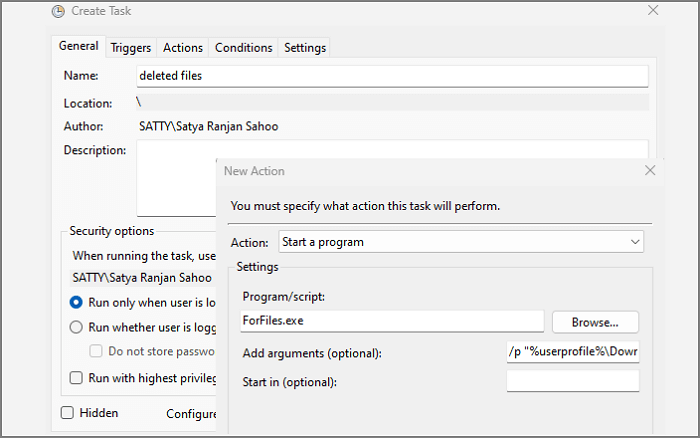
Step 6. To set up a task, change the folder path and number of days to your desired settings. Then, go to the Triggers tab in your task and click the New button. Select a schedule from the drop-down list under Begin task and click OK to specify when you want the task to run.
Step 7. To enable automatic file deletion, switch to the Settings tab, select "Allow task to be run on demand" and "Run task as soon as possible after a scheduled start missed", then click OK to create the task. This will allow the task to automatically delete files based on your set timing and folder path.
Bottom Line
If you're still following this post, you're likely familiar with deleting files older than X days on Windows 11/10. We've shared some effective methods to help you achieve this. If you need to recover deleted files, consider using Deep Data Recovery on Windows. If you have any questions or doubts, feel free to ask in the comments and we'll be happy to assist you.
Delete Files Older Than X Days FAQs
Here we have answered some of the frequently asked questions to clarify things better, which might greatly help you!
How do I delete files older than x days Linux?
To delete files older than X days in Linux, use the command "find /path/* -mtime +X -exec rm -rf {} \;." This command quickly finds and deletes the required files.
Can I recover automatically deleted files on Windows 11?
To recover automatically deleted files on Windows 11, use a reliable third-party data recovery tool like Deep Data Recovery.
- 1. Launch this recovery software, and scan your PC.
- 2. Preview the deleted files on Windows 11.
- 3. Recover the files you want.
How do I remove 30 days old files in UNIX?
To remove files older than 30 days in UNIX, you can use the command `find /path/to/the/directory/ -type f -name '*' -mtime +30 -exec rm {} \;` in the terminal. This command searches for files in the specified directory and its subdirectories, identifies files older than 30 days, and then removes them. Make sure to replace `/path/to/the/directory/` with the actual path to the directory containing the files you want to remove.
How do you delete files older than x days automatically using PowerShell?
To delete files older than a specified number of days automatically using PowerShell, follow these steps. First, open PowerShell and navigate to the directory where the files you want to delete are located.
- 1. Open PowerShell with run as administrator.
- 2. Get-ChildItem –Path "C:\path\to\folder" -Recurse | Where-Object {($_.LastWriteTime -lt (Get-Date).AddDays(-X))} | Remove-Item` deletes files automatically in a specified folder and its subfolders that are older than X days.
Related Articles
- Brand New Ways to Reset/Erase Mac M1/M2 [Safe & Sound]
- What Is Microsoft Safety Scanner? How to Download and Use It? [Updated in 2022]
- [Linux Format Disk Guide] How to Format Disk in Linux
- [3 Solutions] Fix Corrupted USB on Mac Without Losing Data
- How Long Do SSDs Really Last? [New Study 2024]
SSDs have become an essential part of our daily lives, but have you ever wondered how long they last? This article will provide you with all the information you need to know about the lifespan of SSDs, covering everything from their durability to their expected shelf life. - M2 Pro vs M2 Max | Price, Battery Life, CPU, and GPU
The Apple M2 Pro and M2 Max chips are two powerful options for the MacBook Pro, but which one is the better choice? A key consideration is the price, with the M2 Pro generally being more affordable than the M2 Max.
Products
Articles & Tutorials
- Data Recovery
- Data Backup
- File Recovery
- File Backup
- System Backup and Restore
- Disk and Partition Clone
- Technical articles
- Mobile articles
- Disk Master Help
- Windows Data Recovery Tutorials
- Windows Secure Delete Tutorials
- Windows Partition Management Tutorials
- Windows File Backup and Restore Tutorials
- Windows System Backup and Restore Tutorials
- Windows Disk Backup and Restore Tutorials
- Windows Clone Tutorials