[Linux Format Disk Guide] How to Format Disk in Linux
If you're experiencing low disk space on your Linux system, formatting your disk can be a viable solution. Linux, being an open-source operating system, can sometimes be complicated, and formatting the disks is one of the most effective ways to resolve this issue.
We perfectly understand your worries, and we have landed here with the perfect guide to help you resolve your queries.
Linux Format Disk ext4 File System
To format the Disk ext4 File System efficiently, simply use the command `mkfs.ext4 /dev/sdx1` (replace 'x' with the actual disk letter) in your terminal, followed by `sync` and then `fsck.
Step 1. To format your disk partition, use the command `sudo mkfs -t ext4 /dev/sdb` .
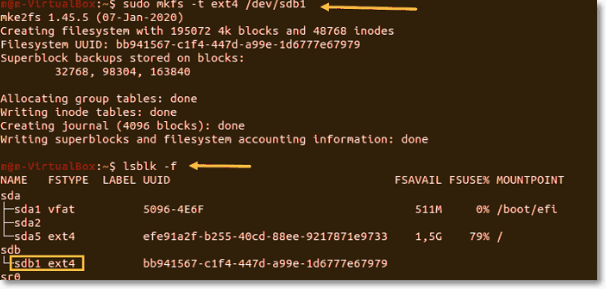
Step 2. Once done with the file system change, verify the file system change using lsblk -f to do it quickly.
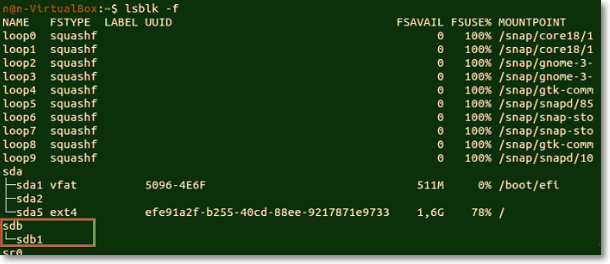
Step 3. Once the terminal lists all blocked devices, locate the specific partition you want to format.
Step 4. You can confirm the formatting of the preferred partition by following these steps. Once you've done this, you'll have successfully formatted your Disk ext4 file system, which is a convenient and efficient way to organize your data.
Format Disk in Linux with FAT32 File System
Step 1. To format a disk with a FAT32 file system, use the command: sudo mkfs -t vfat /dev/sdb1.
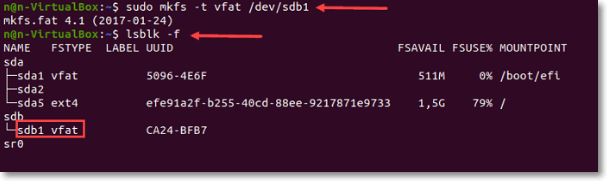
Step 2. Once done, run the command `lsblk` on your device and verify the file system to change.
Step 3. You can use the command `lsblk -f` to locate the preferred partition from the list provided.
Linux Format Disk NTFS
Step 1. To format the NTFS disk, you should run the mkfs command on your Linux device.
Step 2. To format a disk successfully, you need to specify the NTFS file system using the command: `sudo mkfs -t NTFS /dev/sdb1`. This command will format the disk `/dev/sdb1` with the NTFS file system.
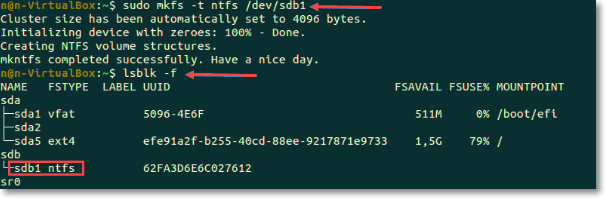
Step 3. Once you've completed the process, a confirmation message will be displayed in the terminal. You can verify the file system change using the command `lsblk -f`.
Step 4. Locate your preferred partition and confirm that it only uses the NTFS file system.
Bonus Tip: List of Linux Commands
If you're eager to learn about Linux commands in detail, we're here to guide you through them. We'll cover various commands and provide in-depth information to help you understand their functionalities and uses.
The "sudo" Command
The command runs for approximately 15 minutes and is used to perform tasks that require administrative or root permissions. It is one of the most popular basic Linux commands.
The "pwd" command
The command "pwd" is used to print the current working directory, displaying the path of the directory where you are currently working. It's a simple and straightforward command that can be run on most operating systems, including Unix-like systems and Linux. To use it, simply type "pwd" and press enter, and the command will output the path of your current working directory. No additional effort or setup is required.
The "cd" command
This command is typically used for navigating through Linux files and directories, and the path or directory name often depends on the current working directory.
The "is" command
The "is" command typically displays a list of files and directories within a system. However, to see the contents of a specific directory, it's essential to use the command with a flag or parameter, otherwise it will only show the current working directory's content.
The "cat" command
The "cat" command is used to concatenate and display the contents of one or more files, or standard input, to the standard output. It is a fundamental command in Unix-like operating systems, often used to list, combine, and write file content.
The "cp" command
The command is typically used for copying files or directories and their content.
The "mv" command
The command is used for moving and renaming files and directories, but it doesn't produce any output when executed.
The "mkdir" command
The command `mkdir` is primarily used to create one or more directories at once, allowing for the simultaneous creation of multiple directories. Additionally, it can be used to set permissions for each directory created.
The "rmdir" command
This command is typically used to delete or empty a directory, and it's recommended to run it with sudo privileges in the parent directory for successful access.
The "rm" command
The "rm" command is used to delete files and directories. It is used for deleting particular files within a directory. However, using permissions is necessary for successful execution of this command.
Final Words
Linux, an open-source Unix operating system, has a straightforward process for formatting disks. The process is not complicated, and users can easily format a drive on their Linux system.
To achieve perfection, focus on a few key aspects and execute them flawlessly. We've provided a step-by-step guide for efficiently formatting the ext4 file system, fat32 file system, and NTFS. Additionally, we've included a list of essential Linux commands to help you navigate the system.
Make the built-The fdisk tool is a command-line utility included in Linux operating systems, allowing users to manipulate and manage disk partitions. With fdisk, you can create, delete, resize, and modify partitions on your hard drive or other storage devices, giving you fine-grained control over how your disk space is organized.
Format Disk Linux FAQs
1. What is disk formatting in Linux?
Formatting is the process that prepares the Linux operating system for initial use, releasing storage space on a device and creating one or more file systems.
2. How do I format a Linux Server?
If you are willing to remove the Linux, we advise you to back up your information.
3. How do I wipe a drive in Linux?
Wiping out a drive on Linux is a straightforward process. You can easily erase a drive using Linux, and we've provided three simple methods to do so. Whether you prefer a specific method or want to choose the one that suits you best, you can pick the one that works for you.
Related Articles
- What Is Chrome.exe *32 and How to Remove Chrome.exe *32 Malware
- How to Backup iCloud Photo Library to Anywhere
- [Fixed] Right Click Not Responding or Working on Windows 10
- How to Factory Reset M1/M2 Mac in 2022 [for MacBook, iMac, Mac mini]
- 2022 Quick Format Recovery: Recover Data/Files from Hard Drive after Quick Format
To recover files after a quick format, stop using the disk immediately and use a recovery tool like Qiling Data Recovery Wizard, which can recover data from quickly formatted disks, USB drives, SD cards, and memory cards in just 3 steps. - R-Studio Review (A Comprehensive Data Recovery Solution)
R-Studio is is a family of powerful, cost-effective disk recovery software, which delivers professional solutions for recovering deleted files. In order to help you solve data loss problems using R-Studio, this post will give an in-depth R-Studio review.
Products
Articles & Tutorials
- Data Recovery
- Data Backup
- File Recovery
- File Backup
- System Backup and Restore
- Disk and Partition Clone
- Technical articles
- Mobile articles
- Disk Master Help
- Windows Data Recovery Tutorials
- Windows Secure Delete Tutorials
- Windows Partition Management Tutorials
- Windows File Backup and Restore Tutorials
- Windows System Backup and Restore Tutorials
- Windows Disk Backup and Restore Tutorials
- Windows Clone Tutorials