How to Backup iCloud Photo Library to Anywhere
Why Do You Need to Backup iCloud Photo Library?
iCloud Photos allows your photos to be automatically synced across all your Apple devices, including Mac, iPhone, and iPad. This means that photos taken with your camera or iPhone will be safely stored on your Mac, preserving cherished memories that can be revisited and shared with others.
It's essential to back up your iCloud photo library, as losing or damaging photos can be devastating. While iCloud offers 5GB of free storage, it's crucial to have a second copy of your photos, especially those that hold sentimental value. By backing up your iCloud photo library, you can ensure that your cherished memories are safe and secure, even if something goes wrong with your original storage.
How to Backup iCloud Photo Library to External Hard Drive
The external hard drive is becoming increasingly popular due to its convenience and affordability. Therefore, it is a good idea to back up iCloud photos to an external hard disk. Here are two ways to back up photos to the external hard drive.
Method 1. Manually Copy iCloud Photos to an External Hard Disk
To copy iCloud photos to an external drive, you can follow these steps: First, download and install the iCloud for Windows app, then sign in with your Apple ID and password. Next, select the Photos option and choose the "iCloud Photo Library" option. After that, click on the "Download Originals" button to download your iCloud photos to your computer. Once the download is complete, you can connect your external drive to your computer and move the downloaded photos to the drive.
Step 1. Download the iCloud. (You can download it from Photos App.)
Step 2. To access the Photos Library, click on the Finder icon, then scroll down to the "Pictures" section, and locate the "Photos Library" folder.
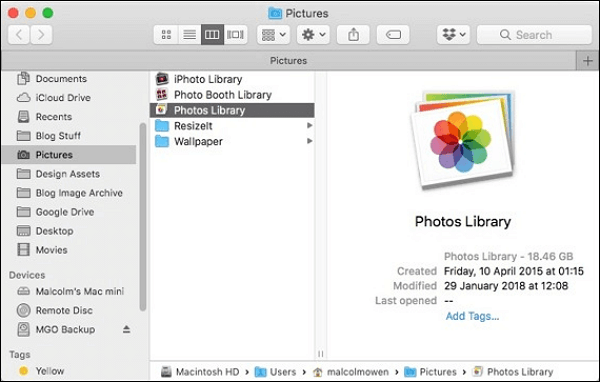
Step 3. Copy the photos from your Photos library and paste them to an external hard drive that is already connected to your computer.
Method 2. Another Way to Back up iCloud Photos to an External Drive
To back up your iCloud photos to an external drive, you can use a combination of iCloud Photo Library and a third-party app. First, enable iCloud Photo Library on your device by going to Settings > [Your Name] > iCloud > Photos.
Step 1. Select the photos you want to download.
Step 2. To access your iCloud photos, sign in to your iCloud account on a device or computer. Once you're signed in, navigate to the "Photos" section.
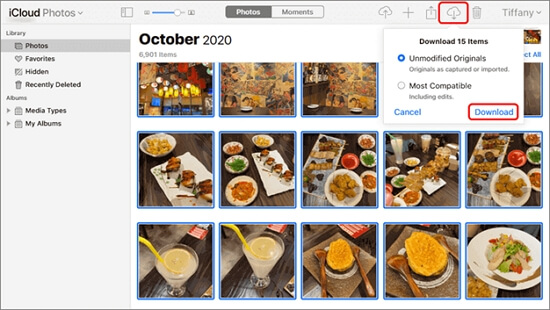
Step 3. Go to iCloud.com and sign in with your Apple ID to access your iCloud account online.
Step 4. You will see a user interface that says "Select Photos" to start managing the photos stored in your iCloud account.
Step 5. Select the "Download" option from the menu in the top right corner of the screen, and then locate the photographs you want to back up to an external hard drive.
How to Backup iCloud Photo Library to Another Cloud
Cloud backup software, such as Google Drive and OneDrive, has become increasingly popular, and backing up iCloud photos to Cloud is another option. To achieve this, follow these steps:
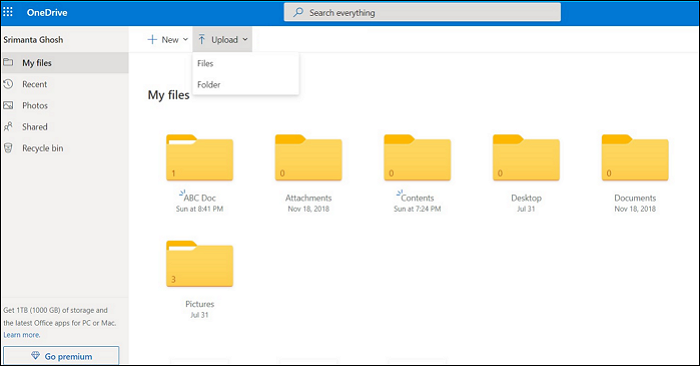
Step 1. Install the OneDrive app.
Step 2. To download photos from iCloud into File Explorer on your computer, follow these steps: 1. Open File Explorer on your computer.
Step 3. Once you have finished setting up OneDrive, move your photos to the OneDrive folder.
A Comprehensive Solution: Use Professional Software to Backup Photos on Mac
Mac computers have a built-in photo library, and many photos are stored locally on the device. However, with 5G free storage provided by iCloud, users can also back up their photos on Mac. To ensure data safety, a professional backup software like Qiling Backup can be used to create a backup of the photo library on the Mac.
Qiling Backup for Mac is a powerful program that allows you to set up automated backups, create system backups, compress and encrypt files, and even make a bootable backup or disk clone. You can store backups on various devices or cloud services, including hard drives, external devices, FTP servers, NAS, DVDs, and popular cloud services like OneDrive, Google Drive, and Dropbox.
Final Thoughts
To back up your iCloud photos, you can either transfer them to an external hard drive or another cloud storage service. Alternatively, if you're looking to free up iCloud storage space, you can use a professional backup software like Qiling Backup to store your photos on your Mac computer instead. This way, you can keep your essential photos safe while also making the most of your cloud storage capacity.
FAQs
1. How do I backup all my iPhone photos?
For an iPhone user, go to Settings > Photos > iCloud Photos, and enable the setting, which will upload photos to iCloud whenever your device connects to Wi-Fi.
2. Does deleting photos from iPhone delete from iCloud?
When you delete a photo from the Photos app, it will also be deleted from iCloud Photos and any other devices signed in with the same iCloud account, freeing up iCloud storage space.
3. How do I Download more than 1000 Photos on iCloud?
To download photos from iCloud to a computer, select each photo and tap the cloud icon in the top right corner to download one by one, or select multiple photos by clicking on the small plus sign in the top right corner of a moment, allowing for simultaneous download.
4. Are iCloud photos stored locally?
Your photos are stored on your device in original and high-resolution versions, taking up a lot of space, but with iCloud Photos, you can free up space on your device and have your entire collection.
Related Articles
- Windows 10 Creators Green Screen of Death Fix
- Mac Won't Update? Here Are 7 Ways to Fix macOS 13 Ventura Upgrade Failed
- 5 Best Registry Cleaner for Windows PC [Updated 2022]
- HDD Low Level Format Tool, Which Is the Best [Full Comparison]
- How Does an SSD Work | SSD VS HDD 2023 - Qiling
How does an SSD work? Learn about solid-state drive technology, NAND flash memory, and how SSDs differ from HDDs in speed, durability, and data storage methods. - How Long Do Laptops Last and How to Extend the Life of Your Laptop
Want to learn how long laptops last? Check out our comprehensive guide on laptop lifespan and how you can extend it.
Products
Articles & Tutorials
- Data Recovery
- Data Backup
- File Recovery
- File Backup
- System Backup and Restore
- Disk and Partition Clone
- Technical articles
- Mobile articles
- Disk Master Help
- Windows Data Recovery Tutorials
- Windows Secure Delete Tutorials
- Windows Partition Management Tutorials
- Windows File Backup and Restore Tutorials
- Windows System Backup and Restore Tutorials
- Windows Disk Backup and Restore Tutorials
- Windows Clone Tutorials