What Is Chrome.exe *32 and How to Remove Chrome.exe *32 Malware
When launching Chrome on a PC or Mac, the process is available as Chrome.exe in the Task Manager or Process Manager. However, if Chrome.exe *32 is running instead, it may indicate an issue. This is often a sign of malware, specifically Chrome.exe *32 Malware, which can cause problems when trying to launch Chrome.
While some Chrome extensions may appear suspicious, not all of them are malicious. In fact, many legitimate extensions can be easily mistaken for malware due to their similar appearance.
What Is Chrome.exe *32
If you notice Chrome (32-Google Chrome's executable file, Chrome.exe, is a legitimate background process that runs on your PC, allowing you to access internet files. It's used by the Google Chrome browser and is not a cause for concern if you find multiple instances of it running in the background.
It is the 32-64-bit Chrome was released in 2014, but it was a separate download from the 32-bit version, not a replacement. This was done to avoid potential compatibility issues with 32-bit extensions.
If you see Chrome.exe *32 listed in running processes, it's a good idea to run an antivirus scan. To determine if the issue is with Chrome or another program, check the open file location and compare it to the default Chrome location to identify any discrepancies.
What Is Chrome.exe *32 Virus
Chrome.exe is an executable file extension that allows the Chrome browser to run on a computer system. However, Chrome.exe *32 viruses are a type of malware that imitates the Chrome.exe files, relating to Trojans, and can be malicious.
If your PC is infected with the Chrome.exe *32, also known as Poweliks, you'll likely see high CPU usage and multiple instances of Chrome.exe *32 running.
A computer virus is a harmful program that can severely threaten your computer system. These malicious files often disguise themselves as safe programs, but their true intention is to steal your data and deploy other malware on your device.
A reliable antivirus option can easily remove this virus from a computer system. If you're still unsure, you can follow the guide to find the absolute answer.
The main reasons why malware infections contact a remote host are to receive instructions, download additional malware, or send stolen data back to the attackers. This remote communication is often used to control the malware's behavior, update its capabilities, or exfiltrate sensitive information from infected devices.
- The malware uploads the stolen data from the affected computer to other servers or systems.
- It receives configuration or other data from an infected system.
- It reports the new infections to its author.
- It downloads and executes arbitrary files on your computer system.
- The compromised source code is instructed by the remote attacker to execute malicious code on the target source.
Chrome.exe *32 Virus Removal Guide
Remove Chrome.exe *32 malware with Microsoft Defender
Microsoft Defender is the default antivirus program of the Windows operating system. To remove Chrome.exe *32 malware, simply follow these steps:
Part 1: Enable/Disable Microsoft Defender PUA Protection in Windows 10
Step 1: Launch elevated Windows PowerShell on your device. Tap on the Yes button to continue with the process.
Step 2: To enable the Windows PowerShell, type the command "Enable-WindowsOptionalFeature -Online -FeatureName WindowsPowerShell" in the PowerShell window, followed by pressing the Enter button to execute it. This will enable the Windows PowerShell Windows feature.
Set-preference - PUAProtection 1
Step 3: Once done with it, restart your computer and run a new Microsoft Defender Antivirus scan on your device.
Step 4: For disabling Microsoft Defender PUA Protection, the command you have to type is:
Set-preference -PUAProtection 0
Part 2: Scan Files, Folders, and Drives manually
Step 1: To identify a potential malicious program on your PC, launch File Explorer and select the drive, folder, or file option that you suspect may contain the malicious program.
Step 2: To access the Context Menu option, right-click on the Scan with Windows Defender option.
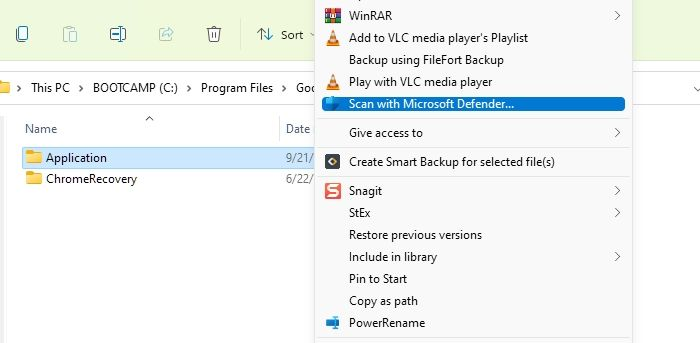
Step 3: Once the scanning process is complete, Windows Security will launch and display the results for your review.
Step 4: If any threats are found, Windows Security will inform you about them, along with the threat names and location, and you can easily remove them by tapping on the Start actions button.
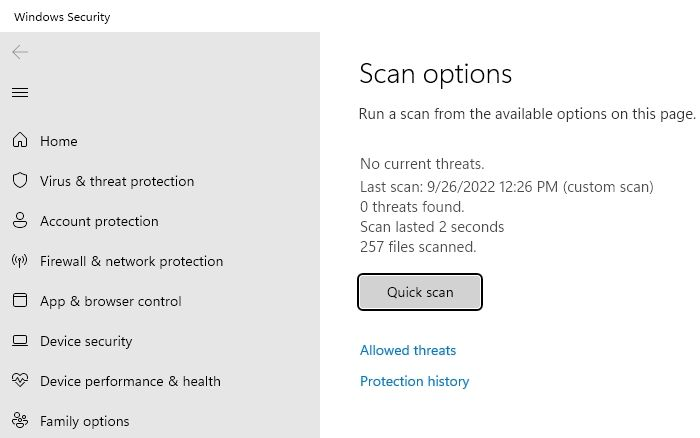
Once you've completed the steps, simply close the Windows Security app and you're good to go, able to use your computer system without any issues.
Part 3: Scan with Microsoft Defender in Windows Security
You can quickly remove the annoying malware infection by scanning with Microsoft Defender in Windows Security.
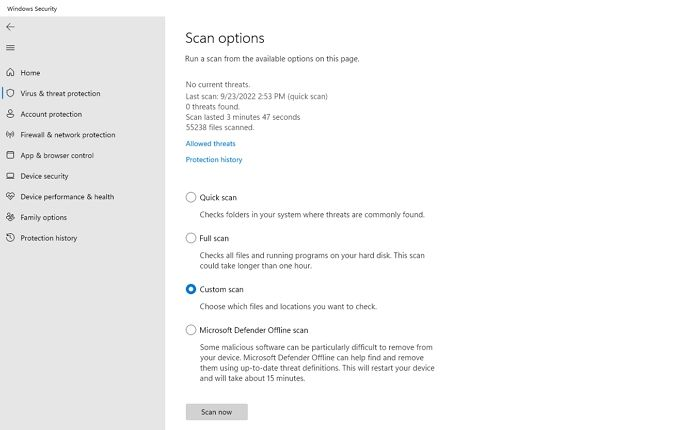
To enable a seamless scan of Google Chrome using Windows Security, launch Windows Security on your device, tap on the Virus & Threat Protection option, and perform either a regular or full scan. This will allow the scan to run smoothly over your Google Chrome.
Conclusion
The Chrome.exe *32 virus is a malicious malware that poses a significant security threat to your device, compromising your data and severely impacting the overall functionality of your computer, potentially leading to crashes. I've provided you with information on what this virus is and how to successfully remove it from your device.
It is recommended to remove the Chrome.exe *32 viruses as soon as they appear on your device. The removal process can be complex, but following the detailed guide provided can help you successfully eliminate the issue.
Related Articles
- Fix Windows 10 Stuck on Loading Screen Error
- How to Open Terminal on Mac and How to Use it [2022 Guide]
- How to Stop Windows 10 Deleting Files Automatically
- How to Factory Reset Windows 10 [Beginner's Guide]
- JPG VS JPEG: What's the Difference
Wondering what the difference between JPG and JPEG image formats is? Find it out in this JPG VS JPEG post! - [Solved] Kernel Data Inpage Error Windows 10 (Blue Screen)
Kernel Data Inpage Error (Blue Screen) in Windows 10? Learn 5 proven fixes to resolve this BSOD, including CHKDSK, SFC, DISM scans, and data recovery tips for unbootable PCs.
Products
Articles & Tutorials
- Data Recovery
- Data Backup
- File Recovery
- File Backup
- System Backup and Restore
- Disk and Partition Clone
- Technical articles
- Mobile articles
- Disk Master Help
- Windows Data Recovery Tutorials
- Windows Secure Delete Tutorials
- Windows Partition Management Tutorials
- Windows File Backup and Restore Tutorials
- Windows System Backup and Restore Tutorials
- Windows Disk Backup and Restore Tutorials
- Windows Clone Tutorials