What Is the Windows Task Manager? [Everything You Should Know]
The Windows Task Manager is a powerful tool for troubleshooting various computer issues, but its complexity can be daunting for those unfamiliar with it. To help users navigate this program, an overview is provided to explain what the Windows Task Manager is and how to use it effectively.
What Is the Windows Task Manager?
The Task Manager, a tool for monitoring the Windows system, allows you to manage all running programs and apps on your computer. It can also help improve performance by identifying and closing resource-intensive software, making it a useful utility for general computer management.
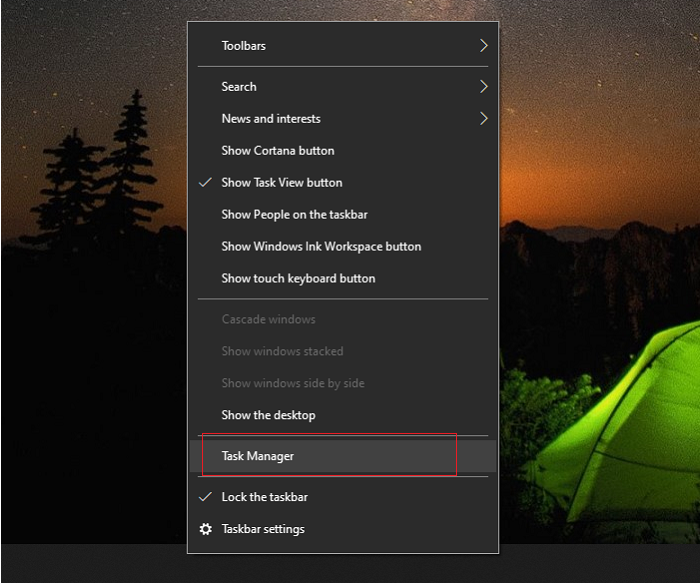
To close excessive applications on Windows, open the Task Manager by pressing Ctrl + Shift + Esc, or right-clicking on the taskbar and selecting Task Manager. This will show a list of all running applications, including background processes. To close an application, select it from the list and click the "End Task" button.
How to Use the Windows Task Manager?
As a well-known Windows utility, Task Manager is a useful tool for monitoring and managing tasks, resources, and applications on a Windows computer. To access it, you can usually press Ctrl + Alt + Del, search for Task Manager in the Start menu, or right-click the taskbar.
To open the Windows Task Manager, you can press the Ctrl + Shift + Esc keys on your keyboard, or right-click on an empty area of the taskbar and select "Task Manager." Alternatively, you can search for "Task Manager" in the Start menu or type "taskmgr" in the Run dialog box (opened by pressing the Windows key + R).

Windows Task Manager
The Services tool is a quick and convenient way to start and stop major Windows services, while advanced configuration is done through the Services module in the Microsoft Management Console.
The Task Manager has seven tabs, each serving a specific purpose. The first tab displays a list of currently running tasks, allowing users to identify and manage resource-intensive programs. The second tab shows a list of system startup programs, enabling users to disable unnecessary programs from launching at startup.
- The Processes Tab
- The Performance Tab
- The App History Tab
- The Startup Tab
- The Users Tab
- The Details Tab
- The Services Tab
The Processes Tab
On the Processes Tab, you can see all the running programs on your PC, divided into three sections: Apps, Background processes, and Windows processes. Apps are started programs, Background processes are ones you can ignore, and Windows processes are essential system services. From this tab, you can shut down unwanted programs and view how many resources each one has taken up.
The Performance Tab
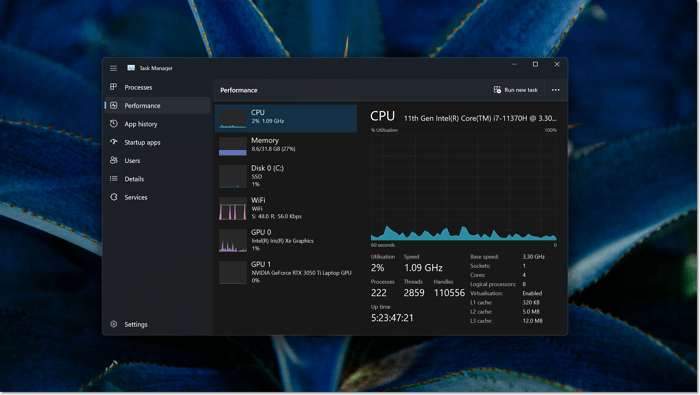
On the Performance Tab, you can see how used resources change, with charts showing CPU, GPU, RAM, and other conditions. It also provides detailed information about your PC's areas, such as CPU model, RAM usage, and IP address, making it easy to quickly check these details.
The App History Tab
The Task Manager's App History feature displays historical data on resource usage for programs, including CPU and network utilization, within a one-month time frame. This feature is only available on Windows 11, 10, and 8.
The Startup Tab
The Startup Tab in Task Manager is a crucial feature that allows you to view and manage all programs that start automatically when you log into your Windows account. This tab provides a clear picture of which apps are running and their respective conditions, helping you identify unnecessary programs that can be stopped to improve your computer's performance. By using the Startup Tab, you can optimize your computer's startup time and overall performance.
The Users Tab
This tab is not very useful, but it's helpful for a single administrator who logs in to the PC. It shows the resource usage of each program, similar to the Processes tab, and is particularly useful to check processes running on another account.
The Details Tab
The Details Tab in Task Manager is a feature that provides detailed information about running processes, making it a valuable tool for advanced users. It allows users to quickly identify an executable's location, process ID, and other critical details, which can be particularly helpful in troubleshooting complex issues. This feature is especially useful for users who need to perform advanced troubleshooting, as it provides a wealth of information that can be difficult to find elsewhere in Task Manager.
The Services Tab
To access the Services tab, type "services" in the Start menu, which provides information on Windows system services installed on your PC, allowing for quick and convenient starting and stopping of major Windows services, with advanced configuration done through the Services module in Microsoft Management Console.
Conclusion
The Windows Task Manager is a useful tool for fixing computer issues and boosting productivity. It allows you to see which apps are running and how much resources they're using, making it easy to shut down unnecessary programs. Familiarizing yourself with the Task Manager and learning how to use it can help you identify and resolve problems efficiently. Whether you need to troubleshoot a specific issue or simply want to optimize your computer's performance, the Task Manager is a valuable resource to have.
The Windows Task Manager FAQs
1. How to hide the Task Manager tasks?
Step 1. Hit the Windows button or press Win + X.
Step 2. The Processes tab will be hidden only if the Task Manager is started in a specific mode.
Step 3. Then hit fewer details to hide the tabs again.
2. How to decrease disk usage in the Windows Task Manager?
Method 1. Restart the Windows System.
Method 2. Update Windows.
Method 3. Disable Windows Search.
Method 4. Check For Malware.
Related Articles
- What Is SSD TBW and How to Check TBW on SSD
- Seagate NAS Cloud Backup and Most Reliable Alternative Solutions
- What Is MSTSC and How to Enable Remote Desktop with It?
- What Is Hyper-V P2V and How to Convert It? [Latest Tips]
- [Fixed] Function Keys Not Working | 6 Tested Methods
Do you need help with the issue of Function keys not working? Discover six proven methods to fix this problem in the article below! - Games Keep Crashing on Windows 10/11 - 13 Quick Fixes
Fix games that keep crashing on Windows 10 or 11. Check drivers, overheating, game files, system resources, and compatibility issues.
Products
Articles & Tutorials
- Data Recovery
- Data Backup
- File Recovery
- File Backup
- System Backup and Restore
- Disk and Partition Clone
- Technical articles
- Mobile articles
- Disk Master Help
- Windows Data Recovery Tutorials
- Windows Secure Delete Tutorials
- Windows Partition Management Tutorials
- Windows File Backup and Restore Tutorials
- Windows System Backup and Restore Tutorials
- Windows Disk Backup and Restore Tutorials
- Windows Clone Tutorials