What Is MSTSC and How to Enable Remote Desktop with It?
What Is MSTSC
Microsoft Windows has been a platform that incorporates multiple functions and features. One of the most used features, Remote Desktop, can be accessed through various means, with one prominent method being the command line interface. Microsoft Terminal Services Client (MSTSC) is the command line tool used to run the Remote Desktop (RDP) client. The command "mstsc" is essentially the line that helps establish this connection.
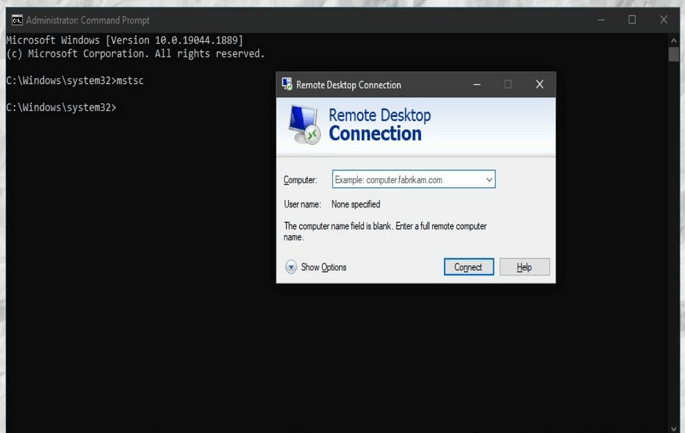
The mstsc command, or Remote Desktop Connection, allows you to connect to another computer as if you're using it in real-time, enabling practical applications such as managing client meetings or monitoring your child's activities.
MSTSC Command Line Options
The mstsc command is used to enable and disable Remote Desktop across Windows, and various command line options are available to aid in this process. A table is provided to summarize the different options and their functions.
| Parameter | Description |
|---|---|
| The `username` field in a Remote Desktop Connection (RDP) file is used to specify the name of the .rdp file that will be used for the connection. | |
| /g: | This function calls the RD Gateway Server that will be consumed for the connection, which is only required and utilized if the remote endpoint PC specifies with /v. |
| /v:[:] | Specifies the exact remote computer and the port number with which the connection is to be established. |
| /remoteGuard | The device connects to a remote device while preventing credentials from being sent across the remote computer using the Remote Guard. |
| /admin | The session is used for connecting to a server to administer it. |
| /f | The command `mstsc /f` opens the Remote Desktop Connection in full screen mode. This allows users to connect to a remote computer and have the desktop displayed on their local machine in full screen, taking up the entire display. |
| /control | The code allows controlling the session during the shadowing of the remote window by implementing the necessary functionality to handle user input and commands while the remote window is being shadowed. This enables users to interact with the remote window in real-time, even when it's not directly accessible. |
| /w: | Sets the width of the Remote Desktop window established. |
| /h: | Sets the height of the Remote Desktop window established. |
| /public | The remote desktop connection is established in public mode, where passwords and bitmaps are not cached. |
| /prompt | To connect with the remote computer, please enter your username and password to authenticate. The credentials will be used to establish a secure connection. |
| /span | The tool helps synchronize the dimensions of the remote desktop with the local virtual desktop, and if necessary, spans it across multiple monitors. |
| /edit | Launches the specific .rdp file to edit. |
| /noConsentPrompt | Shadows the remote desktop without user consent. |
| /migrate | Transfers legacy connection files created with the Client Connection Manager to new .rdp connection files. |
| /? | Opens up the help menu across the command prompt. |
How to Enable/Disable Remote Desktop with MSTSC?
To enable or disable Remote Desktop on a Windows computer using the mstsc command, follow these steps: First, open the Command Prompt as an administrator. Then, type the command "mstsc /v:ip_address" to establish a connection to the remote computer. Next, type "mstsc /console" to open the Remote Desktop Connection console. In the console, click on the "Allow remote connections to this computer" checkbox to enable Remote Desktop.
Guide to Establish a Clear Connection for the Remote Desktop
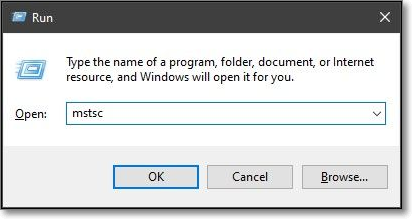
Step 1: To start the process, open the Run program on your Windows by using the shortcut keys of "Windows + R". Then, type in "mstsc" and hit enter to proceed to the next window.
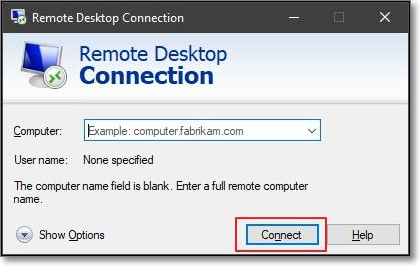
Step 2: To establish a remote desktop connection, you need to add the computer name or IP address of the remote desktop and then click "Connect" to initiate the connection.
Enable Remote Desktop Across Your Windows
Here are the steps you have to follow:
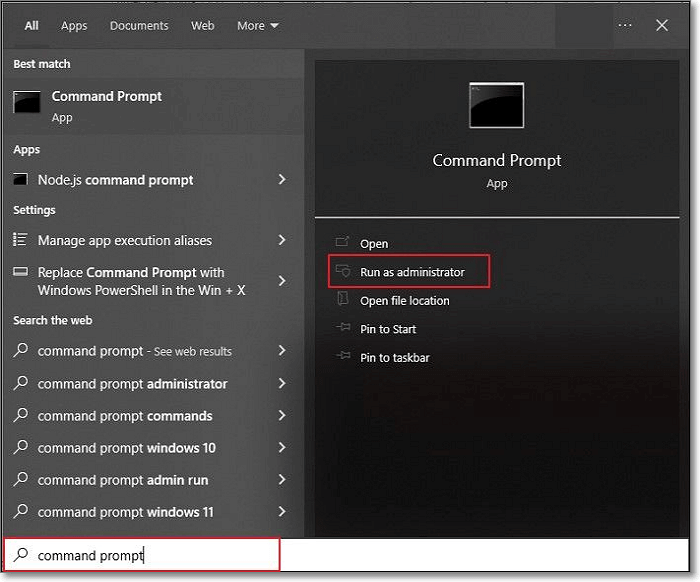
Step 1: To open Command Prompt as an administrator on Windows, search for "Command Prompt" in the search bar, and then select the option to "Run as administrator" from the results. This will open the Command Prompt with elevated privileges.
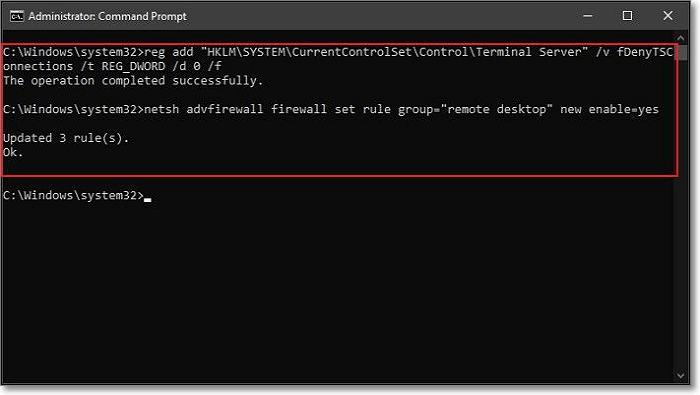
Step 2: To enable Remote Desktop, execute the following command in the Command Prompt window:
The command "reg add HKLM\SYSTEM\CurrentControlSet\Control\Terminal Server /v fDenyTSConnections /t REG_DWORD /d 0 /f" adds a registry value to allow Remote Desktop connections on a Windows system. It sets the value of "fDenyTSConnections" to 0, which enables Remote Desktop connections.
Step 3: To enable Remote Desktop on Windows, you can run the command "mstsc /v:your-IP-address" in the Command Prompt, where "your-IP-address" is the IP address of the computer you want to remotely access. This command will connect you to the specified computer via Remote Desktop. If you want to enable Remote Desktop on the target computer itself, you can use the command "Enable-PSRemoting -Force" in the PowerShell, which will enable PowerShell Remoting on the computer.
netsh advfirewall firewall set rule group="remote desktop" new enable=yes
Disable Remote Desktop Across Your Windows
The guiding steps are listed below:
Step 1: To disable Remote Desktop, launch Command Prompt as an administrator on your Windows system.
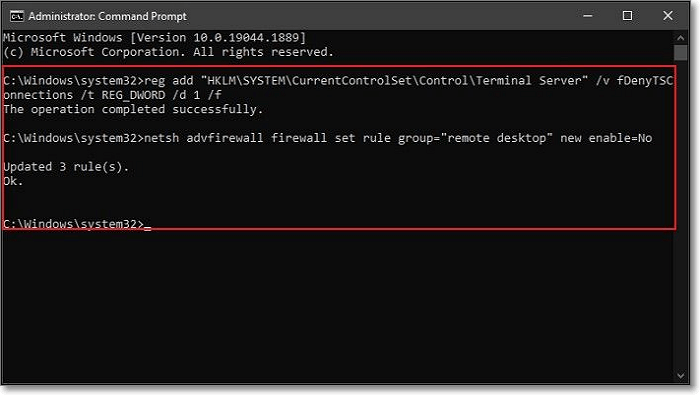
Step 2: Execute the following commands to disable Remote Desktop:
The command "reg add "HKLM\SYSTEM\CurrentControlSet\Control\Terminal Server" /v fDenyTSConnections /t REG_DWORD /d 1 /f" is used to disable Remote Desktop connections on a Windows system. It adds a registry value to the Terminal Server key, setting the fDenyTSConnections value to 1, which means Remote Desktop connections will be denied.
netsh advfirewall firewall set rule group= "remote desktop" new enable=No
This will disable the remote desktop across the computer.
RDP vs. MSTSC
RDP and the MSTSC command are closely related but have distinct differences. RDP (Remote Desktop Protocol) is the underlying protocol that transmits screen data, keyboard input, and mouse movements between computers. MSTSC (Microsoft Terminal Services Client) is the application that uses RDP to establish and manage remote desktop sessions. Here are the key differences:
- Windows recognizes RDP (Remote Desktop Protocol) as a protocol, and MSTSC (Microsoft Terminal Services Client) is a group of remote access services that utilizes the RDP to run remote desktop sessions.
- You'll find similar functionality across MSTSC and RDP, but the GUI and commands are clearly transmitted through RDP.
- The connection for terminal services, i.e., MSTSC, is established with the help of Remote Desktop Protocol (RDP).
Conclusion
The mstsc command is used to establish a Remote Desktop Connection, and it has various parameters that can be used to customize the connection. This command is different from RDP, which is a remote desktop protocol, and it provides a way to access and control a remote computer's desktop from a local computer. With mstsc, you can use various options such as /v, /w, and /h to specify the server name, width, and height of the remote desktop, among others. Overall, mstsc is a powerful tool for remote access and management.
Related Articles
- What is a Client Server Network? How Does It Work?
- Introduction to Gigabyte and Terabyte: How Many Gigabytes Are There in a Terabyte
- What is Remote Direct Memory Access (RDMA)
- What Is The Difference between Windows 10 Pro and Windows 10 Pro N
- 8 Ways to Fix Migration Assistant Not Working on Mac
Is migration assistant not working on your mac? Worry no more; this article will help fix the issue with multiple methods! - How to Mirror a Hard Drive in Windows 10 [step by step]
If you want to create a mirrored drive on your existing hard drive, you will first need to partition your hard drive. Want to know how to mirror a hard drive in Windows 10? Read through this detailed guide on the process and related details.
Products
Articles & Tutorials
- Data Recovery
- Data Backup
- File Recovery
- File Backup
- System Backup and Restore
- Disk and Partition Clone
- Technical articles
- Mobile articles
- Disk Master Help
- Windows Data Recovery Tutorials
- Windows Secure Delete Tutorials
- Windows Partition Management Tutorials
- Windows File Backup and Restore Tutorials
- Windows System Backup and Restore Tutorials
- Windows Disk Backup and Restore Tutorials
- Windows Clone Tutorials