How to Mirror a Hard Drive in Windows 10 [step by step]
In companies, employees often rely on a single hard drive for shared content and documents, but it can become defective due to internal issues, leading to significant data loss.
To avoid disruptions to organizational operations, it's essential to use backup software like Qiling Disk Master or other techniques to ensure data safety. Mirroring the hard drive is a highly effective solution. If you're wondering how to mirror a hard drive in Windows 10, this guide provides detailed steps to follow.
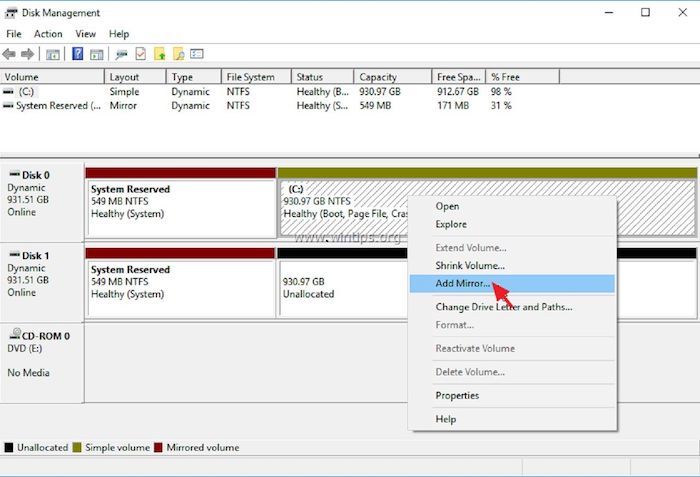
What Is Hard Drive Mirroring?
Hard drive mirroring, also known as cloning, is the process of creating an exact copy of a hard drive. This is a crucial process, especially considering that hard drives are one of the most sensitive components in a computer system, prone to frequent failures. By mirroring a hard drive, you can create a duplicate copy of its contents, which can be useful for backing up important data, protecting against data loss, and ensuring business continuity in case of a hard drive failure.
To resolve drive-related issues, you can mirror a hard drive in Windows 10, which creates automatic data copies in the hard drive, ensuring your files remain safe in another format.
The hard drive monitoring functions are related to RAID-1, a standard Redundant Array of Independent Disk (RAID) level that accurately copies data to more than one disk.
The files in the source and mirrored folders stay in sync, so any changes made to files in the source folder are automatically updated in the mirrored section, ensuring consistency across both locations.
Requirements In Windows 10 To Mirror a Hard Drive
If you want to mirror a hard drive on Windows 10, ensure that the device and platform are compatible, as the process may not work if the hard drive specifications are not correct, with MBR working on the former and GPT on the latter.
To continue with the hard drive mirroring process, you need to proceed based on the boot mode type of the disks. Mirroring is most effective with hard drives that have identical boot modes. Additionally, fundamental requirements include.
- Disable the hibernation setting before beginning the mirroring process.
- The original and secondary hard drive sizes are similar, with the original hard drive being 1TB and the secondary hard drive being 1.5TB.
Carefully carry out the proper steps to evaluate your device's storage and boot mode specifications. For this, follow these steps carefully on your Windows 10 PC.
How to do this?
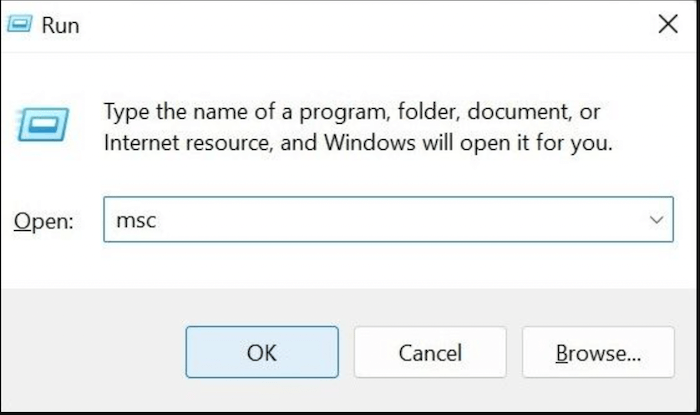
Step 1. To access the Run utility, press the Windows key and the R key simultaneously. This will open a small window where you can type a command or application name to run it directly.
Step 2. In the text box, type "msc" and then hit Enter.
Step 3. In the Disk Management dialog box, right-click on "Disk 0" and select "Properties".
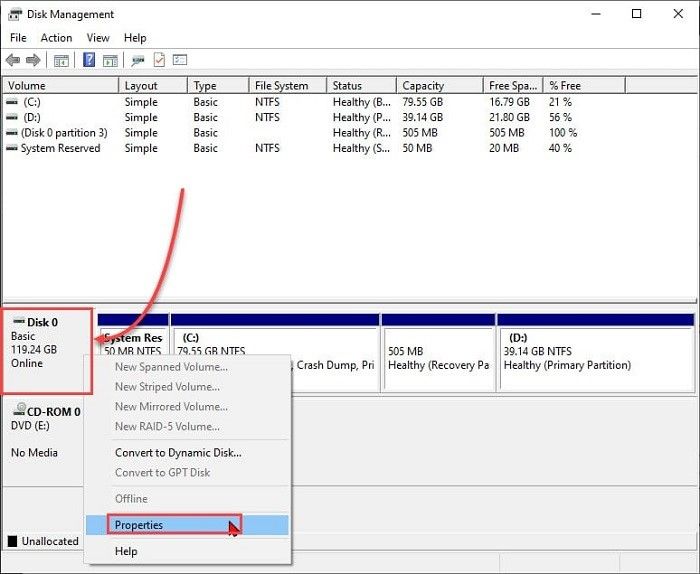
Step 4. Go to Volumes > carefully evaluate the Partition Style that is mentioned.
The two types include:
- GPT indicates the boot mode - UEFI.
- Master Boot Record indicates the boot mode- Legacy BIOS.
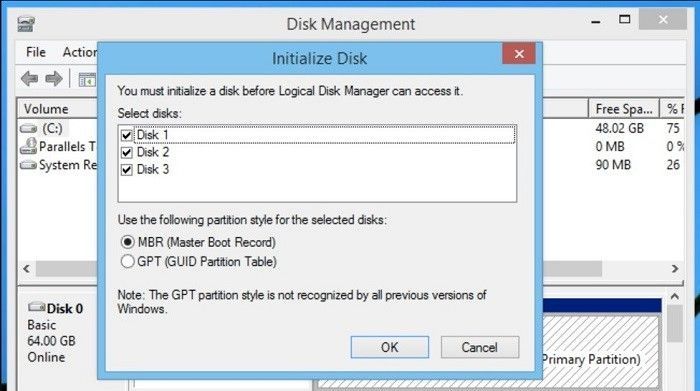
Step 5. To link the secondary hard drive, first, ensure the secondary hard drive is properly connected to the computer. Next, open the Disk Management tool. Then, follow the steps to initialize the drive and assign a drive letter.
Step 6. Be sure to check the "Capacity" section for both drives, just like the Partition Style section.
Step 7. Right-click your cursor on "Start" > choose "Windows PowerShell" (Admin).
Step 8. To disable the hybrid shutdown, add the command "powercfg –h off" under the PowerShell box.
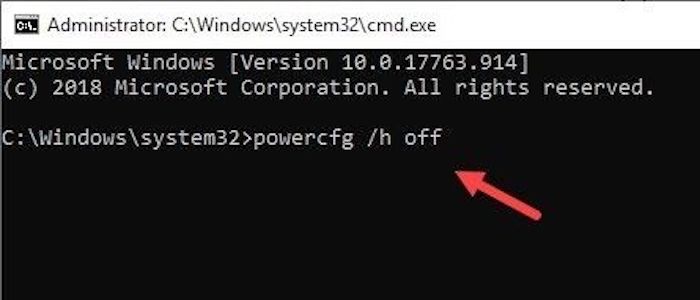
Hit Enter.
How to Mirror a Hard Drive in Windows 10
This article provides two practical and easy methods to help you mirror a hard drive on your Windows 10 computer. You can choose the method that best suits your needs.
Way 1. Using Disk Cloning Software - Qiling Disk Copy
Mirroring a hard drive means cloning a hard drive, so you can use professional Windows 10 PC cloning software, like Qiling Disk Copy, to help you copy data from one hard drive to another.
Qiling Disk Copy is a software that allows you to easily and quickly clone a hard drive, including mirroring a hard drive to an SSD, cloning a hard drive with bad sectors, and transferring Windows from a HDD to an SSD without losing data.
Here is how to clone your hard drive on Windows computers.
Prior Notice:
- The "Sector by sector copy" feature in cloning a hard disk requires the destination disk to be at least as large as the source disk. If you want to clone a larger hard disk to a smaller one, this feature should be left unchecked.
- All data on the destination disk will be completely erased, so take care.
Step 1. To start cloning a disk, click on "Disk Clone" in the "Tools and utilities" tab, select the disk you want to clone as the source disk, and then click "Next".
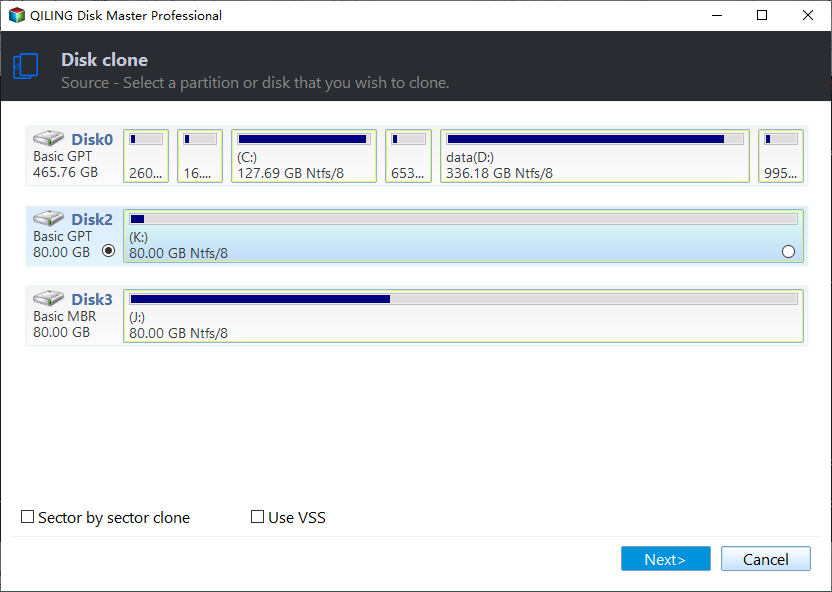
Step 2. Choose the other disk as the destination disk.
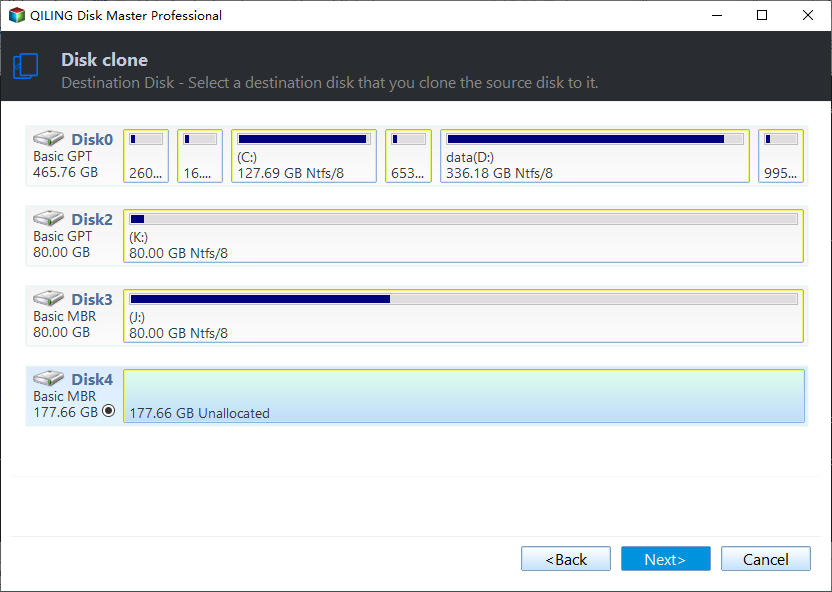
Step 3. To manage the disk layout of the destination disk, select one of the following options: "Autofit the disk" to automatically adjust the layout, "Copy as the source" to replicate the source disk's layout, or "Edit disk layout" to manually customize the layout.
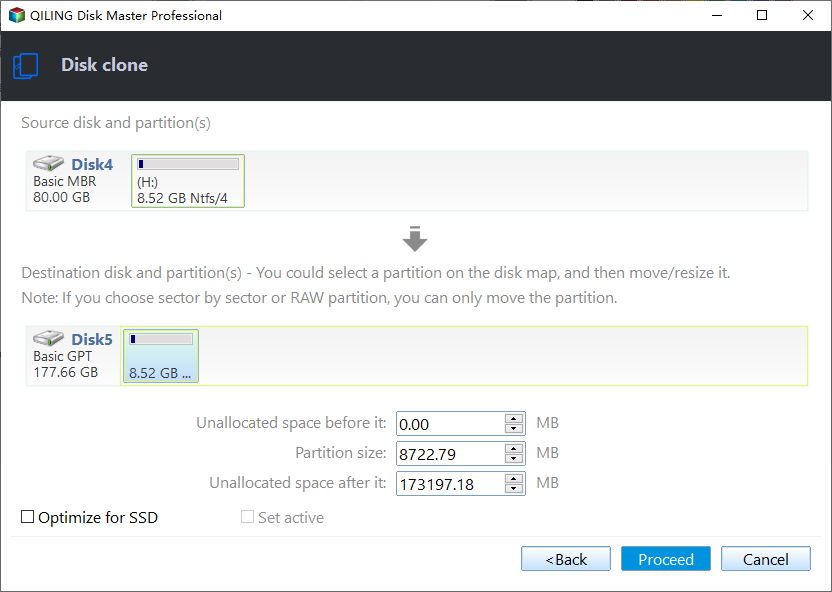
- "Autofit the disk" makes some changes to the destination disk layout by default to optimize its performance.
- "Copy as the source" does not change anything on the destination disk, and the layout remains the same as the source disk.
- "Edit disk layout" enables manual resizing and repositioning of partitions on the destination disk.
The "Optimize for SSD" option should be enabled to maximize the performance of your Solid State Drive (SSD). This feature optimizes the drive's performance by aligning files and directories to improve read and write speeds, making it ideal for SSDs.
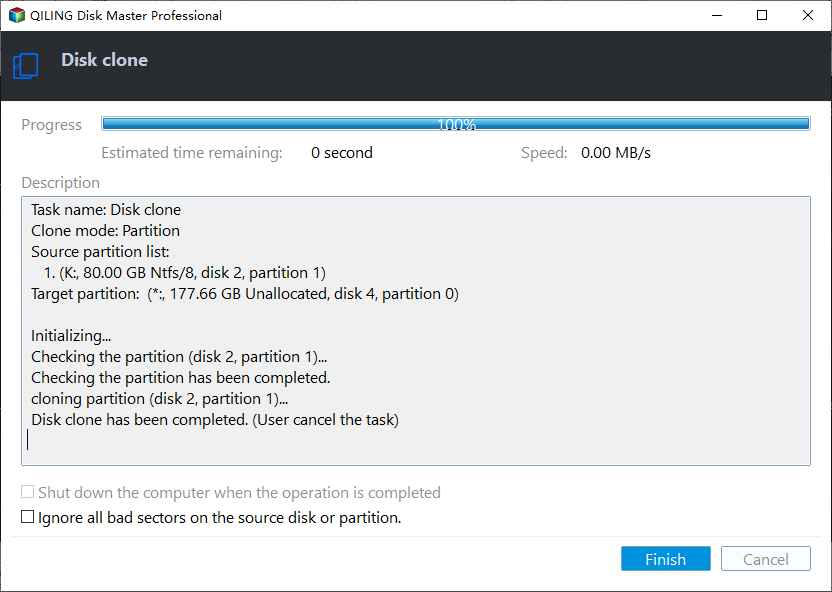
Step 4. Click "Proceed" to officially execute the task.
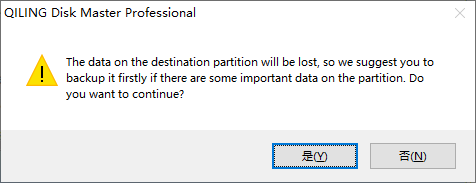
A message now appears, warning you that data will be lost. Please confirm this message by clicking "OK".
Way 2. Using Windows 10 Built-in Tool - Disk Management
In Windows 10, users can mirror a hard drive using the built-in Disk Management tool, which is the recommended solution for this task.
To clone a hard drive, both the source and target drives should be the same size, or the target drive should be larger. The target drive should be accessed through the Disk Management section, where any existing data on the target drive should be deleted. This involves right-clicking on the target drive, removing all data volumes, and marking the drive as unallocated. The target drive should then be set as a Dynamic Disk instead of a Basic Disk.
After this, it is suitable to begin the mirroring process.
How to do this?
Step 1. To open the Run dialog box on your Windows PC, simply press the Windows key and the "R" key on your keyboard simultaneously. This will bring up the Run dialog box, where you can type in a command or the name of a program to run.
Step 2. To open the Disk Management console, type "diskmgmt.msc" in the text field.
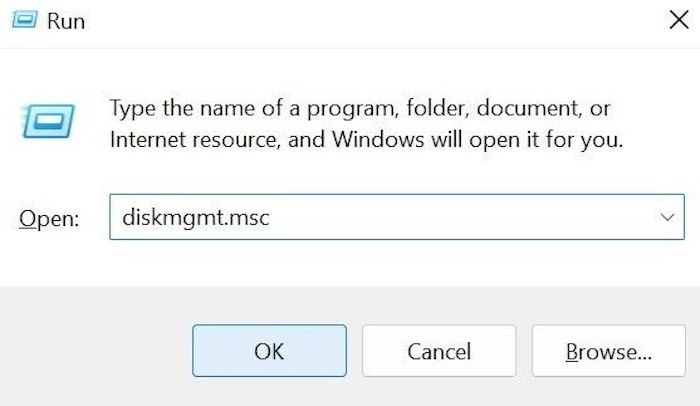 Then, hit the "Enter" key on your keyboard.
Step 3. In the Disk Management window, right-click on the unallocated disk and select "New Mirrored Volume" from the context menu. This will create a mirrored volume on the empty disk.
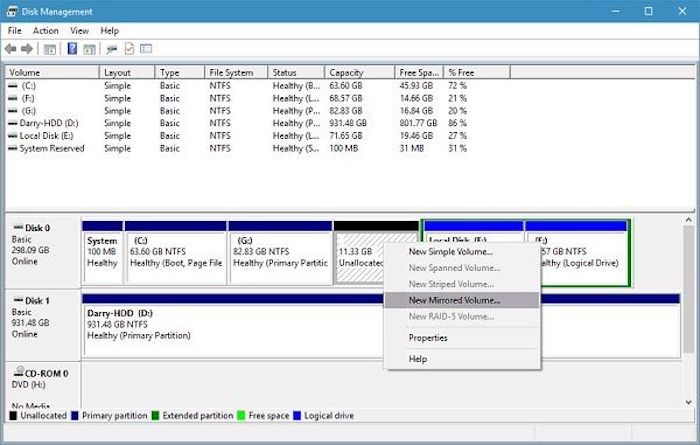 Step 4. A list of disk names will appear. Select the correct disk name from the list that matches the disk you are mirroring. This will ensure that the mirroring process is done correctly and that the data is accurately copied to the destination disk.
Step 5. Choose the desired space amount for the mirrored volume. Hit Next.
Step 6. You can leave the default drive letter settings or change them to a custom drive letter in the next step. Click Next.
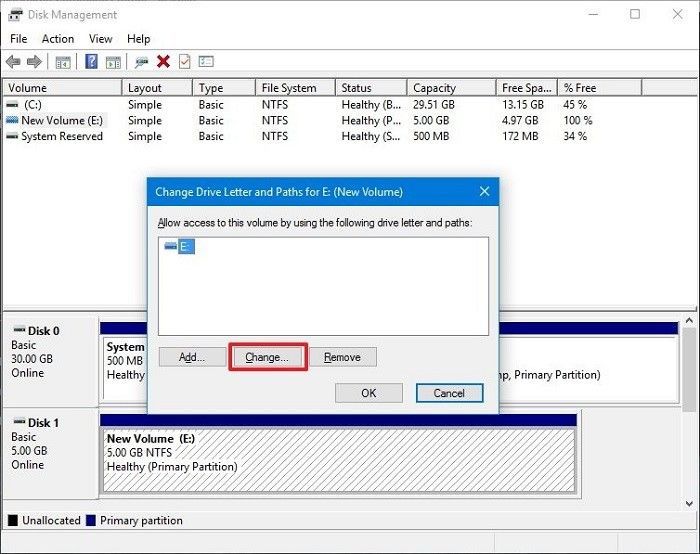 Step 7. You can choose to format your target mirror disk drive.
To format a volume with specific settings, click on the "Format this volume with the following settings" option. Select NTFS as the file system, choose the default allocation unit size, and assign a preferred volume label. Then, choose to perform a quick format and enable it.
Step 8. Hit the Next button > Finish.
Conclusion
Mirroring a hard drive in Windows 10 is a straightforward process. First, ensure that both the source and target drives meet the necessary specifications. Then, use the Disk Management tool to mirror all your files successfully, following the steps accurately to ensure a smooth process.
While the process of cloning a hard drive is relatively simple for most users, complete beginners may find the technical steps challenging. To overcome this, using cloning software like Qiling Disk Copy can be a more straightforward and secure option, allowing for the safe copying of varying content and drives. Careful assessment should be made before choosing the best solution for your specific needs.
Mirror a Hard Drive FAQs
Still having doubts about how to mirror a hard drive in Windows 10? Don't worry, here are some common queries and their respective solutions to help you out.
1. How do I mirror my computer to another hard drive?
To mirror all computer data to a secondary hard drive, you can use the Disk Management tool on Windows, or a high-quality backup and recovery software like Qiling Disk Master, which allows you to store complete PC data and then recover it on another hard drive.
2. How to mirror MBR boot drive with Windows 10 OS?
To mirror the MBR boot drive on Windows 10, open the Run dialog box, add `diskmgmt.msc`, and press Enter. Right-click the primary disk, convert it to a dynamic disk, and follow the prompts. Repeat this for the secondary disk. Then, right-click the "System Reserved" volume, select "Add Mirror", choose the primary disk, and wait for the mirroring process to sync.
3. How to mirror a hard drive to an external hard drive?
To move your hard drive data to another external hard drive, use high-quality backup and restore software like Qiling Disk Master. This software allows you to securely store massive amounts of data without overwriting or breaking any information, and then transfer it to the external hard drive for further storage.
Related Articles
- How to Fix Windows 10 Start Menu Critical Error
- NTFS VS Share Permissions, What's the Difference and How to Set Them?
- Quick Solutions to SanDisk SSD Not Showing up in Windows 11/10/8/7
- 5 Ways to Force Quit Apps on Mac| Ctrl+Alt+Del Alternative
- What is USB-C? [2022 All You Need to Know]
This article introduces the functions and features of USB and USB-C, providing an overview of what USB-C is and how it differs from regular USB and Thunderbolt. Keep reading to learn more about USB-C! - What Is VMM? Virtual Machine Manager Explained (All You Need to Know)
Learn what VMM means, how Virtual Machine Monitor works, and how it manages virtual machines, hardware resources, and system virtualization.
Products
Articles & Tutorials
- Data Recovery
- Data Backup
- File Recovery
- File Backup
- System Backup and Restore
- Disk and Partition Clone
- Technical articles
- Mobile articles
- Disk Master Help
- Windows Data Recovery Tutorials
- Windows Secure Delete Tutorials
- Windows Partition Management Tutorials
- Windows File Backup and Restore Tutorials
- Windows System Backup and Restore Tutorials
- Windows Disk Backup and Restore Tutorials
- Windows Clone Tutorials