5 Ways to Force Quit Apps on Mac| Ctrl+Alt+Del Alternative
If you've recently switched to a Mac from Windows, you're likely wondering what the equivalent of Ctrl+Alt+Del is on a Mac. Fortunately, there are several alternatives, including using the Command, Option, and Escape keys, or accessing the Activity Monitor, Terminal, and other options.
| Ctrl + Alt + Delete Alternative | Step-by-step Troubleshooting |
|---|---|
| Command + Option + Escape | Press Command + Option + Escape keys on the keyboard. Wait for the Force Quit Applications...Full steps |
| Apple Menu | Go to the Apple icon. Now, click on the Force Quit option from the dropdown menu. After that...Full steps |
| Dock | Right-click on the icon. A contextual menu will appear. Go to the bottom...Full steps |
| Activity Monitor | Choose Applications, and after that, select Utilities. You will find Activity Monitor...Full steps |
| Terminal | Open Terminal. Type top and press the Return button. A list of apps that are currently running on your Mac will be displayed. This list shows the processes that are consuming the most CPU resources, memory, and other system resources. You can use the top command to see which apps are using the most system resources and identify any potential performance issues.Full steps |
What's in the Control + Alt + Delete Menu?
On a Mac, you can force quit an application by pressing Command (⌘) + Option (⌥) + Esc, which will open the Force Quit Applications window. From there, you can select the unresponsive application and click "Force Quit" to close it. This is similar to using Control + Alt + Delete on Windows. If you need to restart your Mac, you can hold down the Power button until it shuts down, and then press it again to turn it back on. This will restart your Mac, which may resolve any issues with frozen or slow performance.
Here are the alternatives to force quit applications:
- To switch user, you can go to a different user account without logging out of the present one.
- The lock screen is displayed, requiring a password to regain access.
- Task Manager is a utility that allows you to manage different processes. It can be launched from the Task Manager command.
- Sign out. Log out of the existing user account.
- Change a password. You can create a new password.
Apart from the Start menu, the Windows menu also comes with shortcuts to handle network settings, power options, and Ease of Access.
5 Ways to Force Quit Apps. Ctrl Alt Delete Alternatives on Mac
You can use other alternatives to force quit apps on your Mac, so don't worry about not being able to use the Control + Alt + Delete combination. There are other ways to force quit different apps on your Mac.
Are you eager to know more about the Control + Alt + Delete alternatives? Let's take a look at them listed below.
Ctrl + Alt + Delete Alternative 1. Command + Option + Escape
The Force Quit Applications window on a Mac can be accessed by pressing the keys Command + Option + Escape. This allows you to easily choose and close an application that is not responding or is causing issues.
Here are the steps that you need to follow:
Step 1. Press Command + Option + Escape keys on the keyboard and wait for the Force Quit Applications window to open.
Step 2. To force quit an app, look at the apps listed and choose the one you want to force quit. Select the app you want to force quit.
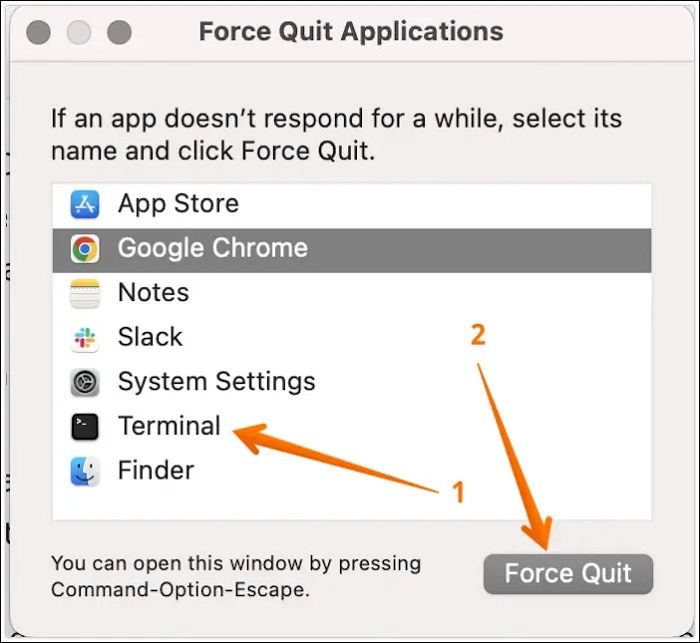
Step 3. Press the Force Quit button. A pop-up will come asking for confirmation that you want to Force Quit the app.
Step 4. Click on the Force Quit button again.
Ctrl + Alt + Delete Alternative 2. Apple Menu
The Apple menu can be used as an alternative to Ctrl + Alt + Delete for tasks such as restarting, shutting down, or forcing quit of an application. To do this, simply click on the Apple menu located at the top left corner of the screen and select the desired option from the drop-down menu. This provides a convenient and accessible way to manage your computer's operations without relying on the Command + Option + Escape combination.
Take a look at the easy steps you must adopt:
Step 1. Click on the Apple icon, then select Force Quit from the dropdown menu, and wait for the Force Quit Applications window to open.
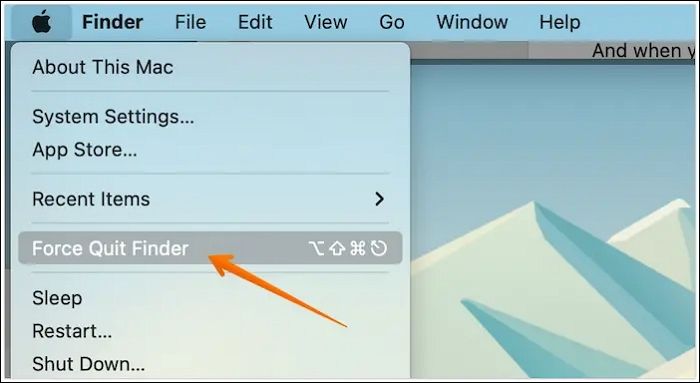
Step 2. Choose the app you want to force quit, then click on the Force Quit button.
Step 3. If the pop-up appears, you need to press the Force Quit button again.
Ctrl + Alt + Delete Alternative 3. Dock
To force quit an unresponsive application on your Mac, you can use the Dock as a convenient alternative to Ctrl + Alt + Delete. Simply click and hold on the application's icon in the Dock until the app's menu appears, then select "Force Quit" to close the program. This method is a quick and easy way to resolve issues with unresponsive apps, making it a useful tool to have in your Mac toolkit.
To close an application on a Mac, you need to locate the application icon you want to close on the dock. Then, click and hold on the icon until it starts to jiggle, and finally, click the "X" that appears in the corner of the icon.
Step 1. Right-click on the icon. A contextual menu will appear.
Step 2. To quit the application, go to the bottom of the menu and select the Quit option.
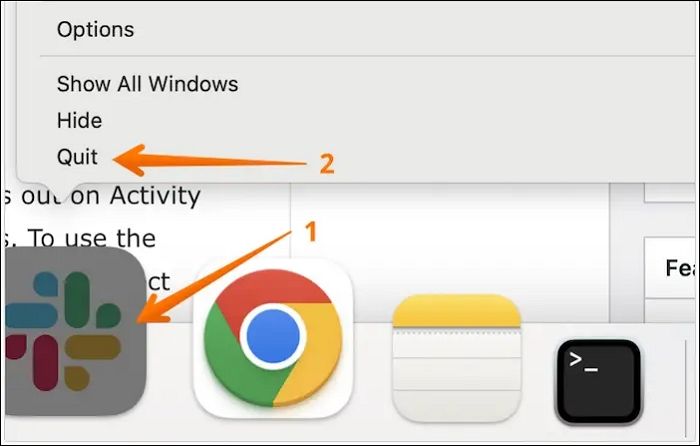
To close frozen apps from the Dock, you can right-click (or control-click) on the app icon and select "Quit" from the menu. This will force the app to close, but it may not remove any frozen processes. If the app is still frozen, you can try restarting your computer or using the Activity Monitor to terminate the process.
Step 1. Press the Control and Option keys and hold them.
Step 2. Click on the app icon you want to force quit.
Step 3. Select the Force Quit option when a menu pops up.
Ctrl + Alt + Delete Alternative 4. Activity Monitor
When looking for alternatives to Ctrl + Alt + Delete, consider using Activity Monitor on a Mac. Similar to the Task Manager in Windows, Activity Monitor allows you to access and manage running processes, making it a useful tool for troubleshooting and system maintenance. To access Activity Monitor, go to Finder on your Mac.
Step 1. To find Activity Monitor, go to Applications, then Utilities.
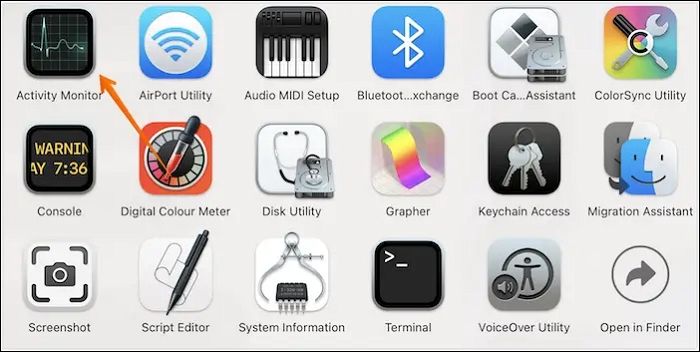
Step 2. With Activity Monitor, you can identify which apps are causing problems or not responding, as they are typically displayed in red, allowing you to take action accordingly.
Step 3. Double-click on the app you want to force quit.
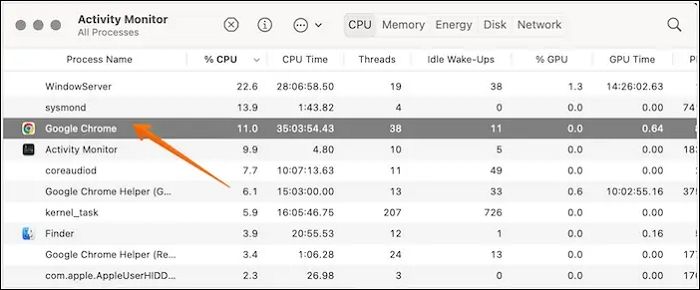
Step 4. A new window will open, click on the "Quit" button.
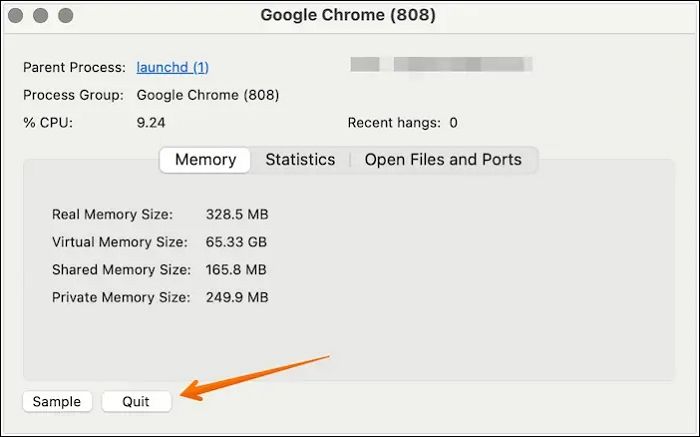
Step 5. A dialog box will open, showing the message: "Are you sure you want to quit this process?" Click the Force Quit button.
Ctrl + Alt + Delete Alternative 5. Terminal
To access the last Ctrl + Alt + Delete alternative on a Mac, use the Terminal, a tool that allows you to enter commands for various purposes. To open Terminal, click on the Dock or use Spotlight.
When Terminal opens, type "killall" followed by the app's name, starting with a capital letter, to terminate the process. For example, if the app is called "PhotoStripe", you would type "killall PhotoStripe".
If you don't know the app's name causing the problem, try to identify the app by looking at the recently used apps, recent notifications, or the app switcher. If that doesn't work, try to remember when the problem started and if it was related to a specific action or event. If you still can't figure out the app's name, you can try restarting your device or uninstalling and reinstalling any recently installed apps.
Step 1. Open Terminal. Type top and press the Return button.
Step 2. To close an app, first, you need to find the list of running apps. This list will display the PID (Process ID) number of each app. Take note of the PID number of the app you want to close. Then, type 'q' to quit the process.
Step 3. You can kill a process by entering the command `kill` followed by the PID number, which can be obtained using the `ps` command. For example, to kill a process with a PID of 121, you would enter `kill 121`. This will terminate the process, and you can then close the terminal. Be careful when killing processes, as it can cause data loss or system instability if not done correctly.
How to Recover Accidentally Deleted Files on Mac?
If you frequently use Control + Alt + Delete alternatives to force quit apps on your Mac, you risk losing valuable data. This can be particularly distressing if you haven't made a backup. To recover lost data, consider taking the help of a professional data recovery tool.
The Deep Data Recovery software is a highly reliable tool for recovering deleted data. It is both efficient and user-friendly, making it easy to use. Simply following a few steps allows you to recover the lost data.
Qiling Mac SD card recovery software can recover data from SD cards regardless of the reason for data loss, including accidental deletion, partition loss, formatting, system crashes, and malware attacks.
- Retrieving deleted files such as photos, videos, music, documents, and others is a relatively straightforward process.
- It is easy to restore lost data from various devices such as hard drives, SSD, USB flash drives, and pen drives.
- This software allows users to restore their data to cloud storage services such as Google Drive, Dropbox, and others.
- Previewing the files you want to recover is now possible.
- The file filter option allows you to scan lost data and select the desired file to recover.
- If you're experiencing problems with the tool, don't hesitate to reach out to the IT support team for assistance.
Step 1. Select the drive to be scanned
Select the drive where the lost files were stored, then click the "Search for lost files" button to start the scanning process.
Note: Before attempting data recovery, it's recommended to create a backup of your Mac by clicking "Disk Backup" from the left sidebar to ensure your data is safe. Once backed up, the software can recover data from the Mac backup, allowing you to write new data to your computer.

Step 2. Select your lost data/files
Deep Data Recovery for Mac scans the selected disk volume, displaying the results in the left pane, allowing users to sort and find specific files.

Step 3. Recover lost/deleted data
Once you have located the desired files, preview them, and then click "Recover" to initiate the retrieval of your deleted or lost Mac files.

Conclusion
If you're switching to a Mac, you might be worried about replacing the familiar Control + Alt + Delete combination. However, there are alternative methods you can use, such as combining the Command, Option, and Escape keys, or using the Activity Monitor and Terminal instead. These alternatives can help you navigate and troubleshoot your Mac with ease.
However, force-Quitting apps can lead to loss of data, but using professional data recovery software can help. Qiling Mac free data recovery software is an efficient and easy-to-use option that aids in hassle-free data retrieval, even if you haven't made a backup of the data. You can now breathe a sigh of relief!
Control + Alt + Delete on a Mac FAQs.
These are some Control + Alt + Delete alternatives on a Mac. However, it is advisable to gain more knowledge. For that, check out the questions and answers listed here.
1. How to do ctrl+alt+delete on a Mac remote desktop?
On a Mac, you can use the onscreen keyboard to access remote desktop features, such as using ctrl+ alt+ delete. To quit the app, press Command + Q. However, to force quit, press Command + Option + Escape.
2. What is the alternative to Ctrl Alt Delete on a Mac?
On a Mac, you can force quit an app using alternative methods to Ctrl Alt Delete. One option is to press the Command + Option + Escape keys, or you can use the Dock to force quit an app.
3. How do I unlock a locked Mac screen?
If you've forgotten your Mac password, you can reset it using your Apple ID, or use a different admin account to unlock the Mac.
4. What to do after using Ctrl + Alt + Del on Mac?
To fix unresponsive applications on a Mac, use Ctrl + Alt + Del, which will require you to restart the system. This is a simple and effective way to resolve the issue. To restart your Mac, click the Apple icon in the top left corner and select "Restart" from the dropdown menu. This will initiate the restart process, allowing you to quickly resolve the problem.
Share this post on your Twitter and Facebook to help more people.
Related Articles
- How to Install macOS Monterey | macOS 12 Clean Install
- How to Fix Mac Runs Slow After macOS Ventura Upgrade [8 Ways to Speed Up]
- Upgrade Windows 10 from Home to Pro Edition for Free
- How to Choose QNAP External Drive Format [2023 Detailed Tutorial]
- How to Fix Windows Backup Error Code 0x8078002a [5 Methods]🔥
People often use Windows backup to create a system image or back up important files in case of data loss, but may encounter error code 0x8078002a during the process. - How to Fix Windows Boot Manager Boot Failed [Full Guide]
Want to boot your Windows normally? If you're experiencing issues with the Windows Boot Manager Boot Failed error. There are ways to fix it, and you can find them here.
Products
Articles & Tutorials
- Data Recovery
- Data Backup
- File Recovery
- File Backup
- System Backup and Restore
- Disk and Partition Clone
- Technical articles
- Mobile articles
- Disk Master Help
- Windows Data Recovery Tutorials
- Windows Secure Delete Tutorials
- Windows Partition Management Tutorials
- Windows File Backup and Restore Tutorials
- Windows System Backup and Restore Tutorials
- Windows Disk Backup and Restore Tutorials
- Windows Clone Tutorials