How to Recover Deleted Files from an SD Card on Mac
To Recover Deleted Files from SD Card:
- 1. Download Qiling SD card recovery software for Mac and install it.
- 2. Insert your SD card into your Mac computer.
- 3. Open Qiling SD card recovery software for Mac.
- 4. Select your SD card Click the Scan button.
- 5. Select the files you wish to recover and click on the "Recover Now" button.
Lost Files from SD card on Mac, How to Recover
You were trying to transfer photos from an SD card to your Mac, but the process took too long and you had to unplug the card. When you reconnected it, your Mac asked you to format the card, which you did, but unfortunately, it erased all your photos. You want to recover the lost photos and data from the formatted SD card. Is that correct?
Most users may face the same issue where they're asked to format their SD card or USB flash drive before reusing it, but doing so would result in losing their files. However, formatting is not the only scenario where data can be lost on an SD card. There are other cases where data can be compromised.
- Accidentally deleted files from SD card
- Formatted SD card
- SD card got corrupted or inaccessible
- Attacked by virus
- Power failed
If you lose files from your SD card due to any issues, you can still recover your data on a Mac. You can use powerful Mac data recovery software to retrieve your files. The less you use the memory card after data loss, the higher the chance of successful recovery from the SD or CF card.
Also read: Recover Files from Formatted SD Card in Windows 10/8.1/8/7.
Top 5 Best SD Card Recovery Software for Mac Users
When your files are lost from an SD card, they are not gone forever, only file names and file properties are deleted, and your photos, videos, and music data remain on the memory card until they are overwritten. Fortunately, there are professional SD card data recovery programs available that can help you restore them, and there are a wealth of tools available to easily recover SD card files on Mac, with five best options available.
Top 1. Deep Data Recovery for Mac (Recommended)
We highly recommend trying Deep Data Recovery for Mac, a reliable software capable of restoring lost data from various storage devices due to various reasons. It offers a free version with 2GB data recovery capacity, allowing you to recover files from an SD card for free.
Highlights:
- This software is compatible with the latest macOS versions, including 10.15 (Catalina) and 10.14 (Mojave), as well as all previous versions.
- No quality-Loss recovery brings your lost photos and videos back to their original quality, restoring them to their best performance.
- It can recover data from Fusion Drive
- Supports T2 chip - first and only
Qiling Mac data recovery software supports various file types and can recover deleted, formatted, or corrupted data from Mac devices. It can retrieve files from different storage media, including hard drives, solid-state drives, external hard drives, and USB drives. The software can also recover data from Mac devices that have been damaged by power surges, water damage, or other physical stressors.
| Classifications | Tech Specification |
|---|---|
| Supported OS | macOS 10.15(Catalina) - 10.12, Mac OS X 10.11 ~ 10.9 |
| Supported devices | A MacBook or iMac is a type of computer, while a hard drive, memory card, and USB drive are types of storage devices. A camera is a device used for photography, and an SD card, CF/XD/MMC card are types of memory cards used in cameras and other devices. |
| Supported file system | APFS, HFS X, HFS+, FAT (FAT16, FAT32), exFAT, NTFS |
| Supported files | The list of file types includes various document formats (DOC, XLS, PPT, PDF, etc.), image files (JPEG, TIFF, PNG, BMP, GIF), video, music, emails, and archives (DMG). |
Top 2. Disk Drill - SD Card Recovery Mac
Disk Drill is a reliable utility to recover files from an SD card on Mac OS X 10.5+, allowing recovery of deleted files on all types of SD cards, including SDHC, SDXC, MicroSD, and more, with a free version limit of 500MB data recovery.
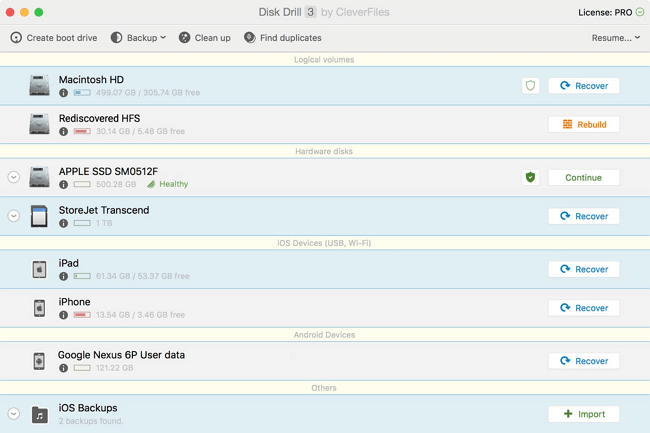
Highlights:
- The tool provides additional free disk utilities that can be used for monitoring disk usage, cleaning up disk space, removing duplicate files, and other related tasks.
- Supports data recovery for iOS devices and Android
Top 3. Data Rescue 5 for SD Card Recovery
Data Rescue 5 is an SD card file recovery application that offers an intuitive recovery process and two powerful scanning modes.
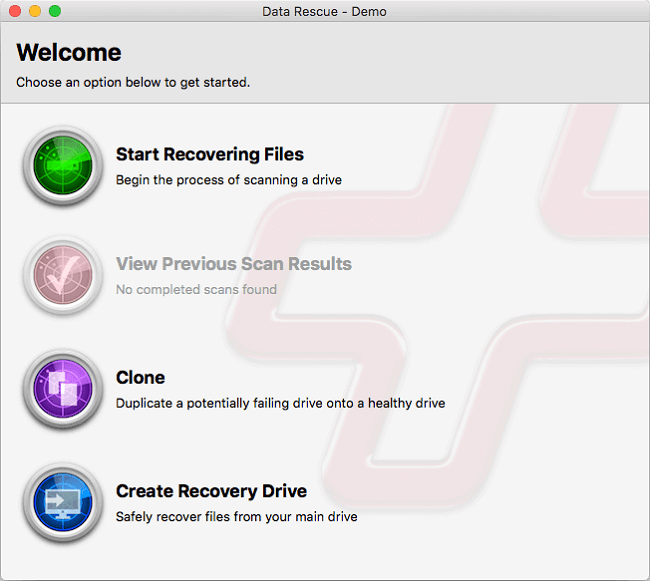
Highlights:
- Excluding duplicate files from the recovery result
- Supports the preview of the scanning result
- You can search for specific items based on their name, size, and date modified.
Top 4. PhotoRec
PhotoRec is a free digital photo recovery tool that specializes in retrieving lost images from various storage devices, including hard drives, memory cards, USB flash drives, CD-ROMs, and more.
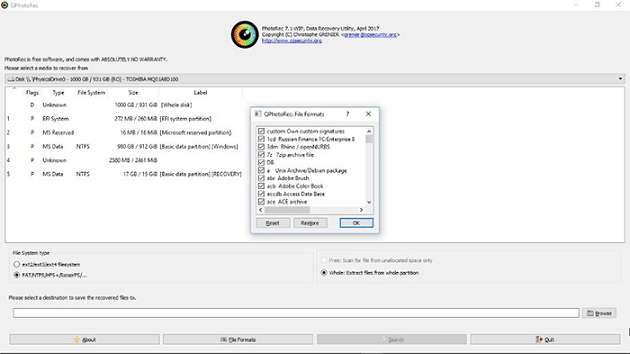
Highlights:
- The program can run on a variety of operating systems, including Mac OS X, Windows, and Linux.
- 100% open-The source program is not just the software, but also the source code, which is the set of instructions that make up the program. This includes the written code, data, and any other information necessary for the program to function.
Top 5. TestDisk
TestDisk is a free and open-source file recovery software that can recover lost partitions and fix boot issues, as well as recover deleted files.
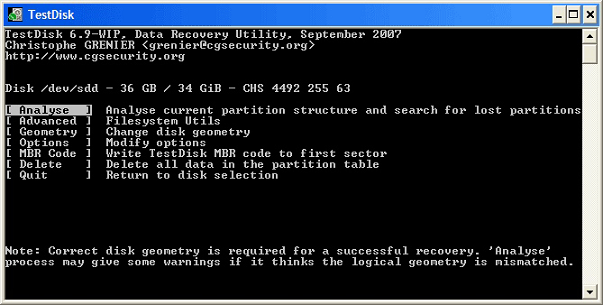
Highlights:
- Runs on several operating systems, including macOS and Mac OS X versions.
- Recovers lost partitions and rebuild the partition table.
How to Recover Deleted Files from SD Card on Mac
To recover files from an SD card on a Mac, download and install the best SD card recovery software, such as Qiling, on your Mac. Connect your SD card to the Mac computer and follow the recovery process. It's essential to stop using the SD card or Mac computer once data is lost, as continued use can make the data unrecoverable.
Note: To recover files from a damaged SD card, it's recommended to save the recovered files to another disk, such as a computer's hard drive or an external hard drive, instead of the original SD card. This is to prevent further damage or overwriting of the original files.
Step 1. Connect your memory card to your Mac, then launch Deep Data Recovery for Mac. Select the card and click "Scan" to initiate a search for lost files on the card.
Step 2. After scanning, all files will be shown in the left panel of the scan results.
Step 3. Select the files you want to recover, and click the "Recover" button. Avoid saving the recoverable files to the SD card itself to prevent data overwriting.
Effective Tips to Avoid Mac SD Card Data Loss
You can also follow the tips below to avoid SD card data loss.
- Make your data files backup regularly
- Remove SD card from Mac in a safe way
- Don't remove the SD card during the data transfer
- To avoid losing data, it's best to remove your SD memory card from your Mac when it's completely shut down, not just in sleep mode. This is because when your Mac is in sleep mode, it's still accessing the SD card, and removing it can cause data corruption or loss.
- To avoid data loss, it's essential to recognize the symptoms of a damaged or corrupted SD card. These signs include the inability to access or read files, frequent errors or crashes when using the card, and a sudden decrease in storage capacity.
- Data Protection in advance is the best recovery solution
Deep Data Recovery for Mac uses unique SD card data protection to safeguard your files, preventing accidental deletion and keeping a record of protected files for later recovery. If needed, you can recover data by selecting the protected files from the interface and restoring them.
Recover SD Card Data on Mac Frequently Asked Questions
If you're still unsure about Mac SD card data recovery, you can find answers to frequently asked questions below.
1. How do I fix an unreadable SD card on my Mac?
To fix SD card not readable by Mac error
- 1. Check Mac System
- 2. Check File System
- 3. Repair with Disk Utility
- 4. Initialize Disk
2. How do I recover photos from a corrupted SD card on a Mac?
To recover deleted photos from an SD card on Mac:
- Download and install Qiling SD card recovery software.
- Connect the SD card to your Mac.
- Launch the program and select the SD card.
- Hit the Scan button to start scanning for deleted pictures.
- To recover deleted photos, select the desired photos from the list of recoverable files and click "Recover Now".
3. Is there a way to recover trashed items on a Mac?
If you've accidentally deleted files on your Mac, there are a few practical ways to recover them. You can try restoring lost files from the Trash Bin, use the Undo option, or access deleted files through Terminal. Additionally, if you have a Time Machine backup, you can recover deleted files from there.
4. How can I recover my SD card for free?
The free version of Deep Data Recovery for Mac allows recovery of SD files up to 1 GB, making it a suitable option for recovering a few lost photos.
5. What's the best data recovery software for Mac?
Deep Data Recovery for Mac is a top-notch data recovery software that helps Mac users recover lost data from the emptied Trash Bin, accidental deletion, or other causes. This full-featured tool allows you to restore unlimited data in just three simple steps: choose a hard drive, scan to find deleted files, and preview and recover all recoverable files.
6. How do I access my SD card on my Macbook Pro?
To access the SD card on your MacBook Pro, go to the Apple menu, select "About This Mac", and then click "System Report". In the Hardware section, select "USB", and from the list of USB devices, choose "Internal Memory Card Reader" to view information about the interface hardware and the media inserted into the SD card slot.
Related Articles
- Mac Photo Recovery: How to Recover Deleted Photos on Mac
- Mac Won't Boot into Recovery Mode Fixes | Mac Command R Not Working Solutions
- Does Updating macOS Delete Everything? No...but Yes!
- Free Download Bad Sector Repair Tool - Flobo Hard Disk Repair
Flobo Hard Disk Repair is a tool designed to repair hard drive bad sectors, allowing you to recover your hard drive even if it's corrupted, damaged, or dead. - Top 9 Data Recovery Services Near Me in Los Angeles, CA
this guide will guide you to find the top 9 best data recovery services near you in Los Angeles, CA. We will offer detailed information about each store. Keep reading to find out! - The Top 10 Data Recovery Services Near Me in New York City
Data recovery services are widely available in New York City. These nearby businesses can help you recover practically any digital data that was unintentionally lost, erased, or corrupted. We offer a list of recovery services and their phone numbers for your convenience.
Products
Articles & Tutorials
- Data Recovery
- Data Backup
- File Recovery
- File Backup
- System Backup and Restore
- Disk and Partition Clone
- Technical articles
- Mobile articles
- Disk Master Help
- Windows Data Recovery Tutorials
- Windows Secure Delete Tutorials
- Windows Partition Management Tutorials
- Windows File Backup and Restore Tutorials
- Windows System Backup and Restore Tutorials
- Windows Disk Backup and Restore Tutorials
- Windows Clone Tutorials