How to Choose QNAP External Drive Format [2024 Detailed Tutorial]
QNAP is known for its network attached storage (NAS) system, but it also offers various peripherals to complement its services. QNAP External Drives are widely used in Windows and Mac systems, and when working with them, you may need to consider a QNAP external drive format.
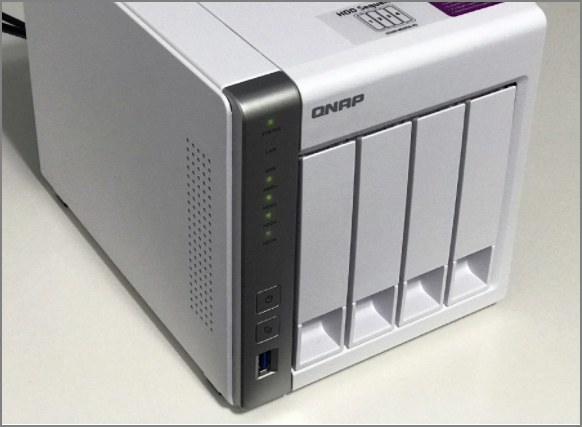
To determine what to choose for your QNAP external drive, it's essential to consider the type of data you want to store on it. The decision on how to format the drive depends on this, and this article aims to provide a suitable answer to your questions.
Which is the Best QNAP External Drive Format: NTFS, FAT32, HFS+, or EXT4
Many file system formats are commonly used in Windows and Mac systems, but finding the best QNAP external drive format is essential for managing variable data, which can be determined in the respective section.
The most common external drive formats used on QNAP devices include various options, each with its own distinctive features. These formats provide users with a range of choices for their specific needs, and understanding their characteristics can help select the best option for a particular case. By considering the specific requirements of each situation, users can choose the most suitable format for their external drive, ensuring optimal performance and compatibility with their QNAP device.
- NTFS, or the New Technology File System, was introduced as a file system for storing, organizing, and finding files in hard disks of Windows NT systems.
- HFS+ (macOS Extend Journaled)HFS+, also known as the official file system for macOS until APFS took over, boasts an upgraded file management system in Mac systems, making it a notable predecessor to the newer APFS.
- FAT32: The file system is diverse and compatible with various software, making it a popular choice for tasks like partitioning on systems that run multiple operating systems.
- EXT4: The Extended File System is considered the best, offering top-notch performance and meeting all modern file management needs.
We shall be looking into the following table to get to know more about the compatibility and other critical scenarios for the QNAP external drive format that you have to select:
| File Systems | Compatibility | Supported Scenarios |
|---|---|---|
| NTFS | The supported operating systems for the given software are Windows NT 3.1 and later, macOS 10.3 and later, Linux, FreeBSD, NetBSD, OpenBSD, Chrome OS, and Solaris, with ReactOS also supported in a read-only capacity. | Removable storage devices, such as USB drives, HDDs, SD Cards, and SSDs, allow users to transfer data between devices, and some can even recover data in case of a system failure or data loss. Self-recovering disks, on the other hand, have built-in recovery capabilities, making them a reliable option for storing important data. |
| HFS+ | macOS, the operating system, has undergone several versions, including macOS 8.1, 9, and 10.3 and later, while iOS and watchOS are specific to Apple devices. Additionally, macOS can be used on Linux and Windows systems using Boot Camp IFS Drivers. | Preferred in HDDs on Mac |
| FAT32 | Windows; Mac; Linux; PS4; GameCube; Xbox 360 | Suitable for smaller-capacity flash memory devices such as SD Cards, USB drives, etc. |
| EXT4 | Linux; FreeBSD; macOS (read-only); Windows | Formats volumes, hard drives, and other storage solutions with enhanced performance capabilities. |
EXT4 is the best drive format for QNAP External Hard Drive, offering top-notch performance and operational improvement. Its anti-fragmentation system prevents files from being clustered together, while its data allocation model diverges from fixed blocks to extents, making it a game-changing diversion in file systems. This results in a seamless and efficient storage experience.
To format your QNAP External Disk, you can easily do so by following a few simple steps. First, you need to connect the disk to your QNAP device and ensure it's recognized.
QNAP External Hard Drive Format Solution: Format QNAP External Disk
Here are two approaches to format a QNAP external disk:
Method 1. Format QNAP External Drive on PC
Method 2. Format QNAP External Drive on QNAP NAS
Although QNAP can work on Mac in FAT32 format, the best EXT4 format used by QNAP is not supported by macOS. Therefore, the following passage will only discuss two possible solutions for formatting a QNAP external hard drive, detailing how each method works.
- Important
- The QNAP external drive will erase all data on the drive, but you can use QNAP backup software to save essential data and prevent loss. This way, you can also recover deleted files using QNAP recovery tools.
Method 1. Format QNAP External Drive on PC
As a Windows user, you'll find a suitable option to format your external drive, but the built-in tools won't support EXT4 formatting for QNAP external drives. Fortunately, Qiling Disk Master Free offers an alternative, providing a free and user-friendly system to format your QNAP external drive, making it a great solution to meet this specific need.
To use the Qiling Disk Master for formatting an external disk to the correct format, we have created a step-by-step guide for you. The guide provides detailed instructions on how to use the Qiling Disk Master to format the external disk, ensuring it is compatible with your system.
Step 1. Launch Qiling Disk Master, right-click the partition you intend to format and choose "Format".
Step 2. Enter the Partition label, choose the file system (FAT32/EXT2/EXT3/EXT4), and set the cluster size according to your needs in the new window.
Step 3. After reviewing the changes, click "Proceed" to start formatting the partition to FAT32/EXT2/EXT3/EXT4.
Step 4. Then you will see a warning window, click "Yes" in it to continue.
Qiling Disk Master Free is a good disk partition manager that can handle EXT4 format, breaking the limitations of Disk Management and Diskpart Command. It also allows converting NTFS to EXT4 and creating EXT4 partitions on Windows 10.
Method 2. Format QNAP External Drive on QNAP NAS
QNAP NAS, a dedicated network-The QNAP External Drive Formatter allows users to format their external drive to their preferred QNAP external drive format, making the process simple and straightforward. This tool supports formatting in ext3/4 format, enabling users to easily convert their external drives to a QNAP-compatible format. To format a QNAP External drive, follow the steps outlined to execute this task.
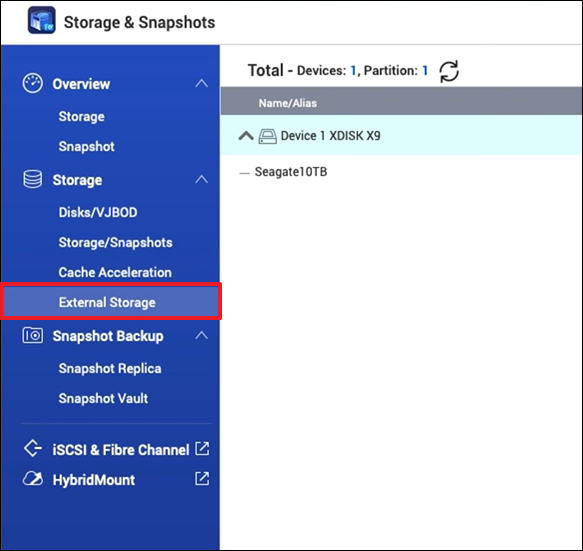
Step 1: To proceed, go to the "Storage & Snapshots" section, then click on the "Storage" tab, and select "External Storage" from the options listed.
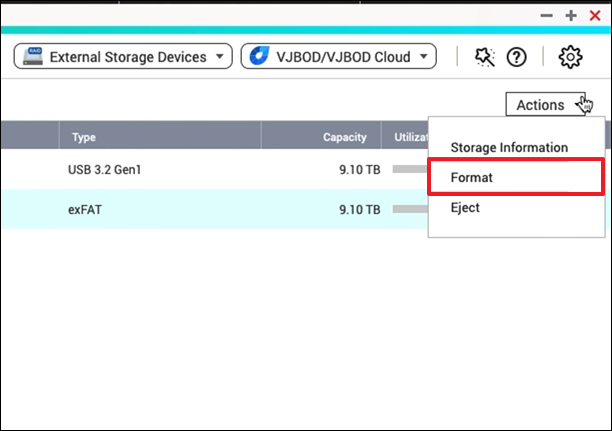
Step 2: Select the "Format" option from the "Actions" tab to erase the external drive's data and make it ready for new files.
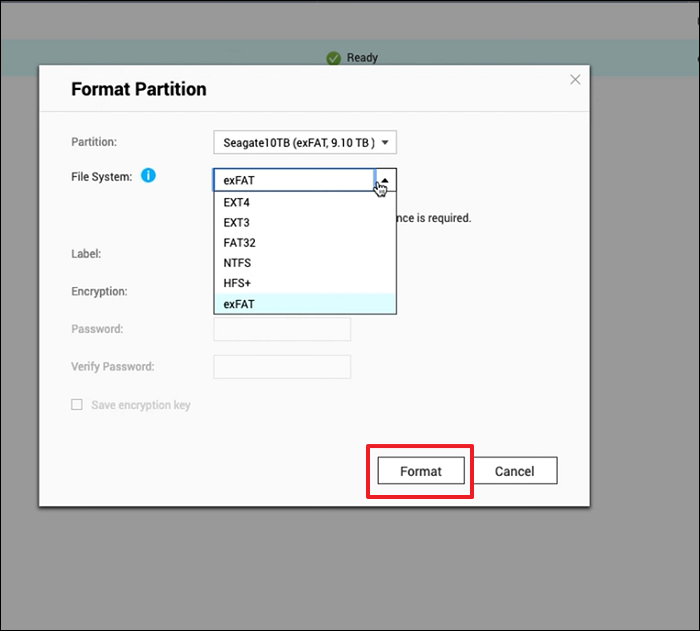
Step 3: While the partition window is open, you need to select the desired file system and set the necessary parameters. Once done, click "Format" to initiate the formatting process for the external drive on your QNAP NAS.
Conclusion
The article has provided an intuitive guide to finding the best QNAP external drive format, exploring various approaches to take in the process. Formatting drives using Windows, Mac, or QNAP NAS options are great alternatives to consider, each with its own benefits and suitability for different users.
You can use Qiling Disk Master in Windows to set the best QNAP external drive format, which can provide more conveniences in managing your hard drive compared to using Disk Management and Diskpart.
FAQ of QNAP External Drive Format
You still have some concerns about the QNAP external drive format. The answers to your questions can be found below, which will provide more information on related scenarios.
1. How do I format my QNAP external hard drive?
To format your QNAP External Hard Drive, you can refer to the various methods provided in the article, which can be performed using Windows and QNAP NAS. These methods will guide you on how to format your QNAP external hard drive.
2. What file format does QNAP use?
QNAP recommends using the EXT4 file system for external hard drives, which is also a top-rated file system in the market.
3. Does QNAP support APFS?
QNAP does not support APFS file systems, but instead provides support for the HFS+ file system on Mac.
Related Articles
- Mac Startup Disk Full: 6 Effective Solutions for the Free Up Space
- Fix macOS Monterey Update Stuck Error with Multiple Plans
- Fixed: "Server DNS Address Could Not Be Found"
- Can I Clone a Damaged Hard Drive [Detailed Guide]
- How to Fix Computer Turns on But No Display - Solutions Are Here!
If your computer turns on but doesn't display anything, this article will guide you through troubleshooting steps and recommend Qiling Disk Master, a backup software to safeguard your data. - [6 Quick Fixed] Computer Turns On But No Signal to Monitor
If your computer turns on but there's no signal to the monitor, it's likely due to driver or power issues. Fortunately, there are 6 simple fixes that can resolve the problem and get you back to work quickly.
Products
Articles & Tutorials
- Data Recovery
- Data Backup
- File Recovery
- File Backup
- System Backup and Restore
- Disk and Partition Clone
- Technical articles
- Mobile articles
- Disk Master Help
- Windows Data Recovery Tutorials
- Windows Secure Delete Tutorials
- Windows Partition Management Tutorials
- Windows File Backup and Restore Tutorials
- Windows System Backup and Restore Tutorials
- Windows Disk Backup and Restore Tutorials
- Windows Clone Tutorials