[6 Quick Fixed] Computer Turns On But No Signal to Monitor
A Quick Navigation to the 6 Solutions to Fix Computer Turns on but Now Signal to Monitor:
- ??♂️User Case:
- I understand that your computer turns on but the monitor is not showing any signal. This issue can be caused by a faulty graphics card, loose connection between the computer and monitor, or a problem with the monitor itself. To troubleshoot, try checking the cable connection between the computer and monitor, and also ensure that the monitor is set to the correct input. If the issue persists, you may need to consider replacing the graphics card or the monitor. Would you like me to guide you through some troubleshooting steps?
Many Windows users are experiencing a frustrating issue where their computer turns on but fails to display a signal on their monitor, making it difficult to work or use the device. This sudden malfunction can be particularly bothersome for employees who rely heavily on their computers for their jobs.
This error is likely caused by various factors such as an unstable internet connection, a corrupted monitor, outdated drivers, or hardware issues.
If your computer turns on but no signal is showing on your monitor, don't worry - you're not alone! This frustrating issue can be fixed with some simple solutions.
6 Solutions to Quick Fix Monitor No Signal
Here are six effective solutions to resolve the issue of a computer turning on but having no display:
(1) Reconnect or Replace HDMI Cable
To troubleshoot the issue, check the HDMI cables for proper connections to the power supply and monitor. A faulty, loose, or damaged cable in the HDMI or display port can prevent the monitor from turning on. Additionally, hinge issues with your laptop can also cause the display screen to remain black even when the laptop is turned on.
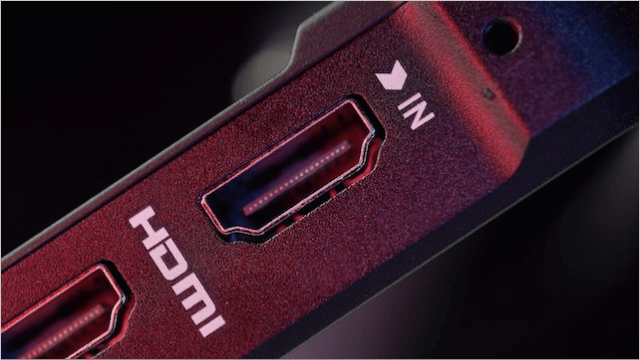
If your TV or monitor is not turning on, try reconnecting the HDMI cable and see if it's working properly. If the cable is damaged, replace it. Also, try using different ports on the TV or monitor to see if it's a port issue.
(2) Check the Monitor Input Source Condition
With the increasing number of monitors having multiple input sources, it can be confusing to connect to the correct input, potentially leading to errors if the wrong source is selected.
Instructions to check the correct input source:
Step 1: To ensure both the PC and monitor are turned on with the power supply, start by checking that the power button on the PC and monitor are functioning properly. Then, verify that the power cord is securely plugged into both the PC and the wall outlet.
Step 2: Click on the menu button on your monitor screen.
Step 3: To correct the display issue, navigate to the Input Source and select the correct input source. If the issue is related to an HDMI connection, set the input source to HDMI.
(3) Update the Corresponding Driver
If your display adapter or graphics card can't support multiple monitors or your monitor's configured resolution, it may fail to load your monitor display, causing your computer to turn on but not show a signal on the monitor.
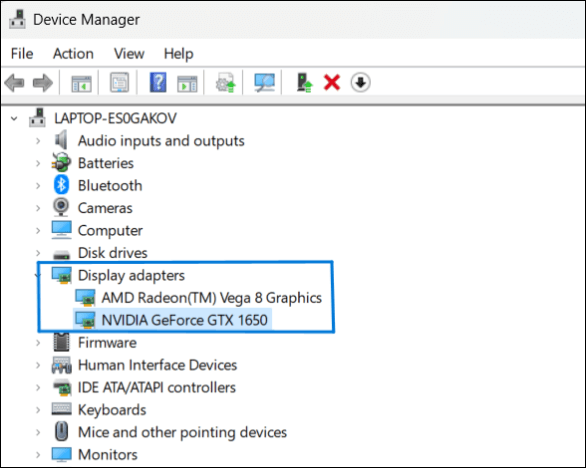
To resolve the issue of your display adapter not supporting your display resolution, you can either update your display adapters using the device manager or configure your display resolution to support the adapter's capacity.
(4) Check the Computer Hardware Condition
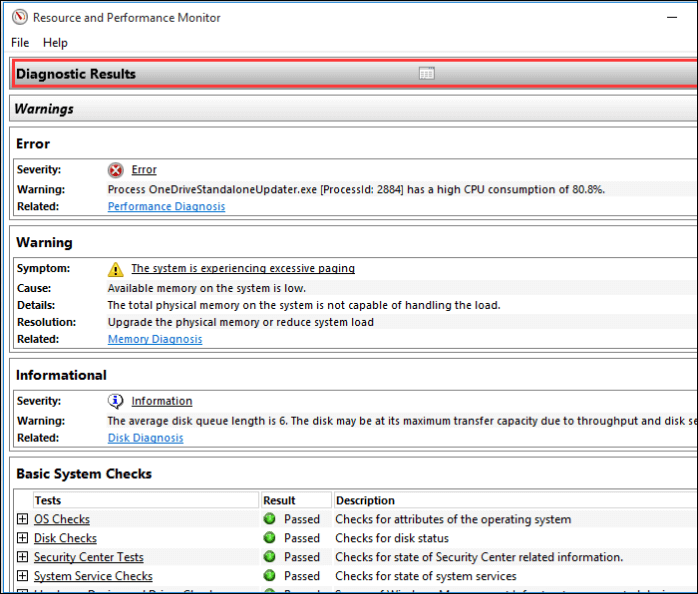
To troubleshoot computer hardware issues, start by checking that the hardware is communicating properly with the software through device drivers. If any sections of the hardware are faulty or loose, the system may malfunction and display no signal on the monitor. A diagnostic run can help identify the problem, and the following steps can be taken:
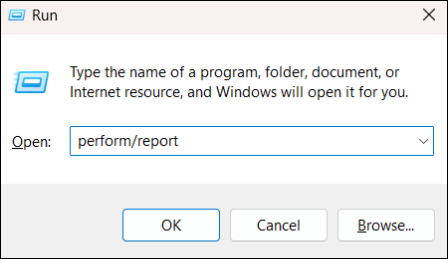
Step 1: To run the Performance Report in Windows, press the Windows key + R to open the Run dialog box, type "Perform/report" and hit Enter. This will run the utility and display a report on your system's performance.
Step 2: The software collects data for over 60 seconds and displays diagnostic results. Clicking on the "Diagnostic Results" section shows the condition of computer components in various subsections.
(5) Check the Screen Condition
If your computer won't turn on, check the monitor's condition. If it's powered on but the display remains blank, the issue might not be with the monitor. However, if the screen displays some information and then goes blank, the problem could be with the operating system. Various symptoms can indicate different underlying causes.
If you've recently replaced a monitor and the computer turns on but no signal appears on the new monitor, you can try reinstalling the OS, changing the resolutions, or bringing in a compatible monitor to troubleshoot the issue.
(6) Examine Monitor on other Devices
If the cables and display adapters are working fine, the issue may be with the monitor itself or the device, so try checking the monitor on other devices to identify the problem.
If your computer monitor isn't working, try switching to a different monitor on your computer. If the new one works fine, the issue may be with the original monitor, which you should get fixed. If the issue persists, it's likely a problem with your computer, and you can refer to the causes and fixes for computer won't turn on for possible solutions.
[Bonus Tip] Back Up Your Computer Regularly to Prevent Any Problems
When troubleshooting computer or display issues, it's essential to work around settings and files, which can sometimes lead to data loss. To avoid this, backing up important data is crucial, and Qiling Disk Master is an excellent software tool for any type of data backup.
Qiling Disk Master is a professional tool for efficient and secure data backup, offering various services such as system backup, disk/partition, files, and more. It provides simple backup management with enhanced efficiency, allowing users to create scheduled backups at regular intervals automatically. Additionally, the tool offers cloning with a bootable disk, making it a reliable option for backup services with an easy-to-use interface that even novice users can navigate using the user guide.
Key features of Qiling Disk Master:
- Award-Winning Automatic backup solutions for all situations.
- Reliable partition/disk cloning software for upgrades, backups, and disk duplications.
- Efficient and secure backup for disks, systems, and files.
- Intelligent backup to backup a section of hard disks.
- Offers multi-Dropbox offers a free cloud storage plan with up to 250GB of storage, allowing users to store and share files online.
The Bottom Line
The computer turns on but no signal to monitor issue can be caused by various factors, including the monitor, computer, or operating system, requiring a check to identify and resolve the problem. Potential fixes include troubleshooting the monitor, computer, and OS, and using software like Qiling Disk Master for data backup and loss prevention.
If you find this article helpful, share it with your friends and leave a comment about it. If you have any queries regarding the topic, feel free to ask them in the comment box, and do let me know of the future issues you wish to see articles from Qiling.
Computer Turns On But No Signal To Monitor FAQs
Here are some of the most frequent FAQs asked on the computer turns on but no signal to monitor issue. If you have similar queries hope this will help you.
1. Why does my monitor say no signal when my PC is on?
No signal on the monitor indicates that it is not receiving any video signal to display, which can be due to a faulty video cable, a malfunctioning graphics card, or a loose connection between the monitor and the computer. A faulty video cable can be identified by checking for any visible damage or fraying, while a malfunctioning graphics card may require a system restart or a replacement. A loose connection can be resolved by checking the cable connections and ensuring they are securely plugged in.
- The issues with the cable connecting the power, PC, and monitor.
- Faulty or damaged display drivers.
2. How do I fix my monitor not detected?
If everything is connecting well and your monitor is undetected, the potential reasons could be outdated or corrupted drivers. To resolve this issue, try updating or reinstalling your graphics drivers to see if that resolves the problem.
- Roll back the driver update to the previous version.
- Update the drivers.
- Change your monitor frequency.
3. How do I force the monitor to detect?
If you are unable to detect the monitor, first boot your computer to safe mode and follow the steps:
- Navigate to Settings > System > Display.
- Under the Multiple Displays section, click on detect button.
Related Articles
- [Detailed Guide] How to Fix Cyberpunk 2077 Saves Missing
Losing game progress is a total nightmare, but if your Cyberpunk 2077 save files disappear, there are steps you can take to prevent it from happening again. You can follow simplified ways to fix the issue and ensure your progress is safe. - Guide on Diskpart Fix Raw Partition: How to Use Diskpart to Fix Raw Partition
A Raw partition is an unrecognizable file system that makes it impossible to access the data on it. - Does BitLocker Slow Down SSD? Yes, up to 45%
Many users wonder if BitLocker slows down SSDs, and if there's a way to disable it to enhance performance. If you're curious about this, keep reading for comprehensive answers to your questions. - How to Fix Unsupported SanDisk SD Card Error [Step-by-Step Guide]
SanDisk SD card has proven useful when you're looking to expand the storage capacity of a device. If your SD card is showing the Unsupported SanDisk SD Card error, there might be some issue that needs fixing. In this article, you'll find effective ways to fix unsupported SanDisk SD card errors. - [Fixed]Unable To Update Minecraft Native Launcher 2023
Minecraft is facing updating issues in the app due to the native launcher issues. The updates are getting struck and halting the gameplay. The article discusses the reasons and solutions in detail to solve the unable to update Minecraft native launcher issues on Windows PC.
Products
Articles & Tutorials
- Data Recovery
- Data Backup
- File Recovery
- File Backup
- System Backup and Restore
- Disk and Partition Clone
- Technical articles
- Mobile articles
- Disk Master Help
- Windows Data Recovery Tutorials
- Windows Secure Delete Tutorials
- Windows Partition Management Tutorials
- Windows File Backup and Restore Tutorials
- Windows System Backup and Restore Tutorials
- Windows Disk Backup and Restore Tutorials
- Windows Clone Tutorials