Guide on Diskpart Fix Raw Partition: How to Use Diskpart to Fix Raw Partition
A Raw partition is an unrecognizable file system that prevents access to its data, often found in storage media like hard drives, SD cards, and USB drives. The issue can be resolved using Windows' built-in Diskpart utility.
This article explains the causes of a Raw disk partition and provides a step-by-step guide on how to fix it using Diskpart. Additionally, it mentions an alternative tool called Qiling Disk Master that can be used to format or repair Raw partitions.
What Causes Raw Partition
Knowing the causes of a Raw partition issue is essential to avoid it in the future. Common causes include disk corruption, file system errors, incorrect partition table settings, and hardware issues such as faulty hard drive controllers or malfunctioning disk drives. Understanding these potential causes can help you take preventive measures to prevent the issue from occurring in the first place.
- Virus/malware attack- When your computer is affected by viruses, you may experience problems such as Raw partitions, system crashes, and file encryption issues, making it difficult to access and use your files and system.
- Power failure- If you're accessing a logical disk and a power disruption occurs, you may encounter a Raw partition.
- Damaged file system structure- An improper operation on a file system could damage it, leading to a Raw partition. This is a critical error that renders the partition unusable and inaccessible, often requiring a system restore or reinstallation to fix.
- Bad sectors on the hard drive- Keeping your file system in the bad sectors of the hard drive could lead to a Raw partition, as the file system is not properly formatted and may become corrupted.
- Automatic formatting- When connecting a drive to certain devices, it may automatically format due to compatibility issues, resulting in a Raw partition. This can occur when the device's operating system doesn't recognize the drive's file system, leading to a loss of data.
In the next section, we'll discuss fixing the Raw partition issue using Diskpart. This utility allows you to manage and configure disk partitions, including creating, deleting, and formatting partitions.
Full Tutorial: Diskpart Fix Raw Partition
Diskpart is a built-The Windows utility that can be accessed via the command line allows you to clean data on your drives, including partitions and volume information. If a partition changes to Raw, it's often recommended to use the CHKDSK command to fix it.
When trying to run CHKDSK on a Raw drive, you're likely to encounter the "CHKDSK is not available for Raw drives" error message. In such cases, Diskpart becomes a more suitable option. With the right Diskpart commands, you can format the Raw partition on a hard drive to either NTFS or FAT32, effectively fixing the issue.
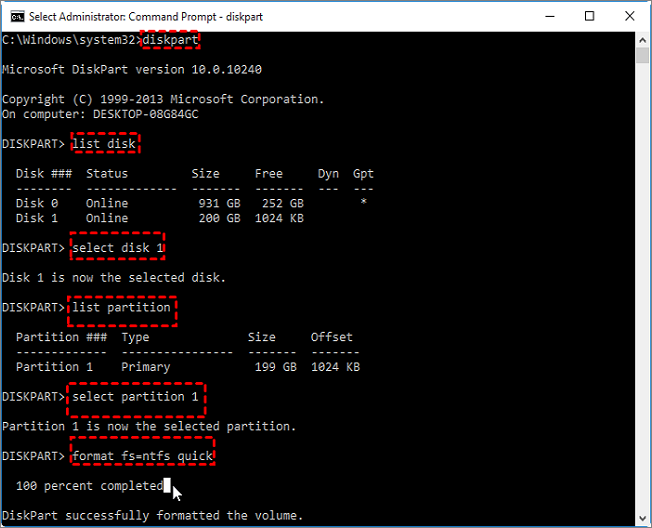
To fix a Raw partition using Diskpart commands, follow these steps: Open Command Prompt as Administrator, type "diskpart" and press Enter. At the Diskpart prompt, type "list disk" to view a list of available disks, then type "select disk X" (where X is the number of the disk containing the Raw partition), and press Enter.
Step 1. Open Command Prompt as an administrator.
Step 2. To open the Diskpart utility, type "diskpart" and press Enter.
Step 3. Type "list disk" to check all the connected disks.
Step 4. To select the disk containing the Raw partition, type "select disk 1" and replace "1" with the correct disk number on your device.
Step 5. Type "list partition".
Step 6. Next, type "select partition 1" (replace "1" with your correct partition number).
Step 7. Type "format fs=ntfs quick". This command formats the Raw partition and changes its file system to NTFS. If you want to use it as a FAT32, you can change "ntfs" to "fat32".
Step 8. The Raw partition is now fixed and is ready for different use. You can try testing it out! Type "exit" to close Command Prompt.
- Tip
- Please be cautious while typing commands to avoid data loss. If you're not familiar with basic computer skills, consider using a professional tool like Qiling Disk Master instead.
Diskpart is a command-line interface (CLI) tool in Windows that allows users to manage and manipulate disk partitions. It can be used to create, delete, format, and resize partitions on a disk, as well as perform other disk-related tasks.
Free Alternative to Diskpart Fix Raw Partition
If you're having trouble fixing a Raw partition using Diskpart due to the many commands, you might want to try the free tool Qiling Disk Master instead. It works similarly to Diskpart but is simpler to use.
This tool enables you to format a Raw partition and rectify any issues causing it to malfunction. Additionally, it allows you to change the file system for your Raw partition to either NTFS or FAT32.
Step 1. Launch Qiling Disk Master.
Right-To format a RAW partition or external hard drive/USB/SD card, click on the RAW partition or device you need to format and select the "Format" option.

Step 2. Format RAW Partition and reset the file system.
Assign a new partition label, set the file system to NTFS/FAT32/EXT2/EXT3/EXT4/exFAT, and cluster size to the selected partition.

Step 3. Execute the operations.
To start formatting your RAW partition/USB/SD/external hard drive, click the "Proceed" button.

Step 4. In the Warning window, click "Yes" to continue.
Clicking "Yes" will allow the program to format the target RAW partition to the selected file system format, effectively preparing your drive for use.
The main features of Qiling Disk Master include the following:
- Format/wipe partition- The tool enables you to erase all data from a specified partition, effectively resetting it to a blank slate.
- Merge partitions- allow you to combine two partitions and use them easily.
- Create/delete partitions- you create or clear those partitions you no longer need.
- Resize/move partition- If a partition is almost full, you can either resize it to make it larger or move it to a different part of the disk that has more free space available.
- Clone partition- If you're running out of disk space, Qiling Disk Master lets you clone an existing partition to another disk, freeing up space.
- Surface test partition- This feature enables users to check the health state of their disk and repair bad sectors, ensuring the overall health and reliability of their storage device.
Qiling Disk Master is a software that offers a wide range of features for fixing Raw partitions, and it's available with a free trial version. To get started, download Qiling Disk Master today and follow the easy steps to use its best features.
Conclusion
The Raw partition issue affects your hard drive's file system, making it inaccessible, caused by factors such as virus/malware attacks, power failure, damaged file system structure, bad sectors or hard drives, or automatic formatting. To resolve this, you can use the Windows built-in utility called Diskpart to format or repair your disk.
The Diskpart tool, accessible through Command Prompt, offers specific commands to fix a Raw partition. Alternatively, Qiling Disk Master is another tool that can efficiently manage disk partitions through formatting, resizing, merging, cloning, surface testing, and more, making it a viable option to fix a Raw partition issue.
Qiling Disk Master is an easier-to-use alternative to Diskpart, requiring fewer commands and steps to accomplish tasks. By downloading Qiling Disk Master, users can start enjoying its benefits.
FAQs About Diskpart Fix Raw Partition
Apart from the content written above, you may have some other doubts. Read the following questions to learn more about fixing a Raw partition using Diskpart.
1. How to fix raw hard drives to NTFS without losing data?
To fix a Raw hard drive to NTFS without losing data, use a free data recovery software like Deep Data Recovery to recover data, then use Diskpart or Qiling Disk Master to fix the Raw drive.
2. How do I fix a raw partition?
To fix a RAW drive, you can either format it, which will clear all data, or use a repair tool like Diskpart or Qiling Disk Master to check and potentially fix the issue, without erasing data.
3. Can CHKDSK fix raw drive?
Running CHKDSK cannot fix a Raw drive issue, as it will display the error message "CHKDSK is not available for Raw drives". Instead, you can use the Diskpart utility to format the Raw drive, which may help resolve the issue.
Related Articles
- Fix Windows Taskbar Not Working | For Windows 11/10
- (Quick Solutions!) How to Backup SD Card Without Computer
- How to Clear Cache on Chrome on Windows and Mobile Devices
- Fix File Explorer Not Responding on Windows 11/10 | 8 Plans
Is the file explorer not responding on Windows 11/10? This article will help fix the issue with easy-to-follow methods! - Continuous Data Protection: All Things You Need to Know
In this article, we will tell you what continuous data protection is and how continuous data protection work. This post will also find the advantages and disadvantages of continuous data protection. - Disk2vhd: Detailed Introduction to Convert Physical to Virtual Machine
Disk2vhd is a utility that converts logical disks into virtual disks in VHD format. In this article, I will explain in detail what is disk2vhd and how it can be used to help us meet our virtualization needs.
Products
Articles & Tutorials
- Data Recovery
- Data Backup
- File Recovery
- File Backup
- System Backup and Restore
- Disk and Partition Clone
- Technical articles
- Mobile articles
- Disk Master Help
- Windows Data Recovery Tutorials
- Windows Secure Delete Tutorials
- Windows Partition Management Tutorials
- Windows File Backup and Restore Tutorials
- Windows System Backup and Restore Tutorials
- Windows Disk Backup and Restore Tutorials
- Windows Clone Tutorials