(Quick Solutions!) How to Backup SD Card Without Computer
If you're an SD card user, you may want to know how to back up your SD card without a computer. Fortunately, there are easy ways to back up an SD card with or without a PC, allowing you to migrate everything from your SD to any storage device on your own.
Backup SD Card to Cloud Without a Computer
Backing up an SD card without a computer can be a bit tricky, but there are some convenient options available. One easy solution is to use a Cloud app on your mobile phone, which has become increasingly popular in recent times. Cloud apps allow you to quickly and easily back up your SD card, and many of them offer free cloud storage space if you have an account. You can download Cloud apps like Google One or Alibaba Cloud on your phone to get started.
To back up your SD card using Google One, you can utilize the service's automatic file backup feature, which saves photos, audio, and messages from your phone. After registering an account, you'll have access to 15GB of free storage space, making it easy to store your backed-up files. By following the steps, you can ensure that your SD card's contents are safely stored in the cloud.
Step 1. To get started, download and install Google One for your phone from the Google Play store.
Step 2. Register an account if you don't have one.
Step 3. To set up the backup, click on "Set up data backup" on the Home screen, select the desired content to back up, and then click "Back up now" to initiate the backup process.
Backup SD Card to External Drive Without PC
To back up an SD card using a hard drive docking station, first, insert the SD card into the docking station. Next, connect the docking station to a power source and a computer, if desired, to access the data on the SD card. Then, insert an external hard drive into the docking station. The docking station will automatically recognize the SD card and the external hard drive and begin the backup process. Finally, wait for the backup process to complete, which may take several minutes depending on the size of the SD card and the speed of the external hard drive.
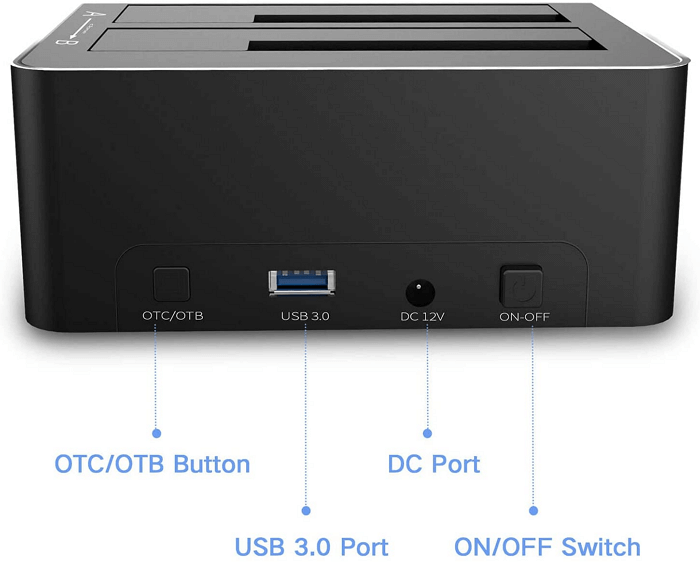
Step 1. Connect the hard drive docking station to the power supply.
Step 2. Insert the SD card into the SD card slot on the docking station.
Step 3. To connect an external hard drive to the docking station, simply insert the external hard drive into the USB port on the docking station. This will allow the docking station to recognize the external hard drive and utilize its storage capacity.
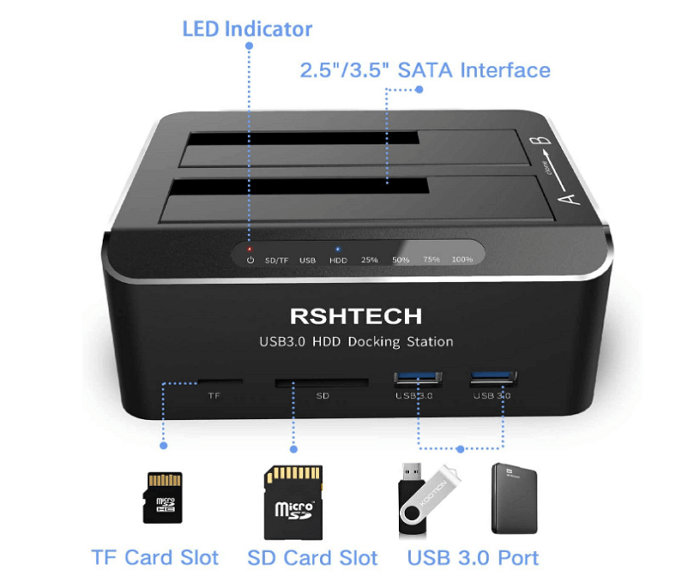
Step 4. The ON/OFF button is used to power the station, and the OTC/OTB button initiates the cloning process.
Step 5. When all the lights on the top of the cloning station are green, the cloning process is finished.
Backup SD Card to Anywhere on Windows Computer
Backing up an SD card without a laptop can be challenging, especially when using devices like GoPros or car data recorders. If you accidentally delete or infect your data with malware, it can be disastrous. However, there's a third-party solution: SD card backup software like Qiling Backup can help you back up your SD card to any storage device.
Qiling Backup Home is a practical backup tool for Windows that offers a user-friendly interface and supports various backup types, including full, incremental, and differential backups. It allows users to save backups to local drives, NAS, cloud storage, and even SD cards, providing 250GB of free cloud storage to meet the 3-2-1 backup rule for data protection.
The steps to back up your SD cards are as follows:
Step 1. Start with selecting the Disk backup button.

Step 2. You can back up the entire disk or a specific partition using the tool. Simply select the appropriate option.

Step 3. Select the destination where you want to save the backup.

Step 4. For disk/partition backup, you can choose to save the backup to a local drive or to a Network-Attached Storage (NAS) device.

Step 5. After completing the backup process, your task will be shown on the left. You can right-click on any task to further manage your backup, such as recovering it, creating an incremental backup, and more.

Final Thoughts
Backing up your SD card is crucial to avoid data loss issues, especially if you've invested time in finding a solution to do so without a laptop. Fortunately, this article provides two methods for backing up an SD card without a computer, as well as a superior alternative in Qiling Backup, which not only enables SD card backup but also allows for other backup tasks.
FAQs
1. Can I clone a micro SD card?
You can clone an SD card to an external hard drive, SSD, or flash drive, but most applications do not support cloning SD cards to devices with a GPT partition mode.
2. Do SD cards go bad?
SD cards are expected to last 10+ years, but heavy use can cause them to wear out faster.
Related Articles
- RAM Test: How to Check RAM for Errors in Windows
- How to Solve SD Card Deleting Files by Itself in Every Possible Way
- [New Tutorial] Backup Game Saves on PS4 in Three Methods
- Why is Google Drive Not Working and How to Solve It
- How to Cancel a Format in Progress If Windows Won't Cancel Format
If you're trying to force stop the process of formatting a hard disk or external USB drive, but Windows won't cancel the format, read this post for data recovery solutions. - How to Change Wallpaper on Windows 10
Learn how to change desktop wallpaper on Windows 10 using Settings, right-click shortcuts, and themes. Also discover the best sites to download HD wallpapers for your PC.
Products
Articles & Tutorials
- Data Recovery
- Data Backup
- File Recovery
- File Backup
- System Backup and Restore
- Disk and Partition Clone
- Technical articles
- Mobile articles
- Disk Master Help
- Windows Data Recovery Tutorials
- Windows Secure Delete Tutorials
- Windows Partition Management Tutorials
- Windows File Backup and Restore Tutorials
- Windows System Backup and Restore Tutorials
- Windows Disk Backup and Restore Tutorials
- Windows Clone Tutorials