How to Cancel a Format in Progress If Windows Won't Cancel Format
If you've ever regretted a formatting operation and found that Windows won't stop the process, you may be concerned about losing your data. Fortunately, there are three practical methods that can help you immediately stop a formatting process and recover your lost files using format recovery software.
| Workable Solutions | Step-by-step Troubleshooting |
|---|---|
| Fix 1. Use DiskPart | Run Command Prompt as Administrator > Type diskpart > list disk > select disk X > offline disk...Full steps |
| Fix 2. Use Disk Management | Open Disk Management > Right-click the disk you are formatting > Select "Offline"...Full steps |
| Fix 3. Use File Explorer | If you initiate the formatting in File Explorer, click the "Cancel" button to stop the formatting process.Full steps |
| Fix 4. Recover Formatted Data | To recover data from a formatted hard drive, you can use Deep Data Recovery software, which can scan the drive and restore partially lost data. This process involves using the software to scan the formatted hard drive, and then restoring the recovered data.Full steps |
How to Cancel a Format in Progress
"Hi, I have an issue with a WD Elements external hard drive and I wanted to format it on Windows using the Diskpart. But after I entered the command [format fs=ntfs], this stage hangs there for already two hours, still, 12% completed! Can I just interrupt the format process and start it all over again? But it seems that Windows won't cancel the format in a safe way. Please help."
Formatting a hard drive is a common solution to address issues such as slow performance, inability to access the drive, or bad sectors, and can be done in Microsoft Windows using File Explorer, Windows Disk Management, or Command Prompt, affecting both internal and external drives like USB flash drives.
Formatting a storage drive can take anywhere from seconds to hours, but in some cases, the process can be extremely slow, taking over 24 hours. If you're stuck in such a situation, you may need to interrupt the format midway. This raises concerns about whether stopping the format in progress will damage the hard drive, and what to do if Windows won't cancel the format even after closing the format window.
How to Cancel Hard Drive Formatting in Windows 11, 10, 8, 7 Completely
To effectively cancel a format, set the hard drive as offline using Diskpart or Disk Management, as this will prevent the format from proceeding. This method is the most effective way to cancel a format.
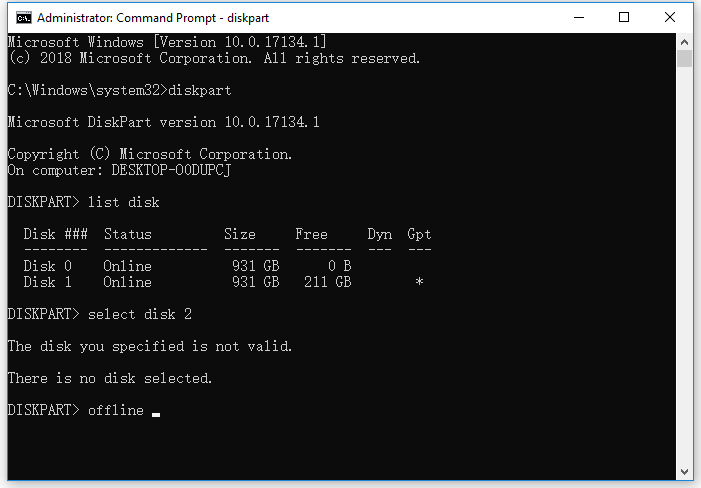
Method 1. Cancel a Format via Diskpart
Step 1. Run Windows Command Prompt as an administrator.
Step 2. In the window, enter diskpart > list disk > select disk X > offline disk.
Step 3. Now the formatting process has been canceled. Continue to enter the online disk in order to use it.
Method 2. Cancel a Format via Disk Management
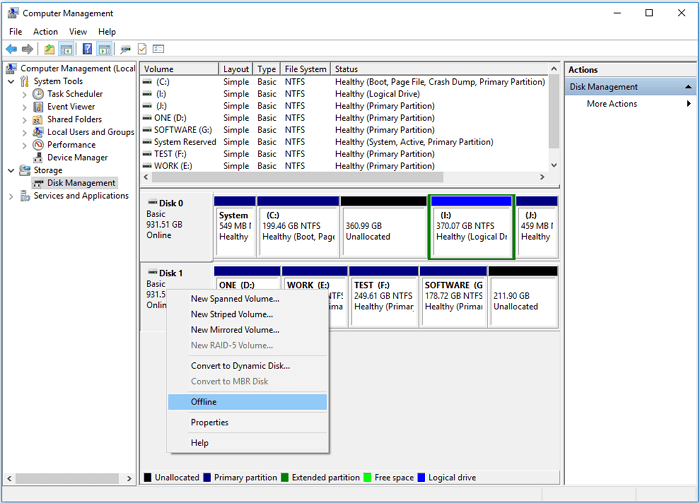
Step 1. Right-click "This PC" and choose "Manage".
Step 2. Go to "Disk Management".
Step 3. To format a disk, right-click on the disk and select "Offline". Then, to work with it, right-click again and select "Online". Alternatively, you can cancel the formatting process by selecting "Cancel Format".
Method 3. Cancel a Format via File Explorer
If you're having trouble canceling a formatting process in Windows File Explorer, you can try clicking the "Cancel" button in the formatting window. If that doesn't work, you can use one of the two alternative methods mentioned to cancel the format. These methods are guaranteed to work.
How to Recover Data from a Partially Formatted Hard Drive
Accepting the risk of interrupting the format process once it has started is necessary, as it may lead to an inaccessible hard drive showing up as a RAW drive, especially if the task is taking a while.
If you cancelled a hard drive format after realizing you hadn't backed up your data, you can use Deep Data Recovery to recover your lost files. This professional software can help you retrieve data from a partially formatted hard drive, giving you a second chance to recover your erased information.
Note: To ensure a successful data recovery, install Qiling data recovery software on a separate disk, not the one that was formatted. This allows the software to work on the formatted disk without interfering with its own functionality.
Step 1. Launch Deep Data Recovery, select the file types you want to recover, and click "Format Scan" to begin the recovery process.

Note: You can choose different search modes based on where and why the data was lost.
Step 2. To recover data from a formatted hard drive partition, select the partition that was accidentally formatted and click the "Scan" button.

Step 3. After scanning, the software will allow you to filter and search for specific files or folders to quickly find the data you need.

Step 4. Preview the scanned files, select the ones to recover, click "Recover", choose a new location, and click "OK".
Related Articles
- [Solved] Windows 11/10 Show Hidden Files Not Working
- 5 Ways to Fix BSOD Error 0x00000133
- How to Reset Windows 10 Password in 4 Ways (Step-by-Step Tutorial)
- How to Recover Deleted Call Recordings on Android [2022 Guide]
- Best Guide to Recover Forgotten Blizzard Password
Forgot your Blizzard password? No need to worry. In this article,we will give you methods of how to recover forgotten Blizzard password. Choose the way that fits you best. - MP3 Recovery Software: How to Recover MP3 Files for Free from All Devices
Lost MP3 files from your hard drive, SD card, or music player? Recover deleted or corrupted MP3 files for free with Deep Data Recovery. Easy 3-step recovery guide for all devices.
Products
Articles & Tutorials
- Data Recovery
- Data Backup
- File Recovery
- File Backup
- System Backup and Restore
- Disk and Partition Clone
- Technical articles
- Mobile articles
- Disk Master Help
- Windows Data Recovery Tutorials
- Windows Secure Delete Tutorials
- Windows Partition Management Tutorials
- Windows File Backup and Restore Tutorials
- Windows System Backup and Restore Tutorials
- Windows Disk Backup and Restore Tutorials
- Windows Clone Tutorials