How to Reset Windows 10 Password in 4 Ways (Step-by-Step Tutorial)
If you have forgotten your PC password in Windows 10, do not worry - you can reset it using your Microsoft Account or local account.
This article provides four practical ways to reset your password, complete with detailed guides to walk you through the process step-by-step. Let us get started now.
Method 1. Reset Windows 10 Password with Security Questions
The process of resetting a Windows 10 password varies depending on the Windows version.
For Windows 10 Version 1803 and Later
Windows version 1803 and later versions allow users to add security questions when setting up a local account, enabling them to regain access if they forget their login password by answering these questions to sign back in.
Step 1. After two incorrect password attempts, you will be prompted to reset your password.
Step 2. Click "Reset password" and move to the next step.
Step 3. Answer your security questions.
Step 4. Enter a new password and you can successfully sign in with the new password.
For Windows 10 Before Version 1803
Windows versions earlier than 1803 do not provide the option to set security questions, so to reset a local account password, the only option is to reset the PC and choose a new password.
- Warning
- Resetting your PC will permanently remove data, programs, and settings. If you've backed up your files beforehand, you can follow the steps to reset your computer and restore your data later. If not, you may be able to recover lost files using a file recovery tool like Qiling.
Deep Data Recovery is a tool that enables you to retrieve permanently lost files, including photos, videos, documents, and emails, from various storage devices such as HDD, SSD, USB flash drive, SD card, and more.
Qiling data recovery software can recover data and also repair corrupted files, including photos, videos, and documents, except for data recovery.
Note: To guarantee a high data recovery chance, install Qiling data recovery software on another disk instead of the original disk where you lost files.
Step 1. Launch Deep Data Recovery on your computer, choose the file types you want to recover, and click "Fast Scan" to start the recovery process.

Note: You can choose different search modes based on where and why the data was lost.
Step 2. Select the disk partition or storage location where you lost data and click "Scan" to start the data recovery process.

Step 3. This recovery software will start scanning the disk to find all lost and deleted files. Once the scan process completes, you can click "Filter" > "Type" to specify the types of lost files you're looking for.

Step 4.To restore lost Windows files, you can use a file recovery tool that scans your PC and allows you to preview the scanned files. Once you've found the files you want to recover, simply select them and click the "Recover" button to save them to a safe location, such as an external storage device or another spot on your PC.
Reset Windows 10 PC:
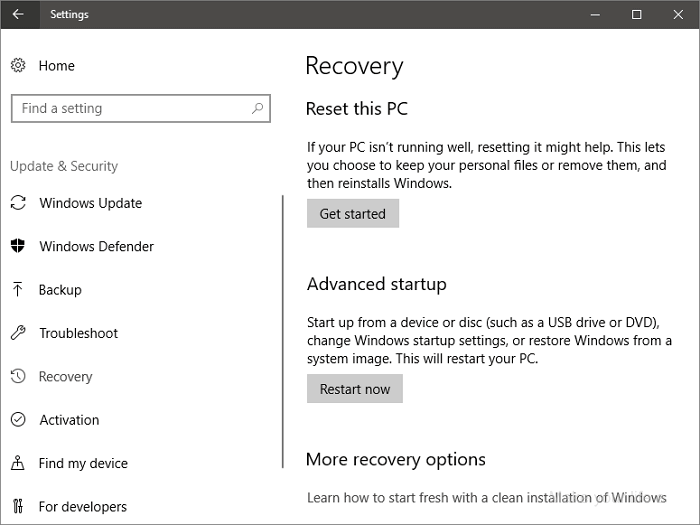
Step 1. To reset your PC, press the Windows + I keys to open the Settings interface. From there, select "Update & security," then "Recovery," followed by "Reset this PC" and finally "Get started."
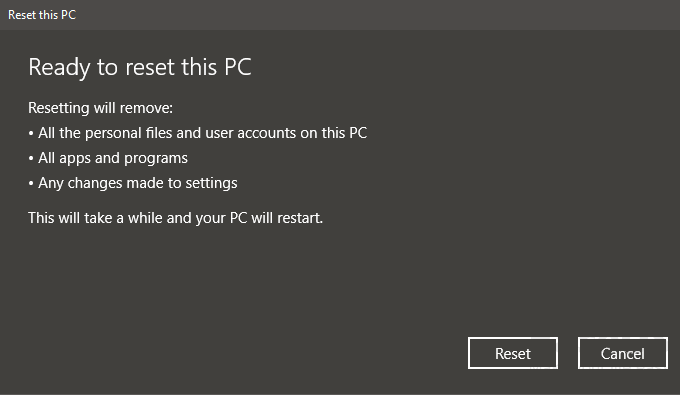
Step 2. To factory reset your Windows device, click "Remove everything" and then "Reset" to erase all data and restore the device to its original settings. This process will delete all files, programs, and settings, and Windows will restart and take several minutes to reset.
Step 3. After resetting your PC, you can sign in and set a new password.
Method 2. Windows 10 Password Reset via Password Reset Disk or USB
If you have previously created a password reset disk, you can use it to reset your Windows 10 password easily.
Step 1. To reset your password, plug in the password reset USB to the computer, and then click on the "Reset passwords" option on the account login screen.
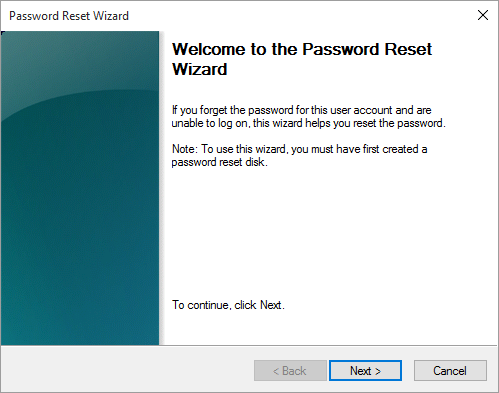
Step 2. The Password Reset Wizard will appear. Click "Next".
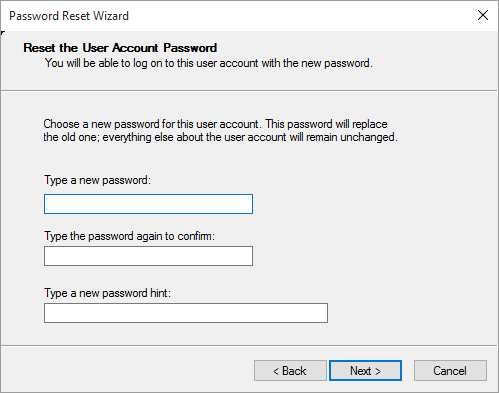
Step 3. Create a reset disk, choose it, and enter a new password, confirming it and optionally adding a password hint.
Step 4. If you've successfully reset the password for this user account, you can click "Finish" to close the Windows 10 password reset process.
Method 3. Reset Windows 10 Password with Microsoft Account
If you are locked out of Windows after forgetting your Microsoft account password, you can resolve the issue by following a series of steps. After Windows 8, users can log into Windows with a Microsoft account, but if you have forgotten your password, you will need to take action to regain access.
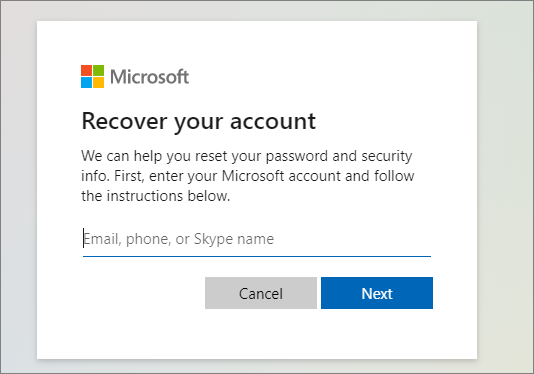
Step 1. To reset your password, click "Forgot password?" on the Enter password window or go to Microsoft's password reset website and enter your email address, phone number, or Skype name, then click "Next".
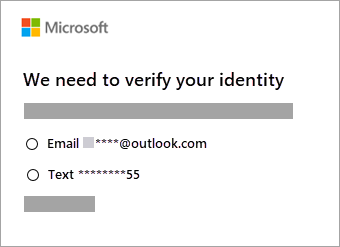
Step 2. Choose how Microsoft verifies your identity, email, or phone number, and select "Next".
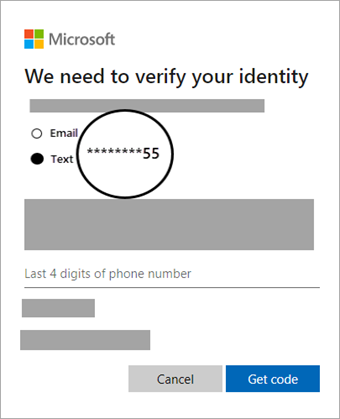
Step 3. Type the missing information as required and click "Get code".
Step 4. To reset your Microsoft account password, enter the security code you received, then type your new password and click "Next". This will successfully reset your password, allowing you to sign in to Windows using your new credentials.
Method 4. Windows 10 Password Reset in Command Prompt
To reset a Windows 10 password from the Command Prompt, start your computer in Safe Mode, then log in with the built-in administrator account. From there, you can access Command Prompt, navigate to the System32 directory, and use the built-in utility Net User to reset the password. This process allows you to regain access to your Windows 10 account.
We have full guides to explain how to enter safe mode in Windows 10, check the instructions if necessary.
To reset Windows 10 password using command lines, first, you need to open the Command Prompt as an administrator. You can do this by typing "cmd" in the search bar, right-clicking on the Command Prompt icon, and selecting "Run as administrator.
Step 1. The command "net user [Your User Account] [New Password]" is used to change the password of a user account. For example, if you want to change the password of the Administrator account, you would type "net user Administrator 123" and press "Enter", replacing [Your User Account] with the actual name of the account you want to modify and [New Password] with the desired new password. This command is useful for resetting passwords or updating them to meet security requirements.
Step 2. Then, the account Administrator's password will be reset to 123456.
Step 3. Exit the Command Prompt and restart your computer. Then, log into Windows with password 123456.
How to Reset Windows 11 Password for a Local Account
You can reset a Windows 11 password by signing back in and setting a new one by answering security questions, similar to the process described above for Windows 10.
Step 1. After entering an incorrect password, select the "Reset password" link on the sign-in screen. This will prompt you to enter your email address or username associated with your account, and follow the instructions provided to reset your password.
Step 2. If you select the "Reset password" link, you will be prompted to answer your security questions. If there are no security questions displayed, it may be because your device name is the same as your local user account name, so make sure to check and change it if necessary.
Step 3. Set a new password and you can sign in to your PC.
More Windows Password Reset Guides
This part covers more valuable instructions on Windows password settings and resetting.
1. How to add security questions to your local account?
You can add security questions to your local account to prevent forgetting your password and being locked out of Windows. This way, you can recover your account without needing a reset disk or USB.
Step 1. Press Windows + I keys to open "Settings".
Step 2. Click "Accounts > Sign-in options > Update your security questions".
2. How to create a Windows password reset disk or USB drive
Creating a password reset disk using a USB flash drive allows you to quickly sign in to Windows again if you forget your password, without erasing your device. It's recommended to back up important files beforehand for added security.
Step 1. Sign in with your local account.
Step 2. Connect a USB flash drive to your PC.
Step 3. To create a password reset disk, open Control Panel on your computer and search for "Create a password reset disk" in the Control Panel search box. This will allow you to create a disk that can be used to reset your password if you forget it.
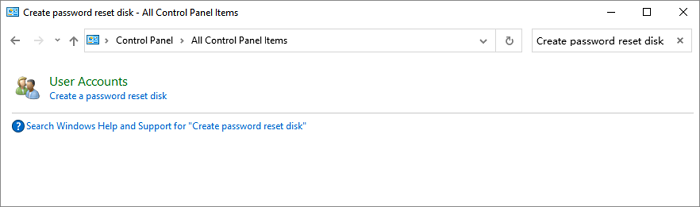
Step 4. To create a password reset disk, go to the Start menu, select Control Panel, and then click on User Accounts. Next, click on the "Manage my network passwords" option, and then click on the "Add" button.
The Bottom Line
If you've forgotten your Windows 10 password, don't worry - you can easily reset it using various methods. You can reset your password with security questions, create a password reset disk or USB drive, use your Microsoft account, or even use the Command Prompt. These methods are not only applicable to Windows 10 but also work for resetting Windows 11 passwords.
If you experience data loss during a Windows reset, consider using Deep Data Recovery software to quickly recover lost files.
Related Articles
- Restore Deleted/Lost ASUS Data with ASUS Data Recovery Software
- Best Way to Store Digital Photos Long Term
- RAW to NTFS Converter Software Free Download (for Windows Only. 100% FREE)
- How to Fix File Explorer Won't Open in Windows 10 or Windows 11
- What Is CDR File and How to Open & Convert It? [Full Description]
What is a CDR file? Do you know how to open and convert it? This article will give you a full description of CDR files. - Windows 10 File History Backup, Everything You Should Know
This guide covers a detailed introduction to File History. Besides, it elaborates on the specific steps to perform a Windows 10 File History backup.
Products
Articles & Tutorials
- Data Recovery
- Data Backup
- File Recovery
- File Backup
- System Backup and Restore
- Disk and Partition Clone
- Technical articles
- Mobile articles
- Disk Master Help
- Windows Data Recovery Tutorials
- Windows Secure Delete Tutorials
- Windows Partition Management Tutorials
- Windows File Backup and Restore Tutorials
- Windows System Backup and Restore Tutorials
- Windows Disk Backup and Restore Tutorials
- Windows Clone Tutorials