How to Fix File Explorer Won't Open in Windows 10 or Windows 11
To resolve the issue with File Explorer not opening on your Windows 10 desktop, try restarting your computer in Safe Mode and then enable the File Explorer service. If this does not work, you can try running the System File Checker (SFC) and DISM tools to scan and replace any corrupted system files. Additionally, check whether the File Explorer process is running in the Task Manager and restart it if necessary. If none of these steps resolve the issue, consider resetting Windows 10 to its default settings or seeking further assistance from a Microsoft support specialist.
There are multiple effective ways you can try to fix the issue of File Explorer not opening in Windows 10 or Windows 11. You can try restarting the File Explorer process, resetting File Explorer, checking for corrupted system files, running a System File Checker scan, running a DISM scan, checking for malware, and updating Windows to the latest version. Alternatively, you can also try booting in Safe Mode, resetting Windows to a previous state, or performing a System Restore.
| Workable Solutions | Step-by-step Troubleshooting |
|---|---|
| Fix 1. Restart in Task Manager | Locate Windows Explorer in Task Manager and choose End Task...Full steps |
| Fix 2. Check for Updates | Click Start and type update, and then choose Check for updates...Full steps |
| Fix 3. Restart Your Computer | Restart your computer. Afterward, open File Explorer and see whether it can open properly...Full steps |
| Fix 4. Create a New Path | Right-click the File Explorer icon on the Taskbar, then choose Unpin from the Taskbar...Full steps |
| More Fixes | Click the "Start" button and type File Explorer Options. Reset File Explorer Defaults...Full steps |
Overview of File Explorer Not Opening in Windows 10/11
Users may experience an issue where File Explorer fails to launch from the Taskbar, preventing them from accessing their files and folders on Windows 7, 8, and 8.1.
Users in Windows 10 are experiencing frequent issues with folders not opening, making them victims of the "folder won't open" problem. This issue is becoming increasingly common and affects many users, preventing them from opening or viewing their folders and files. The article provides solutions for users experiencing this problem.
Follow the instructions below to see which methods finally help you fix the problem and regain access to your files and folders.
Extra Tip: How to Restore Data When File Explorer Not Opening
If your folders or hard drive partition become inaccessible and File Explorer cannot open them, the best way to restore data is to use professional data recovery software like Deep Data Recovery to help in case of unexpected data loss.
Qiling File Recovery Software
- Recover lost files, including videos, documents, photos, audio files, emails, and over 1000 other types, with an effective solution that ensures their safe retrieval and restoration.
- Data recovery from corrupted hard drives, emptied Recycle Bin, memory cards, flash drives, digital cameras, and camcorders can be achieved through various methods.
- Data recovery support is available for various situations, including sudden deletion, formatting, hard drive corruption, virus attacks, and system crashes. This assistance helps recover lost data, providing a solution for users who have experienced data loss due to unforeseen events.
You can try Deep Data Recovery, which allows you to access and find all data from file folders or hard drive partitions. To recover data, you may be prompted to activate the software before proceeding. It's suggested that you preview the found files first, as all previewable files are available to recover. Once you've done that, you can activate the software and restore all your data.
Step 1. Select file types and click "Fast Scan" to start
Launch Deep Data Recovery software, select the desired file types, and click "Fast Scan" to initiate the recovery process.

Note: You can choose different search modes based on where and why the data was lost.
Step 2. Select a folder to scan for lost files
To find the lost folder, go to Choose device under Specify a location, click "Scan" to choose the location where you lost the folder, and then scan the lost folder.

Step 3. Find and preview found files in the lost folder
If you remember the folder name, type it in the search box to quickly find the lost files, then open the found folder and double-click to preview scanned files. Alternatively, you can use the Filter feature to find a certain type of files.

Step 4. Recover and save the lost folder
Select the folder and files you need, click "Recover", and choose a new and secure location on your PC to keep the recovered data.
To resolve the issue where File Explorer won't open, try saving your work to an external drive or OneDrive and then restart your computer. Once your computer has rebooted, go to the Start menu and type 'File Explorer' in the search bar, then click on it to see if it opens.
9 Fixes to File Explorer Won't Open in Windows 10/11
Here are the solutions to fix the Taskbar error without losing any data:
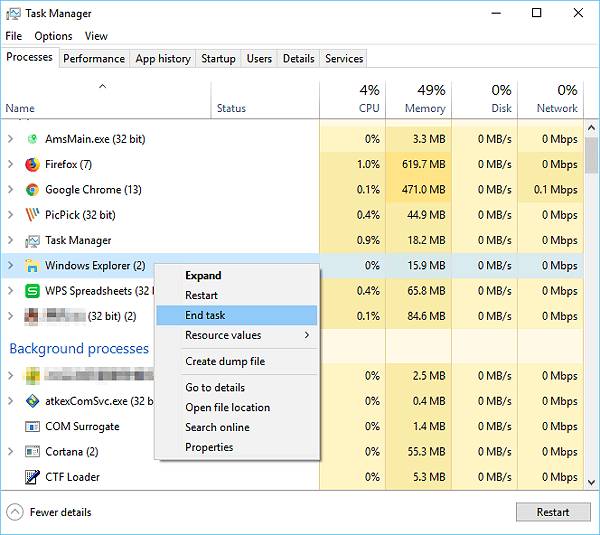
Method 1. Restart File Explorer in Task Manager
Step 1: To start the "Task Manager", press "Ctrl + Alt + Del". Then, locate "Windows Explorer" in the list of running tasks.
Step 2: Right-click on "Windows Explorer" and choose "End task".
Step 3: To open a new Task Manager window, click the "File" option and select "Run new task" from the dropdown menu.
Step 4: Type "explorer.exe" in the box and then hit "Enter".
Method 2. Check for Updates
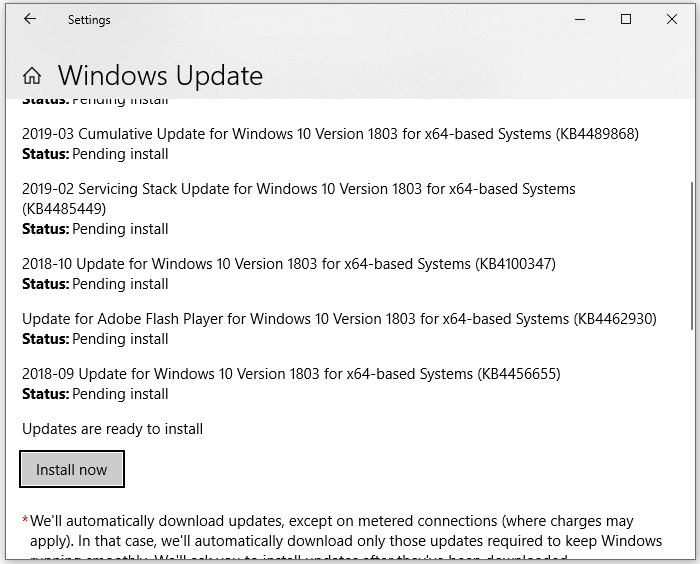
New updates for Windows often resolve known bugs, including those that may be causing the issue of "Windows 10 File Explorer not opening from Taskbar". If an update is available, updating to the latest version of Windows should help resolve the problem.
Step 1. Click "Start" and type update.
Step 2. Choose "Check for updates".
Step 3. Windows shows you the new updates available. Click "Install now" to install the updates.
Method 3. Restart Your Computer
To ensure any pending updates are installed, restart your computer, then open File Explorer to see if it opens properly.
Method 4. Create a New Path for File Explorer
Step 1: Right-click the File Explorer icon on the Taskbar, then choose "Unpin from the Taskbar".
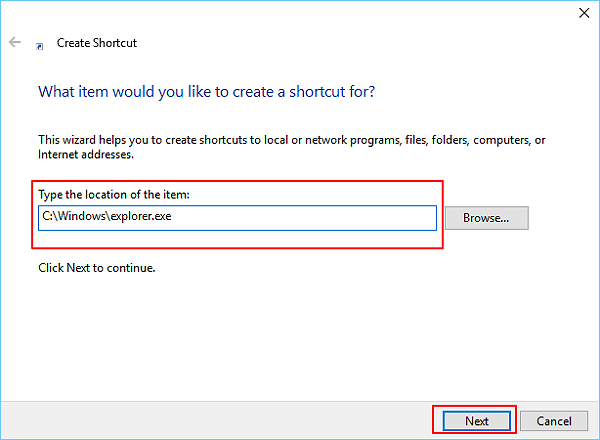
Step 2: Right-click on the blank spot on the desktop and choose "New" > "Shortcut" to create a new shortcut.
Step 3: Type "C:\Windows\explorer.exe" in the Create Shortcut window, then click "Next".
Step 4: Rename the file to "File Explorer" and click "Finish".
Step 5: Right-click the newly created shortcut and choose "Pin to Taskbar".
After completing the steps, double-click the newly created shortcut to ensure it opens File Explorer. If it works, right-click on the Taskbar icon and select "Pin to the Taskbar" to quickly access files or folders by opening File Explorer from the Taskbar.
Method 5. Restore File Explorer Defaults
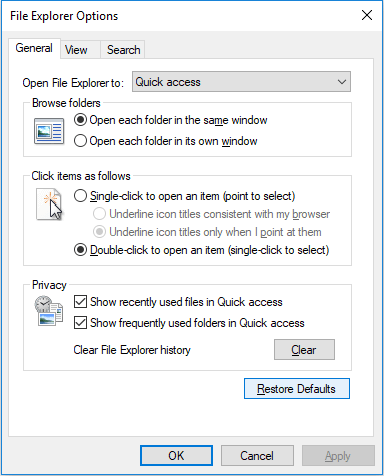
If the File Explorer won't open in Windows 10, you can also go to the File Explorer Options to restore defaults to have a try.
Step 1: Click the "Start" button and type File Explorer Options.
Step 2: Reset File Explorer Defaults.
- Under the General tab, click "Clear" to remove File Explorer history, then click "Restore Defaults" to reset any customized settings.
- Under the View tab, click "Reset Folders" > "Restore Defaults".
- Under the Search tab, click the "Restore Defaults" button directly.
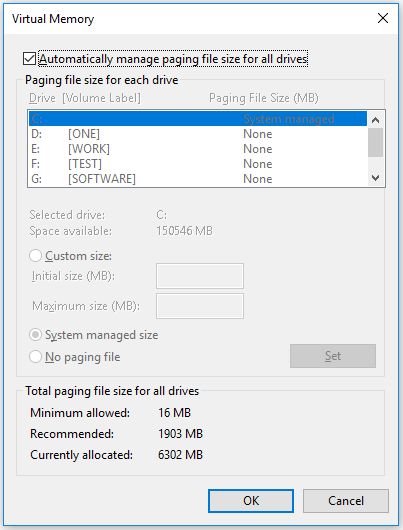
Method 6. Optimize Advanced System Settings
If File Explorer won't open in Windows, you can try optimizing the advanced system settings to see if it resolves the issue, as this process can help reset explorer.exe.
Step 1. Click the "Start" button and search for "Control Panel".
Step 2. To access the System Properties window, go to the Control Panel, then click on System, and from there click on Advanced system settings.
Step 3. Under "Performance", click "Settings".
Step 4. In the "Advanced" tab, make sure to set for best performance of "Programs".
Step 5. Under "Virtual memory", click "Change..."
Step 6. To do this, go to Settings > System > Display > Graphics settings. In the dropdown menu, select "High performance" and then click on "Change" to apply the changes.
Method 7. Clean Up Your Disk
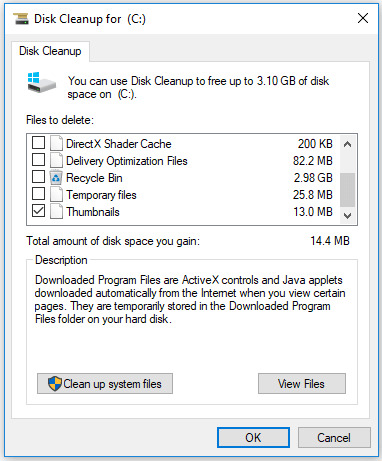
If File Explorer won't open on your Windows 10 computer, try cleaning up your disk to free up more space. Since File Explorer is not functioning, you'll need to use the Disk Cleanup utility to clean up your disk. This will help make more space available on your computer, which may resolve the issue.
Step 1. Right-click on the drive you want to clean.
Step 2. Run the "Disk Cleanup" tool, select the drive you want to clean, and click "OK" to initiate the cleaning process.
Step 3. Select all the files listed and click "OK".
Step 4. In the prompt asking for your confirmation, click "Delete Files". (If you want to free up more space, you can choose the option "Clean up system files".)
If you want to retrieve any files after deletion, you can learn how to recover permanently deleted files here.
Method 8. Run System Maintenance Troubleshooter
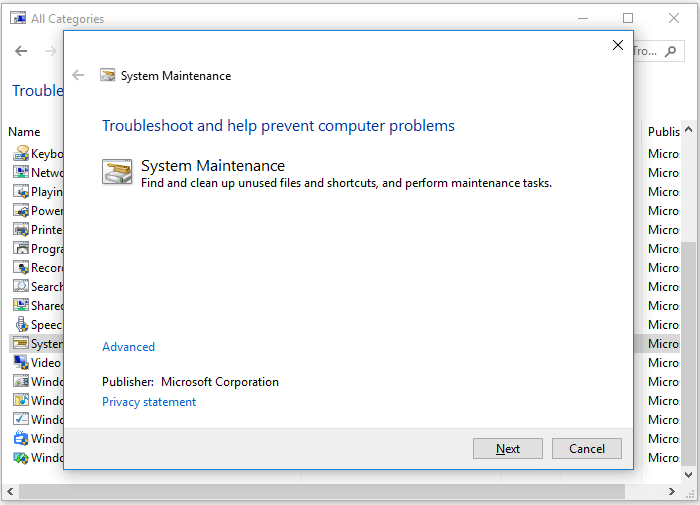
The system maintenance troubleshooter can automatically troubleshoot and fix common computer problems, potentially resolving the issue of "File Explorer not opening" on your computer.
Step 1. Click the "Start" button, search and run "Control Panel".
Step 2. Go to "Troubleshooting" > "View all" > "System Maintenance".
Step 3. To resolve the issue, open a new window, click "Next" and then choose "Try troubleshooting as an administrator".
Method 9. Run System File Checker Tool
If your File Explorer won't open in Windows 10, it's possible that corrupted or missing system files are the cause. To fix this issue, you can run the Windows System File Checker tool, which can scan and replace any damaged system files. This tool can be accessed by opening the Command Prompt as an administrator and typing the command "sfc /scannow.
Step 1. Click the "Start" button and type cmd.
Step 2. Right-click "Command Prompt" and choose "Run as administrator".
Step 3. Enter sfc /scannow to check and repair the corrupted or missing system files on your computer.
The Bottom Line
If the Windows 10 File Explorer won't open from the Taskbar, you can try restarting your computer, checking for updates, or using the Task Manager to launch File Explorer. If none of these methods work, you can provide feedback to Microsoft via the Feedback Hub app.
Related Articles
- How to Fix Recuva Deep Scan Stuck or Frozen
- [Solved] Kernel Data Inpage Error Windows 10 (Blue Screen)
- Open/Boot Command Prompt at Boot in Windows 10 (4 Ways)
- Damaged Partition Recovery Software Free Download - Recover Data from Damaged Partition
Damaged partition recovery: whenever your partition is damaged, the very first thing is to recover the data from the damaged partition and create a new partition to transfer data. Learn the recover damaged partition steps. - How to Recover Data from Dead SSD
If your SSD is dead, you must learn how to recover data from dead SSD. Otherwise, you'll lose all the files. Here is the guide for how to recover files from dead SSD in Windows 10/8/7/XP or Mac. - Fix Windows 11 File Explorer Not Working (2026 Guide)
Products
Articles & Tutorials
- Data Recovery
- Data Backup
- File Recovery
- File Backup
- System Backup and Restore
- Disk and Partition Clone
- Technical articles
- Mobile articles
- Disk Master Help
- Windows Data Recovery Tutorials
- Windows Secure Delete Tutorials
- Windows Partition Management Tutorials
- Windows File Backup and Restore Tutorials
- Windows System Backup and Restore Tutorials
- Windows Disk Backup and Restore Tutorials
- Windows Clone Tutorials