[Solved] Kernel Data Inpage Error Windows 10 (Blue Screen)
About Kernel Data Inpage Error
A Kernel Data Inpage Error is a Blue Screen of Death error that occurs when the kernel can't read data from the hard drive quickly or correctly, often due to hardware issues, driver problems, or a damaged page file, potentially causing data loss or system crashes.

Here are the most common types of Kernel Data Inpage Error Messages:
- Kernel data inpage error 0x0000007a: A blue screen of death (BSOD) is typically caused by a hardware or software issue, such as a hard drive error, a bad sector, failing RAM, or a virus, which results in the system crashing and displaying a blue screen with an error message.
- Kernel data inpage error [File Name]: This error is often caused by a specific file, such as ntfs.sys or ataport.sys, which is mentioned in the error message. The file name indicates the problematic software or device driver, and updating or repairing it can resolve the issue.
- Kernel data inpage error SSD/hard drive/RAM/USB: The error can be caused by various factors, including computer RAM, which can be resolved by cleaning or upgrading it. Additionally, issues with SSDs, hard drives, and USB drives can also lead to this problem, and upgrading these components may resolve the issue.
- Kernel data inpage error due to Antivirus Software: Computer errors can be caused by a conflict between memory and antivirus software, such as Kaspersky or Avast, but can be resolved by updating drivers.
- Kernel data inpage error at Windows startup: If Windows won't load, a startup application or faulty hardware is likely the culprit.
- Kernel data inpage error due to a graphic card: The error may be caused by the graphics card, so updating the drivers for the Nvidia graphics card might help resolve the issue.
If you're experiencing errors like "Error 0x0000001a," "Error 0x0000007e," or "Error 0x0000003b," they can be fixed. To resolve these issues, you can try running the System File Checker (SFC) tool, which checks and repairs corrupted system files, or use the Deployment Image Servicing and Management (DISM) tool to scan and fix any corrupted system files. If these tools don't work, you can also try running a System Restore to a point before the error occurred, or reinstalling Windows if all else fails. Remember to back up your important files before attempting any of these fixes.
5 Ways to Fix Kernel Data Inpage Error Windows 10
The Kernel Data Inpage Error can be inconvenient, especially if you're in the middle of a project or trying to get work done on your computer. Fortunately, it's not a difficult error to fix, and there are several methods you can try to resolve the issue in Windows 10. You can start by trying one of these methods to get your computer up and running again.
| Workable Solutions | Step-by-step Troubleshooting |
|---|---|
| 1. Repair Hard Disks | Try every USB port available; Determine you\'re using USB 2.0 or 3.0...Full steps |
| 2. Run a Virus Scan | Click "Start > Settings > Update & Security > Windows Defender"...Full steps |
| 3. Run SFC and DISM Scan | To run SFC, you will need to open the Command Prompt (for Windows 10/11, you can...Full steps |
| 4. Run Memory Diagnostics | Press the Windows key. Type Memory Diagnostics Tool in the search bar...Full steps |
| 5. Check Hardware Peripherals | To do this, you will need to open up your computer. Turn it off, remove the case, and...Full steps |
Fix 1. Check and Repair Hard Disk for Errors with CHKDSK
To fix the Kernel Data Inpage Error, check your disk for errors or bad sectors by running the built-in Windows tool, Check Disk (chkdsk). This process can be initiated from the Command Prompt as an administrator, and it will scan your hard drive for any issues that may be causing the error. If any problems are found, you can try to repair them, which may resolve the Kernel Data Inpage Error.
Step 1. Insert a bootable disk or USB into your system, press enter to boot the system, select the language preference, and click "Repair Your Computer".
Step 2. To troubleshoot and access advanced options, click on "Troubleshoot" and then select the "Command Prompt" option.
Step 3. When the Command Prompt opens, type "chkdsk C: /r" and press Enter, replacing C with the partition letter where Windows is installed, such as D or E if it's not on the C drive.
Step 4. This program will initiate a scan process when you type Y and press Enter. If any errors are found during the scan, it will automatically attempt to fix them.
Step 5. After performing the above steps, restart your computer normally and see if the Kernel Data Inpage Error still occurs.
If you've checked your hard disk and still receive the error message, the issue might be with your RAM. Here's what you can do next.
Fix 2. Run a Virus Scan
To determine the cause of a Kernel Data Inpage Error, you can try running a virus scan from Windows Defender Security Center, as a virus or malware infection may be the culprit behind this error. This can help identify and remove any malicious software that may be causing the issue.
Step 1. To access Windows Defender, click on the "Start" button, then navigate to "Settings", followed by "Update & Security", and finally select "Windows Defender".
Step 2. Select Open Windows Defender Security Center.
Step 3. Choose "Virus & threat protection > Quick Scan".
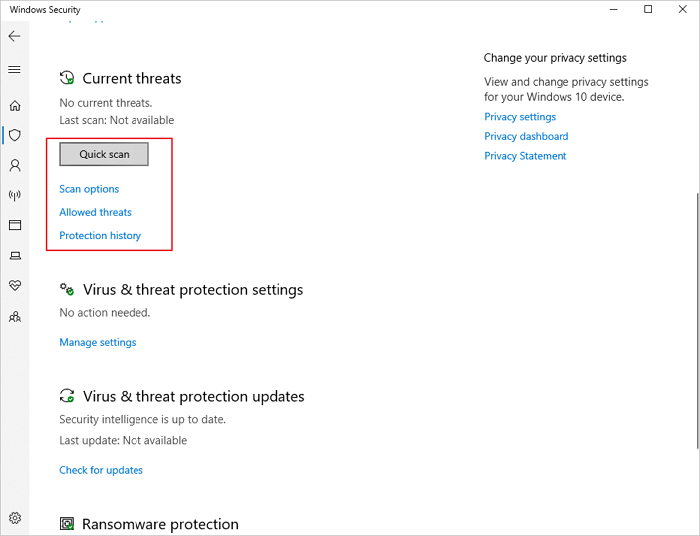
Run a virus scan using a reputable antivirus software to fix the issue. If this doesn't solve the problem, your best bet is to back up your data immediately and try your luck with other methods, as mentioned below.
Fix 3. Run SFC and DISM Scan to Fix Kernel Data Inpage Error
A Kernel Data Inpage Error can also occur due to corrupt system files, which can be identified and repaired using the SFC and DISM scans.
Step 1. To run the System File Checker, you'll need to open the Command Prompt, where you can execute the SFC command to scan and replace corrupted system files.
Step 2. To start the System File Checker (SFC) scan, open Command Prompt and type sfc /scannow, then press enter. The scan will start and may take about 20 minutes to complete.
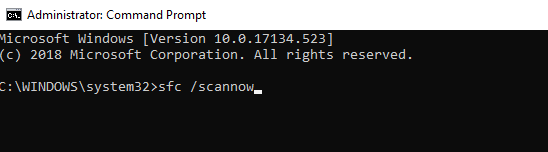
Once you've run the System File Checker, you can check if it was able to fix the problem. If it was successful, great! However, if it didn't resolve the issue, you'll need to move on to running the DISM tool.
For DISM scan, follow these steps:
Step 1. Open a command prompt, type `dism /online /cleanup-image /restorehealth` and hit enter. This will restore Windows to a healthy state, taking some time to complete. Wait for the scan to finish before proceeding.
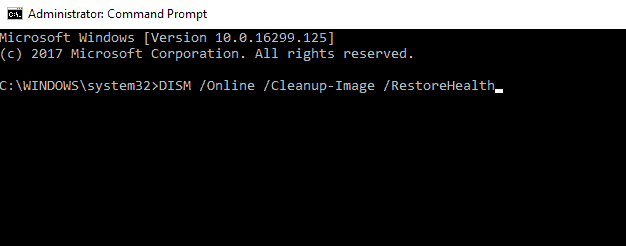
Step 2. After DISM finishes scanning your system, do another reboot and check if your issue has been resolved. If everything worked correctly, then your problem should be fixed now.
If you're seeing this message again, you can try running the scans or using the methods mentioned earlier.
Fix 4. Run Memory Diagnostics Tool to Fix Kernel Data Inpage Error
To troubleshoot a Kernel Data Inpage Error caused by a failing RAM module, you can run the Memory Diagnostics Tool to check for memory problems. This can be done by following specific steps, which may vary depending on the operating system being used, such as Windows 10. The process typically involves accessing the System Information utility, selecting the "System Summary" section, and then clicking on the "System" section to check for any memory-related issues.
Step 1. To run the Memory Diagnostics Tool on Windows, press the Windows key to open the Start menu, then type "Memory Diagnostics Tool" in the search bar and select the result to launch the tool.
Step 2. Click "Restart now and check for problems (recommended)."
Step 3. Let your computer run the diagnostics, which takes about 10 minutes. If the diagnostics find any issues, they should automatically be repaired.
Consult with Qiling Data Recovery Experts for one-on-one manual recovery service. Following a free diagnosis, we can offer the following services:
- Repair corrupted RAID structure, unbootable Windows OS and corrupted virtual disk file (.vmdk, .vhd, .vhdx, etc.)
- Recover/repair lost partition and re-partitioned drive
- Unformat hard drive and repair raw drive (BitLocker encrypted drive)
- Fix disks that become GPT protected partitions
Fix 5. Check Hardware Peripherals
If you're experiencing issues with your computer, one of the simplest things to try is to check your hardware peripherals to see if any of them are causing problems. This can often be a quick and easy fix, and can help to resolve issues such as freezing or crashing.
Step 1. To troubleshoot computer issues, start by turning off your computer, removing the case, and checking all cables connected to the motherboard or hard disk drives for loose connections or damaged wires. Fix any issues you find.
Step 2. Make sure all memory sticks are correctly seated in their slots and work properly, and if not, swap them out to find the best fitting slot.
Step 3. If you can do so safely while your computer is running, open up the case and carefully unplug each cable from its respective port one by one to identify the problematic cable.
Step 4. Unplug all USB devices, restart your computer, and plug in each device individually, restarting after each, to identify the problematic device. If a device is causing issues, uninstall its software and contact the manufacturer to report any bugs or problems.
Bonus Tips: How to Recover Windows 10 Data
If the methods above don't work, you can still recover your essential data using Deep Data Recovery with Bootable Media, even if your PC is unable to boot due to a Kernel Data Inpage Error. This approach allows you to access and retrieve your important data, providing a last resort solution when other methods fail.
Deep Data Recovery can help you regain lost data caused by accidental deletions, mistaken formatting, full system recovery, virus attacks, or system crashes. Our service allows you to recover your lost files without the need for expensive professional recovery services, and we guarantee to recover your data entirely and quickly.
Step 1. Create a bootable disk
To create a bootable USB, prepare an empty USB by copying any important data to another device, then use Deep Data Recovery WinPE Edition to create a bootable disk on the empty USB.
Connect the USB drive to your PC, then launch Deep Data Recovery WinPE Edition. Next, select the USB drive and click "Create" to create a bootable disk.
Step 2. Boot from the bootable USB
Connect the bootable disk to a PC that won't boot, and change the boot sequence in the BIOS settings by pressing F2 at startup. This allows the computer to recognize the bootable disk and boot from it.
To boot the PC from a device other than the hard drive, such as a USB drive or CD/DVD, press F10 to save and exit the settings. This will allow the PC to boot from the selected device instead of the hard drive.
Step 3. Recover data from a hard drive that won't boot
When booting from a USB, you can run Deep Data Recovery from the WinPE bootable disk, allowing you to select the drive you want to scan to find all your lost files.

Click "Scan" to start the scanning process.

After scanning, you can preview all recoverable files, select the targeted files, and click the "Recover" button to restore your files. It's recommended to save all of the recovered data to another place to avoid data overwriting.

Conclusion
This article aims to help you resolve the Kernel Data Inpage Error message in Windows 10. If the article doesn't help, you can use Deep Data Recovery to recover your data until you get your PC fixed by professionals.
Related Articles
- How to Fix Recuva Deep Scan Stuck or Frozen
- JPG Recovery: How to Recover Deleted or Lost JPG/JPEG Files
- Windows 11 Size: How Much Space Does Windows 11 Take Up?
- Microsoft's Windows File Recovery Tool Full Review
- How to Factory Reset HP Laptop Without Password
Are you unable to login to your HP Laptop? Do you need to get back your data? Then follow this easy guide to factory reset your HP laptop without password. If nothing else works, you can always recover data using professional software. - How to Factory Reset Lenovo Laptop without Novo Button [2024 Full Guide]
If your Lenovo laptop needs a refresh or you want to erase all data, resetting it is a good option. This post will guide you through the process of factory resetting your Lenovo laptop without using the Novo button, in three simple ways.
Products
Articles & Tutorials
- Data Recovery
- Data Backup
- File Recovery
- File Backup
- System Backup and Restore
- Disk and Partition Clone
- Technical articles
- Mobile articles
- Disk Master Help
- Windows Data Recovery Tutorials
- Windows Secure Delete Tutorials
- Windows Partition Management Tutorials
- Windows File Backup and Restore Tutorials
- Windows System Backup and Restore Tutorials
- Windows Disk Backup and Restore Tutorials
- Windows Clone Tutorials