Fix Blue Screen of Death Error on PC and Restore All Lost Files
To fix the Blue Screen of Death error on a PC, there are nine methods to consider. However, before attempting any of these, it's essential to perform data recovery to ensure your important files and data are safe. Once that's done, you can proceed with the troubleshooting steps to resolve the issue and prevent the blue screen from occurring again in the future.
| Workable Solutions | Step-by-step Troubleshooting |
|---|---|
| Perform blue screen recovery at first | Use Deep Data Recovery to recover data after BSOD error. You have two options to recover...Full steps |
| Fix 1. Use system restore | You can use System Restore to roll its system software back to a previous state...Full steps |
| Fix 2. Ensure enough space | Clear up hard disk space and make sure it is at least 15% of a drive's capacity free at all times...Full steps |
| Fix 3. Use Windows repair services | Clear up hard disk space and make sure it is at least 15% of a drive's capacity free at all times...Full steps |
| Fix 4. Scan for virus | The virus and malware might infect the master boot record and Windows kernel at a low level...Full steps |
| Fix 5. Install the latest drivers | Try to download and install the latest drivers to fix BSOD caused by driver problems...Full steps |
| More effective fixes | You can also fix the BSOD problem by applying available Windows service packs and updates...Full steps |
What Are the Main Causes of Blue Screen of Death
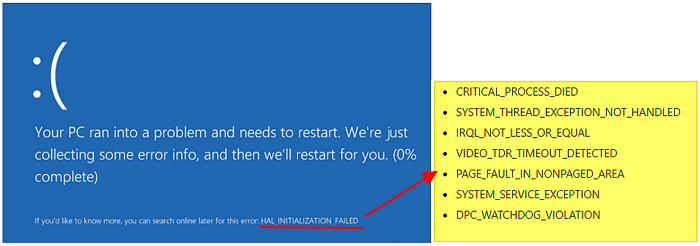
The Blue Screen of Death, or BSOD, is a fatal error screen that appears on a Windows computer after a system crash, often due to a driver problem or hardware failure, causing the system to stop responding and making data inaccessible.
- Software incompatibilities
- Incompatible versions of DLLs (Dynamic Link Libraries) can cause problems with low-level software running in the Windows kernel, leading to crashes and errors. This can happen when different applications or system components rely on different versions of the same DLL, causing conflicts and instability.
- A virus attack or malware infection can damage the Master Boot Record (MBR) or system files, leading to a range of issues including but not limited to, system crashes, boot failures, and data loss.
- Boot BCD error
- Low disk space in C drive
- Power supply issues
The blue screen of death, also known as a crash or BSOD, is a result of a computer problem, not a cause of damage to the computer itself. The error occurs due to a software or hardware issue, and the blue screen is merely a notification of the problem. The computer's operating system or hardware may be damaged or malfunctioning, but the blue screen itself does not cause any physical harm to the device.
Does Blue Screen of Death Delete Files
Many users are concerned that blue screen errors may delete files, but in reality, the error itself doesn't delete files. However, when the error occurs, you can't access your data, and if it's related to system or hardware issues, you may risk losing data. To address this, it's essential to find a way to restore your computer data before attempting to fix the blue screen problem.
Can You Recover Files from Blue Screen of Death
You can recover data from the blue screen of death with the help of professional data recovery software, such as Qiling Data Recovery, which enables you to recover files from various devices, including HDD, SSD, USB flash drive, external hard drive, SD card, and others, even in complicated scenarios like system crash, virus attack, hard drive corruption, formatting, partition loss, and RAW partition.
How to Recover Files after Blue Screen of Death
To recover data after a BSOD error, you can use proficient data recovery software that provides two effective methods. Firstly, you can use the software's built-in recovery tools to scan your system for recoverable data, and then select the files you want to recover.
Method 1. Perform Blue Screen Recovery with Deep Data Recovery
Before making a PC data recovery, remove the hard drive from the original computer with the blue screen of death and connect it to a new computer running normally. Install Deep Data Recovery on the new computer and use it to recover data from the hard drive.
Step 1. Select file types and click "Fast Scan" to continue.

Note: You can choose different search modes based on where and why the data was lost.
Step 2. Select the drive where you lose your data and click "Scan" to start the recovery process.

Step 3. When the scan is complete, you can use the "Filter" or "Search" feature to find the lost files. This allows you to narrow down the search results and locate the specific files you're looking for.

Step 4. Select all the files you want to recover and click "Recover". Then, save them to a secure location.
Method 2. BSOD Recovery via Deep Data Recovery with Bootable Media
If you can't or don't want to remove the hard drive, you can still recover data from your computer by using Deep Data Recovery Pro with Bootable Media.
NOTE: If a BSOD is caused by hardware damage, you won't be able to recover data with bootable media since it can't start your computer. To recover data, you'll need to remove your hard drive and use Method 1 to troubleshoot.
Step 1. Create a bootable disk
To create a bootable USB, prepare an empty USB drive, transferring any important data to another device. Then, use Deep Data Recovery WinPE Edition to create the bootable disk. This process will erase any existing data on the USB.
Connect a USB drive to your PC, then launch Deep Data Recovery WinPE Edition. Select the USB drive and click "Create" to create a bootable disk.
Step 2. Boot from the bootable USB
Connect a bootable disk to the non-booting PC, then change the boot sequence in the BIOS settings by pressing F2 at startup to access the BIOS menu. This often resolves the issue when the computer is restarted.
To boot the PC from a device other than the hard drive, press F10 to save and exit the BIOS settings. This allows you to select the boot device from the "Removable Devices" or "CD-ROM Drive" options, which can be a bootable USB disk or CD/DVD.
Step 3. Recover data from a hard drive that won't boot
When you boot from a USB, you can run Deep Data Recovery from the WinPE bootable disk, allowing you to select the drive you want to scan to find all your lost files.
Note: You can choose different search modes based on where and why the data was lost.
Click "Scan" to start the scanning process.
Recover data from the computer or laptop by scanning, previewing, selecting, and recovering targeted files, and saving them to another place to avoid data overwriting.
Conclusion: When experiencing a blue screen issue and unable to access your files, don't panic. Qiling Data Recovery Wizard can help restore data at a high recovery rate, and its bootable disk can also be used for data recovery. Additionally, Qiling Data Recovery Wizard is a free JPEG repair tool that supports repairing corrupted JPEG/JPG files.
How to Fix Blue Screen of Death Error
After recovering data from the blue screen, it's time to fix the error. Rebooting your computer is a good first attempt. If that fails, follow the steps on the page to troubleshoot BSOD caused by MBR/system file error, BCD error, or driver issues with hardware.
If the problem remains unsolved when all three approaches have been tried, go on using the following solutions to fix the BSOD error. These solutions include the solutions below.
1. Use System Restore to undo changes
The BSOD error may occur after installing a new program or hardware, updating a driver, or installing a Windows update. To resolve this, you can undo the recent change by using System Restore to revert the system software to a previous state or rolling back the device driver to a version before the update.
2. Ensure enough space on the C drive
Ensure there's enough free space on the Windows installation drive, aiming for at least 15% of the drive's capacity to be free, to prevent issues like the Blue Screen of Death and data corruption.
3. Use Windows 10 Repair Services
A secure way to repair Windows 10 without data loss is by using manual Windows repair services. Qiling's professional technical team can assist with system startup errors, including system failure, blue screen, black screen, and other issues.
For personalized and manual data recovery, consult with Qiling's experts who offer one-on-one service. After a free diagnosis, they can provide the following services:
- Fix Windows boot issues, including BSOD
- Fix Windows error and configure Windows environment
- Restore the system when it fails to boot
- Optimize Windows computer to make it run quickly
4. Scan for virus or malware
The virus and malware can infect the master boot record and Windows kernel, causing system instability, so it's recommended to start your PC in safe mode and run antivirus software for a full system scan.
5. Install the latest drivers for hardware
An incorrectly installed or outdated driver can cause a system crash, leading to a BSOD. To fix this issue, download and install the latest drivers for your computer's hardware from the manufacturer's website. This may resolve the problem.
6. Apply available Windows service packs and updates
Microsoft releases patches and service packs for their operating systems to fix BSOD errors, which may appear as a blue screen with an error message and a system crash. These patches and service packs can be downloaded from the Microsoft website and installed on the affected computer.
7. Check the system and application logs
To troubleshoot a Blue Screen of Death (BSOD), check the System and Application logs in Event Viewer for errors or warnings that might provide clues on the cause of the issue, allowing for a more targeted fix.
8. Return BIOS to default settings
Overclocking or misconfiguring the BIOS can lead to a range of random problems, including Blue Screen of Deaths (BSODs), which can be frustrating and disrupt system performance.
- Delete all files in the "C:\Windows\Software Distribution\Download" folder and the "$Windows.~BT" folder on the "C:" drive.
- After deleting the unnecessary files, reboot your computer. Press the F12 or Delete key while booting up to access the BIOS. From there, enable UEFI Boot.
- Disable all overclocking options for your processor, if you have set them higher than their default values.
9. Reinstall Windows
If none of the above methods work, you can try resetting Windows or performing a clean install, making sure to back up all important data to an external hard drive beforehand.
Related Articles
- How to Fix Diskpart Failed to Clear Disk Attributes Error
- How to Fix the System Cannot Find the File Specified
- HP Laptop Slow Startup Fixes for HP Laptop Taking Forever to Restart
- How to Fix Slow USB Transfer Speed and Speed Up USB in Windows 10/8/7
- How to Restore System Image Without Repair Disc [Ultimate Guide]
If you're concerned about restoring your system image without a repair disc, it's possible. A professional backup tool like Qiling Disk Master can help create a system image on an external device, which can then be used to restore it on your device. - Best Way to Restore Windows 10 to Dissimilar Hardware
If you're trying to migrate Windows 10 to new hardware and wondering what constitutes “dissimilar hardware,” you're in a helpful guide. To tackle this challenge, start by using the best backup software to ensure a smooth transition.
Products
Articles & Tutorials
- Data Recovery
- Data Backup
- File Recovery
- File Backup
- System Backup and Restore
- Disk and Partition Clone
- Technical articles
- Mobile articles
- Disk Master Help
- Windows Data Recovery Tutorials
- Windows Secure Delete Tutorials
- Windows Partition Management Tutorials
- Windows File Backup and Restore Tutorials
- Windows System Backup and Restore Tutorials
- Windows Disk Backup and Restore Tutorials
- Windows Clone Tutorials