Restore System Image Without a Repair Disc
You can restore a system image on a new PC or hard drive without a repair disc. Traditionally, a repair disc was used for this purpose, but if you've forgotten to create one or don't have it, you can still restore the system image using alternative methods. This can be done using a tool to create and restore system images, making it possible to recover your system even without a repair disc.
Can You Restore the System Image Without a Repair Disc?
Yes, to restore the System Image without a repair disc, you can create a System Image on an external device like a USB flash drive and use it to recover the system.
Creating a repair disc to restore the system image is an option, but if you have a disc, you can also dump the system image onto an external drive or USB. This way, you can simply connect it to the new device and restore the image during the setup process by selecting Repair System and System Image. This is a viable alternative to using a repair disc.
Storing the System Image on an external device can save space and make it easier to set up a new PC with Windows OS. With the right tools, it's a manageable task that can be completed quickly. This approach can save time and effort in the long run.
Are you experiencing issues with Qiling Disk Master for backup and recovery? If so, starting a live chat with a Qiling Expert can help resolve your problems and provide a customized backup solution tailored to your specific needs.
- Unable to back up
- Backup process stuck
- Recovery failed
Restore the System Image With An External Hard Drive
To approach system image restoration on your PC, you need to first create a system image using a reliable tool. An award-winning and efficient tool for this purpose is Qiling Disk Master, which can both create system images and restore them on your PC.
The tool allows you to create a system image on an external device and mount it with system image recovery, making it a complete package for creating and restoring system images. It also offers various backup options, including disk, system, and partition backups, as well as cloning options to replicate the entire system or disk. You can download it now and use the free trial to see its capabilities.
Action 1️⃣. Create a System Image on An External Device
To create a system image on an external drive using Qiling Disk Master, start by ensuring you have enough space on the drive to store the system image. Then follow the steps below to complete the process.
Step 1. Launch Qiling Disk Master and choose "Backup" tab page.

Step 2. To start a system backup, click on the "System backup" category.

Step 3. The system partition will be automatically selected, you just need to choose the installation location.

Step 4. You can save backup files to your local drive, cloud storage, or network-attached storage (NAS), and even connect an external hard drive to store system backup files.

Step 5. You can customize the settings in "Options" at the left bottom, then click "Proceed" to initiate the process.

After completing the backup process, you can verify the backup status, restore, access, or erase the backup by right-clicking the backup task on the left.
📖You may be interested: Create System Image Windows 11 on USB
Action 2️⃣. Restore System Image With External Disk
To restore the system image on the external disk and boot your device with Qiling Disk Master, follow these steps:
*Try to boot the computer with the Qiling Disk Master emergency disk to accomplish system recovery on a non-bootable machine.
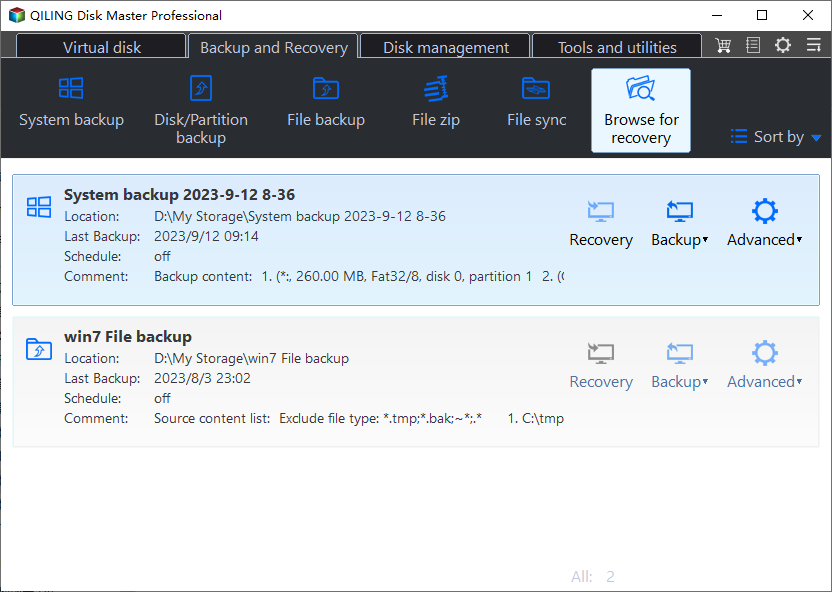
Step 1. Click Browse to Recover to launch Qiling Disk Master.
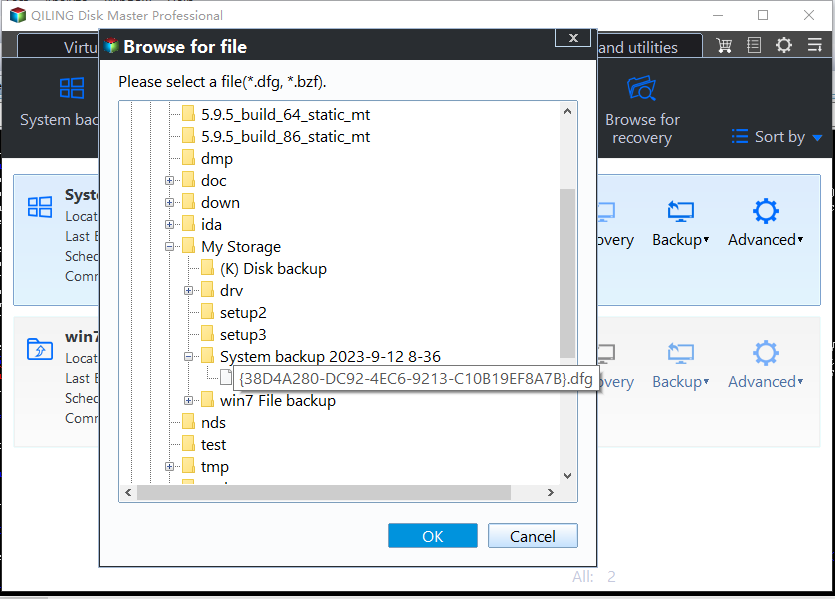
Step 2. Navigate to the backup location and select the system backup file (a pbd file) created by Qiling Disk Master.
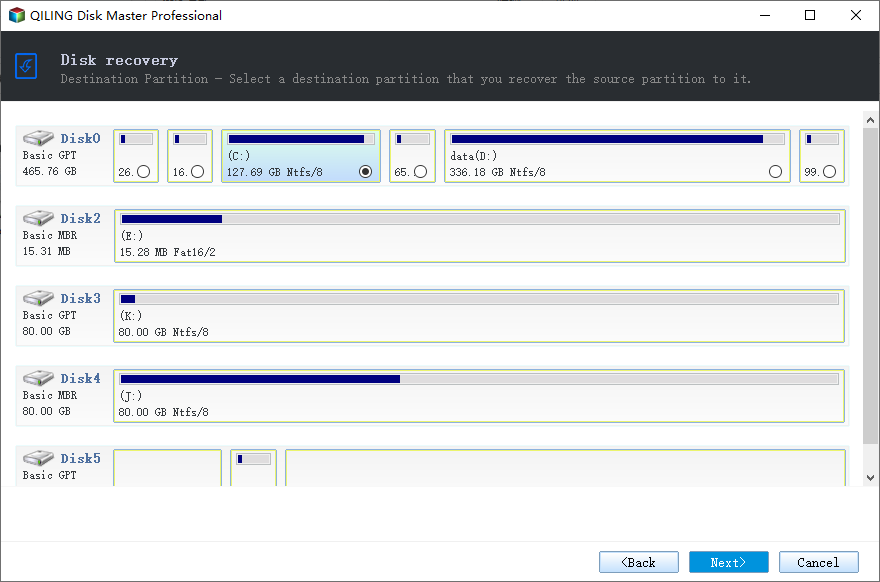
Step 3. Verify that the partition styles on the source and recovery disks are the same, and select a recovery disk.
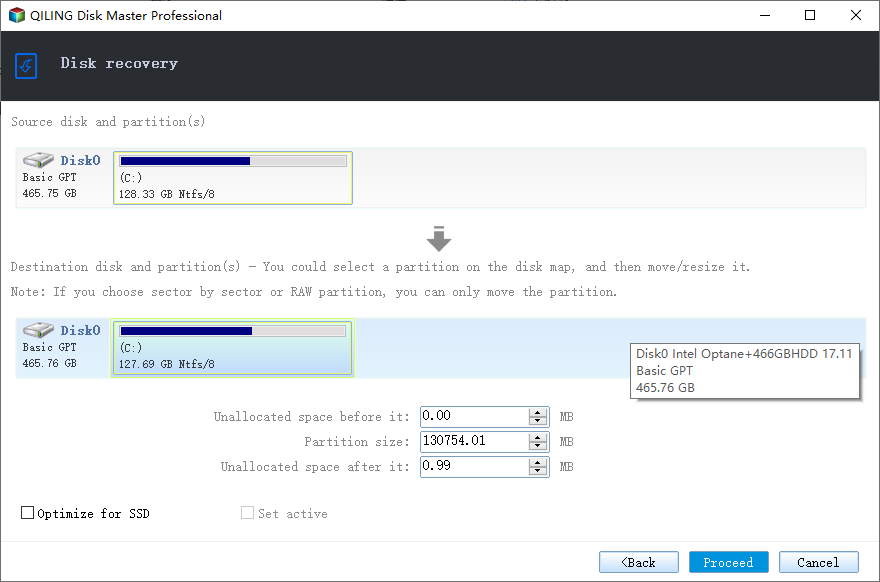
Step 4. To start system backup recovery, select the Proceed option after changing the disk layout to suit your requirements.
Alternatively, to restore a system image from an external hard drive on Windows 10 using the built-in tool, first ensure the external drive is connected to the computer and the Windows 10 installation media is available. Then restart the computer and boot from the installation media.
Bonus: Create a WinPE Bootable USB Drive with Qiling Disk Master
Creating a WinPE bootable USB drive is the best and easiest method to restore the system if any issue occurs, offering several benefits. This approach allows users to bypass the need for complex methods, making it a straightforward solution for system restoration. By creating a WinPE bootable USB drive, users can quickly and easily access their system, minimizing downtime and inconvenience.
- It's like carrying a whole computer in a drive.
- Windows can be easily recovered, installed, and upgraded on both new and existing computers using the bootable USB drive, making system recovery a convenient and hassle-free process.
- Recovering from bootable USB is much faster.
To create a bootable USB disk, open Qiling Disk Master and click on the option to create a bootable USB disk, resulting in a bootable media that can be used to boot Windows anywhere and at any time.
Step 1. Prepare a USB drive which can be written and read.
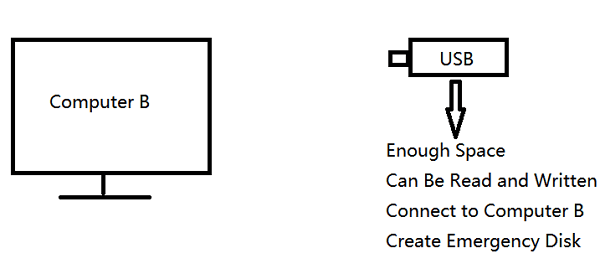
Step 2. Launch and install Qiling Disk Master on the Computer B.
Step 3. Find and click "Tools" and choose "Create Emergency Disk".
Step 4. To start the installation process, you need to choose where to locate the boot disk. This can be done by creating an ISO file, a bootable USB drive, or a CD/DVD disc.

Step 5. Then click "Create" to start.
If you're experiencing issues with Qiling Disk Master for backup and recovery, you can start a live chat with a Qiling Expert to get a tailored backup solution that meets your specific needs.
- Unable to back up
- Backup process stuck
- Recovery failed
The Final Words
If you don't have a repair disc, you can still restore your system image using the right tools. You can create a system image and restore it with an easy and reliable tool called Qiling Disk Master, which makes the process straightforward and hassle-free.
Qiling Disk Master is a tool that allows you to create a complete backup and restoration of your system, drive, or partition with just three simple steps. It also enables you to create a bootable USB or system image and mount it for easy restoration whenever needed.
Don't forget to share this post if it is helpful:
Restore System Image Without Repair Disc FAQs
Here are some of the most frequent FAQs asked on how to restore system image without repair disc. I hope you find these queries helpful.
1. How to create system repair disk on USB?
Follow the steps below to create system repair disk on USB:
- Search for Create a recovery drive and open it.
- Make sure to click on Back up system files to the recovery drive, and select Next.
- To create a system repair disc, connect the USB drive to your PC, select the USB drive as the target, and click Next.
- Click Create, and the Windows will do the job.
2. How to do a system restore on Windows 10 without a restore point?
Unfortunately, system restore on Windows 10 requires a restore point, which means it's not possible to do so without one. However, there are alternative solutions: you can opt for a reset, keeping your files intact, or try to recover deleted data on your PC. These methods may have slight variations depending on your specific needs.
3. How do I make a bootable repair disk?
- Insert an empty CD/DVD on your PC.
- To create a system repair disc, go to the Control Panel, then select "Backup & Restore", and finally click on "Create a system repair disc".
- To create a repair disc, select the CD/DVD you want to use and click the "Create Disc" button.
- Windows will begin the process, and when completed, you can close the window and click OK.
Related Articles
- 3-Minute Understanding SSD Cache in Windows 10/11: Is It Worth It?
- ASUS Recovery Partition Not Working - How to Fix!🔥
- Does Windows File History Backup Everything? Know More About File History
- How to Get Windows Activation Key and Start Windows 11
- How to Install Windows 11 on New PC Without Operating System | 2 Ways
Learn how to install Windows 11 on a new PC without an operating system. Use a bootable USB or universal restore method. - Stepwise Guide | How to Install Windows 7 on a Hard Drive for Another Computer
This is a step-by-step guide on how to install Windows 7 on a hard drive for another computer. However, with the help of Qiling Disk Master, you can also learn how to install Windows on an external hard drive for another PC.
Products
Articles & Tutorials
- Data Recovery
- Data Backup
- File Recovery
- File Backup
- System Backup and Restore
- Disk and Partition Clone
- Technical articles
- Mobile articles
- Disk Master Help
- Windows Data Recovery Tutorials
- Windows Secure Delete Tutorials
- Windows Partition Management Tutorials
- Windows File Backup and Restore Tutorials
- Windows System Backup and Restore Tutorials
- Windows Disk Backup and Restore Tutorials
- Windows Clone Tutorials