How to Install Windows 11 on New PC Without Operating System | 2 Ways
Windows 11 is a modern Windows operating system with updated security, interface, and productivity features. If you have a new PC without an operating system, this Qiling guide explains how to install Windows 11 on it.
| Methods | Effectiveness | Difficulty |
| 1️⃣Perform Universal Restore | High. Fewer procedures and without incompatibility issues. Done with one tool. | ⭐⭐ |
| 2️⃣Clean Install Windows 11 | Medium. I've completed more procedures and need to set up the Out-of-Box Experience (OOBE). I've worked with more than 2 tools to accomplish this. | ⭐⭐⭐ |
Can I Install Windows 11 on a New PC Without Operating System
Many users buy a new PC or build one from scratch because Windows 11 has specific hardware requirements. A clean installation or universal restore can help set up the new machine.
To install Windows 11 on a new computer without an OS, you can create a bootable USB drive with Windows 11 installation media, restart the computer from the USB drive, and follow the on-screen setup instructions. You also need a valid Windows license.
You can install Windows 11/10 on a new PC without an operating system by performing a universal restore with professional software like Qiling Disk Master or by doing a clean installation.
Before installing Windows 11, prepare a USB drive, confirm hardware compatibility, back up any existing data on target drives, and make sure you have a valid product key or digital license.
2 Ways to Install Windows on a New PC Without Operating System
Installing Windows on a new PC without an operating system is a more complicated process compared to installing it on a new computer that already has Windows. However, there are still ways to achieve this. Let's dive into the details.
Way 1. Perform Universal Restore
Universal restore software like Qiling Disk Master can help you create a Windows system image on an external hard drive and restore it to a different computer without compatibility issues, making it easy to install Windows on a new PC.
Qiling Disk Master Pro is a powerful backup and recovery tool for Windows PCs, allowing for a universal restore to deploy the Windows system on dissimilar hardware, making it useful for transferring Windows from one PC to another.
This feature allows you to automatically back up the system, disk, file, computer app, and more, and even creates a Windows 11 system image on a USB drive in case of a system failure, providing an added layer of protection and peace of mind.
Some Key Features of Qiling Disk Master Pro:
- Create Windows PE bootable disk
- Clone a hard drive and image a hard drive
- Mount backup images to extract individual files
- Create full, incremental, and differential backups
- Get 250GB of free Cloud storage to securely back up your files, photos, and videos to the Cloud, keeping them safe and accessible from anywhere.
Qiling Disk Master Pro is a versatile tool that can handle all your needs, whether you want to create a backup or perform a universal restore. To install Windows 11 on a new PC, simply download and install this software on your computer.
- Notice:
- Since your computer has no operating system, you need to create bootable media with Qiling Disk Master. This will allow you to create a system image and restore it to your new computer.
Here is how to install Windows 11 on a new computer without OS.
Stage 1. Create an Emergency Disk to USB/External Drive
Step 1. Prepare a USB drive which can be written and read.
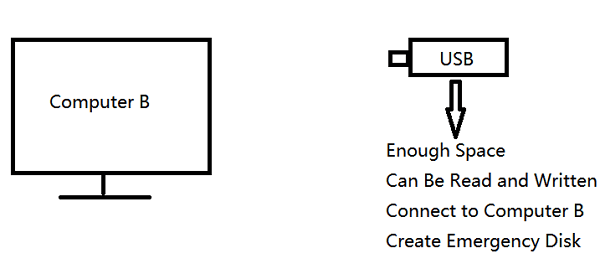
Step 2. Launch and install Qiling Disk Master on the Computer B.
Step 3. Find and click "Tools" and choose "Create bootable Disk".
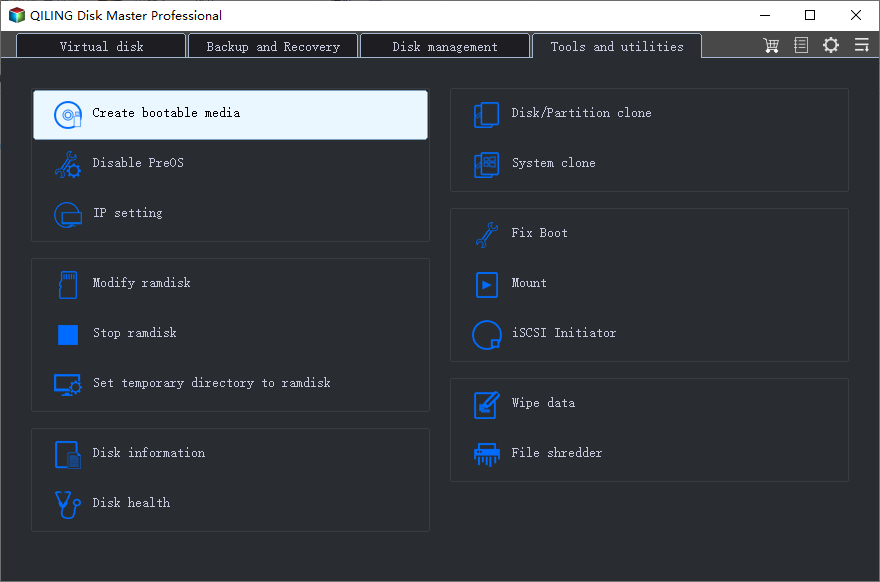
Step 4. To begin the installation of a new operating system, you need to select the location where the boot disk will be created, giving you the option to create an ISO file, a bootable USB, or a CD/DVD disc.
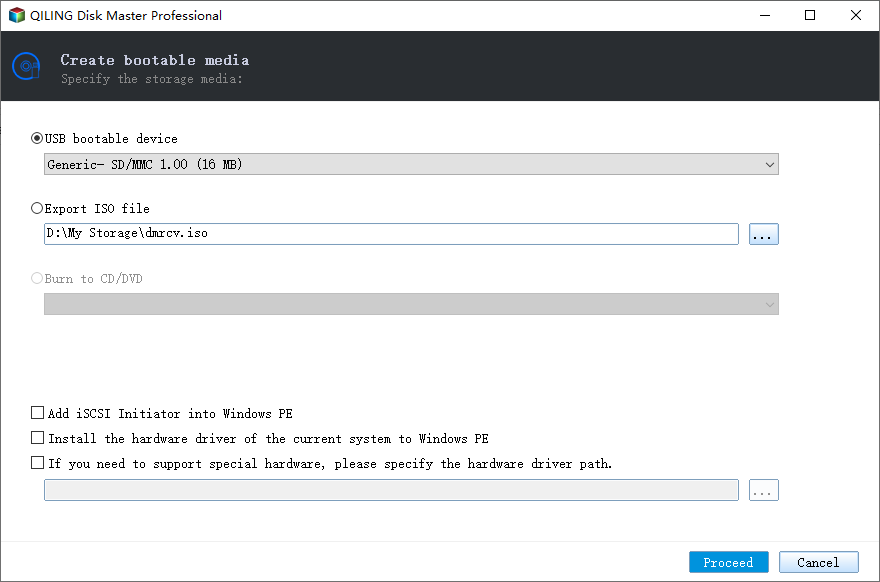
Step 5. Then click "Create" to start.
Stage 2. Create System Image Backup from Source Computer
Step 1. On the main page, click "Select backup contents".
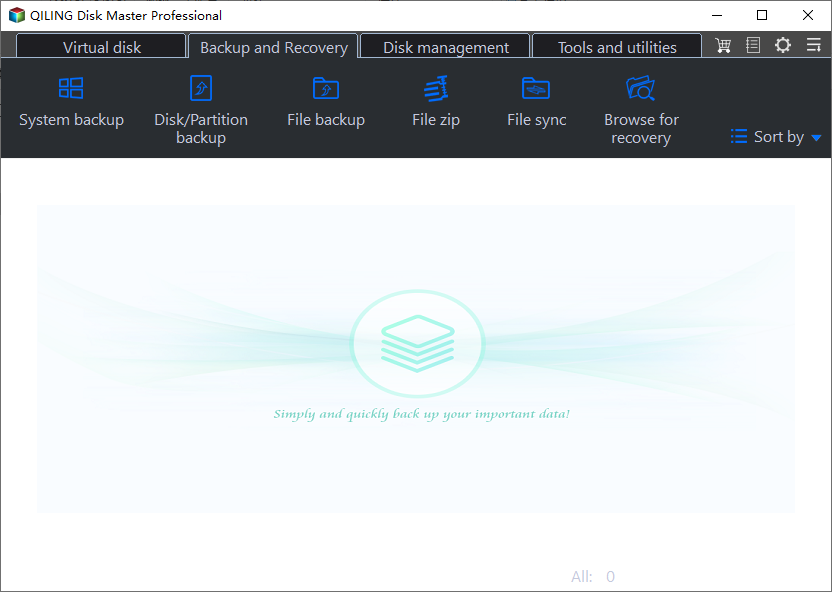
Step 2. Among the four available categories, click System backup.

Step 3. Qiling Disk Master will automatically select your system partition, requiring only a selection of the backup destination.

Step 4. You can save the backup file on either your local drive or a network-attached storage (NAS) device.
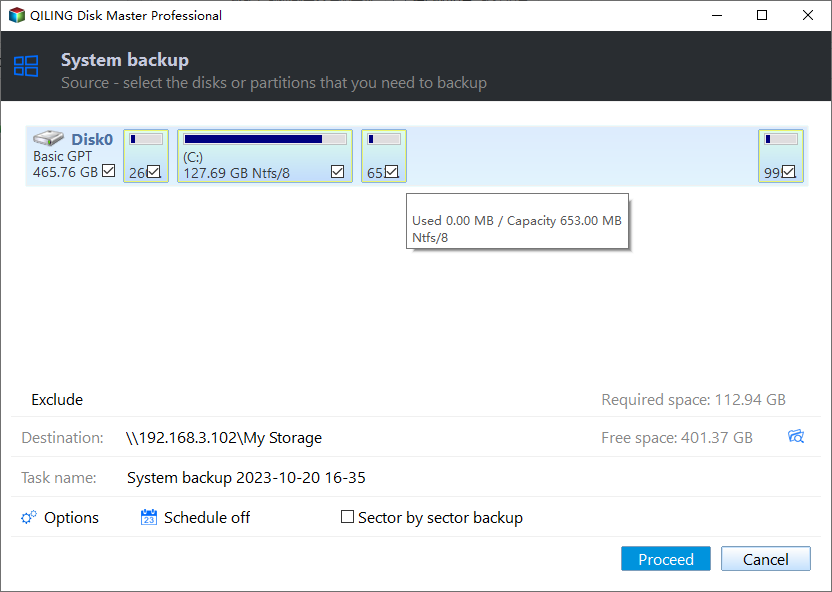
Step 5. After completing the backup process, you can check the backup status, recover, open, or delete the backup by right-clicking on the backup task on the left.

Stage 3. Boot Target Computer from Emergency Bootable Disk
Step 1. Eject the emergency disk and system backup USB/external drive and connect them to the new computer.
Step 2. Restart your computer and press DEL/F2/F10/F12 to access BIOS.
Step 3. To set a new computer to boot from the Qiling emergency disk, navigate to the boot menu and select the option to boot from the Qiling emergency disk. This will allow the computer to load the Qiling operating system and access the emergency disk.
To successfully restore a system image to a GPT disk, you must first switch the boot mode to UEFI in the BIOS settings. This change will allow your computer to enter the Qiling Disk Master main interface, where you can proceed with the restoration process.
Here are some articles about the boot menu of different laptops.
Stage 4. Restore the System Image to the New PC Without OS
To perform system recovery on a non-bootable machine, try to boot the computer through the installation media, such as a USB drive or CD/DVD, to access the recovery options. *Qiling Disk Master emergency disk.
Step 1. Launch Qiling Disk Master, click "Browse for Recover".
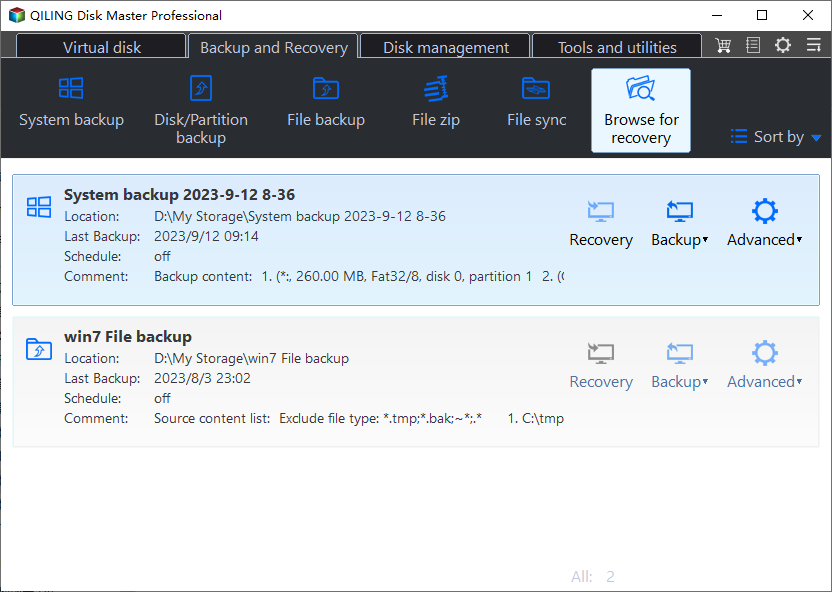
Step 2. Choose the system backup file you need from your backup destination. The backup file created by Qiling Disk Master is a .fvd file.

Step 3. To create a recovery disk, select the correct recovery disk based on the partition style of the source disk, ensuring that both the source and recovery disks have the same partition style.

Step 4. You can customize the disk layout according to your needs. Then click "Proceed" to start system backup recovery.

Stage 5. Make the Transferred System Bootable on New PC
After completing the system transferring process, configure the BIOS boot mode on your new computer to match the old PC's settings. This ensures a smooth transition.
Step 1. Restart your PC and hold down F2/F8/Del to enter BIOS.
Step 2. Navigate to the Boot menu and find BIOS Mode.
Step 3. To ensure a smooth transition, change the boot mode on your new PC to match the one on your old PC. If your old PC uses Legacy boot mode, switch the new PC to Legacy as well.
Step 4. Save all changes and exit to boot the computer.
You can also perform disk cloning for system migration via Qiling Disk Master, allowing you to easily transfer Windows from one computer to a new PC, saving time by not having to reinstall OS, set up Windows 11, and install applications. To do this, remove the internal hard disk from your new PC and connect it to your old Windows 11 PC.
While using the "use existing files" method to restore a database, you may encounter incompatibility issues. Therefore, it is generally recommended to perform a universal restore instead.
- Important
- Qiling Disk Master only transfers your OS from one PC to another, but you will still need to activate Windows with a valid activation key.
Way 2. Clean Install Windows 11
To perform a clean installation of Windows 11 on a new PC without an operating system, create Windows installation media, such as a bootable USB, and follow the installation process.
Stage 1. Create Windows 11 Installation Media
To install Windows 11 on a new computer without an operating system, start by preparing a Windows 11 installation media, which can be created using tools like Windows Media Creation Tool, Rufus, or Qiling OS2Go, to make a bootable USB.
To create a bootable USB, download a Windows 11 ISO file from Microsoft's official site and the Windows Media Creation Tool on your new computer.
To create a bootable USB drive, start by downloading a tool such as Rufus or Etcher, which can help you create a bootable drive. Next, insert the USB drive into your computer and open the tool.
A bootable USB drive is a USB flash drive that contains a complete operating system, allowing a computer to boot from it instead of its internal hard drive. To create a bootable USB drive, you'll need a USB drive with sufficient storage space, a computer with a working operating system, and a tool like Rufus or Etcher to write the operating system to the USB drive.

Stage 2. Boot the New PC from the Bootable USB Drive
To boot your new computer using the Windows 11 bootable USB, simply insert the USB drive into a USB port on the computer. The computer should automatically detect the USB drive and prompt you to select it as the boot device. If it doesn't, you can enter the BIOS settings by pressing the corresponding key (usually F2, F12, or Del) and set the USB drive as the primary boot device.
Step 1. Connect the bootable USB drive to your new computer.
Step 2. Boot your computer and press a specific key (such as F1, F2, F10, F12, Del, or Esc) to enter the BIOS settings. The key you need to press varies depending on your PC manufacturer.
Step 3. To boot to the Windows 11 setup screen, go to the BIOS menu, find the boot options, and set the USB drive as the first boot order. This will allow your new PC to boot to the Windows 11 setup screen.
Stage 3. Clean Install Windows 11 on the New PC
After booting the new computer from a bootable USB drive, it's time to clean install Windows 11 on the new PC, which involves installing Windows 11 and setting up the Windows 11 out-of-box experience (OOBE).
To perform a clean installation of Windows 11, start by creating a bootable USB drive with the Windows 11 installation media. Then, back up any important files and data to an external drive or cloud storage to ensure they are safe.
How to Clean Install Windows 11
To clean install Windows 11, start by creating a bootable USB drive or CD/DVD with the Windows 11 installation media. Then, insert the installation media and restart your computer. Next, follow the on-screen instructions to select your language, time and currency format, and keyboard layout.
Performing a clean installation of Windows involves many procedures and steps. However, if you want to save time and effort, you can consider a universal restore, which has fewer procedures, as an alternative to a full installation.
To install Windows 11 on a new PC without an operating system, you can follow the steps outlined in the accompanying video. The process involves setting up the PC's hardware and installing the necessary drivers, followed by running the Windows 11 installation media and completing the setup process.
To Wrap Things Up
How to install Windows 11 on new PC without operating systemAfter reading this article, you'll learn how to install Windows 11 on a new PC without an operating system in 2 different ways. The universal restore method is a quicker and easier option compared to performing a clean installation.
Qiling Disk Master Aisler is a professional and practical universal restore software that can help you create a WinPE bootable disk, create a system image and restore it to a different computer, and even transfer your OS to a new computer via cloning. Just download and try it.
FAQs on How to Install Windows 11 on New PC Without Operating System
1. Can a computer work without installing an OS?
An operating system is essential for a computer to operate, as it controls the computer's memory and operations, as well as all its hardware and software. Without an OS, programs cannot run and be executed, making it a crucial component for a computer's functionality.
2. How to bypass Windows 11 setup account?
You can install Windows 11 without using a Microsoft account by utilizing tools like Qiling OS2Go, the Task Manager, and a local account. By running the OOBE\BYPASSNRO command, you can bypass the Windows 11 account setup and successfully install the operating system.
3. How to install Windows 11 on new PC without operating system?
To download and install Windows 11 on your new computer, you can use the Windows Media Creation Tool from Microsoft's website to download the Windows 11 ISO file and create a bootable USB, which can then be used to install Windows on your new PC. Alternatively, you can use the tool to perform a universal restore, allowing you to transfer your existing Windows operating system from one computer to another. This process is detailed in the article.
Related Articles
- How to Backup Photos to pCloud on Various Devices [Solved]🔥
- Top 5 Best Backup Software for External Hard Drive (2023 Rankings)
- How to Backup/Save Favorites Mailbox in Outlook[Automatic& Manual Ways]
- Four Ways | How to Prevent Data Corruption in Windows Computer
- Clone Hard Drive with Paid/Free Cloning Software Windows 10/Windows 11
- Top 6 Best Incremental Backup Software for Windows 10 [2023 Guide]
- How Do I Remove or Repair Programs in Windows Server
Windows Server can face issues with applications, and in such cases, you have the option to either remove or repair the program to prevent it from slowing down the server. This can be achieved through traditional methods or by using third-party tools that make the process more accessible.
Products
Articles & Tutorials
- Data Recovery
- Data Backup
- File Recovery
- File Backup
- System Backup and Restore
- Disk and Partition Clone
- Technical articles
- Mobile articles
- Disk Master Help
- Windows Data Recovery Tutorials
- Windows Secure Delete Tutorials
- Windows Partition Management Tutorials
- Windows File Backup and Restore Tutorials
- Windows System Backup and Restore Tutorials
- Windows Disk Backup and Restore Tutorials
- Windows Clone Tutorials