2 Ways | How to Create System Image Windows 10 on External Hard Drive
Creating a system image on an external hard drive is a reliable way to protect Windows 10 from system failure. A system image can help restore your computer to a working state when the original installation becomes damaged.
Why Create System Image on an External Hard Drive
A Windows 10 system image is a copy of the operating system, settings, programs, boot files, and selected system partitions. It can be used for full system recovery.
To create a Windows system image on an external hard drive, you can use the built-in Windows tool called "Backup and Restore (Windows)" or third-party software like Qiling Disk Master. This process involves selecting the external drive as the destination, choosing the system image option, and following the prompts to complete the backup. The resulting image can be used to restore the system to its current state in case of a hardware failure or other issues, making it an essential step in maintaining data security and system stability.
- Avoid losing data and reinstalling Windows. Your system could malfunction due to various reasons such as system failure, computer virus infection, or hard drive damage, leading to a frustrating experience and a time-consuming process of reinstalling the system.
- Faster disaster recovery. If you've previously created a system image on an external drive, you can quickly restore a system image from an external hard drive, saving you time and effort.
- Save space. You can save a lot of space on your computer's hard drive or solid-state drive (HDD/SSD) by creating a system image on an external hard disk.
Create System Image to External Drive Using Professional Backup Software
To make a reliable system image backup, using professional backup software is the most effective approach, offering advanced options and fewer limitations. A great tool for this purpose is Qiling Disk Master, which can be used with an external hard drive, making it a convenient and efficient solution.
Qiling Disk Master Pro is a practical, multi-functional backup and recovery program for Windows 11/10/8/7, offering a complete backup and restore solution for personal or business use, enabling automatic file backup to an external drive and backup of systems, disks, partitions, and computer apps.
In addition, it lets you create an iso image of your operating system and save the backup in various locations, including NAS, Cloud, Security Zone, external drive, USB drive, and local drive. You can also use it to create a Windows 10 system repair disc for future use.
The following is what makes this backup tool highly recommendable.
- One-click backup and restore
- Install Windows 10 from one PC to another
- Create scheduled, full, incremental, and differential backups
- To clone a hard drive and create an image of an SD card, you can use a tool like Clonezilla. Here's a brief overview of the process:
- 250G free cloud storage
Here is how to perform a Windows 10 system image backup on an external hard drive: Connect your external hard drive to your Windows 10 computer and ensure it has enough free space to store the system image. Open the Control Panel, click on "Backup and Restore", then click on "Create a system image".
Step 1. Launch Qiling Disk Master, click Create Backup on the home screen, and select backup contents by clicking the big question mark.

Step 2. To back up your Windows operating system, click on "System backup" to initiate the backup process.

Step 3. On the next step of the Windows operating system backup process, all system related files and partitions will be automatically selected, so you don't need to manually select them. You will then need to choose a location to save the system image backup by clicking on the illustrated area.

Step 4. The backup location can be a local drive, external hard drive, network, cloud, or NAS, with external physical drives or cloud storage being recommended for preserving system backup files.

Step 5. The Windows system backup process can be customized to run automatically at daily, weekly, monthly, or upon an event intervals, with options to enable differential and incremental backups. This customization can be accessed through the Options button. Once customized, clicking Proceed will initiate the backup process, which can be tracked on the left side of the interface in a card style.

Create System Image to External Drive with Backup and Restore (Windows 7)
To create a Windows 10 system image to an external drive, you can use the Windows 10 built-in backup program - Backup and Restore (Windows 7) to back up your system to an external drive.
Windows Backup and Restore is a native Windows tool that has been widely used by users to back up data on their computers. It allows users to take a snapshot of their hard disk and create an image file of that snapshot, making it a useful tool for data backup and disk imaging. One of its notable features is its ability to back up data on both local and external disks.
While using Windows built-in backup tools, you may encounter issues such as Windows 10 backup taking too long or system image backup failing.
To create a system image backup on an external hard disk, connect the external hard disk to your computer and ensure it has enough free space to hold the system image. Open the Control Panel, click on "Backup and Restore," and then click on "Create a system image.
Step 1. Connect the external drive to your computer.
Step 2. To open the Control Panel, press the Win + R keys at the same time to launch the Run dialogue. Type "control panel" and tap Enter.

Step 3. Click Backup and Restore (Windows 7) under System and Security.
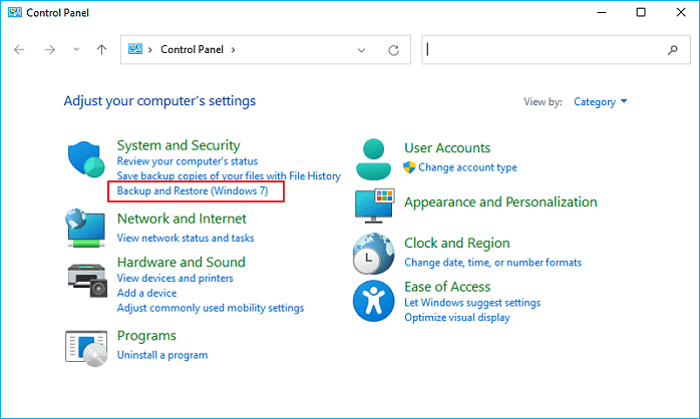
Step 4. Select Create a system image on the left side.

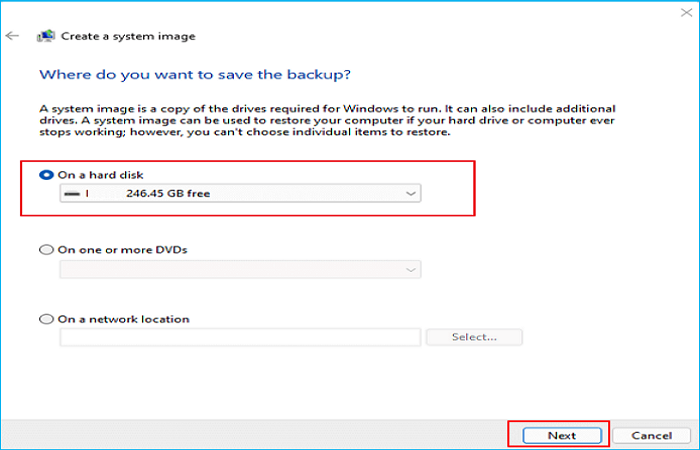
Step 5. Select the external hard drive connected to your computer as the destination location to store the image backup. Then click Next.
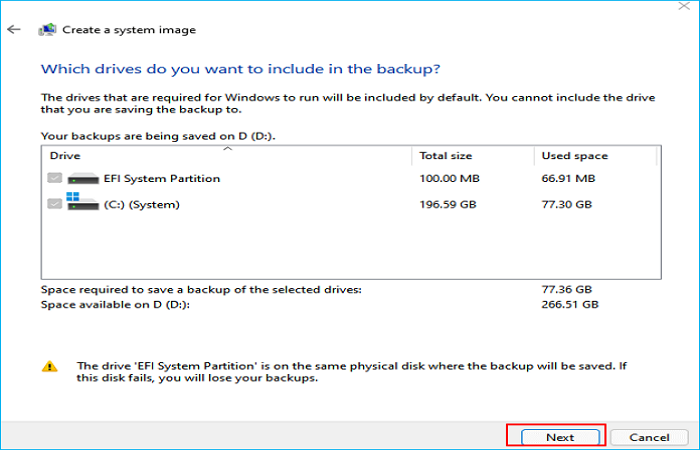
Step 6. Select the drive you want to back up, which is usually the system partition by default, and then click Next.
Step 7. Confirm the backup information, then click the start backup button to initiate the backup process if everything checks out.
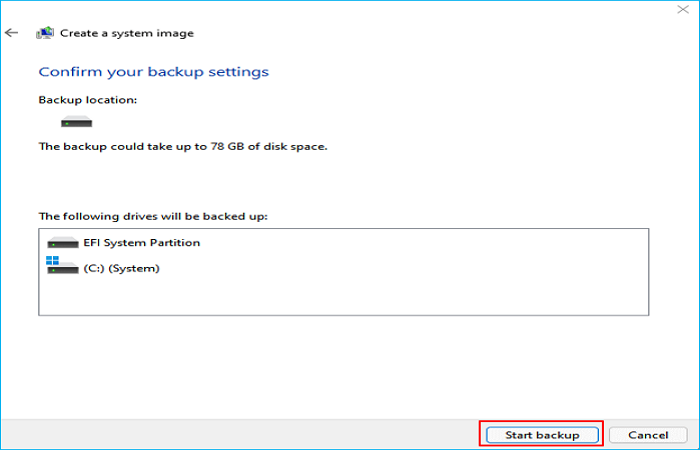
When the backup process is complete, your Windows 10 system image will be stored on the external hard drive.
Bonus Tip: How to Restore System Image from External Drive
Once you have created a system image on your external hard drive, you can easily and quickly restore the system image from the external hard drive.
Case 1. Create a system image via Backup and Restore
To restore a Windows 10 system image created using Backup and Restore (Windows 7) to an external hard drive, follow these steps.
Step 1. Open Settings, and navigate to Update & Security > Recovery.
Step 2. Click Restart now in the Advanced Startup.
Step 3. When the computer restarts, head to Troubleshoot > Advanced Options > System Image Recovery.
Then follow the on-screen instructions to restore your Windows 10 system image backup from the external hard drive. Connect the drive, restart the computer, open the recovery options, and choose the saved system image.
Case 2. Create a system image via Qiling Disk Master
To create a Windows 10 system image on an external hard drive using Qiling Disk Master, a professional backup software, follow this guide.
To perform system recovery on a non-bootable machine, try booting the computer through the installation media of the operating system, such as a USB drive or CD/DVD, to access the recovery tools and utilities.Qiling Disk Master emergency disk.
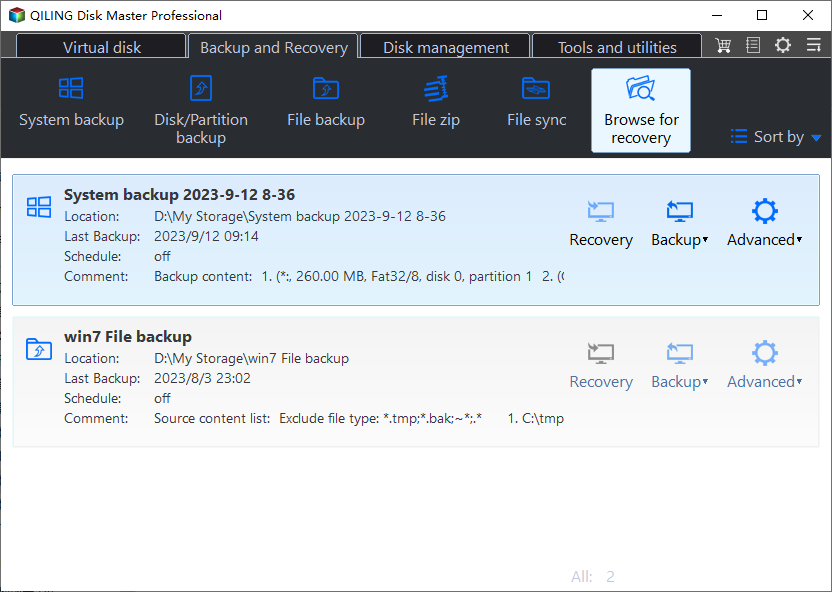
Step 1. Launch Qiling Disk Master, click "Browse to Recover".
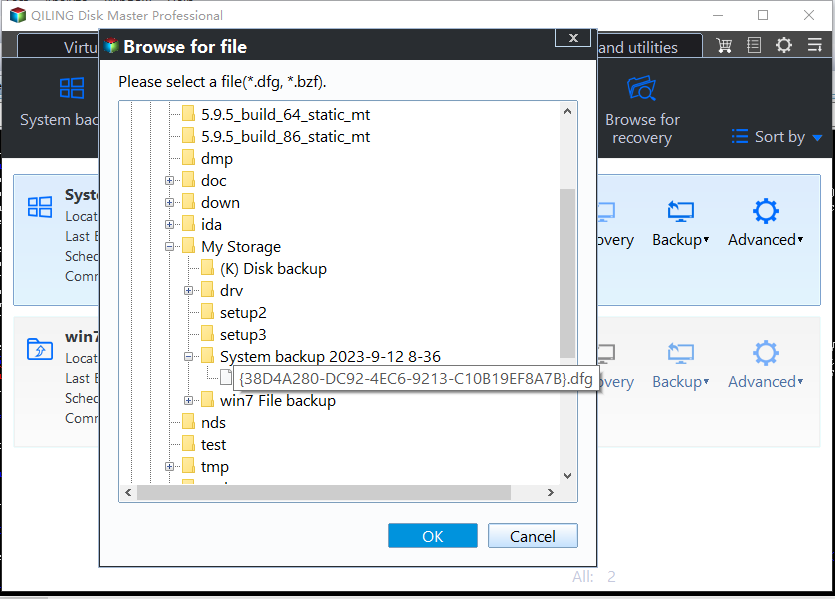
Step 2. To access your backup destination, select the system backup file you need, which is typically a pbd file created by Qiling Disk Master.
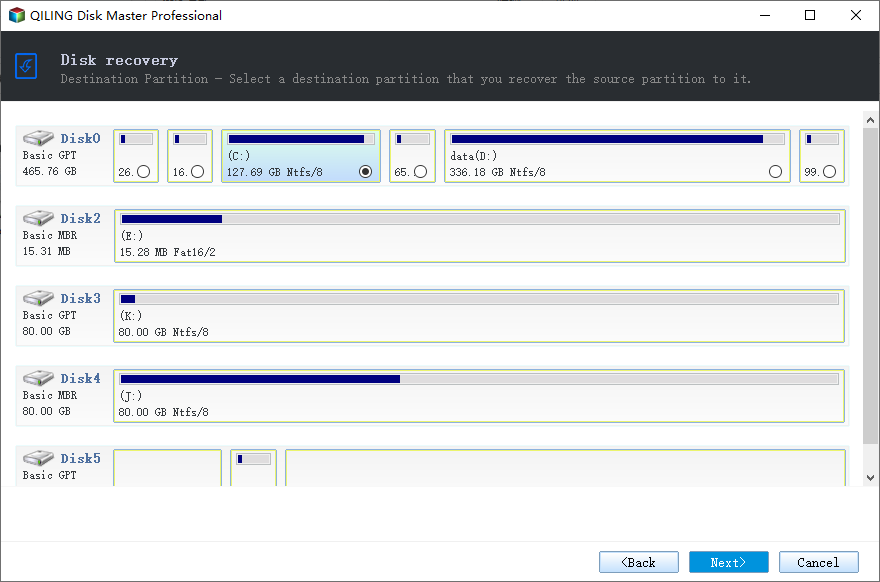
Step 3. To create a recovery disk, select the disk that will be used for recovery and ensure that its partition style matches the source disk's partition style.
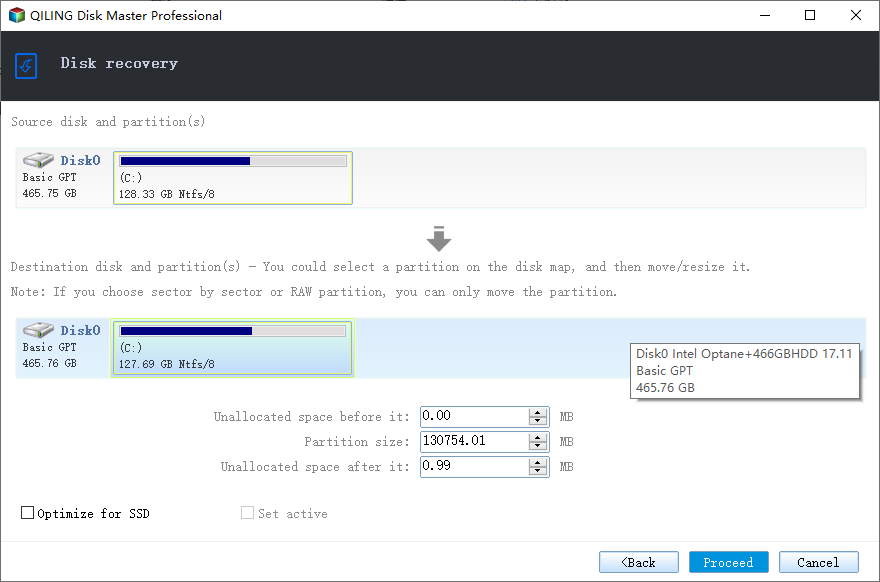
Step 4. You can customize the disk layout according to your needs, then click "Proceed" to start system backup recovery.
To Wrap Things Up
You can create a Windows 10 system image on an external hard drive using two different methods. The first method involves using Backup and Restore (Windows 7) to create a system image, which can be a straightforward process. Alternatively, you can use Qiling Disk Master to create a system image, which can also be a convenient option.
The Backup and Restore feature is not fully functional, which can lead to system image backup failures. To overcome this, it is recommended to use Qiling Disk Master, which can also assist in restoring the system image to a different computer. This tool offers additional features that can be explored further. Simply download and try it, as it is reliable.
FAQs on How to Create System Image Windows 10 on External Hard Drive
1. How do I create an image from an external hard drive?
You can use Qiling Disk Master and Backup and Restore (Windows 7) to create a disk image of your hard drive, which is a replica of a partition or disk. This allows you to create a backup of your system drive using Backup and Restore (Windows 7) and a disk image using Qiling Disk Master.
2. Can I Create a system image on USB drive?
Creating a Windows system image on a USB drive can help free up space on the system drive by backing up the operating system, installed programs, and files. A USB drive serves as a safe backup location that is also portable, allowing you to restore the system image to any computer.
Related Articles
- How to Stop OneDrive from Syncing in Windows 11/10
- What Is Disk Cloning and Why Is It Necessary
- USB Bootable Software & Bootable USB Creation Tool
- How to Perform OneDrive File Backup Windows 10 [A Step-by-step Guide]
- [Fixed] The Drive is Not a Valid Backup Location on Windows 11/10/8/7
- How to Save Outlook Emails When Leaving Job | 2 Available Options
- Easy and Quick! | 3 Solutions to Refresh Windows 11
If you're having trouble getting the Refresh Windows 11 feature to show on your OS, you're in the right place to find a solution. The Refresh Windows 11 feature allows you to refresh your Windows 11 operating system, which can resolve issues and improve performance.
Products
Articles & Tutorials
- Data Recovery
- Data Backup
- File Recovery
- File Backup
- System Backup and Restore
- Disk and Partition Clone
- Technical articles
- Mobile articles
- Disk Master Help
- Windows Data Recovery Tutorials
- Windows Secure Delete Tutorials
- Windows Partition Management Tutorials
- Windows File Backup and Restore Tutorials
- Windows System Backup and Restore Tutorials
- Windows Disk Backup and Restore Tutorials
- Windows Clone Tutorials