How to Perform OneDrive File Backup Windows 10 [A Step-by-step Guide]
What Is OneDrive?
OneDrive is a Microsoft cloud service that allows users to connect to all their files, enabling file hosting and synchronization across Android and Windows devices. Released in 2007, it provides 5GB of free storage, with additional storage available for a fee. It serves as a convenient storage location and is also a practical option for backing up important data.
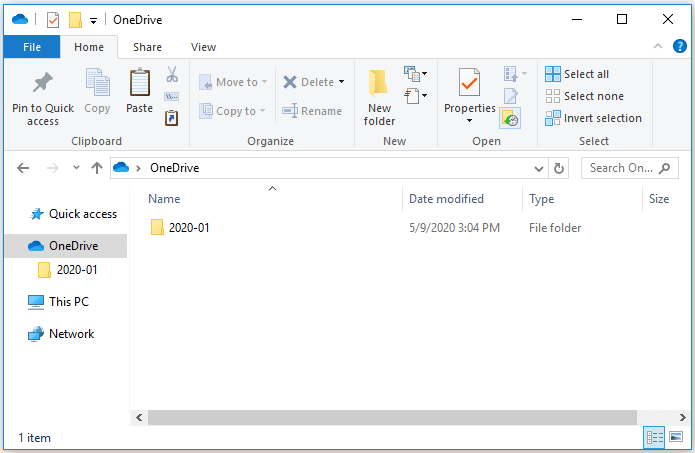
Can OneDrive Be Used for Backup?
Users can back up their important files and documents on PCs with OneDrive, which then protects and makes them available on other devices.
Should I Back up My Files with OneDrive?
OneDrive is a reliable backup solution that allows users to easily complete a backup plan in a few steps, providing a convenient and accessible way to protect their data. Here are some key benefits of using OneDrive for backup:
- Free device storage
- Securely store files and folders
- Unlimited file access at any time
- Sharable content through the internet
- Renders files available from various devices
OneDrive is a cloud storage service provided by Microsoft that allows users to store and access their files from anywhere. It works by syncing files from a user's computer or mobile device to the cloud, where they can be accessed and shared with others. This means that users can access their files on any device with an internet connection, and can also share files with others by sending them a link or by granting permission for others to edit the file. The files are stored on Microsoft's servers, and are protected by encryption and other security measures to ensure their safety.
How Does OneDrive Backup Work?
OneDrive allows users to store, sync, and share files over the internet, providing a convenient and accessible way to manage digital content.
- Users start by opening OneDrive and selecting the files and folders they want to back up.
- Then, OneDrive will back up the targeted files and folders.
- The items will be moved to other PC desktops where users are running OneDrive.
- After completing a back plan, users sync their data to OneDrive.
To perform a OneDrive file backup, follow these steps: Go to the OneDrive website and sign in with your Microsoft account. Click on the "Sync" button to start the OneDrive sync process. Wait for the sync process to complete, which may take some time depending on the size of your files.
OneDrive File Backup: Backup Files and Specific Folders to OneDrive Windows 10
OneDrive file backup is essential to prevent data loss due to system crashes or hard drive failures. To perform OneDrive file backup, you can either use the built-in OneDrive backup feature or manually select files to backup to OneDrive.
Way 1. OneDrive File Backup - OneDrive
OneDrive offers great convenience by making it easy to back up files, and here's how to use it to back up files and folders to OneDrive.
Step 1. Sign in to the OneDrive account.
Step 2. Setup wizard appears, and click "Next".
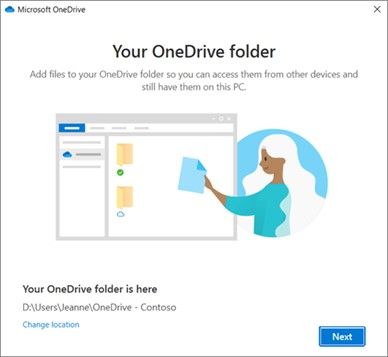
Step 3. Select "Open my OneDrive folder".
Step 4. To back up files and folders, simply drag them into the OneDrive folder.
To backup files and folders to OneDrive, select the files and folders you want to backup, right-click on them and select "OneDrive" > "Sync your OneDrive files". Then, select the files and folders you want to backup and click on "Sync". If you want an automatic backup, go to the OneDrive settings and enable the "Backup" feature.
Besides backing up files and folders, if you want to back up your system to the Cloud, you may need a professional backup helper like Qiling Backup Home, which can meet your advanced requirements.
Way 2. OneDrive File Backup - Qiling Backup Home
As a stress-free backup alternative, Qiling Backup Home is a free backup option to OneDrive that allows users to easily back up files, folders, and even systems to OneDrive, as well as other cloud backups, and also enables users to backup OneDrive to an external drive.
- 250GB of free storage
- Backup user profile windows 10
- Support disk, partition, and system backup
- Back up to OneDrive, google drive, dropbox
- Support automatic backup hard drive and scheduled backup
If you're struggling with backup issues, consider downloading Qiling Backup Home, which can provide a solution to your problems.
How to Perform OneDrive File Backup with It?
Qiling Backup makes it easy to back up files, and here's a step-by-step guide to backing up files to OneDrive.
Step 1. To begin the backup process, click the File backup button.

Step 2. The user interface displays both local and network files on the left side of the screen, allowing the user to expand the directory and select the files to be backed up.

Step 3. Follow the guidance on the screen and choose the place where you want to store the back up.

Step 4. To secure your backup, make sure it's encrypted and set the backup schedule by clicking on "Options" under "Backup Options".

You can also choose to start the backup at a certain time in Backup Scheme by clicking Options, which offers many other customizable options to explore.

Step 5. You can save the backup file to your computer, store it in Qiling's cloud service, or save it on a network-attached storage device (NAS).

Step 6. Qiling Backup allows customers to store backup copies of their files on a third-party cloud drive or on the company's own cloud storage.
To back up your data on a third-party cloud drive, select Local Drive and scroll down to add Cloud Device, then fill in your account information.
Step 7. To start a backup, click on the "Proceed" button. Once the backup process is complete, a card will appear on the left-hand side of the screen, displaying the backup job. Clicking on this card will provide more information on how to handle the backup job.

After backing up your data to OneDrive, you have the option to restore your backup from OneDrive. This process allows you to retrieve your saved data from the cloud storage service.
Bonus Tip: How to Perform OneDrive Backup Restore
Both backup and restoring are of great importance, and OneDrive offers two ways to perform these tasks. To restore using OneDrive itself, you can use the service to retrieve backed-up files. This process allows you to easily recover lost or deleted data from your OneDrive account.
Guide 1. Restore with OneDrive
To restore your files from OneDrive, follow these steps: 1. Go to the OneDrive website, sign in with your Microsoft account, and navigate to the "Recycle Bin" or "Deleted files" section. 2.
Note: We are not restoring OneDrive, but instead, we will be restoring the backup files that were stored on OneDrive.
Step 1. Input your mail address and password to sign in.
Step 2. Find the files or folders you want to restore.
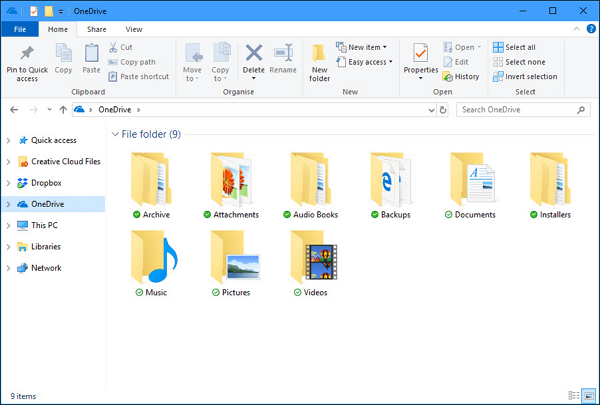
Step 3. Drag them to where you want to save them.
Next, let's see how to restore with Qiling Backup.
Guide 2. Restore with Qiling Backup
Qiling Backup is a backup software that also serves as a reliable computer restore software, allowing users to restore backups with simple clicks, and a comprehensive guide on how to restore with Qiling Backup is available.
Step 1. Launch Qiling Backup, click "Browse to Recover".

Step 2. To recover your backup, go to your backup destination and select the backup file you want to restore, which is typically a .fvd file created by Qiling Backup.
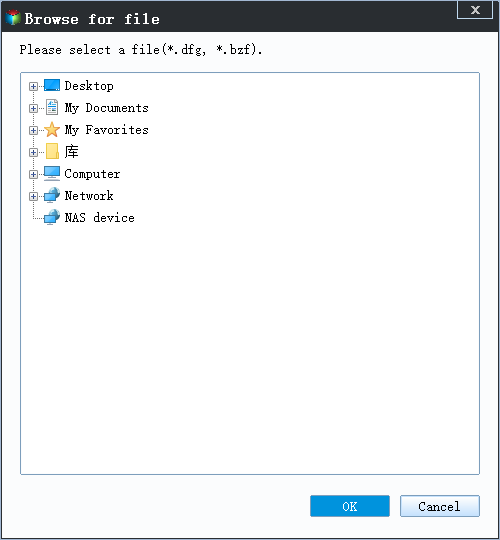
Step 3. You can choose to recover data to a specific location or back to its original location.
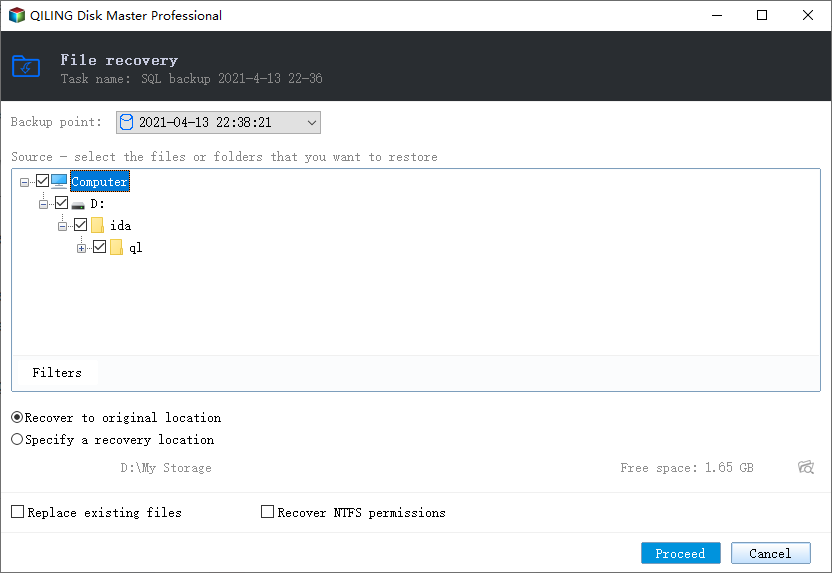
Step 4. Click "Proceed" and the recovery would start.
Qiling Backup Home makes it easy to back up and restore data, making it a stress-free experience. Simply download and try it out. It will not disappoint.
FAQs About OneDrive File Backup
Here are some common questions and answers about OneDrive file backup to help you get the most out of this cloud storage service.
Are OneDrive files automatically backed up?
OneDrive allows users to automatically back up files from their PCs, keeping all files in sync and accessible from other computers and devices, as long as automatic backup is turned on.
Where is my OneDrive backup?
OneDrive backups are stored in the OneDrive folder on the computer, and then synced to the cloud for safekeeping.
Is OneDrive a reliable backup?
OneDrive is a reliable backup solution that safeguards against data loss due to physical damage, while also syncing data to the cloud, making it accessible across multiple devices.
Related Articles
- Windows File Backup - 4 Efficient Ways for You to Protect Data
- Free Download Qiling Backup Full Crack + Serial/Keygen
- Backup Red Dead Redemption 2 Save Files [ 2 Plans]
- How to Install Windows on New SSD Without USB in Every Possible Way
- (Easiest Way) How to Move MySQL Database to Another Server
To migrate a MySQL database to another server, you can use Qiling Disk Master, a professional database moving software, or utilize the backup program of MySQL to export and import the database. - How to Move Steam Game to Another Drive 2022
For Steam gamers, moving games to another drive without reinstalling is a convenient solution. There are three ways to achieve this: moving a single game, moving multiple games, or using a more advanced method to relocate all games to a new drive.
Products
Articles & Tutorials
- Data Recovery
- Data Backup
- File Recovery
- File Backup
- System Backup and Restore
- Disk and Partition Clone
- Technical articles
- Mobile articles
- Disk Master Help
- Windows Data Recovery Tutorials
- Windows Secure Delete Tutorials
- Windows Partition Management Tutorials
- Windows File Backup and Restore Tutorials
- Windows System Backup and Restore Tutorials
- Windows Disk Backup and Restore Tutorials
- Windows Clone Tutorials