How to Install Windows on New SSD Without USB in Every Possible Way
Installing Windows on a new SSD without a USB drive is a common challenge, and a clean install is often the recommended approach. Fortunately, there are ways to accomplish this, and this tutorial provides two methods to install Windows on a new SSD, including detailed step-by-step instructions.
Can I Install Windows on a New SSD
Installing Windows on a new solid-state drive (SSD) can provide a fresh start for a Windows computer that is loading and running slowly on a hard disk drive (HDD), as SSDs offer quicker access time, lower latency, and less noise compared to HDDs.
To install Windows onto an SSD without using a USB, you can create a bootable SSD by cloning the existing system disk to the SSD, and then boot from the SSD to install the OS. This method allows you to avoid using a USB and still upgrade your system disk to an SSD. By cloning the existing system disk to the SSD, you can directly install the OS onto the SSD, making the process easier and faster.
Two Ways to Install Windows on SSD Without USB
Installing Windows on a new SSD without a USB can be challenging, but there are a few workarounds. Two possible solutions are creating a Windows system image on the target drive or cloning the system via backup software, allowing you to transfer the existing Windows installation to the new SSD. Alternatively, you can reinstall Windows on the SSD by using an ISO file, which can be used to install Windows from scratch.
| Workable Solutions | Step-by-step Troubleshooting |
|---|---|
| Solution 1. Use professional backup software to clone your system to the new SSD | Installing Windows OS on a new SSD without USB, the easiest way...Full steps |
| Solution 2. Install Windows on New SSD by Using ISO | In most cases, you can choose the Windows 10 Media Creation Tool...Full steps |
Solution 1. Install Windows on New SSD via Professional Backup Software
To install Windows on a new SSD without a USB, you can migrate Windows 10/8/7 from the hard disk to the new SSD and boot from it. You can use Qiling Backup, a software that allows you to create a system image or clone system to install Windows on a new SSD. This is an easy-to-use method that enables you to transfer your Windows OS to the new SSD without the need for a USB.
Qiling Backup Home is a user-friendly backup and recovery tool for Windows that allows you to back up and clone files, systems, disks, and partitions, as well as create automatic and scheduled backups.
The following are the detailed steps to clone a system.
Step 1. On the main page, click on "Tools and utilities" to access system clone and other utilities.
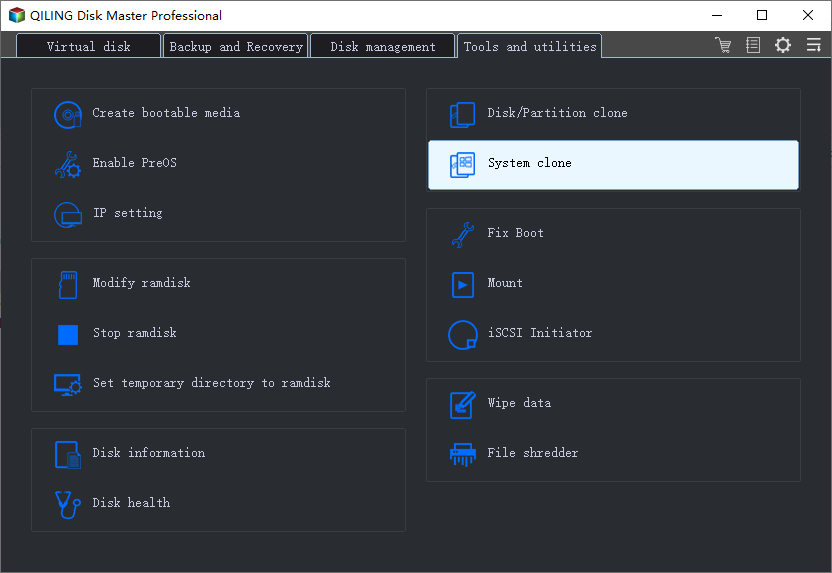
Step 2. Qiling Backup will automatically select the boot and system partition, then choose the target disk and click "Next".
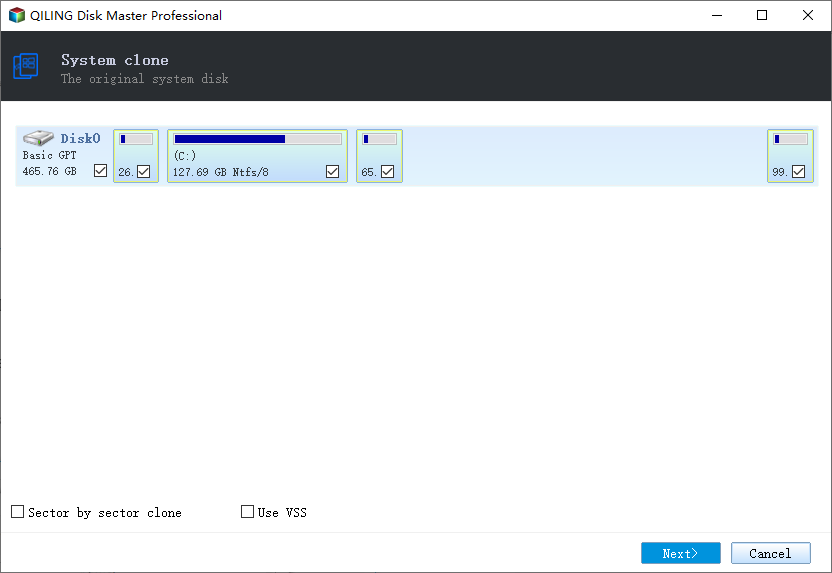
The system clone feature will completely erase all data and cannot convert between MBR and GPT disk types, so ensure the source and target disks have the same partition style.
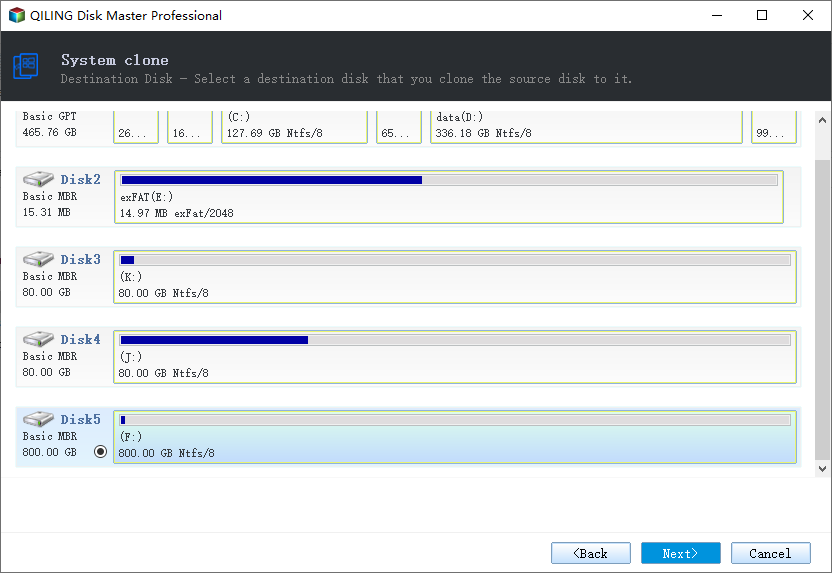
Step 3. If the target disk is a SSD, choose optimize for SSD in the advanced options.
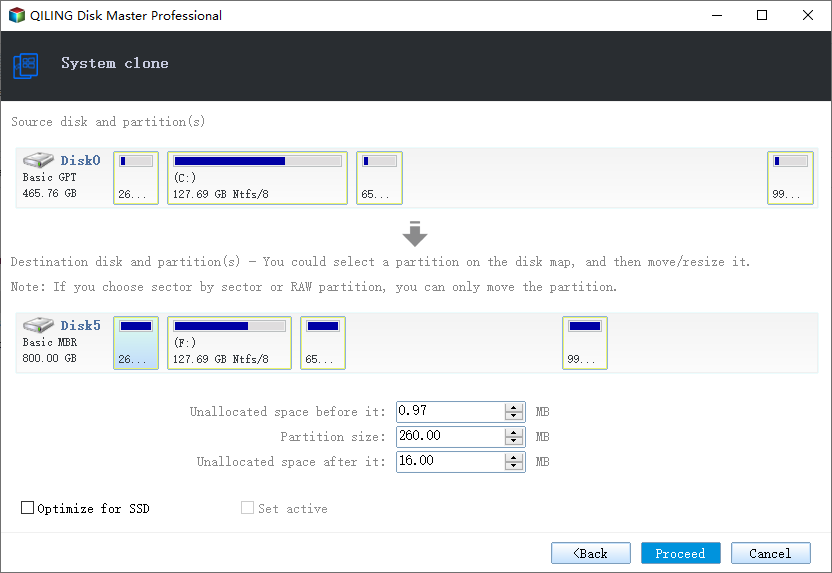
Step 4. Click "Proceed" to start cloning.
If you want to install Windows on a different computer, you can use Qiling Backup as a universal restore software, allowing you to install Windows on a dissimilar computer using an SSD instead of a USB.
Solution 2. Install Windows on New SSD by Using ISO
You can use the Windows 10 Media Creation Tool to upgrade to Windows 11 or create a bootable USB drive for a clean installation, or you can load the ISO file using the Windows image mounting feature to start the Windows 11 setup and proceed with the installation.
To install Windows on a new SSD without a USB, you can use a Windows ISO file. This method allows you to upgrade or do a clean installation of Windows 11 without needing a bootable USB drive or Media Creation Tool. To do this, you can mount the ISO file in File Explorer and run the upgrade setup. This process enables you to install Windows 11 on a computer running Windows 10 without the need for a USB drive or Media Creation Tool.
Step 1. Download Windows 11 ISO file.
Step 2. Right-click on the ISO file, choose the Open with sub-menu and then select the Windows Explorer option.
Step 3. To access the SSD drive, click on the SSD drive already connected to the computer from the left navigation pane.
Step 4. To start the Windows 11 upgrade process, double-click on the Setup file.
Step 5. You can choose to select the option to change how Windows Setup downloads updates.
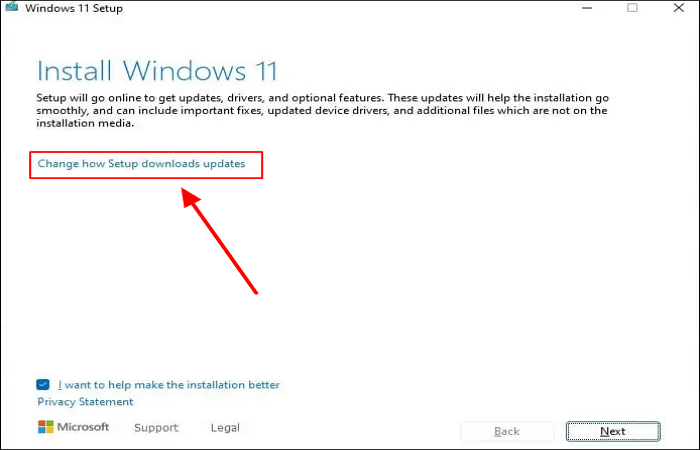
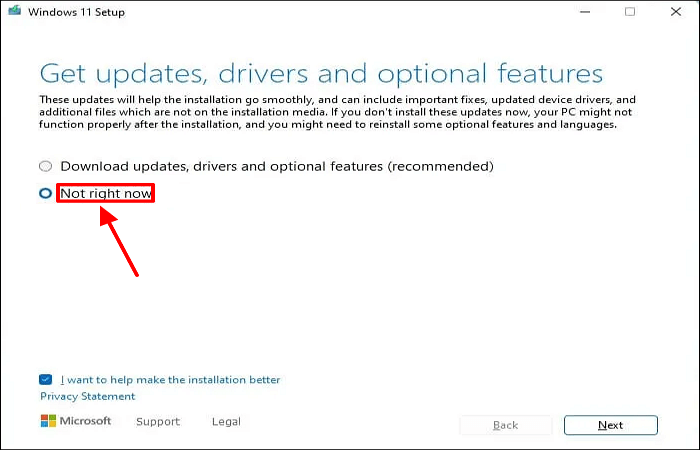
Step 6. Choose the Not right now option, and click on Next.
Step 7. To upgrade your operating system, click on the "Accept" button to agree to the terms, then click on the "Install" button to begin the upgrade process, which will preserve your files and apps.
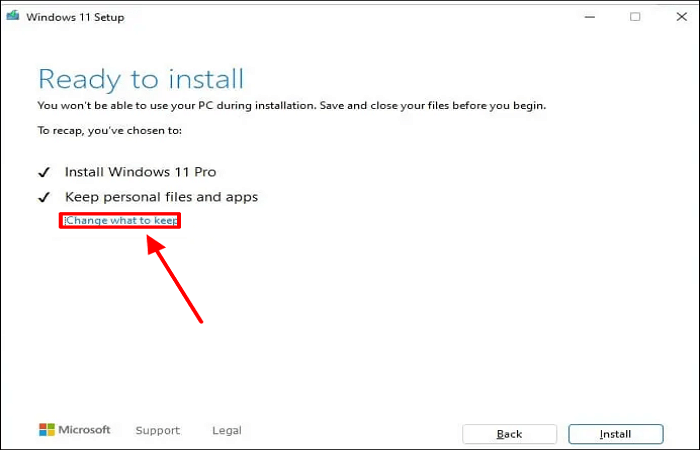
Note: To install Windows 11 from scratch, select the "Nothing" option under "Change what to keep" and then click the "Next" and "Install" buttons.
After completing the instructions, the computer will restart multiple times as the updating process begins. Following installation, you may need to complete Windows 11 configuration by going through the out-of-box experience (OOBE).
The Bottom Line
To install Windows on a new SSD without a USB, you can choose from various methods offered in this article, but Qiling Backup is a recommended option due to its ease of use, flexibility, and reliability. This multi-functional backup and recovery tool is suitable for free, home, or business users and can meet your diverse backup needs, making it a convenient solution for installing Windows on a new SSD.
FAQs
1. Is there a way to reinstall Windows 10 to an SSD without cloning?
If you don't want to clone Windows 10, you can perform a clean installation instead, which will wipe everything on the hard disk and install a fresh copy of Windows.
2. How do I activate my new SSD?
To access Disk Management, right-click the Start icon, then select "Disk Management" from the menu. A prompt will appear, asking you to initialize your SSD.
3. Why is my new SSD not bootable?
If your computer can't boot after upgrading or replacing the system disk from HDD to SSD, it might be because you forgot to reset the boot order in BIOS.
4. Why won't Windows install on my SSD?
Windows cannot install on your disk because the hardware cannot support booting to the disk, and it might ask you to enable the disk controller in the BIOS menu.
Related Articles
- How to Create a Schedule to Backup User Files[Step-by-Step Guide]
- Windows 11 Backup Options are Missing? Your Ultimate Guide Is Here
- 3-Minute Guide | How to Restore Outlook Backup with Ease
- How to Backup SSD to Image with The Best SSD Image Backup Software [Full Guide]
- How to Copy MS Office from Laptop to Pen Drive (Including Word, Excel, PPT)
Do you want to copy Microsoft Word onto a flash drive so you can run the Microsoft Word from the USB drive on another computer? You can easily make it happen with the help of Qiling easy transfer software. - 2022 How to Copy Text That Cannot be Copied: Seven Tips 100% Working
Windows 11 backup options missing? Learn why File History, Backup and Restore, and other backup features disappear.
Products
Articles & Tutorials
- Data Recovery
- Data Backup
- File Recovery
- File Backup
- System Backup and Restore
- Disk and Partition Clone
- Technical articles
- Mobile articles
- Disk Master Help
- Windows Data Recovery Tutorials
- Windows Secure Delete Tutorials
- Windows Partition Management Tutorials
- Windows File Backup and Restore Tutorials
- Windows System Backup and Restore Tutorials
- Windows Disk Backup and Restore Tutorials
- Windows Clone Tutorials