How to Copy Text That Cannot Be Copied: Seven Tips
If you're unable to copy text from a website, it's often because the site has restricted the copy function. This can happen even when switching to a different web browser. Instead of giving up, try these seven practical tips to copy the text: confirm your folders, account, storage space, and sync settings before starting.
| Workable Solutions | Step-by-step Troubleshooting |
|---|---|
| Method 1. Copy through Print | Right-click the web page that won't let you copy...Full steps |
| Method 2. Copy from Source Code | Right-click the current web page you cannot copy...Full steps |
| Method 3. Drag and Drop to Paste | Right-click on the mouse and don't let go...Full steps |
| Method 4. Copy in the Search Box | Select the text to be copied, right-click onthe...Full steps |
| Method 5. Disable Javascript | Firefox users can press F12, then F1 to open the...Full steps |
| Method 6. Convert Image to Text | You can use the Print Screen button to take a...Full steps |
| Method 7. Install a Plugin Extension | Most plugins are available to enable selection...Full steps |
| Copy Files to Make a Backup | Support Disk/partition backup, File backup...Full steps |
Method 1. Copy Through the Print Option
Difficulty: ★★☆☆☆
Effect:★★★☆☆
Step 1. Right-click the web page that won't let you copy the entire text on it and select "Print". This will allow you to print the entire page, and the text will be copied to your printer.
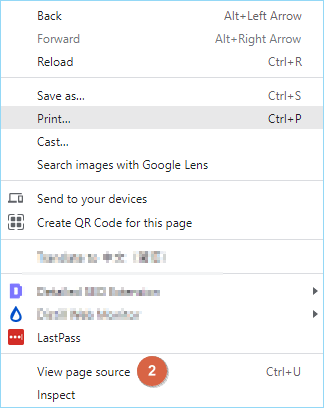
Step 2. To copy the content of all pages in the preview window, select all content by pressing Ctrl+A, then copy the selected content by pressing Ctrl+C. You can then paste the content into a new text document by pressing Ctrl+V. This will copy all text, including headers and footers, into the document.
Step 3. Delete those unwanted texts after the copy and paste.
Method 2. Copy from the Source Code
Difficulty: ★★★★☆
Effect: ★★★☆
Step 1. You can't copy anything from a web page, so right-click on it and select "View source code" to open its source code, or use the shortcut key Ctrl+U in Google Chrome.
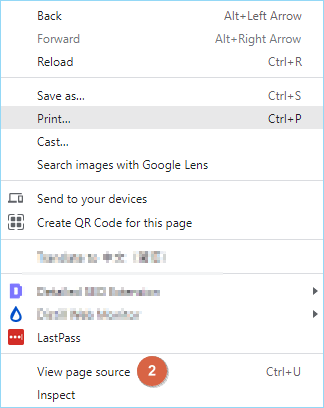
Step 2. The source code can be overwhelming due to its dense and unfamiliar content. However, by using the "Ctrl+F" function, one can quickly locate specific areas of interest. By entering a key phrase or sentence in the search bar, the exact matching texts will be highlighted. From there, one can select the desired texts by dragging the mouse and copying them. This makes it easier to extract the necessary information from the source code.
Method 3. Drag and Drop to Paste
Difficulty: ★☆☆☆☆
Effect: ★★☆☆☆
This method is the most direct and convenient, but it may not work on all web pages, as it did on one computer but not another. It's still worth trying due to its simplicity and speed.
Step 1. Right-click on the mouse and don't let go, move the cursor to highlight the text you want to copy.
Step 2. Now, simply select the text you want to copy and then drag it to the desired location where you want to paste it.
Method 4. Search Text and Copy in the Search Box
Difficulty: ★☆☆☆☆
Effect: ★★☆☆☆
There is a Search function in most popular web browsers, including Microsoft Edge, Firefox and Google Chrome, which can help get rid of most websites' restrictions, such as copying and pasting content, by allowing users to search for specific information within a website.
Step 1. To search for multiple phrases on Google, select the text to be copied, right-click on the highlighted content and choose Search Google for "...". If there are too many to copy, you can repeat the steps in several phrases.
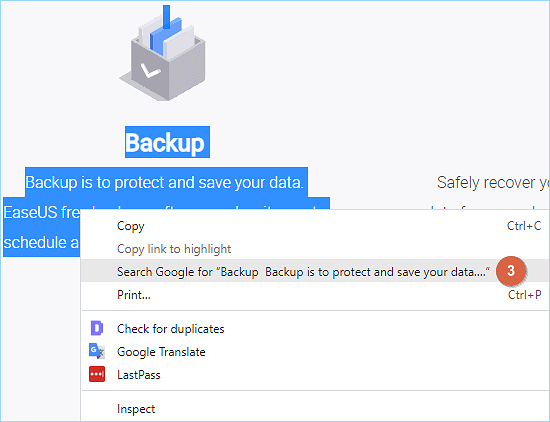
Step 2. To search for a term, the search page will open in a new window. From there, double-click on the search box area to select all the text. Press Ctrl+C to copy and then Ctrl+V to paste it into a new document.
Method 5. Disable Javascript from the Browser
Difficulty: ★★★☆☆
Effect: ★★★☆☆
JavaScript is typically used to prevent mouse functionality on most websites. Mostly, websites using javascript can block the mouse-clicking, disallow visitors to copy some or all of the text displayed on a webpage to the clipboard. If you turn off JavaScript temporarily on the site, you will be able to copy any text that appears on it. Here's how to.
- Firefox users can open the preferences by pressing F12 and then F1, where they can disable JavaScript on the page that opens.
- Chrome users can disable JavaScript in the Content settings: chrome://settings/content
- To disable JavaScript in Internet Explorer, users can navigate to Internet Options, select the Security tab, choose the Zone they want to modify, and then click on Custom Level. From there, they can toggle off Active Scripting.
- In Opera, users can disable JavaScript by going to "Websites" in the Opera settings, which can be accessed by typing "opera://settings/" in the address bar.
- Important
- Over 90% of websites rely heavily on JavaScript, with major sites like Google, Facebook, YouTube, and Amazon being among them. Disabling JavaScript can cause issues while browsing the majority of these sites, making it essential to resume the JavaScript setting and turn it back on to ensure smooth internet browsing.
Method 6. Take a screenshot and Convert Image to Text
Difficulty: ★★★★☆
Effect: ★★★★☆
If the methods in this guide fail to help you overcome the copy and paste limitation, you can take a screenshot of the whole page or a fixed region, and then use an image to text converter to transfer the image to an editable text. This is the last resort.
To make the text appear in a specific font, you can use online software or extensions/plugins that allow you to customize the text's appearance. This can be a convenient option if you don't have the font installed on your device.
Step 1. To take a screenshot on Windows, you can use the Print Screen button to capture the entire screen, or add a Chrome plugin called GoFullPage to take a long screenshot of a web page.
Step 2. Crop the screenshot image and leave only the wanted text.
Step 3. Using an image to text converter can recognize the image and automatically translate it into words, and some online chatting apps like QQ and WeChat offer a free translation option to their users.
Step 4. The app can recognize the image correctly, but you may need to do some proofreading after the conversion. Most apps are able to accurately identify the image.
Method 7. Install a Plugin Extension to Copy and Paste
Difficulty: ★★☆☆☆
Effect: ★★★★☆
Most plugins, such as SuperCopy, allow you to select which sites don't allow copying and enable copying and pasting on prohibited pages.

How to Copy Files to Make a Backup
Qiling Backup is a reliable and powerful Windows backup and recovery software that has been downloaded and installed by millions of users worldwide, offering a range of features including disk/partition cloning and OS migration.
Qiling Backup
- Support Disk/partition backup, File backup, system backup and mail backup.
- To create a WinPE bootable drive, you can follow these steps: Insert a USB drive with enough storage space, open the Windows 10 installation media creation tool, select the appropriate settings, and create the WinPE bootable drive. This drive can then be used to boot your PC and access the recovery tools, allowing you to take a backup or perform recovery after a PC crash.
- If your computer is experiencing issues where applications won't respond or web browsers are not working properly, you can try reverting back to a previous system state. This can often resolve the problem by rolling back changes made to the system since the last backup.
FAQ on How to Copy Text That Cannot be Copied
How do I copy text that is protected?
You can copy text that is protected through various methods such as printing, copying from source code, drag and drop to paste, copying in the search box, disabling Javascript, and installing a plugin extension.
How can I copy text from a PDF that Cannot be copied?
Here are some methods to help you copy text from a PDF document that you can't copy from:
- To copy text from a PDF, use a PDF editor. A PDF editor allows you to select the desired text and copy it normally. A recommended option is PDFelement, a powerful and user-friendly PDF editor.
- To extract text from a PDF document using a screen capture tool, take a screenshot of the PDF using a tool like Snagit. This will capture an image of the document. You can then copy the text from the image, which can be a bit time-consuming and may not be 100% accurate.
- Optical character recognition (OCR) is a technology that extracts text from images and PDF documents, allowing for the conversion of scanned or photographed text into editable digital text.
Related Articles
- How Do I Get 100GB Free cloud storage
- How to Disable Windows Defender on Windows 11
- Two Ways: Encrypt Backup Drive to Protect Your Data
- Top 10 Free Features in Qiling Backup
- How to Create ASUS Recovery Disk in Windows 10 Efficiently
ASUS recovery disk is very useful when you're having problems with your computer. Learn how to create one in Windows 10 efficiently from this page. - Asus Recovery Partition Missing? |Complete Solutions
You can choose to fix Asus Recovery Partition missing by recreating a new one and this article offers you two effective methods.
Products
Articles & Tutorials
- Data Recovery
- Data Backup
- File Recovery
- File Backup
- System Backup and Restore
- Disk and Partition Clone
- Technical articles
- Mobile articles
- Disk Master Help
- Windows Data Recovery Tutorials
- Windows Secure Delete Tutorials
- Windows Partition Management Tutorials
- Windows File Backup and Restore Tutorials
- Windows System Backup and Restore Tutorials
- Windows Disk Backup and Restore Tutorials
- Windows Clone Tutorials