Top 10 Free Features in Qiling Backup
Qiling Backup is a well-known Windows backup utility and disk cloning tool, offering both free and paid versions. With a history of 10 years and millions of customers worldwide, it caters to a diverse user base, including enterprise users and IT engineers seeking advanced backup strategies, as well as individuals and small-to-medium size companies looking for a more fundamental and cost-effective solution.
Qiling Backup Free is a completely free backup solution that offers a range of features, including file backup, disk/partition backup, and operating system backup, all at no cost.
Top 10 free features in Qiling Backup infographic:
#1. Back up 1000+ Types of Computer Files & Folders
Losing a critical file can be devastating, especially if it's irreplaceable. While data recovery software can be used to retrieve lost files, it's not a foolproof solution. To ensure data protection and avoid permanent loss, it's essential to use file backup recovery software that monitors, syncs, and makes a copy of your files on a regular basis. This way, you can rest assured that your important files are safely backed up and can be easily recovered if needed.
Qiling free file backup software allows you to back up any files you want, without restrictions on file types or sizes. You can select specific folders, such as your Library, Favorites, or Desktop, to be backed up, and it's completely free to set up.
#2. Back up an Entire Hard Drive or Selected Disk Partitions
In some cases, it's more convenient to back up all valued data, programs, and files onto a single hard drive or partition at once, rather than backing up individual files and folders. Qiling Backup Free offers a Disk/Partition Backup option, allowing users to easily take a backup of an entire HDD, SSD, USB drive, SD card, or flash drive.
#3. Create a Free System Backup Image
If your operating system crashes or shuts down unexpectedly, it can be a problem. For average computer users, cleaning installing or reinstalling an operating system can be a challenge. Taking a heavy machine to a repair center can also be costly and inconvenient. To avoid this, consider backing up your system with Qiling Backup Free, which allows you to restore your system to a previous working state.
Follow to see how to create Windows 10 backup image.
#4. Automate a Backup Task on Schedule
A free backup method is worth mentioning, but only if it's automatic. Otherwise, it's not worth your time or effort.
You can set a backup schedule when choosing files, disk, partitions, or OS to back up, so the next backup task can run automatically. The free version allows you to schedule backups as one-time, daily, weekly, or monthly, and you can specify the exact time and day for the task to execute.
#5. Image-reserve Strategy
The image-Qiling Backup's reserve strategy is a useful feature for managing backup images by deleting older, useless ones or merging multiple backups into one. This feature is similar to a system reserve policy or strategy found in other backup and recovery programs, but is available for free with Qiling Backup.
#6. Enable Backup Encryption
Our backup software provides an additional layer of security for sensitive business data by allowing you to create a full backup of what matters, while also offering an encryption feature to protect it.
When creating a backup, go to the Advanced options and find the Encryption tab. There, you can set a password and confirm it to password protect your backup file. This ensures that the backup can only be accessed with the correct password, providing an additional layer of security.
#7. One-click Recovery
In the event of a disaster, Qiling Backup makes recovery a breeze with a simple one-click process. This comprehensive backup approach allows users to easily perform a full backup, followed by a straightforward recovery, making it a reliable choice for rescuing files or the operating system.
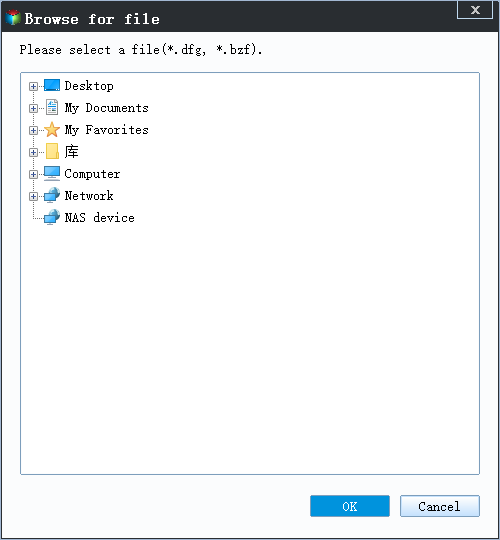
Step 1. Launch Qiling Backup, click "Browse for Recovery" in the Backup and recovery page.

Step 2. To recover your data, go to your backup destination and select the fvd file created by Qiling Backup. This file contains your backed-up data.
Step 3. You can select a specific location to recover data to or choose to restore it to its original location.
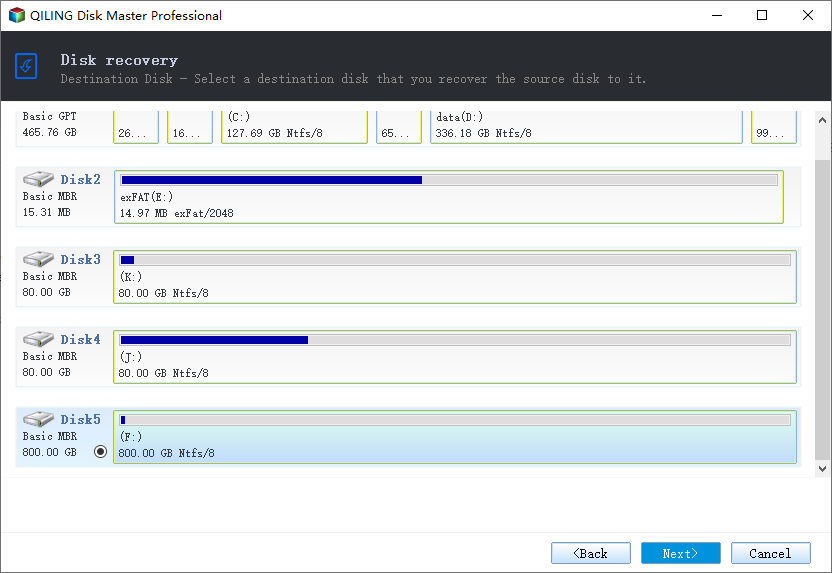
Step 4. Click "Proceed" and the recovery would start.
#8. Save Backup to Local Disk and Cloud Drive
Regardless of the software you choose to back up important data, it's crucial to have at least two backup copies in separate locations to ensure data safety.
Qiling Backup allows users to save multiple backup copies in both local and cloud drives, including Google Drive, Dropbox, and OneDrive, making it a convenient option for users who want to store their backups in multiple locations.
Qiling cloud is also available in the software, but it's only accessible for commercial users.
#9. Create Emergency Disk
The Qiling Backup emergency disk is a tool used to recover a backup when the computer is unable to boot into Windows, often due to system issues or crashes. It allows for the restoration of a backup without needing to access the operating system.
Windows system corruption, crashes, and freezing are common issues, making regular backups essential. Fortunately, the Qiling Backup bootable version allows for risk-free and worry-free backup recovery, even when your system is dead and unbootable, offering a useful and powerful free feature in a free program.
#10. Full, Differential, and Incremental Backup
Many customers experience a significant increase in backup time and file size over time, making it difficult to manage and maintain their backups.
Using free Qiling Backup can eliminate this kind of trouble by providing customers with a range of backup methods, including full, differential, and incremental backups.
- A full backup is the most comprehensive type of backup, but it also takes the longest time to complete and produces the largest backup size.
- A differential backup starts with a full backup, followed by subsequent backups that only contain data that has changed since the last full backup. This approach consumes less storage space compared to a full backup, but results in a slower recovery speed compared to an incremental backup.
- Incremental backup refers to a method of backing up data by only storing the changes made since the previous backup, resulting in increased backup speed and reduced storage space.
Upgrade Qiling Backup Free to Enjoy Other 10 Best of Windows Backup Features
On this page, we highlight the top 10 free features in Qiling Backup, all of which are practical and can be used for free, making it a valuable resource for users.
We recommend upgrading to the pro version of Qiling Backup to unlock more features and improve productivity, making it a valuable tool for both personal and professional use.
Follow the video guide to learn more features of Qiling Backup, including disk clone, OS migration, USB portable creation, system transfer, and email backup for Exchange/Outlook.
Related Articles
- Seagate Backup Plus Software Downloads and Explanation [perfect tips]
- Virus vs. Ransomware vs. Malware: Figure out Differences in 1 Minute
- Fake Windows Update Virus Removal and Prevention Tips in 2022
- How to Migrate Windows 11 to New Computer
- How to Back Up and Restore 7 Days to Die Save [3 Effective Ways]
7 Days to Die is a popular survival video game and requires regular backups of game saves to safeguard your progress. Here are 3 effective ways how to back up 7 Days To Die to save in 2023 with detailed steps for each method. - 2 Tips | How to Back Up Firefox History on Windows 11/10/8/7
Do you know how to back up Firefox history? If you do not know, you are on the right page. This article will share 2 ways to help you back up history in Firefox. After reading this article, you can choose any way to back up Firefox history on your Windows computer.
Products
Articles & Tutorials
- Data Recovery
- Data Backup
- File Recovery
- File Backup
- System Backup and Restore
- Disk and Partition Clone
- Technical articles
- Mobile articles
- Disk Master Help
- Windows Data Recovery Tutorials
- Windows Secure Delete Tutorials
- Windows Partition Management Tutorials
- Windows File Backup and Restore Tutorials
- Windows System Backup and Restore Tutorials
- Windows Disk Backup and Restore Tutorials
- Windows Clone Tutorials