Seagate Backup Plus Software Downloads and Explanation [perfect tips]
The external hard drive is a valuable tool that can significantly boost work efficiency, but making it bootable in Win10/11 requires some exploration. Fortunately, Seagate Backup Plus is a well-known external hard drive that simplifies the retrieval process, using backup software to get the job done. This drive allows you to back up non-system files and even save them on social media or backup from them, making it an excellent aid to the process. If you're looking for Seagate Backup Plus software downloads and explanations, you're in luck!
Seagate's Lyve Edge platform enables businesses to store large volumes of data securely and efficiently, with a cloud mass storage solution that ensures data stability and reliability.
Seagate Media Sync for Mac allows you to clone and sync media from your Mac to an external drive.
Seagate Media Sync enables users to copy various digital content, including images, videos, and audio files, from their PC to an external drive.
The Dashboard is preloaded on Seagate Backup Plus, providing an easy-to-use interface for backing up files, but with limited features compared to other options, making it less customizable and manageable.
Drive Detect identifies external drives and their specifications, including firmware and drive serial numbers.
If you're a tech enthusiast, you might enjoy using SeaChest Utilities, which is designed for expert users who want to manage everything from the command prompt. This tool is perfect for those who want to optimize their command prompt usage and streamline their workflow. With SeaChest Utilities, you can expect a seamless and efficient experience that meets your high standards.
Software Downloads Available to Seagate Backup Hard Drives
Using software for backing up your data and making it more accessible for restoring is a good idea. Several backup software options, many of which are offline, are well-known for their reliability, with Seagate backup being a popular choice.
- Seagate Dashboard
- Toolkit
- SeaTools
- DiscWizard
- Paragon Driver
- Seagate SSD Touch
- Samsung Drive Manager
- Seagate® Media App
- Seagate® Media Sync for Mac and Windows
- Drive Detect
- SeaChest Utilities
- Nytro VMware vCenter Plugin
Useful and Popular Software for Seagate Backup Plus Portable/Hub/Slim
There are many applications available for Seagate Plus Backup, but Seagate itself only provides a few, such as Dashboard and Toolkit, which are not necessarily the best or most popular software for backing up external drives.
Seagate Dashboard
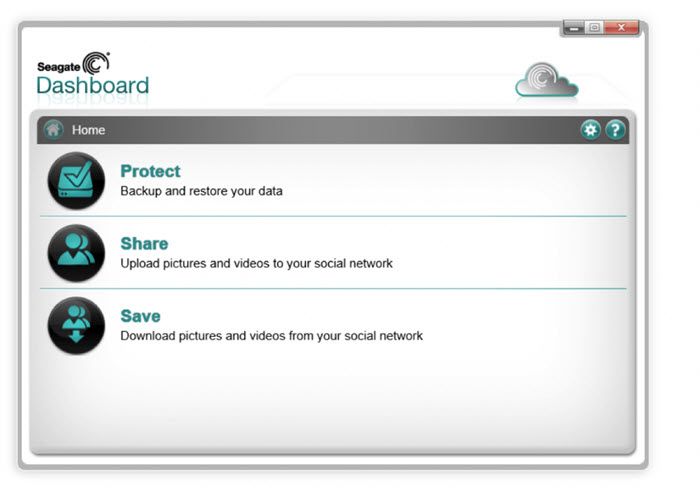
The tool is completely free to use and allows backup and retrieval of data through a Seagate drive like Backup Plus, or by storing it in Seagate's public cloud for online backup. You can also select specific data, such as media or files, for the restoration process.
You can automate backing up your data by using the Schedule Backup feature, which is preloaded on Seagate Drives, allowing you to back up your computer and mobile data to an external storage device or the Seagate cloud.
The Smart Copy feature allows for timely updates to the media gallery, but it also has drawbacks such as occupying plenty of space, limited preview file options, and the inability to efficiently manage storage.
Seagate Toolkit
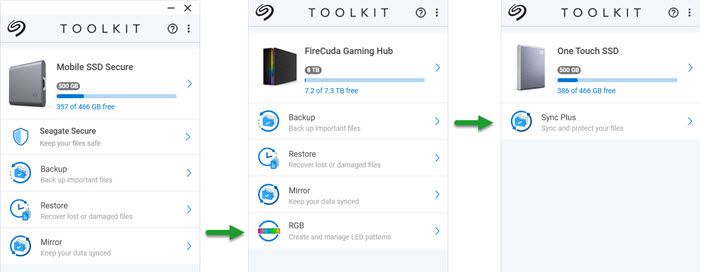
When users feel limited by the features of Dashboard, Toolkit steps in to provide additional functionality. It allows users to back up, retrieve, and synchronize data as needed, with the added benefit of saving multiple backup versions on the Seagate Plus. This means users can access specific versions of their data as required, and the option of cloud backup makes storing more data even more accessible.
The software allows for selective backup of specific files, media, documents, and data types if a full backup is not desired. It also features a Mirror Option for better synchronization of data on an External Drive. Additionally, the software supports automatic scheduling of the backup process. However, the backup process can be a hassle compared to other software, and the tool is only compatible with Seagate drives, limiting its use. Furthermore, the lack of built-in virus scanning functionality poses a risk to the data on the drive.
SeaTools
The tool is a fantastic option if you want to check the condition of your PC's drive. It provides a comprehensive and easy-to-use diagnostic that can display the health of your drive and suggest potential fixes if needed.
It's crucial to check if the drives are older than 3-4 years, especially if they're heavily used for backup, as they may be nearing the end of their lifespan.
DiscWizard
To securely erase data from a drive before discarding it, you can use the DiscWizard software. This tool writes random data multiple times to the drive, effectively replacing old data with garbage data, making it impossible to recover using advanced recovery software. This ensures that any deleted data is completely erased, rather than simply being deleted.
How to Back Up Files with Seagate Backup Plus Software
Now that you have your Seagate Backup Plus Hard Drive, you can create a backup with your essentials. To do this, you'll need to know the process involved, which will help you execute it effectively.
The power cable that comes with the Seagate Backup Plus Hard Drive should be used, as other cables may cause damage due to variant voltage.
- Connect the power cable of the hard drive to the power source (electric socket) and the other end to the hard drive itself.
- Now, connect the USB-B point to the USB port of Seagate and the USB-A end to your PC
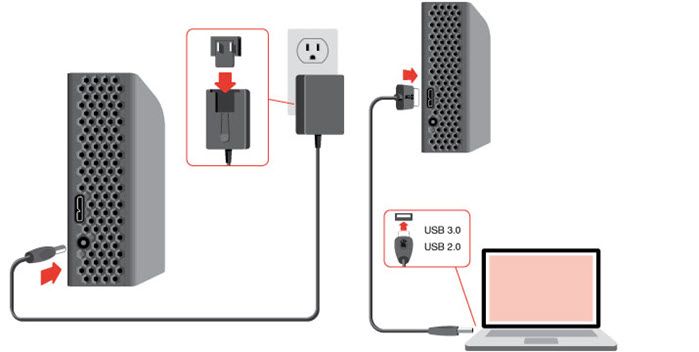
Ensure the USB-The USB cable is connected to a device with a USB-A end and a compatible port, and the LED indicator turns on, indicating proper connection and power reception.
The Seagate backup software, called "Seagate Dashboard", comes pre-installed on the Backup Plus external drive, but you still need to install it on your external drive to create a backup.
Follow the steps given below to do so:
Step 1: Open the Seagate Backup Plus folder on your computer.
Step 2: Locate the main folder of the drive
Step 3: If you have a Windows OS, click on the "Dashboard Installer.exe file" and install it.
Step 4: To install the Dashboard Installer on your Mac, download the Dashboard Installer.dmg file, then open it and follow the installation prompts. If you own a Mac, you can also install the Dashboard Installer by downloading the Dashboard Installer.
Further, you have to restore and backup using the app.
Stick to the below-mentioned method:
Step 1: To back up your PC, go to the Seagate Dashboard, then click on PC Backup, and finally select the "Protect Now" option.
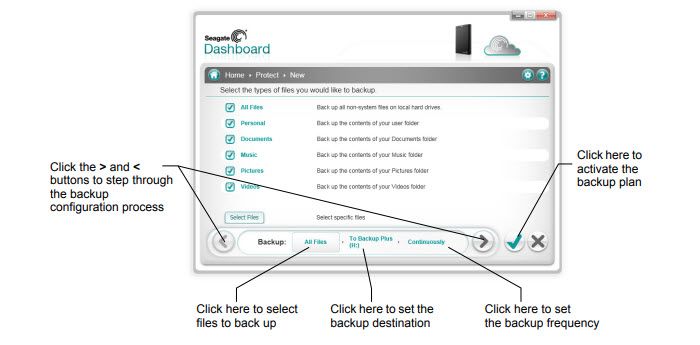
Step 2: On the PC Backup page, click to the right of the plan you want to change and select the type of data you want to back up, choosing between personal folders, specific folders and files, and then click "Continue".
Step 3: After selecting a storage drive, you have two options if backing up a network-attached storage drive: you can either back up to the public folder, making it visible to anyone on the local network, or sign in to back up to your private folder.
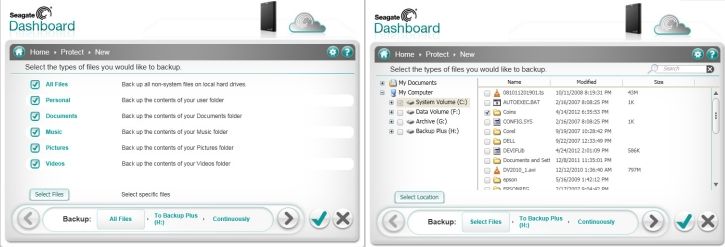 Step 4: Select a frequency and click Start backup. The backup will begin, and subsequent backups will occur according to the schedule.
Remember the 3-2-1 Backup Golden Rule.
The 3-2-1 Golden Backup rule is a simple yet effective way to ensure data safety. It involves having three copies of your data, two of which are local and one is offsite, and one is dated a day apart. This rule helps to prevent data loss due to hardware failure, human error, or natural disasters. By following this rule, you can rest assured that your data is safe and can be easily restored in case of an emergency.
The 3-2-1 backup rule states that you should maintain three clones of the data you want to back up: two isolated and on different storage devices, and one stored remotely.
To avoid losing important data, it's a good idea to store copies of your files on separate storage devices, such as hard drives or external drives, in different locations, so that if one device is damaged or destroyed, the other can serve as a backup. This can help prevent data loss and ensure that your information remains safe and accessible.
In the event of a disaster or natural calamity, both of your hard drives may be destroyed, making it essential to store a third copy remotely to ensure your data's safety. This can be done by maintaining it on a cloud server, at your office, or at a friend's home.
Is Seagate Backup easy-to-use perfect backup software?
Users tend to prefer Qiling Backup over Seagate Backup Dashboard due to several drawbacks in the latter, including lesser data security and unreliability. In contrast, Qiling Backup has established itself as a reliable and secure offline backup software, offering comprehensive features and easy access, making it a more appealing option for those seeking a trustworthy backup solution.
Seagate's cloud archive object feature offers a scalable storage solution for growing data needs. This cloud-based service (SaaS) provides a secure and flexible backup solution, protecting data from unauthorized access with unique user profiles.
Seagate software is difficult to use for backups and does not prioritize data security, with some users even finding it unreliable for the purpose.
Using effective and popular software is essential, and Qiling Backup is an application that makes backup easy with just a few clicks, keeping your data secure and eliminating the risk of losing it. It allows you to back up your System Partitions to an external drive, with options to choose between an image or zipped file, and also offers multi-cloud storage for personal or enterprise use.
You may learn how to use it through the following steps:
Step 1. Click the "File backup" button to start backup.

Step 2. Files from both local and network locations will be listed on the left, allowing you to expand directories and select the files to be backed up.

Step 3. Follow the on-screen guide to select the destination where you want to save the backup.

Step 4. To encrypt a backup with a password, click on the "Options" button and select the "Backup Options" tab. This allows you to customize the backup task to your needs and also explore other available options.
Set the backup schedule and choose to start backing up at certain event in "Backup Scheme".

Step 5. You can store the backup to local drive, Qiling's cloud service, and NAS.

Step 6. Qiling Backup allows users to back up data to both third-party cloud drives and its own cloud drive.
To back up data to a third-party cloud drive, select Local Drive, scroll down to add a Cloud Device, add and log in to your account.
Step 7. Click "Proceed" to start the backup, and once it's completed, the task will be displayed as a card on the left panel. You can further manage the backup task by right-clicking on it.

Frequently Asked Questions?
Q.1. How long do Seagate hard drives last?
Seagate hard drives can last from 30 to 120 years, depending on operations and maintenance, without being damaged.
Q.2. Which one is better, Seagate or WD?
Seagate and Western Digital serve different purposes and shouldn't be directly compared. Seagate is a well-established and reliable brand for external hard drives, while Western Digital is known for its internal hard drives. Ultimately, the choice between the two depends on your specific needs and requirements.
The Conclusion
Seagate provides free software like Dashboard and Toolkit to aid the backup process, but users often prefer third-party software like Qiling Qiling backup for a full offline backup that is easy and keeps data safe and secure.
Related Articles
- Elden Ring Backup Tips: How to Back Up Elden Ring Save Data
- [For All Users] How to Upgrade to Windows 11
- Can You Backup C Drive to OneDrive in Windows 10/11
- Why Is OneDrive Not Syncing on Windows PC? Answers and Fixes Are Here!
- Why Clone Hard Drive to SSD | How to Clone Hard Drive to SSD in Windows 10
Learn why cloning a hard drive to an SSD can improve performance and how to move Windows and data to an SSD safely. - Will Upgrading A Hard Drive To An SSD Make An Old PC Run Like New?
SSDs outperform traditional hard drives in terms of faster speed, more stable reliability, compact size, improved performance, and so on. Do you want to know if switching from an HDD to an SSD makes an old PC run like new? Read this post to find your answer.
Products
Articles & Tutorials
- Data Recovery
- Data Backup
- File Recovery
- File Backup
- System Backup and Restore
- Disk and Partition Clone
- Technical articles
- Mobile articles
- Disk Master Help
- Windows Data Recovery Tutorials
- Windows Secure Delete Tutorials
- Windows Partition Management Tutorials
- Windows File Backup and Restore Tutorials
- Windows System Backup and Restore Tutorials
- Windows Disk Backup and Restore Tutorials
- Windows Clone Tutorials