What is Seagate Discwizard? How Can I Use It and Its Alternative?
- What is Seagate DiscWizard for?
- Does Seagate DiscWizard Work with Non-Seagate drives?
- How to Perform Clone with Seagate DiscWizard?
- Professional Alternative - Try Another Disk/Partition Cloner
Introduction
Seagate DiscWizard is a software program designed for Seagate and Maxtor hard disk management. It allows users to download and utilize its features to perform various tasks such as backing up or cloning the disk, transferring the hard drive to another, and recovering from a disaster.
Seagate DiscWizard is a practical and simple-to-use disk cloning tool, but it has limited functionalities. Fortunately, there are alternatives available, and we will explore one of them in this article. Keep reading to learn more!
What is Seagate DiscWizard for?
Seagate DiscWizard is a software that helps keep computer data safe and secure by backing up the operating system, apps, settings, data, drives, and partitions.
Seagate DiscWizard offers data recovery solutions in case of data loss, accidental file or folder deletion, or a complete hard drive failure.
Seagate DiscWizard has a disk clone tool that allows you to transfer all data, including the operating system, apps, documents, and personal settings, from an old hard drive to a new one. This feature enables a seamless transition to a new hard drive.
Does Seagate DiscWizard Work with Non-Seagate drives?
Seagate DiscWizard is a backup and cloning software that allows you to back up your entire hard drive, including the operating system and apps, and create bootable rescue discs. It also provides the tools needed to backup, restore, and recover data. However, some users have reported issues with it failing to recognize drives, and it's worth noting that the software only works with Seagate and Maxtor drives.
Seagate hard drives come pre-The software, Seagate DiscWizard, allows for the cloning of a whole hard drive in various Windows operating systems, including XP, 7, 8, 8.1, and 10, without the need for additional software.
The user has multiple hard drives from different brands (Seagate, Western Digital, Samsung) and uses an SSD (Samsung 840EVO) as their primary boot drive. They successfully cloned their C partition to the SSD using DiscWizard.
If Seagate DiscWizard can't identify your drive, it could be due to a few reasons. The drive may not be properly connected or recognized by the system, or there might be a compatibility issue between the drive and the software.
- The hard disk is not manufactured by Seagate or Maxtor.
Note: Seagate DiscWizard is only compatible with Seagate and Maxtor hard disks.
- The Seagate DiscWizard utility does not support dynamic disks, which is a type of hard drive configuration referred to as a dynamic disk.
- The hard disk has a corrupted Master Boot Record (MBR), so attempting to reinstall the MBR may resolve the issue.
An antivirus program or third-If a party software is preventing access to hard disk devices, you can try deactivating the software temporarily to resolve the issue.
How to Perform Clone with Seagate DiscWizard?
Seagate DiscWizard is integrated software that allows you to move your operating system, apps, and data from one drive to another without restarting your computer, utilizing its clone function.
The clone functionality can be used to clone the whole disk, but it's limited to primary disks and cannot clone dynamic disks. This means that instead of cloning a single partition, the entire disk can be cloned, but the type of disk being cloned is restricted to primary disks.
Step 1: Download and run the Seagate DiscWizard software application.
Step 2: On the left-hand panel, choose the Tools tab.
Step 3: Select the Clone Disk function from the menu.
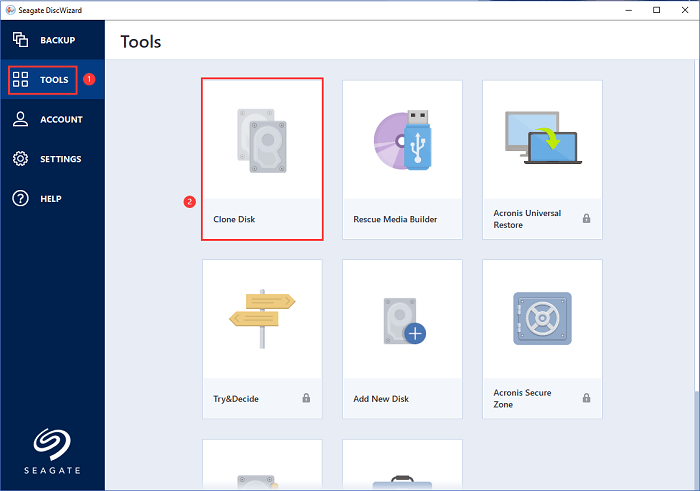
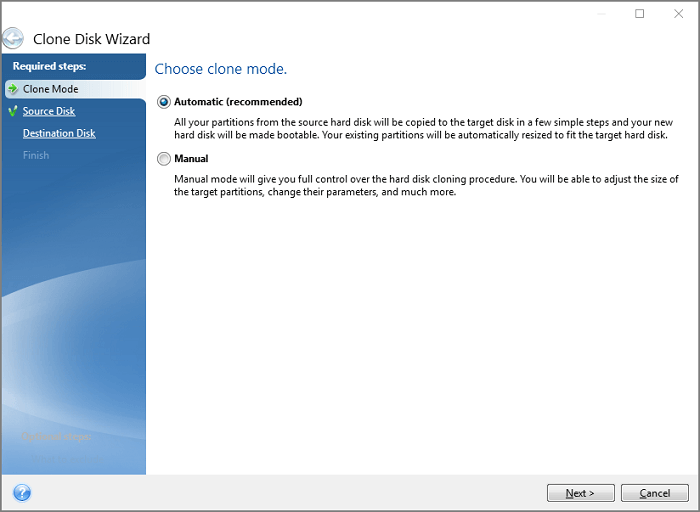
Step 4: Select the clone mode you want to use: Automatic or Manual. Click Next.
As seen in the following graphic, we choose Automatic (Recommended):
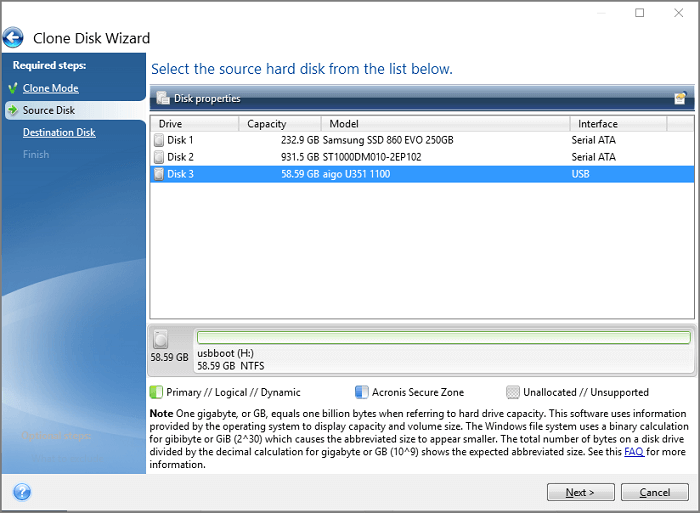
Step 5: Select the disk that you wish to clone and then press Next from the drive list.
Step 6: Choose a destination disk, press Next, and confirm the prompts in the window that appears.
Professional Alternative - Try Another Disk/Partition Cloner
If you're having trouble with Seagate Discwizard, you can use Qiling Partition Master as a more powerful alternative for tasks like cloning disks, managing partitions, and more.
Qiling Partition Master is a popular and user-friendly disk management application that offers a range of features, including formatting, copying, resizing, and managing disk partitions, as well as hardware RAID and detachable disks, making it a strong competitor in the market.
Qiling stands out as the top choice due to its ability to perform a range of disk partition operations with ease, including merging, adjusting size, cloning, and copying, all within a single click.
Step 1. Select the source disk.
Right-Click on the disk you want to copy or clone, then select the "Clone" option.
Step 2. Select the target disk.
Select the desired hard drive or solid state drive as your destination and click "Next" to proceed.
Step 3. To view the disk layout and edit the target disk partition size, you can use the Disk Management utility in Windows or a dedicated disk management tool. In Windows, go to Start, type "Disk Management" in the search bar, and open the Disk Management console. Here, you can view the disk layout, including the partition size, and edit the target disk partition size by resizing or reconfiguring the partitions as needed.
To reinstall Windows 10, you need to boot from a USB drive or CD/DVD with the Windows installation media. Insert the installation media, then restart your computer. When the computer boots from the installation media, follow the on-screen instructions to select your language preferences and other settings. Then, click "Next" to begin the installation process.
You can choose from three options: "Autofit the disk", "Clone as the source", or "Edit disk layout" to tailor your disk layout. If you want to leave more space for the C drive, select "Edit disk layout".
Step 4. Click "Proceed" to start the disk cloning process.
The premium upgrade of Partition Master provides technical assistance and the option to resize dynamic volumes, making it a useful tool for upgrading or cloning partitions, especially when migrating an operating system to an ultra-fast SSD or a new hard drive.
- Combine two SSD into one without losing any data.
- Organize and optimize the contents of your hard drive.
- Moving the Windows operating system to a Solid-State Drive (SSD) can improve the overall performance and speed of the computer, allowing it to run more quickly and efficiently.
- This tool helps in cloning or migrating a partition to an unallocated area, making it easier to manage disk space and move data to a new location.
- Easily resize, expand, shrink, and create dynamic volume.
Final Words
If you own a Seagate or Maxtor hard drive, Seagate DiscWizard is a useful software to have. However, if you're not among its users or are simply not satisfied with its functionality, you may want to consider Qiling Partition Master as a suitable alternative.
Qiling Partition Master is a comprehensive backup and clone software that also doubles as a best disk wipe software. It offers advanced features, including the capabilities of Seagate DiscWizard, and covers its limitations. The software enables users to perform tasks such as replacing a hard drive without losing data, recovering Windows from a bootable disk, and cloning a dynamic disk, among others.
Related Articles
- Top 5 Disk Management Tools for Windows 11 in 2022
- How to Convert MBR to GPT Without Reinstalling Windows
- 2022 Tips to Fix 100 Disk Usage in Windows 7/8/8.1/10/11
- Windows 11 Slow? How to Improve Windows 11 Performance
- Primary Partition, Logical Partition and Extended Partition
A disk partition is a defined storage space on a hard drive. All Windows operating systems can let users divide a hard disk into multiple partitions. - Free Format Hard Drive Partition with Qiling Disk Master
To free format a hard drive partition, you can use Qiling Disk Master, a software that allows you to separately format each partition on a hard drive.
Products
Articles & Tutorials
- Data Recovery
- Data Backup
- File Recovery
- File Backup
- System Backup and Restore
- Disk and Partition Clone
- Technical articles
- Mobile articles
- Disk Master Help
- Windows Data Recovery Tutorials
- Windows Secure Delete Tutorials
- Windows Partition Management Tutorials
- Windows File Backup and Restore Tutorials
- Windows System Backup and Restore Tutorials
- Windows Disk Backup and Restore Tutorials
- Windows Clone Tutorials