What Is Dell Boot Menu & How to Access?🔥
Dell, a well-known laptop manufacturer, offers a range of popular laptops, including the Dell XPS 13 OLED, Dell XPS 13 Plus, Dell Alienware M16, and Dell Latitude 7320. The article from Qiling provides information on the Dell Boot Menu and how to utilize it to resolve startup-related issues.
What Is Dell Laptop Boot Menu
The Dell boot menu, also known as the startup menu, is a list of options that appears when a Dell PC is first booted up, allowing users to select how their computer starts up. It typically includes choices such as booting from a CD, DVD, LAN, USB drive, or hard drive.
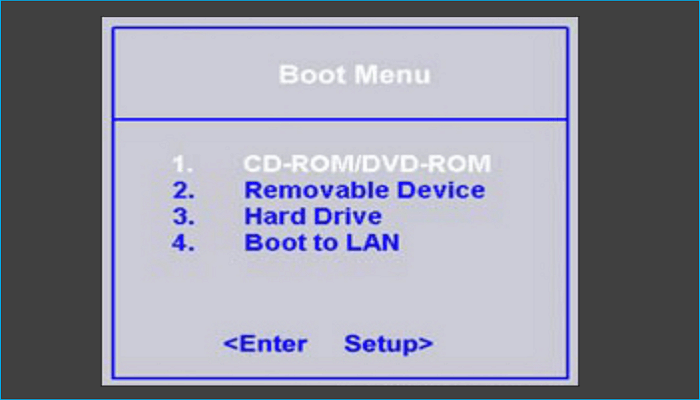
The Dell boot menu offers various options, including system information, boot device options, and BIOS settings, as well as Safe Mode and more. These options are useful for troubleshooting and resolving issues or accessing specific features, making it a helpful tool for users with unique needs or problems to solve on their Dell computer running a Windows operating system.
How to Enter Dell Boot Menu
To enter the Dell boot menu, press the F2 key on your keyboard when you first turn on your Dell computer. This will open the Dell boot menu, also known as the BIOS settings. From here, you can access various tools and options to troubleshoot and fix startup issues, repair your computer, and more.
The Dell boot menu key is F2 or F12, but for some old models, it may be Del, Ctrl+Alt+Enter, Fn+Esc, or Fn+F1.
Share this article on social media if you find it useful.
How to Access Dell BIOS
The Dell BIOS key most frequently pressed to access the BIOS is F2, allowing you to change the boot order and settings for BIOS-related functions in the BIOS Settings menu, which is part of the Dell boot menu.
Step 1. Turn on your Dell computer.
Step 2. To access the BIOS or System Setup on a Dell computer, press the F2 key repeatedly at the Dell logo screen until you are able to enter the settings.

Step 3. To access the BIOS settings, press the F12 key multiple times until the One Time Boot Menu appears, then select BIOS Setup or System Setup from the menu.
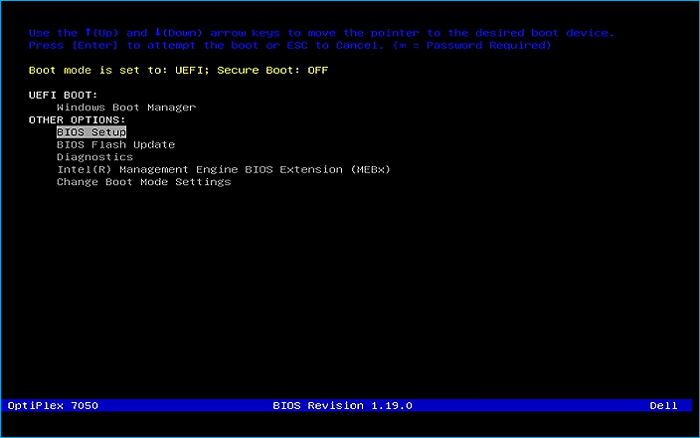
If you're experiencing issues related to BIOS, you may find some helpful articles that can guide you in resolving the problems. Simply reading through them may provide the necessary information to get rid of the issues you're facing.
Use Dell Boot Menu for Startup Issues
To access the Dell boot menu, press the F2 or F12 key when the Dell startup screen appears, and then select the "Boot Options" or "Boot Device Priority" menu to change the boot order.
If you're experiencing issues with the system initialization skipping past the Dell startup screen, you can also try pressing the F2 or F12 key repeatedly during boot-up to access the boot menu.
If you're unable to access the boot menu, you may need to consult your computer's manual or contact Dell support for further assistance.
Note: You will need Windows boot media or Windows installation media.
Step 1. Insert the bootable or installation media into a USB port.
Step 2. Turn off your computer, and as soon as the Dell logo appears on the screen after turning it back on, quickly press the F12 key until the Preparing one time boot menu appears.
Step 3. Under UEFI BOOT in the boot menu, choose the USB or DVD device that best fits your media type.
Step 4. When the computer boots from the USB, click on the "Repair your PC" option, select language and preferences, then click Next. Choose Troubleshoot, then Advanced options, and select Command Prompt.
Step 5. Select Advanced options under Troubleshoot.
Windows should automatically open the Advanced startup settings panel the next time it starts up if it encounters any startup issues.
To restart your computer in safe mode, click on the power icon in the lower right corner of the screen at the system login screen. While holding down the Shift key, click the restart icon, then select Advanced options by clicking Troubleshoot.
To access the Settings application, enter settings in the search bar, then select the Update & Security category. After that, select Recovery from the left menu. Finally, click the Restart now button under Advanced Startup on the right side of the screen.
Your computer will restart and enter the Options window. Then, tap Troubleshoot and click Advanced options.
To Wrap Things Up
The Dell boot menu, also known as the Boot Menu or OneBoot, is a feature on Dell laptops that allows users to select which device to boot from, such as the hard drive, USB drive, or CD/DVD drive.
To enter the boot menu, users can press a specific key during the boot process, such as F2, F12, or Del, depending on the laptop model.
By accessing the boot menu, users can troubleshoot boot issues, reinstall the operating system, or run diagnostics on their Dell laptop.
If you have any issues with the Dell boot menu, you can refer to the user manual or contact Dell support for assistance.
Related Articles
- What Is Safe Mode on Windows and How to Enable It? [Full Guide]
- All Information About System Restore Explorer [Updated 2023]
- What Is Mac Startup Disk | Accidentally Deleted Startup Disk on Mac [Fixed]
- eSATA External Hard Drive: Everything You Should Know
- [Full Guide] How to Factory Reset PC Without Turning It On
Make your PC brand new and super fast with the help of factory reset settings. Learn different methods and techniques for how to factory reset pc without turning it on. Also, find out details of EasyUS software to create a backup in your window before the factory reset. - How to Factory Reset Windows 10 Without Settings | 3 Ways🔥
Windows 10 is now the most popular operating system in the Windows family, owning the biggest market share. In this article, we'll tell you how to factory reset Windows 10 without settings and make your PC fresh without losing any data and apps.
Products
Articles & Tutorials
- Data Recovery
- Data Backup
- File Recovery
- File Backup
- System Backup and Restore
- Disk and Partition Clone
- Technical articles
- Mobile articles
- Disk Master Help
- Windows Data Recovery Tutorials
- Windows Secure Delete Tutorials
- Windows Partition Management Tutorials
- Windows File Backup and Restore Tutorials
- Windows System Backup and Restore Tutorials
- Windows Disk Backup and Restore Tutorials
- Windows Clone Tutorials