What Is Mac Startup Disk | Accidentally Deleted Startup Disk on Mac [Fixed]
What Is Mac Startup Disk
The Mac startup disk, also known as a boot disk, is a volume where the operating system and applications are installed. It plays a crucial role in the operation process. If there's no startup disk or it's corrupted, the Mac will fail to boot or function properly.
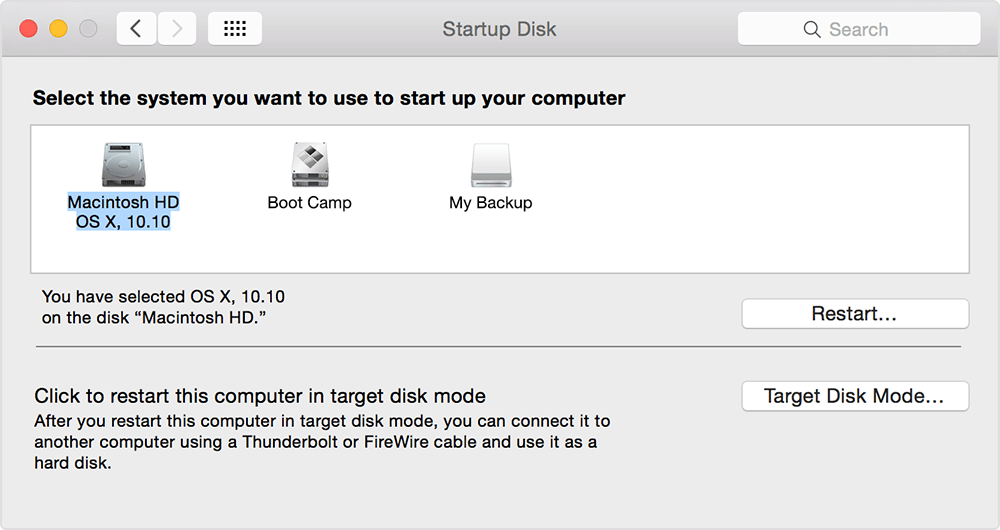
The primary internal hard drive on your Mac, known as Macintosh HD, is the startup disk where your Mac boots from automatically. If there's only one internal hard drive, it's the startup disk, and your Mac will automatically boot from it when turned on.
If you have multiple internal hard drives, you can choose which one to boot from, or if your Mac won't turn on, you can boot from an external hard drive. This is useful if you don't have a startup disk on your Mac.
How to Find Mac Startup Disk
Using Disk Utility, a single disk can be divided into multiple sections, known as partitions, volumes, or containers, to help organize and manage disk space effectively.
To find out which disk is your Mac's startup disk, you can check the System Information window. Here's how: click the Apple menu, then select "About This Mac," followed by "System Report.
Step 1. Choose "Apple menu > System Settings".
Step 2. Click "General" in the sidebar.
Step 3. Click "Startup Disk" on the right.
You can see which volume is used as your startup disk by looking at the startup disk volume in the System Information app.
How to Change Mac Startup Disk
If your Mac won't start due to a no startup disk issue, you can try various methods to display the startup disk, but if those don't work, you may need to change the Mac's startup disk.
Apple allows users to change their Mac startup disk using various external storage options, including network volumes, external hard drives, and USB flash drives.
If your default startup disk is corrupted, you can change your Mac startup disk by booting from another startup disk and using the Disk Utility to erase the corrupted disk and reinstall macOS.
Alternatively, you can use a bootable clone of your startup disk to boot your Mac and then use the original startup disk as the secondary disk. This will allow you to continue using your Mac without the corrupted disk as the startup disk.
- Change the Mac Startup Disk with Startup Manager
- Change Mac Startup Disk in System Preferences
If you're a Mac user looking to change the startup disk, you're in the right place. This article will guide you through two simple steps to switch to a different startup disk, providing a convenient solution for those who need to adjust their Mac's startup settings.
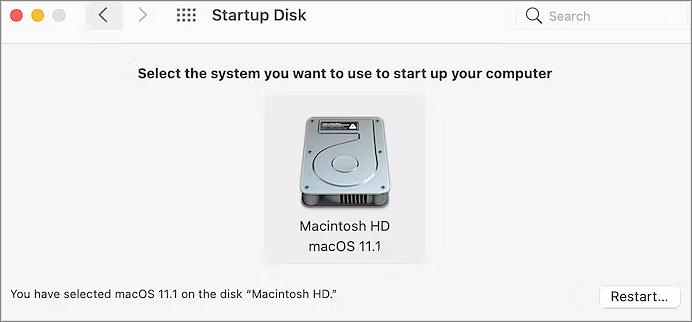
After changing the Mac startup disk, you can set a default startup disk on macOS Ventura, Monterey, Big Sur, and earlier versions. This involves going to System Preferences, selecting Startup Disk, and selecting the desired startup disk from the list.
Share this article on social media so that you can read it anytime.
Accidentally Deleted Startup Disk, How to Solve
If your Mac is experiencing errors like "no startup disk on Mac" or "startup disk missing/not showing on Mac" after accidentally deleting the startup disc, you can try the following solutions to resolve the issue.
Solution 1. Repair Startup Disk in macOS Recovery Mode
To access Disk Utility, you can't simply open the Applications folder and select the Utility folder. Instead, you'll need to enter Disk Utility from macOS Recovery mode.
MacBook users who encounter the error "startup disk in MacBook Pro missing" are advised to press Command + R or hold down the option/alt key to boot to the Recovery Volume, and then run Disk Utility to verify or repair the disk and repair permissions until all errors are resolved.
Another method to solve this problem is as follows:
Step 1. To reset your MacBook Pro, shut it down, then immediately turn it back on while holding down the Command, Option, P, and R keys. Release the keys when you hear the startup chime for the third time. This process will reset the System Management Controller (SMC) and Power Management Unit (PMU), which can resolve issues like overheating, battery drain, or other system problems.
Step 2. Plug the MagSafe power adapter into a power source and connect it to your MacBook Pro if it's not already connected.
Step 3. To initiate the force restart on your MacBook, press the "Shift + Control + Option" keys and the power button on the built-in keyboard at the same time. This will force the device to restart, bypassing the normal shutdown and startup process.
Step 4. To wake your Mac from sleep mode, press the power button or any key on the keyboard. This can help restore normal operation if your Mac has become unresponsive.
Step 5. Press the power button to turn on MacBook Pro.
Step 6. To enter the Hardware Test, restart your MacBook Pro and hold down the D key. Follow the on-screen instructions.
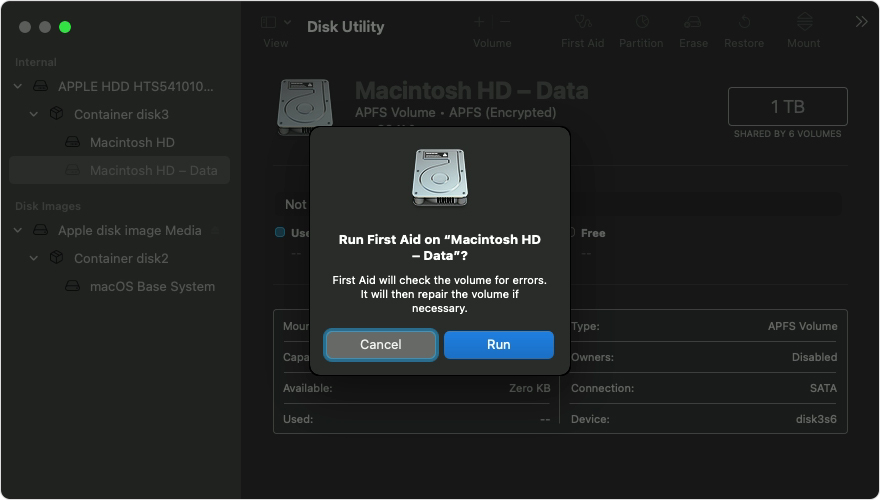
When booting externally, open the Go menu, launch Utilities, and then Disk Utility. Look for your internal drive in the list of hard drives and use First Aid to run diagnostics and potentially repair it.
Solution 2. Make the Startup Disk Appear in Disk Utility
To repair a startup disk that's not showing up in Disk Utility, you can use the Disk Utility app to check and repair any issues with the disk. If the disk is not visible, you can try booting from a different startup disk or using a bootable USB drive to access the Disk Utility app.
Once you've accessed the Disk Utility app, you can select the startup disk and choose the "Verify Disk" or "Repair Disk" option to check and repair any problems.
Solution 3. Reset NVRAM to Fix Startup Disk Not Showing
Resetting NVRAM will help resolve the issue. The NVRAM stores the settings of the startup disk selection, and resetting it may resolve the problem.
You can get the details and steps for solutions 1 to 3 in the following article:
Fix No Startup Disk on Mac Without Losing Data
If you're experiencing startup disk issues on macOS Ventura, Monterey, Big Sur, Catalina, Mojave, or during major macOS updates, Qiling can help you fix the problem and recover your data. No startup disk issues happen on macOS Ventura, Monterey, Big Sur, Catalina, Mojave, and major macOS updates! Here are methods to fix startup disk errors and recover data with Qiling.
Solution 4. Recover Data from Mac Startup Disk
After fixing the no startup disk issue, your Mac's startup disk should be visible again. However, you might find that some essential files are missing, resulting in lost data.
If you don't have a complete backup of your startup disk, it's recommended to use Qiling Data Recovery Wizard for Mac to recover the lost data, even if the built-in boot disk is damaged.
This top-notch recovery tool can recover deleted files of all sizes on a Mac, including a single Office Word document or a large number of images, from various data loss circumstances.
This professional tool is considered the best Mac data retrieval software, allowing users to recover lost data, including items deleted from the Mac Trash, with just three easy steps.
Step 1. Search for lost files on your Mac startup disk.
Step 2. Go through the scanning results.
Step 3. Select the files to recover.
How to Clean Mac Startup Disk
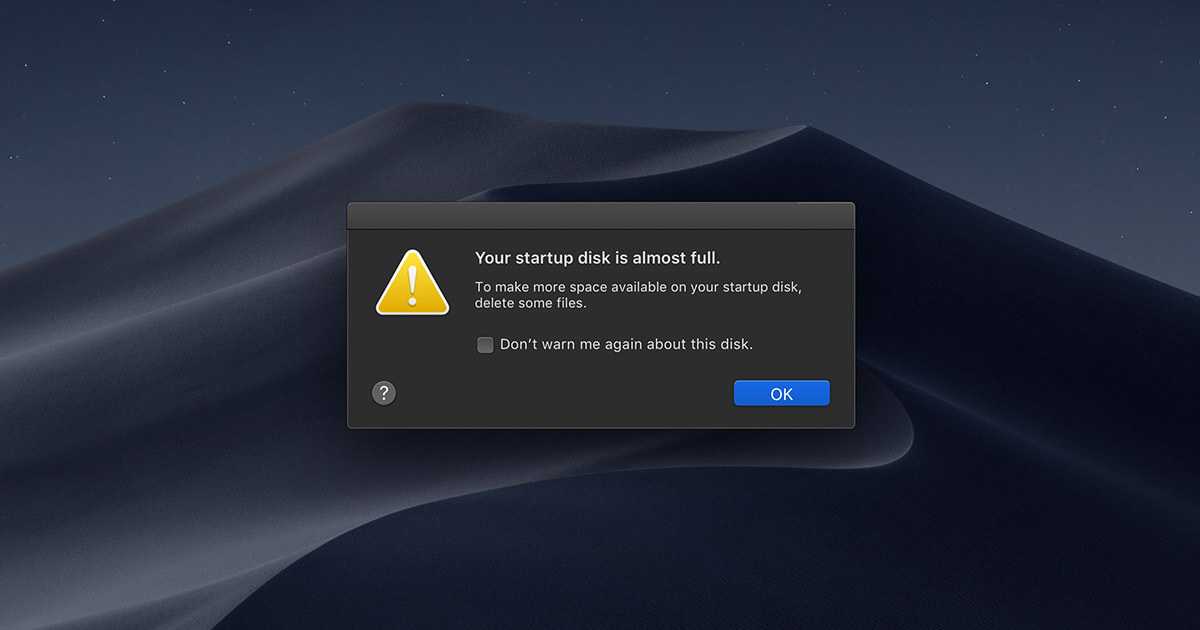
If your Mac alerts you that "Your disk is almost full", it is likely referring to your startup disk. This message indicates that your files, macOS, and all installed apps are probably stored on this disk, including documents, movies, music, downloads, and more.
How to Check Free Space of Mac Startup Disk
Regularly check how much free space you've got left on your Mac's startup disk so you can fix any problems as they develop, even if it hasn't warned you yet.
To see how much space is available on your Mac's startup disk, go to About This Mac, then click on Storage, and you'll see a bar graph showing the amount of free space available. You can also click on the Manage button to see more details about your storage usage.
Step 1. To access the Mac startup disk in the Finder, open a Finder window and select the Mac startup disk from the Locations section of the Finder sidebar.
Step 2. To access the "Get Info" feature, go to "File" and select "Get Info". Then, click the arrow next to the "General" tab.
Hover your cursor over the chart to see how much space each category uses, and hover over the white section on the right to see how much free storage space is still available.
Ideally, you should keep about 20GB of storage space available.
How to Clean Mac Startup Disk
After determining how much space is left on your Mac startup disk and what types of files are consuming it, it's time to clear system storage to free up space on your startup disk.
Here are the best methods to free up your startup disk:
- Empty the Trash
- Clear Time Machine Snapshots
- Remove Unnecessary iOS Backups
- Delete Cache Files in the Library
- Update macOS Version
Conclusion
A Mac's startup disk, also known as the boot disk, is a volume where the operating system and applications are installed, playing a crucial role in the operation process. This can be changed using the Startup Manager or within System Preferences, allowing users to switch between different startup disks if needed.
You can free up space on your Mac's startup disk by emptying the Trash, clearing Time Machine Snapshots, removing unnecessary iOS backups, deleting cache files in the Library, and updating the macOS version.
Related Articles
- What is Windows Image Boot (WIMBoot)?
- M2 Pro vs M2 Max | Price, Battery Life, CPU, and GPU
- Windows KB Update: KB3194798 | KB 3192441 | KB 3192440
- New 16TB External Hard Drive Released: Perfect for Storing Large Data Files
- What Is the Best LG TV USB Format & How to Set It? [Step-by-Step Guide]
This guide will hely you to choose the suitable format for LG TV USB. And you will also be familiar with the three simplest ways to set the best LG TV USB format. - Fix Mark Partition as Active Greyed Out in Disk Management in Windows 10/11
Fix Mark Partition as Active greyed out in Windows. Learn why the option is unavailable and how to repair boot partition settings.
Products
Articles & Tutorials
- Data Recovery
- Data Backup
- File Recovery
- File Backup
- System Backup and Restore
- Disk and Partition Clone
- Technical articles
- Mobile articles
- Disk Master Help
- Windows Data Recovery Tutorials
- Windows Secure Delete Tutorials
- Windows Partition Management Tutorials
- Windows File Backup and Restore Tutorials
- Windows System Backup and Restore Tutorials
- Windows Disk Backup and Restore Tutorials
- Windows Clone Tutorials