Windows KB Update: KB3194798 | KB 3192441 | KB 3192440
The numerous Windows KB updates can be confusing, but understanding their purpose is crucial for enhancing the Windows experience.
This article from Qiling explains what Windows updates are and why they're important, covering three versions (KB3194798, KB 3192441, KB 3192440).
It also provides guidance on how to get and install update patches on your system. By reading on, you'll grasp the significance of these updates and be able to navigate them with confidence.
What Is Windows Update
Windows Update is a free service that provides updates for Windows OS, each assigned a unique KB number for easy identification and troubleshooting.
Microsoft releases updates to fix bugs, enhance system functionality, introduce new features, optimize system performance, and improve security for computers.
Here is more information you might be interested in:
(Don't Panic!) Windows Update Stuck on Restarting
Many Windows users experience frustration when upgrading to Windows 10/11 due to updates getting stuck on restarting, causing inconvenience and delay.
Catalogue of KB3194798 | KB3192441 | KB3192440
There are thousands of KB updates across different versions of Windows over time. Each KB update has a unique identification number, and each of them targets certain system issues. Here are 3 versions you may have encountered.
KB3194798
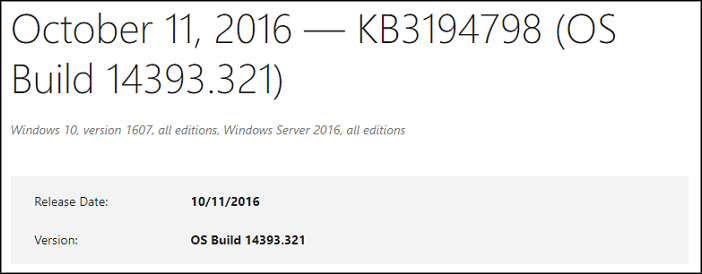
Update time: October 11, 2016
Update content:
- Enhanced Bluetooth connectivity and storage file system stability.
- A previously existing issue was resolved, where printer drivers were not installed correctly following the installation of security update KB3170005.
- Fixed an issue where installing security update KB3167679 may cause errors if a password is input incorrectly or a new password doesn't meet password complexity requirements.
- The issue where users are required to log out and log in again before using the application they installed with the Windows installer (MSI) has been fixed.
- The APN is a database that stores information about available networks, allowing devices to connect to them. Adding new entries to the APN enhances support for networks by providing more options for users to choose from, increasing the chances of a successful connection.
- A bug was fixed that was causing excessive battery consumption on Windows 10 Mobile devices when they were connected to Wi-Fi.
- Fixed an issue where sometimes Windows 10 Mobile's fingerprint and iris recognition setup fails. This is due to the fact that Microsoft does not support the use of both fingerprint and iris recognition at the same time on Windows 10 Mobile.
- Fixed an issue of high CPU usage on Windows 10 Mobile.
- The update fixed issues with multimedia playback, authentication, Internet Explorer 11, Windows Shell, and revised daylight saving time.
- Security updates were made to Internet Explorer 11, the Windows registry, Microsoft Edge, and the diagnostics hub.
KB3192441
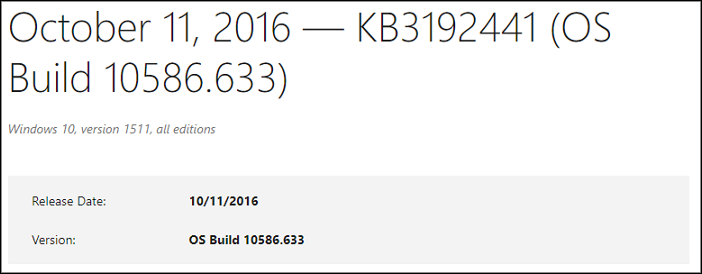
Update time: October 11, 2016
Update content:
- The Windows 10 November Update, also known as the Windows 10 Fall Update, provides enhanced stability for kernel mode drivers, Internet Explorer 11, Windows graphics device interface (GDI), and the ability to download apps from Microsoft Store.
- Fixed an issue where printer drivers were installed incorrectly after installing security update KB3170005.
- Fixed an issue where installing security update KB3167679 can cause errors if a password is input incorrectly or if a new password doesn't meet password complexity requirements.
- A fix was implemented to resolve an issue where using a custom style sheet in Internet Explorer 11 could cause the browser to fail.
- A fix was implemented to prevent the scrollbar position from being reset when the display property is set to none in Internet Explorer 11.
- A script in a nested frameset was not working correctly in Microsoft Edge, but the issue has been fixed.
- The update enhances support for websites by updating the HTTP Strict Transport Security (HSTS) preload list, which helps protect users by preventing them from accessing a website using an insecure connection. This update improves the security of websites by ensuring that users are redirected to the secure version of the site if they attempt to access it using an insecure connection.
- Azure Active Directory (AAD) support and improved upload and download of telemetry settings in a proxy environment have been added.
- The issues with Internet Explorer 11, Microsoft Edge, WebDAV, and daylight saving time have been resolved, resulting in improved functionality and user experience.
- Security updates were made to Microsoft's Graphics Component, kernel-mode drivers, diagnostic hub, Windows registry, and Internet Explorer 11.
KB3192440
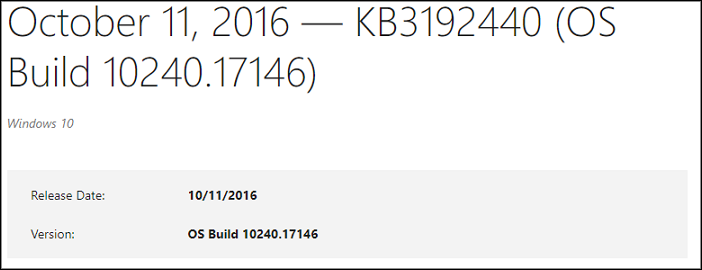
Update time: October 11, 2016
Update content:
- Enhanced Windows graphics device interface (GDI) stability.
- A security update (KB3170005) was causing printer drivers to be installed incorrectly, but the issue has been fixed.
- Fixed an issue where installing security update KB3167679 can cause errors if a password is input incorrectly or a new password doesn't meet password complexity requirements.
- A bug was fixed where using a custom style sheet in Internet Explorer 11 would cause it to crash.
- The update adds new entries to the APN database, enhancing support for networks.
- The HTTP Strict Transport Security (HSTS) preload list has been updated to provide enhanced support for websites. This update aims to improve the security of online interactions by ensuring that websites are accessed over secure connections.
- Fixed an issue with revised daylight saving time.
- Fixed additional issues with Internet Explorer 11 and licensing.
- Security updates were made to various Microsoft components, including Microsoft Graphics Component, Microsoft Edge, kernel-mode drivers, Internet Explorer 11, diagnostic hub, and Windows Registry.
How to Install Windows KB Updates
Now that you've learned about the different system patches, new functionalities, and security improvements of these 3 Windows KB Update versions, it's time to learn how to obtain and install one of these updates.
Installing the right updates will help optimize system performance and improve your overall user experience.
Way 1. Manually Search and Download KB Updates on Website
You can visit the official Microsoft website to search and download the specific version of Windows Update.
Step 1. Go to the Microsoft Update Catalog website.
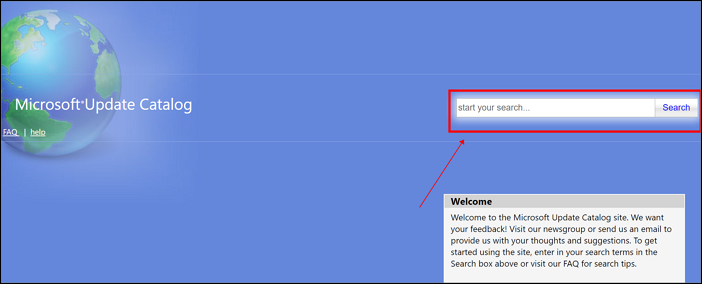
Step 2. Search the KB number in the search box.
Step 3. Click to start downloading.
The website provides detailed information on each version, allowing users to choose which updates to download and install individually.
Way 2. Update Through Windows Update
You can download and install a new KB update through the Windows Update automatically.
Step 1. Click "Start" in Taskbar and then click "Settings".
Step 2. Enter "Windows Update".
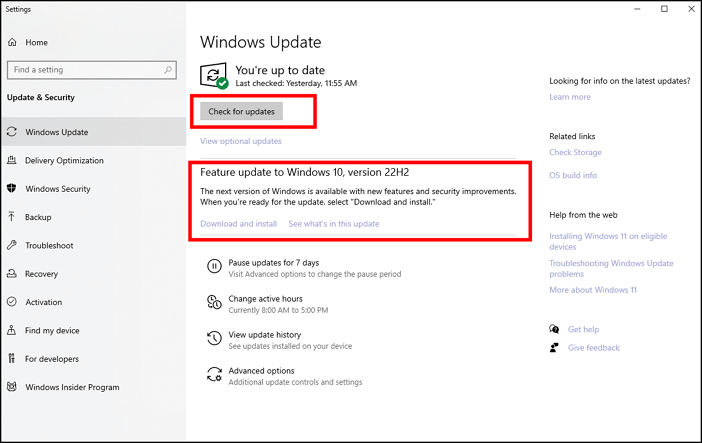
Step 3. Check and update the new KB version for your Windows.
To minimize disruptions to your work, schedule active hours to avoid updates during this time. Additionally, enable notifications to alert you when a restart is required to complete the update process.
- Notice:
- KB3194798, KB3192441, and KB3192440 are no longer applicable as they were updated in 2016. There's no need to search and install them on your Windows.
Conclusion
Windows KB Update is a service that provides patches to fix bugs, optimize the system, update drivers, and offer support information. Users can manually update or schedule automatic updates.
To avoid data loss or system errors, it's essential to back up important files in Windows before installing updates. Reliable backup software such as Qiling Disk Master can help protect your data.
Related Articles
- macOS Sonoma vs. Ventura: Should You Upgrade macOS 14 [2023 Updated]
- Ultimate Guide on Network and Sharing Center [Updated 2023]
- Delete Files Using rm Command on Windows, Linux, and Mac
- What Is Application Support Folder Mac | How to Restore It
- Stardew Valley Saves Location: All You Want to Know
Find Stardew Valley saves location on Windows, Mac, Linux, and mobile. Learn how to back up, move, and recover Stardew Valley save files. - Steam Deck Format SD Card Grayed Out? How to Fix
Fix Steam Deck format SD card grayed out. Learn why formatting is unavailable and how to prepare or repair the SD card.
Products
Articles & Tutorials
- Data Recovery
- Data Backup
- File Recovery
- File Backup
- System Backup and Restore
- Disk and Partition Clone
- Technical articles
- Mobile articles
- Disk Master Help
- Windows Data Recovery Tutorials
- Windows Secure Delete Tutorials
- Windows Partition Management Tutorials
- Windows File Backup and Restore Tutorials
- Windows System Backup and Restore Tutorials
- Windows Disk Backup and Restore Tutorials
- Windows Clone Tutorials