What Is Application Support Folder Mac | How to Restore It
What Is Application Support Folder Mac
The Application Support folder on a Mac stores various files from installed applications, ensuring they function properly on macOS. These files include registration information, settings, and configuration data.
On a MacBook Pro or other Mac models, application subfolders are created and stored in the Application Support folder. Even after uninstalling apps, leftover data may remain in their subfolders.
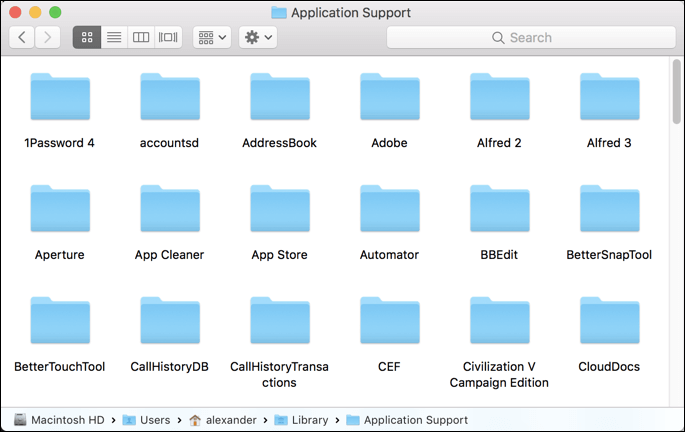
Users can restore previous settings when reinstalling deleted applications, and the Application Support folder can be used to make modifications or address errors related to specific apps.
In most cases, it is not recommended to access the Application Support folder unless you know what you are doing, as modifying files in it can affect the behavior of installed applications.
How to Find Application Support Folder
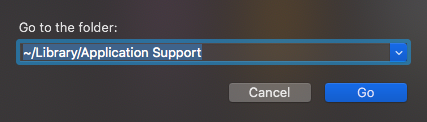
To find the Application Support folder on your Mac, simply click the "Go" menu in the top navigation bar of your Finder window, then select "Go to Folder" from the dropdown menu. In the dialog box that appears, type in "~/Library/Application Support" and press Enter.
Step 1. Open Finder on your Mac, and click "Go" on the Apple menu bar.
Step 2. To access the "Go to Folder" option, select it from the Go menu or press the key combination Shift + Command + G.
Step 3. To navigate to the ~/Library/Application Support directory in the Finder, type the path into the search box and press "Return".
The Application Support folder on a Mac contains numerous subfolders, each serving a specific purpose for various applications. These folders are used by software to store data, settings, and other information that is not user-generated.
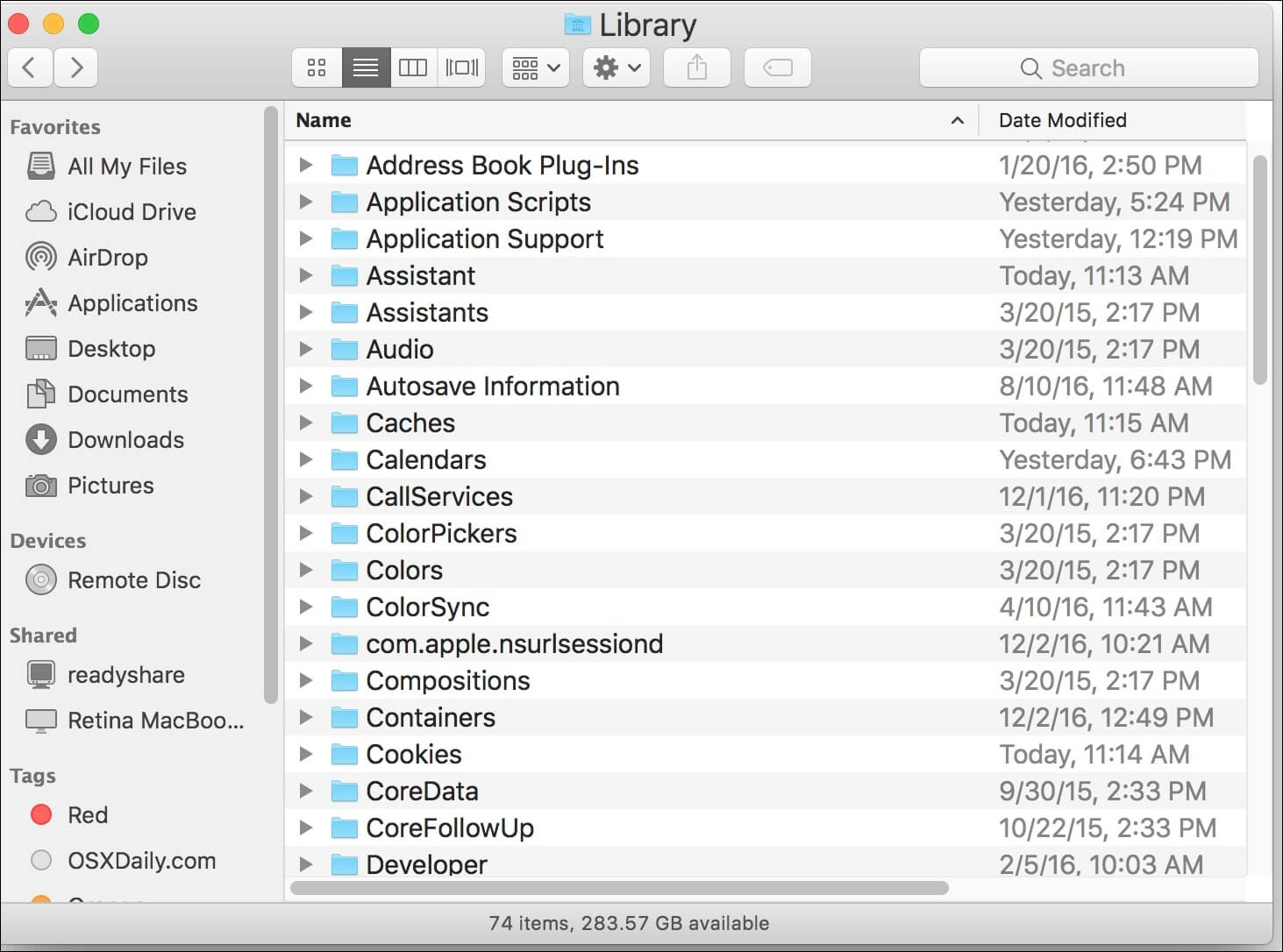
Can You Delete Application Support Folder
It is generally safe to delete files in the Application Support folder, but only for applications that you have uninstalled or no longer use. Deleting files from the Application Support folder of still-installed applications can cause issues with those apps. To free up space on your Mac, only delete the subfolder of an uninstalled application.
If you are using an app that you plan to keep, do not delete its subfolder in the Application Support folder, as doing so may cause the app to malfunction and stop working properly.
After uninstalling an application on Mac, most of its data remains in the Application Support folder. To free up space, it is essential to manually delete the leftover files of deleted applications in this folder.
Application Support Folder Mac Missing
The Application Support folder on a Mac is crucial for running installed programs, but it can sometimes go missing due to various reasons. This folder is essential for storing application-specific data and preferences, and its absence can cause issues with program functionality. The main reasons for the missing Application Support folder include accidental deletion, formatting of the startup disk, or corruption of system files, which can be caused by malware, software glitches, or other system-related problems.
Application Support folder is hidden: In some Mac settings, the Application Support folder is hidden by default to prevent users from accidentally causing program errors.
Accidentally deleted the Application Support folder: Users may delete files from the Application Support folder on their Mac to free up storage space, as this folder can accumulate data from various apps that take up too much space, prompting users to clean up system data.
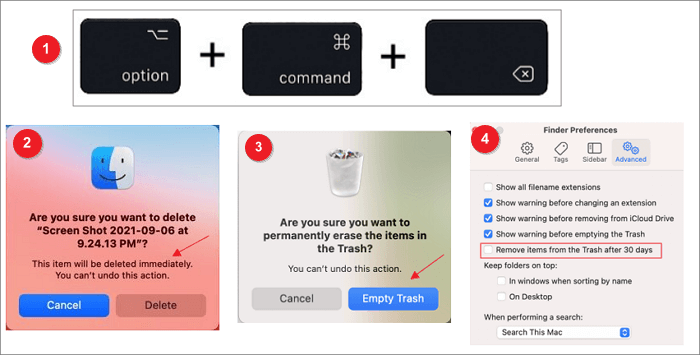
Here's how to recover deleted files on a Mac after the trash bin has been emptied: You can use a data recovery software like Disk Drill, Deep Data Recovery Wizard, or Stellar Data Recovery to scan your Mac's hard drive and recover deleted files. These software tools can scan for deleted files even after they have been emptied from the trash bin.
Recovering deleted files on a Mac can be a daunting task, but it is not impossible. If the files were deleted before the Trash bin was emptied, they may still be recoverable using data recovery software or a file recovery service. If the files were deleted after the Trash bin was emptied, it is still possible to recover them, but the chances of success decrease with each passing day.
Corruption of the Application Support folder: A missing Application Support folder can occur when the operating system, macOS, is interrupted or corrupted by a virus infection while writing data, potentially causing the folder to be lost or deleted.
Restore Missing Application Support Folder on Mac
Restoring the missing Application Support folder on Mac is essential for ensuring the normal operation of applications, as files in this folder are a crucial condition for their proper functioning. To avoid data loss, it is recommended to use one of three methods to restore the accidentally deleted Application Support folder, in addition to retrieving it from the Mac Trash.
Method 1. Unhide Folders to Restore Application Support Folder
To unhide your Application Support folder on a Mac, follow these steps:
Step 1. Open "Finder" on the Apple menu bar.
Step 2. Click "Go" and then select "Go to Folder".
Step 3. To open the Library folder on your Mac, simply type ~/Library into the search box, hit "Return," and the folder will open.
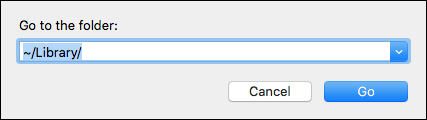
Step 4. To unhide any files or folders in Finder on a Mac, press the keys "Command + Shift + ." (period) all at once. This will reveal any hidden items.
Method 2. Restore Application Support Folder with Time Machine Backup
If you enabled Mac Time Machine before the Application Support folder became empty or missing, you could restore files in the Application Support folder with the snapshots created by the Time Machine backup function. Just follow the steps below:
Step 1. Open "System Preferences" and go to "Time Machine".
Step 2. To enable the Time Machine menu bar icon, go to System Preferences, then click on Time Machine, and select the "Show Time Machine in menu bar" option. Once you have made this selection, close the System Preferences window.
Step 3. Select "Finder > Go to Folder", and type ~/Library/Application Support.
Step 4. Hit "Return". Then click "Enter Time Machine" of the Time Machine icon.
Step 5. To locate a snapshot of your Library folder using the arrow buttons, navigate to the Library folder on your computer, then use the arrow buttons to scroll through the contents until you find the desired snapshot. Alternatively, you can use the search function to quickly find the snapshot you are looking for.
Step 6. Click "Restore" to recover your Application Support folder.
Restoring the Application Support folder from a Time Machine backup will replace the current state of the folder with the version from the snapshot, effectively reverting any changes made since that backup was taken.
Method 3. Restore Application Support Folder using Data Recovery Software
If you do not have backups from Time Machine, you can still recover data from the Application Support folder using data recovery software like Deep Data Recovery for Mac, which can help you recover data quickly and effectively.
Deep Data Recovery for Mac
- To recover permanently deleted files on a Mac, you can use built-in tools or third-party software. The "Time Machine" feature, enabled before the deletion, can restore files from backups.
- After a system crash or macOS Ventura update, you can recover missing files using Time Machine backups, Disk Utility, or third-party file recovery software like Disk Drill or Deep Data Recovery Wizard. These tools can scan your hard drive or external storage devices for deleted files and help you restore them.
- To recover suddenly disappearing files on Mac, corrupted hard drive files, missing files on external hard drives, and other data loss issues, consider using a reliable data recovery software. These tools can scan your device or storage media, identify and retrieve lost files, and even recover files from formatted or corrupted drives.
To restore a missing Application Support folder on a Mac, you can follow these steps. First, open the Terminal application on your Mac, which can be found in the Applications/Utilities folder.
Step 1. Select the drive to be scanned
Select the drive from which you want to recover lost files and click "Search for lost files" to proceed with the recovery process.
Note: Before attempting data recovery, it is recommended to create a backup of your Mac using the "Disk Backup" feature in the software, which can help prevent further data loss. Once the backup is created, the software can then recover data from the backup, allowing your computer to write new data again.

Step 2. Select your lost data/files
Deep Data Recovery for Mac scans the selected disk volume, displaying the results on the left pane, allowing users to sort and find specific files.

Step 3. Recover lost/deleted data
Once you have located the desired files, preview them and then click "Recover" to initiate the recovery process for your deleted or lost Mac files.

Conclusion
The Application Support folder stores files and data of installed applications and may be hidden on a Mac. If it is hidden (not missing or deleted), you can unhide it to restore functionality to the applications that rely on it. This can help resolve issues with applications not working properly due to missing files.
If you want to restore a missing Application Support folder without a Time Machine backup, you can use data recovery software like Deep Data Recovery for Mac to help recover the lost folder.
Application Support Folder Mac FAQs
Here are some questions people also ask when they search for the Application Support folder on Mac:
1. Can you delete the Application Support folder on Mac?
If you do not want to use an app anymore, you can delete the entire subfolder of it in the Application Support folder to free up storage space, but only if the app is not currently in use. Otherwise, the app may malfunction.
2. Where is the application support folder hidden?
The Application Support folder is located in the Library folder, which can be accessed by following these steps:
Step 1. Go to "Finder" and select "GO".
Step 2. Hold the "Option" key down.
Step 3. Select "Library" in the menu and press "Return".
3. How do I clean up my Applications folder on Mac?
To remove unused apps, go to the Application Support folder, select the app you do not need, and move it to the Trash.
Related Articles
- What Is System 32 in Windows and Why You Shouldn't Delete It? [Detailed Information]
- Complete Guide of SATA Cable[Definition, Types, Usage & Differences]
- New Windows 11 Known Issues Keep Coming | How to Fix Known Issues in Windows 11
- What Is Toshiba Boot Menu | Get Clear Ideas Here!
- How to Fix Windows 10 DVD Drives Not Working? [2024 Guide]
If your DVD drive has stopped working on your Windows 10 PC, it's an easy fix. To get your DVD drive up and running again, you can try updating your Windows 10 to the latest version, as sometimes a simple update can resolve the issue. - How to Fix Flashing Folder with Question Mark on Mac Without CD
Learn how to resolve the flashing folder with a question mark issue on a Mac without using a CD. This article will provide various solutions to fix the problem effectively, providing you with the necessary steps to resolve the issue and get back to work.
Products
Articles & Tutorials
- Data Recovery
- Data Backup
- File Recovery
- File Backup
- System Backup and Restore
- Disk and Partition Clone
- Technical articles
- Mobile articles
- Disk Master Help
- Windows Data Recovery Tutorials
- Windows Secure Delete Tutorials
- Windows Partition Management Tutorials
- Windows File Backup and Restore Tutorials
- Windows System Backup and Restore Tutorials
- Windows Disk Backup and Restore Tutorials
- Windows Clone Tutorials